
Look for the symptom in the sections that follow: each one gives the cause and what to do. To learn where each option is, see Settings menu: where to find each option.
An option is missing from the Settings menu
These menu items only appear under certain conditions.
| Item | When it appears | What to do |
|---|---|---|
| Marketplace | Only while the Marketplace is turned on for the whole platform. If the dashboard can't confirm that status, the item is hidden too. | Reload the page. If the item is still missing, the Marketplace is turned off for all professionals, not just for your account. |
| My app | Your own app on the App Store and Google Play is in a pilot phase: the item only appears for accounts that MyFitnessClient has invited and for those that already have this add-on. It never appears in another professional's workspace. | If you're in a team's workspace, go back to Personal workspace, as the next section explains. If you want your own app in the stores, contact support. |
| Install the App | It disappears when the dashboard is open as an installed app. | The app is already installed on this device. To install it on another one, open the dashboard in that device's browser. |
My brand shows “Branding belongs to the workspace owner”
You're in another professional's workspace, as a member of their team. The brand always belongs to the workspace owner: only they change the name, logo, background and palette their clients see, regardless of your permissions in the team. Your brand applies to your clients and is changed in your own workspace.
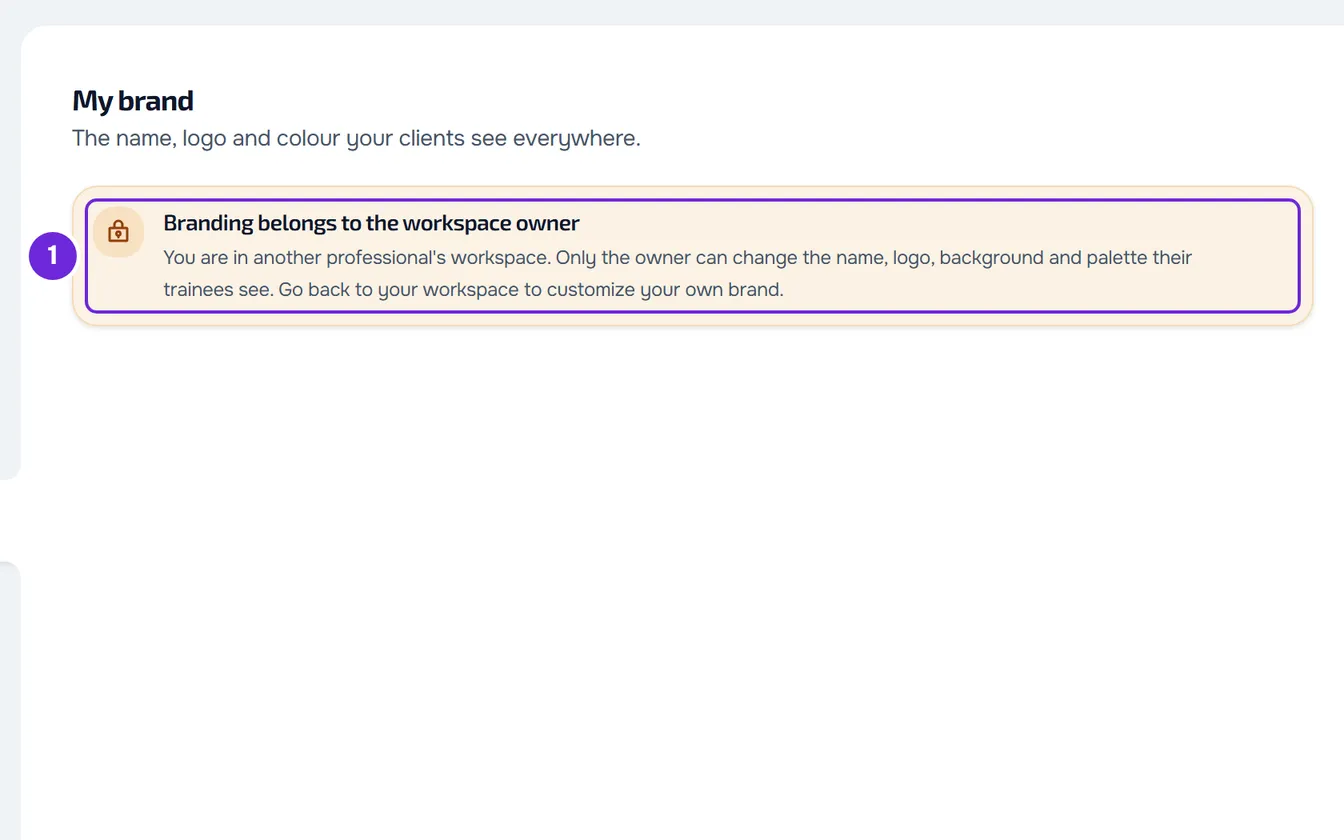
To change your brand:
- At the top of the sidebar, open the workspace switcher and choose Personal workspace.
- Open Settings: on a computer, in the menu that opens from your name in the sidebar; on a phone, in the side menu.
- Under YOUR BUSINESS (on a phone, BUSINESS), select My brand.
- Make the changes you want.
- Select Save in the bar at the top of the section.
“Brand saved and applied to the trainee app.” appears.
The new brand doesn't reach clients
| Cause | What to do |
|---|---|
| The changes weren't saved. The logo and the background image are stored as soon as they finish uploading. The name, the main color, the base theme, the colors in Fine-tune colors, the icon, and the fit and transparency of the background image only apply with Save. While something is still unsaved, the bar at the top of My brand shows the pending changes instead of Saved. | Select Save in the top bar. “Brand saved and applied to the trainee app.” appears. |
| You're in another professional's workspace. | See the previous section. |
| The client already had the app open. | Wait a minute or two: the client app, in the browser and on the phone, reads the brand again on its own while it's open. |
| The icon on the client's home screen hasn't changed. | Anyone who installed the app from the browser before the change keeps the old icon for a while: on Android it usually updates on its own after a day or two; on iPhone it only changes if the client removes the app from the home screen and installs it again. The MyFitnessClient app from the stores always shows the MyFitnessClient icon; inside it, the logo follows your brand. |
The logo or background image won't upload
The logo and the background image accept JPEG, PNG or WebP images, up to 25 MB each. SVG and ICO are rejected. When an upload fails, the message appears next to the logo or the background image and in a temporary notice.
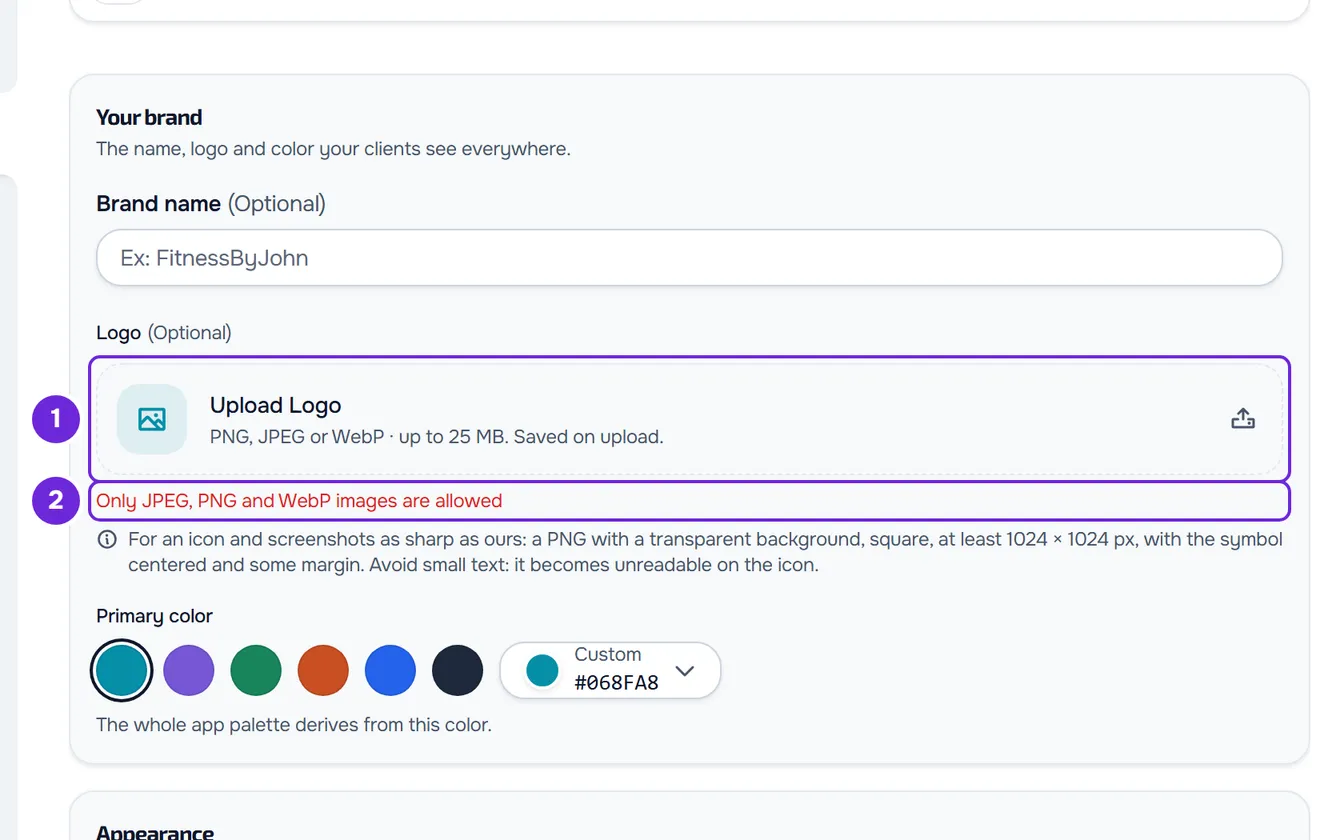
| Message | Cause | What to do |
|---|---|---|
| “Only JPEG, PNG and WebP images are allowed” | The file chosen for the logo isn't an image, or it's SVG or ICO. | Export the logo as PNG, JPEG or WebP and upload it again. |
| “Choose a JPEG, PNG or WebP image” | The file chosen for the background image isn't an image, or it's SVG. | Choose a JPEG, PNG or WebP image. |
| “The image must be 25 MB or smaller” | The background image is larger than 25 MB. | Reduce the image to 25 MB or less and upload it again. |
| “This file type is not supported here.” | The file's content isn't in an image format the server accepts, for example BMP, TIFF or ICO. | Export the image as PNG, JPEG or WebP. |
| “Invalid image.” | The server couldn't read the image: the file is damaged or the server can't convert it. | Open the image in an editor, export it again as PNG or JPEG and upload the new file. |
| “Failed to upload logo”, “Failed to upload background image” or “Connection error.” | The upload didn't finish, for example because there was no connection. | Check your internet connection and upload the file again. |
| “Too many requests. Wait a moment.” | You made many logo and background image uploads and removals within the same minute. | Wait a minute and try again. |
| “The file was in CMYK (a print format). Colors necessarily change on the way to a screen. If you have the RGB version of the logo, upload that one instead.” | The logo was saved, but it came in a color format meant for print, and the colors change on the way to a screen. | Ask whoever designed the logo for the RGB version and upload it. |
“Review the highlighted color contrast before saving.”
It appears when you select Save and two colors in the app palette don't have enough contrast with each other, for example light text on a light background. Nothing is saved.
The Fine-tune colors row, in the Appearance card, opens on its own at the first color with a problem. Each highlighted color has a red outline and a sentence with the contrast it has and the minimum. Change those colors until the editor says “Contrast valid in this mode” and select Save again. If you edit the dark theme separately, the Light theme and Dark theme tabs show a number when they have colors to fix.
“We could not load the brand customization.”
It appears in My brand, in place of the editor, when your brand can't be read, for example because there's no connection. Select Try again. If you're in a team's workspace, go back to Personal workspace.
Saving or removing shows an error
When you select Save, or remove the logo or the background image, and the request fails, nothing changes in what your clients see and the changes you haven't saved yet stay on screen. The notice gives the cause:
- “Connection error.”: there's no internet connection or the server didn't respond.
- “Server error.”: the server failed to save.
- “Error saving branding settings”: saving failed for another reason.
Check your connection and try again.
“Save before leaving?”
It appears when you leave My brand with unsaved changes, to go to another section of Settings or to another page. Save and leave saves and moves on; Discard leaves and loses those changes. If saving fails, for example because of the contrast, the window closes and you stay in My brand with the error notice. To keep editing, close the window.
Other problems in Settings
- Your public profile doesn't appear in the directory: My profile doesn't show in the directory or says “Hidden by the team” and “This profile is not available”: your public profile doesn't appear.
- Google Calendar, in Integrations, says Connection expired: Common Calendar problems and how to fix them.
- Language and theme: Change your account language and Change the theme: light, dark or system mode.
- Account security: Turn on two-factor authentication (2FA) and View and end the open sessions on your account.
- Subscription: Subscription problems: payment, plan and billing.
- Closing the account: Close your professional account and Cancel your account closure.
- Your data in a file: Request an export of your data and your clients' data.
- Emails that don't arrive: The invitation or notification email does not arrive.
If this did not solve it
Contact support (Contact Support and create a request) and send your account email, the Settings section you're in, the exact message on screen and whether you're in Personal workspace or in a team's workspace. For an upload problem, also give the file's format and size.