
Before you start
- Only the workspace owner can change this rule. In a team workspace, a member doesn't see the Settings tab in Payments.
- The rule that applies to each client is the one in their plan. The one in Settings is the default rule: it applies to clients without a plan and to monthly fees where you didn't choose another rule.
- If you've never changed these settings, the rule is Stays the same and the grace period is 7 days.
- With more active clients than your plan allows, MyFitnessClient doesn't save the change: see You have more active clients than your plan allows.
Steps
To choose the default rule and grace period:
- In the side menu, under Management, select Payments.
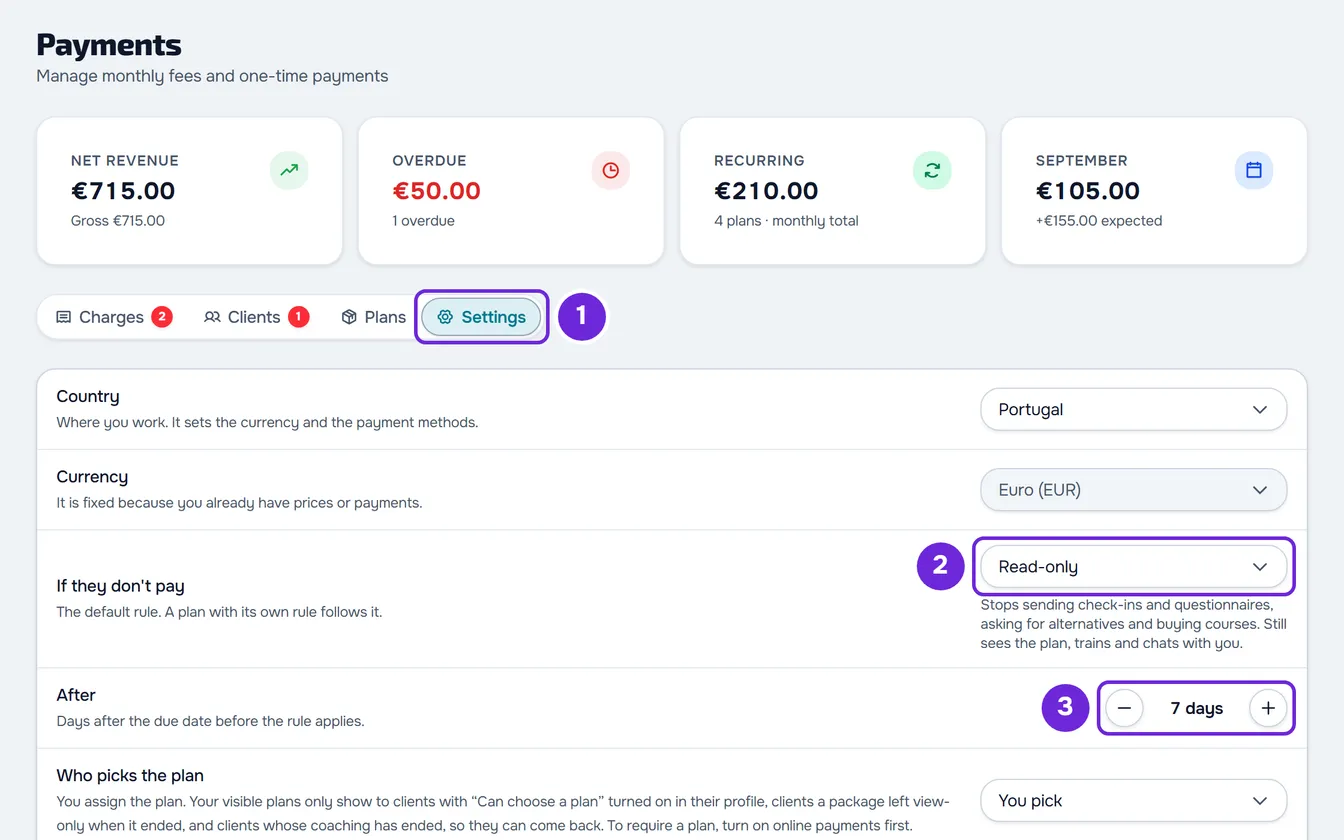
- Select the Settings 1 tab.
- On a narrow screen, select the If they don't pay row: the rule and the grace period open in a window.
- Under If they don't pay 2, open the list and choose Stays the same, Read-only or No access.
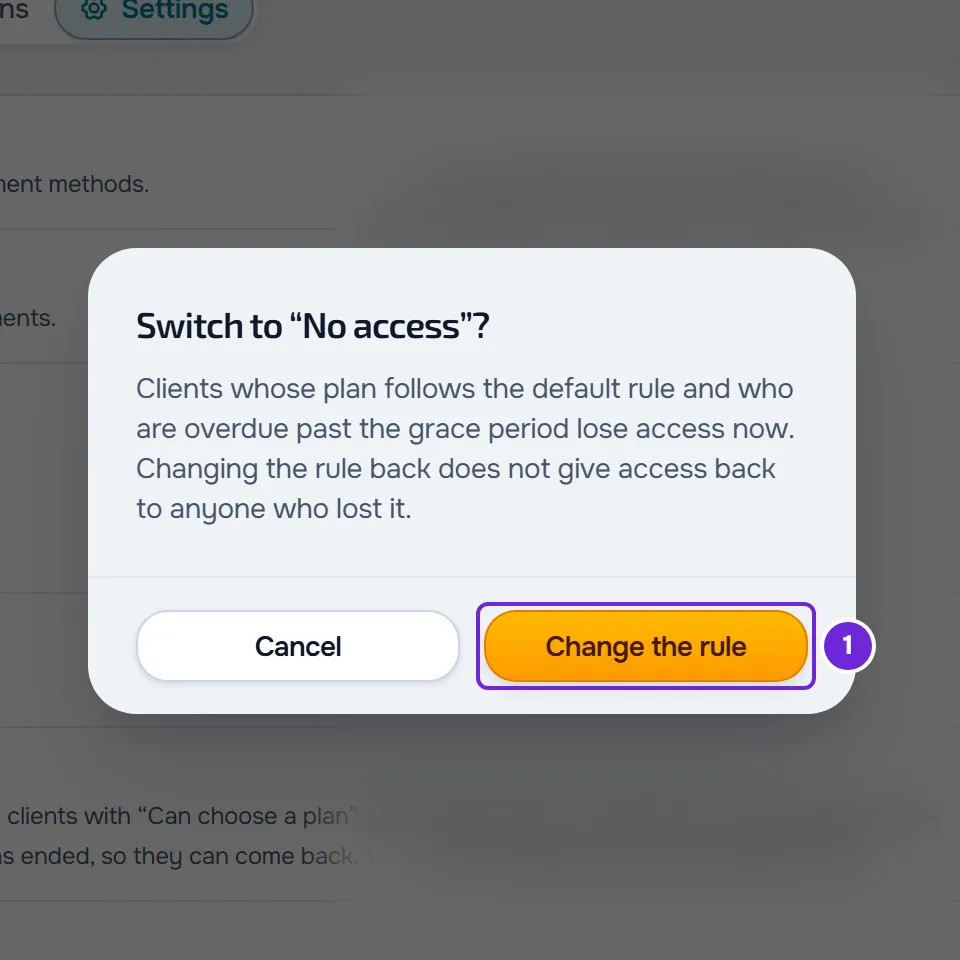
- If you chose No access, read the “Switch to ‘No access’?” window and select Change the rule 1.
- Under After 3, use the − and + buttons to choose how many grace days you give after the due date, from 1 to 90. The rule takes effect on the day after the last grace day.
- If you are lowering the days, the “Shorten the grace period?” window opens before the number changes: select Save.
There is no button to save the page: the rule is saved as soon as you choose it, and the days less than a second after the last change, even if you leave the page right away. The sentence under the list then explains the chosen rule.
The three rules
The grace period is counted in days after the charge's due date, in your time zone. When it passes without the payment recorded:
| Rule | Sentence on screen | What happens to the client |
|---|---|---|
| Stays the same | “Nothing changes in the app. The charge stays overdue.” | Nothing changes for the client. The charge stays overdue until it is paid. |
| Read-only | “Stops sending check-ins and questionnaires, asking for alternatives and buying courses. Still sees the plan, trains and chats with you.” | Sending, editing and deleting check-ins, answering questionnaires, asking for food and exercise alternatives, and viewing and buying your courses they don't have yet are paused. The client still sees what you gave them, logs workouts, meals and habits and chats with you. Everything comes back when the overdue payments are recorded. |
| No access | “Coaching stays closed until they pay.” | Access to coaching ends and Home shows “Coaching ended”. The chat with you stays open. |
For example, with Read-only and 7 days, a charge due on the 1st pauses the client on the 9th. With No access, the 8th is the last day with access and coaching closes on the 9th.
Which payments count
- With a plan, the charges of the client's plan count. Monthly fees under Extras, next to the plan, don't count, and one-off charges never count.
- Without a plan, the charges of the client's monthly fees count, never the one-off ones. Here No access works like Read-only: the client is paused but doesn't lose access.
- A charge the client marked as paid keeps counting until you confirm the payment: see Confirm or reject a client's “I've paid”.
- With Read-only, a plan with active automatic payment never pauses the client, even when a payment fails and is retried. If that plan's subscription has ended, or if the plan is still waiting for the first online payment, the client's monthly fees count, as without a plan.
- If you deleted a monthly fee, its charges no longer pause the client, even if they remain unpaid.
- For a pack that's already paid, with Read-only the client is paused when the pack's days ended more days ago than the grace period, even with nothing owed. With No access, access ends on the last day of the pack, with no grace period.
The rule of a single plan
Each plan can have its own rule and grace period, which take precedence over the ones in Settings:
- In a catalog plan's form, and under Custom when you give a plan to one client only, choose the rule under If they don't pay. With Read-only or No access, the After field also appears, from 0 to 90 days. Left empty, it uses the grace period from Settings; 0 means no grace period.
- For a monthly fee, as long as you don't touch If they don't pay, the plan follows the rule in Settings, even when you change it later. A pack always comes with No access, unless you choose another one.
- Changing the rule of a catalog plan only applies to whoever receives it from now on. The steps are in Create recurring plans and packs for clients and, for a custom plan, in Change a client's plan.
To see the rule that applies to a client with a plan, open their profile in the Payments tab: the plan card says, for example, “If unpaid, no access after 7 days”, with “(default)” when it comes from Settings. While the client is paused with Read-only, the card shows the “View only since” badge and the date.
Change the rule later
- Switching the default rule to No access takes effect right away: clients with a plan that follows the default rule and with payments overdue past the grace period lose access at that moment.
- Going back to Stays the same or Read-only doesn't give access back to anyone who already lost it.
- With fewer grace days, clients who use the grace period from Settings and have an overdue payment are paused or lose access sooner, and anyone already past the new number of days is affected immediately.
- A Read-only pause ends as soon as the client's rule is no longer that one or the grace period covers the delay.
What the client sees
- With Read-only and a grace period of 1 day or more, the notice of a new charge that counts toward the pause says by which day they can pay it before check-ins and questionnaires are blocked: the due date plus the grace period. On the day the pause starts because of an overdue charge, they receive the “Access limited” notice once.
- On the web, during the pause, Home shows the “View only” card.
- With No access, Home warns before access ends and, when it ends, shows “Coaching ended”.
The client's side is in Payment overdue: what is paused and how to settle it.
Common problems
“Couldn't save. Try again.”
The change wasn't saved, and Settings shows the saved rule and days again. Choose again. If another message appears, that message gives the cause.
“Couldn't load the rule.”
Settings couldn't read the saved rule. On a narrow screen, the message appears in the window of the If they don't pay row; on a wide screen, the row only shows the Try again button and the − and + buttons are disabled. Select Try again.
The client paid and is still restricted
One of the causes is that the payment is waiting for confirmation: while the client has marked it as paid and you haven't confirmed it, it still counts as debt. The other causes are in Common charge problems and how to fix them.
If that didn't solve it, contact support with the exact message, the rule and days you chose and the due date of the overdue charge.
Questions
With Read-only, does the client stop seeing their workouts?
No. Only what creates new work for you is paused. The client still sees what you gave them and logs what they do.
Can I set the grace period to 0 days?
Not in Settings: the default grace period goes from 1 to 90 days. In a plan, yes: type 0 in the plan's After field.
Does changing the default rule affect plans I've already given?
Only those that follow the default rule: the monthly fees where you didn't choose another rule. A plan with its own rule follows its own.