
Before you start
- Only the workspace owner edits charges. In a team workspace, members do not see Edit, whatever permission they have in Payments.
- Only manually created charges can be edited: one-off charges, monthly fees and packs. A charge paid online, the invoices of automatic subscriptions and course sales have no Edit, because their amounts come from Stripe.
- A To confirm charge, where the client said they have already paid, has no Status field. Confirm or reject it in Review request: see Confirm or reject a client's “I've paid”.
- With more active clients than your plan allows, saving is refused with “You have more active clients than your plan allows. Choose which to keep or upgrade your plan.” See You have more active clients than your plan allows.
Steps
To edit a charge:
- In the side menu, in the Management section, select Payments. The page opens on the Charges tab.
- On the charge's row, select ⋮ or right-click the row and choose Edit. The Edit Payment window opens for a one-off charge, or Edit charge for a monthly fee or a pack.
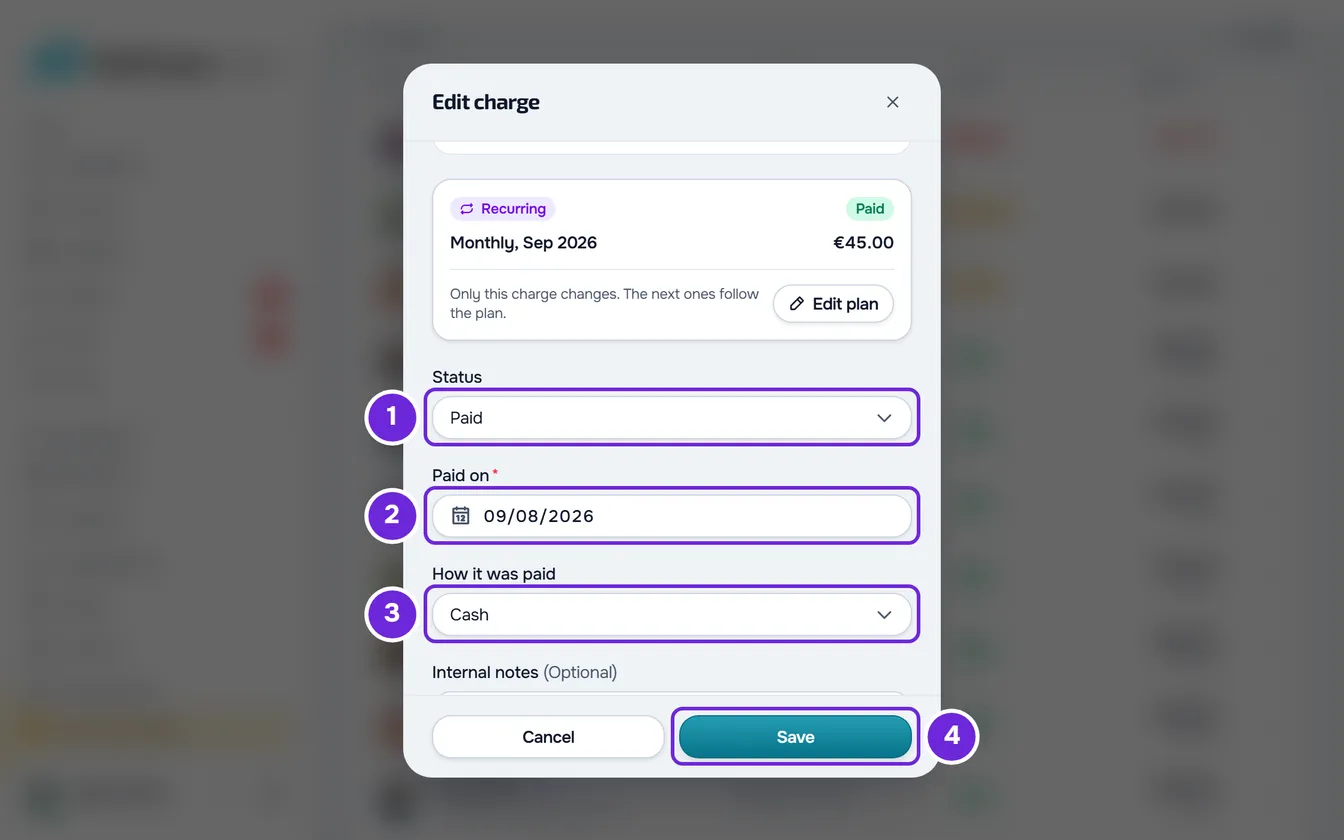
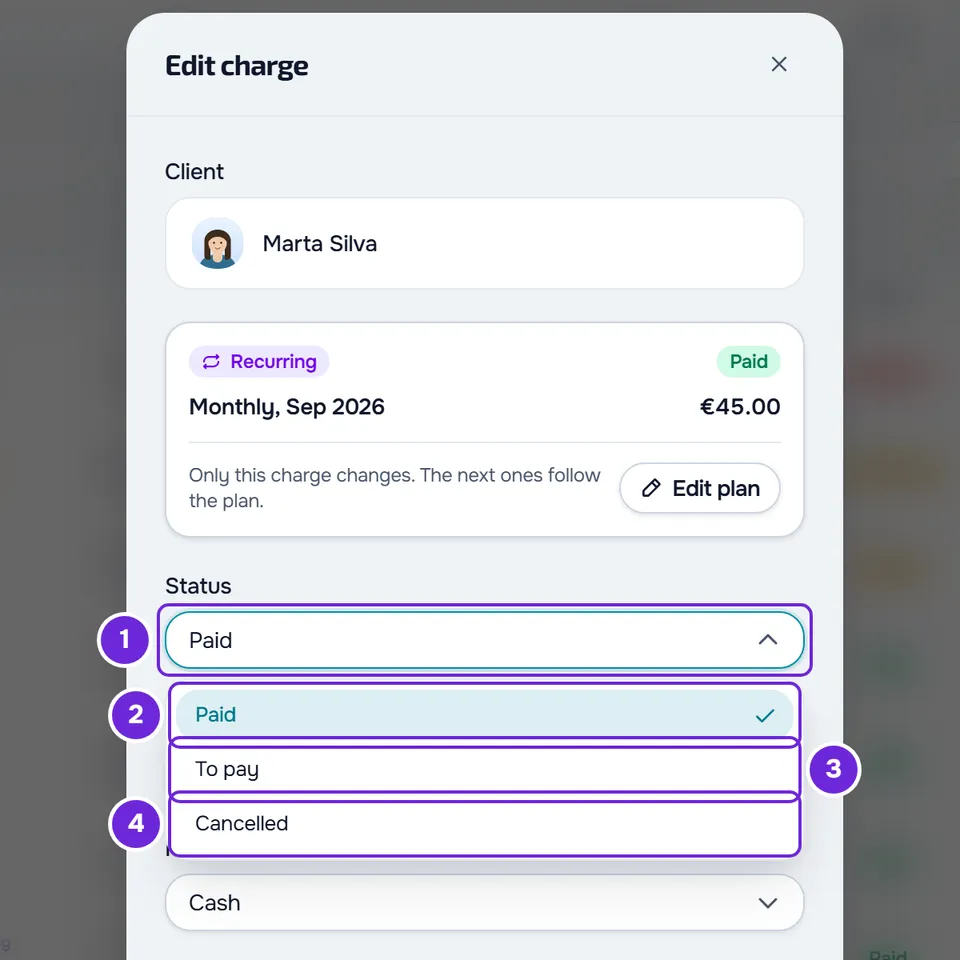
- Optional: to change the charge's status, in Status 1, choose To pay 3, Paid 2 or Cancelled 4. The window's fields change with the status you choose.
- Correct the fields the window shows, for example the Amount and the Due date of an unpaid charge, or Paid on 2 and How it was paid 3 of a paid charge.
- Select Save 4.
“Payment updated” appears, the window closes and the list updates. The client now sees the charge with the new amount, due date or description. If you did not change anything, Save only closes the window.
If you close the window with unsaved changes, even if the only change is to Status, “Save before leaving?” appears: Discard closes without saving and Save and leave saves.
You can also open Edit from the details of a paid or cancelled charge, which open when you select its row, and from the client's profile: on the Payments tab, the History section is the same list, with only that client's charges.
What each status lets you change
The window's fields depend on the status chosen in Status and on the type of charge:
| Status | Fields you can change |
|---|---|
| To pay | Amount (for a monthly fee or a pack, Amount of this charge), Due date, Description and Modality (only on one-off charges) and Internal notes. |
| Paid | Paid on, How it was paid, Description and Modality (only on one-off charges) and Internal notes. On a one-off charge that is already paid, Amount appears locked. |
| Cancelled | Only Internal notes. |
| To confirm, without the Status field | The same fields as To pay. |
| Already cancelled: Status says Cancelled, with no choice | Only Internal notes. |
- An overdue charge appears in Status as To pay: the overdue state comes from the due date.
- On a paid charge, To pay undoes the payment. It does not appear when the charge belongs to a cancelled plan: see Undo a payment marked by mistake (back to To pay).
- For a monthly fee or a pack, the window shows a summary with the charge's type, status and description, and the sentence “Only this charge changes. The next ones follow the plan.” (for a pack, “Only this charge changes.”). The description comes from the plan and cannot be edited, and there is no Modality. To change the plan itself, select Edit plan: it opens the client's payments, with their plan.
- On a charge that is not paid, the trash icon, next to Cancel, deletes it after you confirm: see Cancel or delete charges, one at a time or in bulk.
Change an unpaid charge to paid
In Status, choose Paid. Amount and Due date leave the window, and Paid on appears, set to today, along with How it was paid, with Transfer, Cash, Card and Other, plus MB Way and Multibanco if your workspace is in Portugal. The Paid on calendar does not go past today.
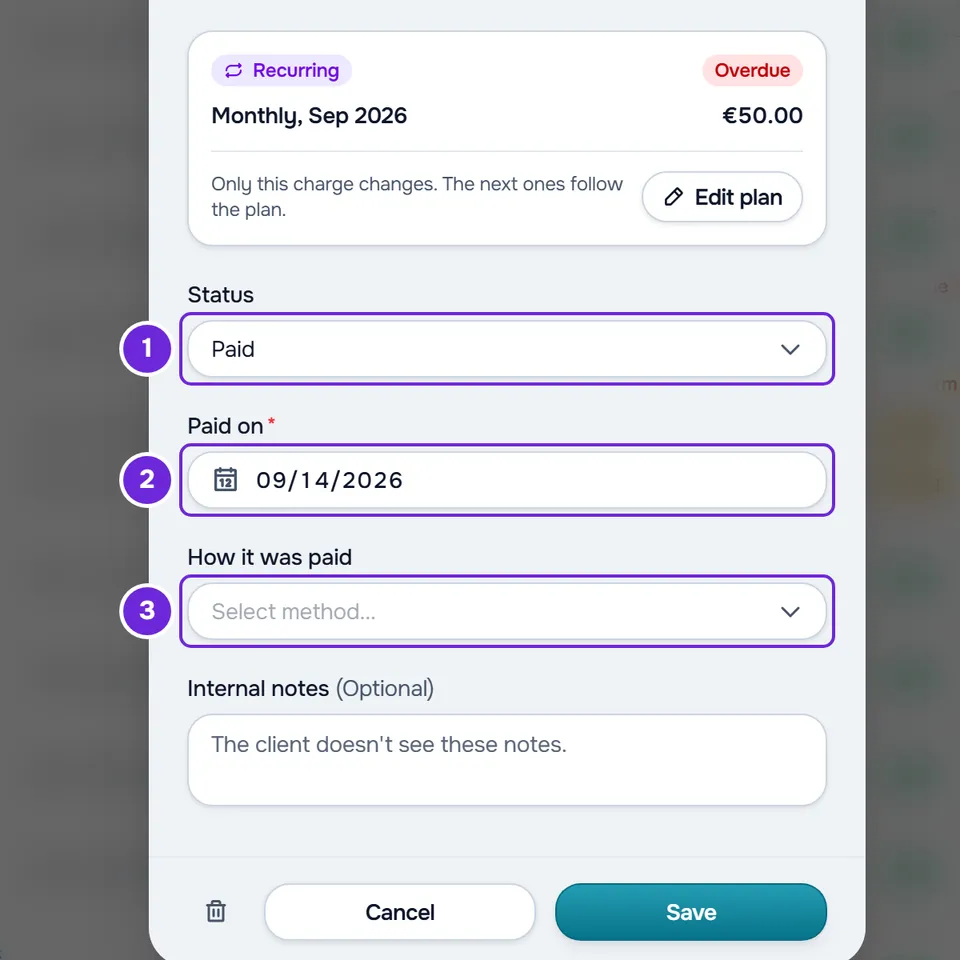
If the method or the day is missing, the window shows both errors at once: “Choose a payment method.” under How it was paid and “Choose the payment date.” under Paid on. A future day gives “The date cannot be in the future.”
When you save, the charge becomes paid as with Mark as paid: the client receives the notification “Payment confirmed” and, for a monthly fee, the plan moves on to the next cycle. See Mark a charge as paid.
- What you typed in Amount or Due date before choosing Paid is not saved: the charge becomes paid with the amount and due date it had. To change the amount, first save with To pay and only then mark the charge as paid.
- The description, the modality and the notes are saved before the payment. If the payment is refused, the window stays open with the error, those changes have already been saved and the charge stays unpaid.
- The server counts today's date in your account's time zone. Close to midnight, the day on your computer may not have arrived yet in that time zone: “The date cannot be in the future.” appears under Paid on, and you fix it by choosing the previous day.
Correct the day or method of a paid charge
Open Edit on a paid charge. Status shows Paid, Paid on has the saved day and How it was paid the method. Change what is wrong and select Save. The client does not receive any notification.
For a pack, the access days now count from the corrected day. The exception is a pack whose days did not start on the payment day, for example because it was queued after another plan: that one stays as it was.
Cancel a charge, even one already paid
In Status, choose Cancelled and select Save. The charge shows as Cancelled in the list and the client does not receive any notification. Under the field, the window says what changes:
- On a paid charge: “It no longer counts as received.” If the charge belongs to a plan whose If they don't pay rule cuts or limits access, it adds “Without this payment, they lose access to the app.” or “Without this payment, they can only see what they already have.”
- On an unpaid charge: “It is marked as cancelled and no longer counts as unpaid.” It is the same as Cancel charge in the ⋮ menu: see Cancel or delete charges, one at a time or in bulk.
Change the due date
Due date only appears with the To pay status, including on overdue charges and on To confirm ones. The calendar accepts any day, with no limit backwards or forwards: a day in the past makes an unpaid charge show as Overdue in the list. On a charge from the client's plan, the due date is also what counts for what happens when they do not pay: see Choose what happens when a client does not pay.
On a monthly fee charge:
- The generated description follows the new due date: it shows the month in a plan billed by months or years, and the day in a plan billed by weeks or days.
- Two charges of the same plan cannot be due on the same day, even if the other one is paid or cancelled. If you choose a day that is taken, the window stays open with “This plan already has a charge due on that date. Choose another date.”
- If the charge is the one for the current cycle of an active plan, the plan follows the change. In a plan with a cycle in weeks or days, the next charge counts from the new due date.
- Example in a monthly plan that charges on the 1st, with the 1 August charge open: moving it to 5 August leaves the next one on 1 September. Moving it to 3 September leaves the next one on 1 October for a monthly fee given with Give plan; for a charge in the Extras section of the client's profile, the plan starts charging on the 3rd and the next one falls on 3 October.
What the window saves
- Only what you changed. Changing only Internal notes does not touch anything the client sees, nor an online payment they may have started.
- If the client started paying the charge online and did not finish, changing the amount, the due date, the description or the status cancels that payment, and they have to start it again.
- Description: up to 255 characters. The client sees it as the charge's name.
- Internal notes: up to 2000 characters. The client does not see them.
- Amount: greater than 0, with the limits of a new charge (see Create a one-off charge for a client). With the field empty or at 0, Save does not save.
Common problems
“This payment changed in the meantime. Reload and try again.”
The charge changed at the same moment you were saving: another change, or an online payment from the client, got there first. Close the window, reload the page and open Edit again.
If the charge changed status after you opened the window, for example because a team member marked it as paid, changing the amount gives “This is no longer possible in the current state. Reload the page and check.” and choosing Paid gives “This action is no longer possible in this state.” The fix is the same.
“An online payment is in progress. Wait a few minutes and try again.”
The client has already completed the online payment for this charge and the confirmation has not arrived yet, or that payment could not be verified in Stripe. Wait a few minutes and open the list again. If the payment arrives, the charge becomes paid online and no longer has Edit; saving, with the window still open, a change that is not only to the notes or the modality gives “The amounts of an online payment come from Stripe and cannot be edited by hand.”
“This plan already has a charge due on that date. Choose another date.”
The new due date is already the day of another charge of the same plan, whether paid, cancelled or unpaid. Choose another day and select Save.
The To pay option does not appear in Status
The paid charge belongs to a cancelled plan, or it is the only paid charge of a stopped monthly fee: setting it back to unpaid would cancel the plan. If this changed after the list loaded, saving gives “This charge belongs to a plan that has ended, so it can't go back to unpaid.” With To pay chosen, saving is also refused with “This client already has a plan awaiting payment.” when the client already has another plan awaiting payment. See Undo a payment marked by mistake (back to To pay).
For other problems, see Common charge problems and how to fix them. If that did not solve it, contact support with the client's name, the charge's due date and the exact message that appeared.
Questions
Can I change the amount of a paid charge?
Not directly: the amount is locked. In Status, choose To pay: Amount and Due date become editable again and are saved at the same time. Then mark the charge as paid again. See Undo a payment marked by mistake (back to To pay).
Does changing the amount here change the plan's price?
No. For a monthly fee or a pack, Edit changes only this charge. For the next ones, see Change a client's plan or Change a plan's price for new or all clients.
Can I change the description of a monthly fee?
No. For a monthly fee or a pack, the description comes from the plan. Only one-off charges have the Description field.
Is the client notified when I edit a charge?
Only when you change it to Paid: they receive “Payment confirmed”. For other changes they receive no notification, but they see the updated charge in their payments.