
Before you start
- You can choose clients with the Active or Scheduled status (access opens on a future day). With the Pending, Ended or Archived status, the client does not appear on the list.
- A client has only one meal plan of yours at a time: assigning this plan takes them off any other meal plan in your workspace, in the same operation.
- In a team workspace, you need the Nutrition > Edit permission and, for the client list to appear, Clients > View. Without the edit permission, the plan opens read-only and the clients chip does not open the assignment window. A member only sees and assigns the clients they have access to.
Interactive tutorial
Opens in the app and needs you to be signed in.
Steps
To assign a meal plan to one or more clients:
- In the side menu, select Nutrition and open the plan.
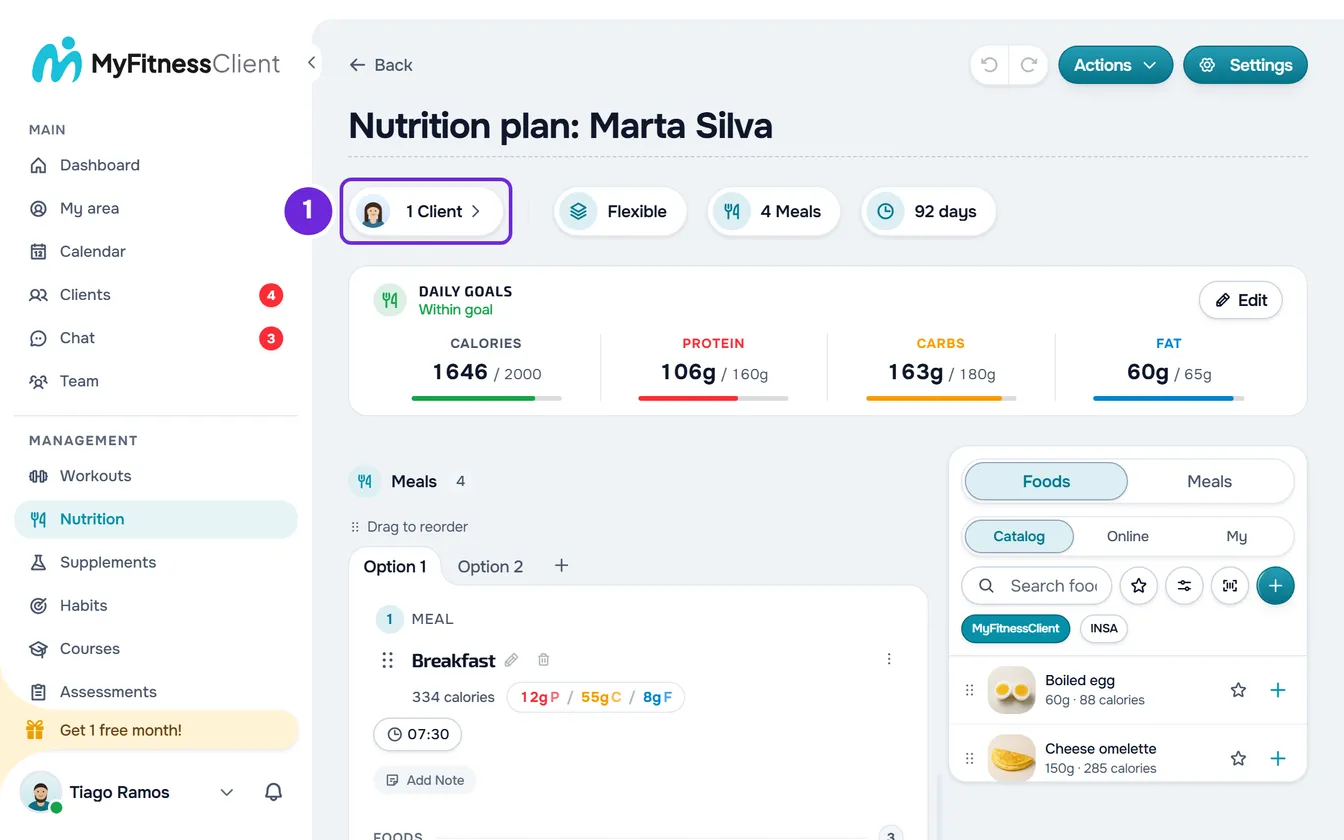
- Under the plan name, select the Assign to Client chip 1. If the plan already has clients, the chip shows how many, for example “2 clients”. The Assign to clients window opens, with the caption “Pick one or more”.
- Optional: to find clients, type the name or nickname in Search clients... 1 or filter by the clients' tags, with the button next to the search 2. With several tags, only the clients who have all of them remain.
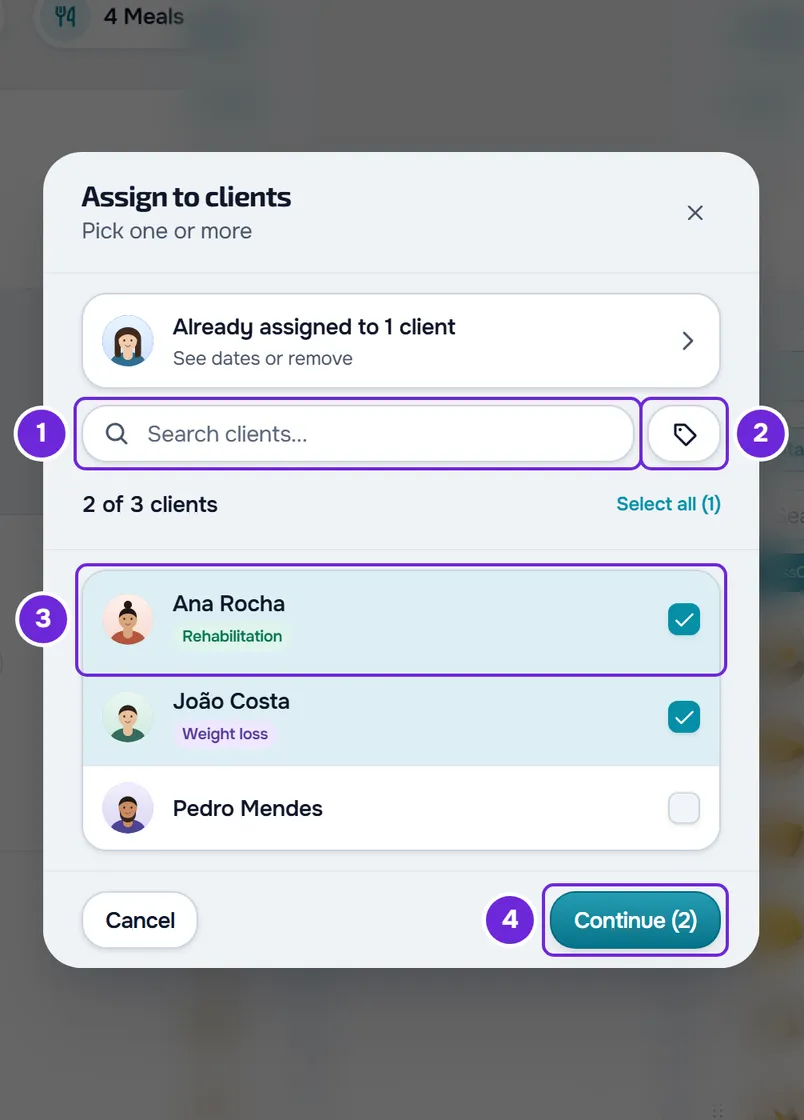
- Mark the clients 3 who will receive the plan. Select all marks every client the list shows, and the counter shows how many are marked, for example “3 of 12 clients”.
- Select the Continue button 4, which shows the number of marked clients in brackets.
- If a marked client already has another active meal plan, a warning appears: with a single client, the Active Nutrition Plan window, with the name of the plan they have; with several, the list of the clients who already have a plan, each with the name of theirs. Select Continue.
- In the “Set access dates” step, under Access dates, confirm the Start 1. It comes set to today or, if you marked a single client who is scheduled, to the day their access opens.
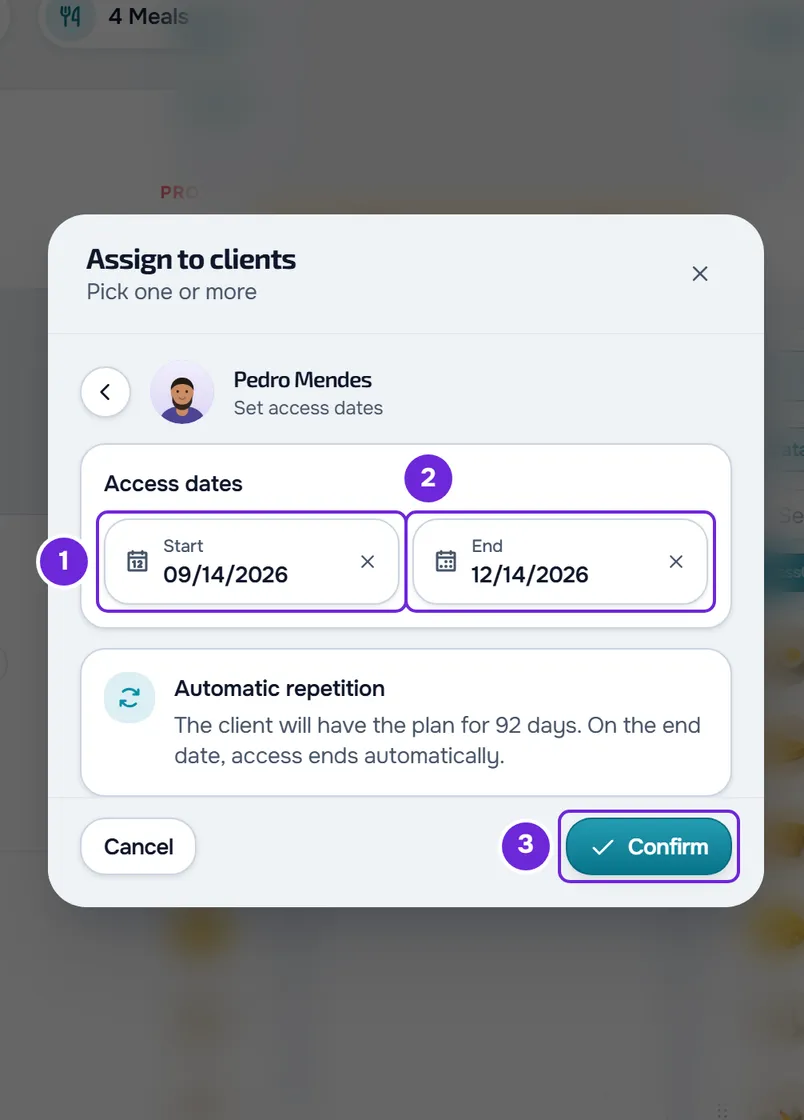
- Optional: choose or change the End 2. If the plan has a duration, the end comes filled in to cover it; with no date, the field says “No end” and the plan has no time limit. If the end goes past the end of the client's access, “The plan outlasts this client's access window.” appears (with several clients chosen, it says how many go past it, for example “The plan outlasts the access window of 3 clients.” or “The plan outlasts the access window of 1 client.”). It is only a warning and does not block the assignment; with a monthly plan that renews, it does not appear.
- Select Confirm 3. With several clients, the button also shows how many.
“Client assigned” appears or, with several clients, for example “3 clients assigned”. The window goes back to the list, which now opens with the row of those who already have the plan, and the plan's chip shows the number of clients.
What the client receives
- An Active client receives the “New meal plan” notification, with the name of the plan, and sees the plan on the Nutrition screen between the start and the end.
- A Scheduled client is only notified when their access opens. The plan never starts before that day, even if you choose an earlier start.
- If the client's monthly plan or pack does not include Nutrition, the plan stays assigned, but the client is not notified and does not see the Nutrition section.
- The client leaves the meal plan they had before. The meal logs they have already made are kept.
- Restricted mode is not chosen here. A client who had no meal plan yet starts with it off; a client who comes from another plan, or already had this one, keeps it as it was. To turn it on, open Settings on the client's profile and turn on Restricted mode (nutrition).
What the client sees each day, depending on the plan's mode, is in What the client sees and gets from the meal plan.
Choose the dates
The dates set when the plan applies to the client. With several clients, the same dates apply to all of them.
- Start: the calendar does not let you choose past days. Outside Calendar mode, you can remove the date with the field's X: the field says “Right away” and the plan starts immediately.
- End: it is optional and cannot be earlier than the start. To remove it, use the field's X. If you move the start to after the end, the end is cleared and you choose another one.
- Automatic repetition: the card explains what the dates mean. Depending on the plan's mode and duration, it says for how many days the client has the plan, how many times they complete it, whether it runs only once or, with no end date, that it stays active with no time limit. There is no other repetition option: the plan goes back to the start on its own for as long as the dates last.
- If you close the window with the dates changed, “Save before leaving?” appears, with Discard and Save and leave.
To change the dates of a single client later, see Change dates, split off or remove a client from a meal plan.
Common problems
“All your clients are already assigned.”
Clients who already have this plan do not appear on the list to choose from. To see who has it, change the dates or take someone off the plan, select the “See dates or remove” row, at the top of the window.
A client does not appear on the list
One of these causes:
- The client is Pending: they appear once the coaching becomes active.
- The client is Ended or Archived: the coaching is closed and you have to reactivate it on the client's profile.
- The search or the tags leave them out: the list says “No client found”. Clear the search and the tags.
- The window says “No clients available.”: you do not have any active or scheduled client yet.
I search for the client's name in the plan list and their plan does not appear
The Meal Plans search only looks in the plan name. To find out which plan a client has, open their profile on the Nutrition tab, as in Assign a meal plan to a client from their profile. In the plan list, under Filters, choose With client in the Client group to see only the plans that have clients, with the photos and the number of clients of each one.
“You have more active clients than your plan allows. Choose which to keep or upgrade your plan.”
While you have more active clients than the limit, you can only view and the assignment is not made. See You have more active clients than your plan allows.
If this did not solve it, contact support with the plan's name, the clients' names and the exact message that appeared.
Questions
Can a client have two meal plans at the same time?
No. Assigning a plan takes the client off all the other meal plans in your workspace, in the same operation. The active plan warning is only there so you know before continuing.
How many clients can I choose at once?
Up to 500 per assignment; with more, assign in several rounds. The other limits are in Meal plan limits.
Do the clients see the changes I make to the plan later?
Yes. The plan is shared: what you change in the editor reaches every client who has it. To change the plan for one client only, create a separate plan for them, as in Change dates, split off or remove a client from a meal plan.