
Interactive tutorial
Opens in the app and needs you to be signed in.
This happens when the files in your account take up more space than your plan allows, for example after you move to a plan with less space. While the limit is exceeded, file uploads are refused, both yours and your clients'. Nothing is deleted because of the limit: existing files still open and clients still see the materials you shared with them.
Where the notice appears
| Where | What it shows | Who sees it |
|---|---|---|
| On the Materials page, under the Storage card | The red notice Storage limit exceeded, with the space you use, the plan limit and how much you need to delete, for example “You're using 12.4 GB but the plan only allows 10 GB. Delete at least 2.4 GB worth of files to resume uploading.” It has the Download all button. | Whoever opens Materials: the account owner and team members with access. |
| At the top of every dashboard page | A red banner, for example “You're using 12.4 GB but your plan only allows 10 GB. Free up space now.” The Manage Storage button opens Materials. | Only the account owner. The banner does not appear while a more urgent one is showing: too many clients for the plan, a dispute or a failed payment. |
| In the notification bell and, if you have them turned on, in a push notification | “Your file storage is full”, when a client or a team member tries to send a file and cannot. Opening it takes you to the subscription. | Only the account owner. At most one every 24 hours, with no email. |
| In Settings > Subscription, on the Storage card | The red ring and the note “Plan limit reached. Delete files to resume uploading.” | Only the account owner. |
If a larger file is refused within those 24 hours, the same notification becomes unread again, with no new push notification. It is marked as read on its own when you open the dashboard with free space already available for that file.
Why it happens
There is one space for the whole account, and the limit comes from your plan. It counts the files in Materials and everything MyFitnessClient stores elsewhere, for example chat attachments, photos and videos from check-ins and assessments, files from exercises, foods, questionnaires and courses, and attachments in workout notes. Files that clients send use your space, and a team's files use the owner's space.
Every upload is checked before it goes in: a file that does not fit in the free space is refused. So the usual case for this notice is the limit dropping to less than you already use, when you move to a plan with less space. See Downgrade your plan and confirm the scheduled change.
When the space is almost full, the notice does not appear, but a file larger than the free space is refused with the same messages. The solution is the same.
What is refused
- Your file uploads. In Materials you see “You have reached your plan storage limit.”
- Your clients' uploads, for example chat attachments and check-in photos. The client sees “Your professional's file storage is full. We've let them know.”
- Your team members' uploads. The member sees “The team's file storage is full. We've let the team owner know.”
- Creating a page in Materials and saving changes to an existing page.
The other file upload messages are in Can't upload or attach a file.
Free up space
To get back within the limit, delete files until the notice disappears:
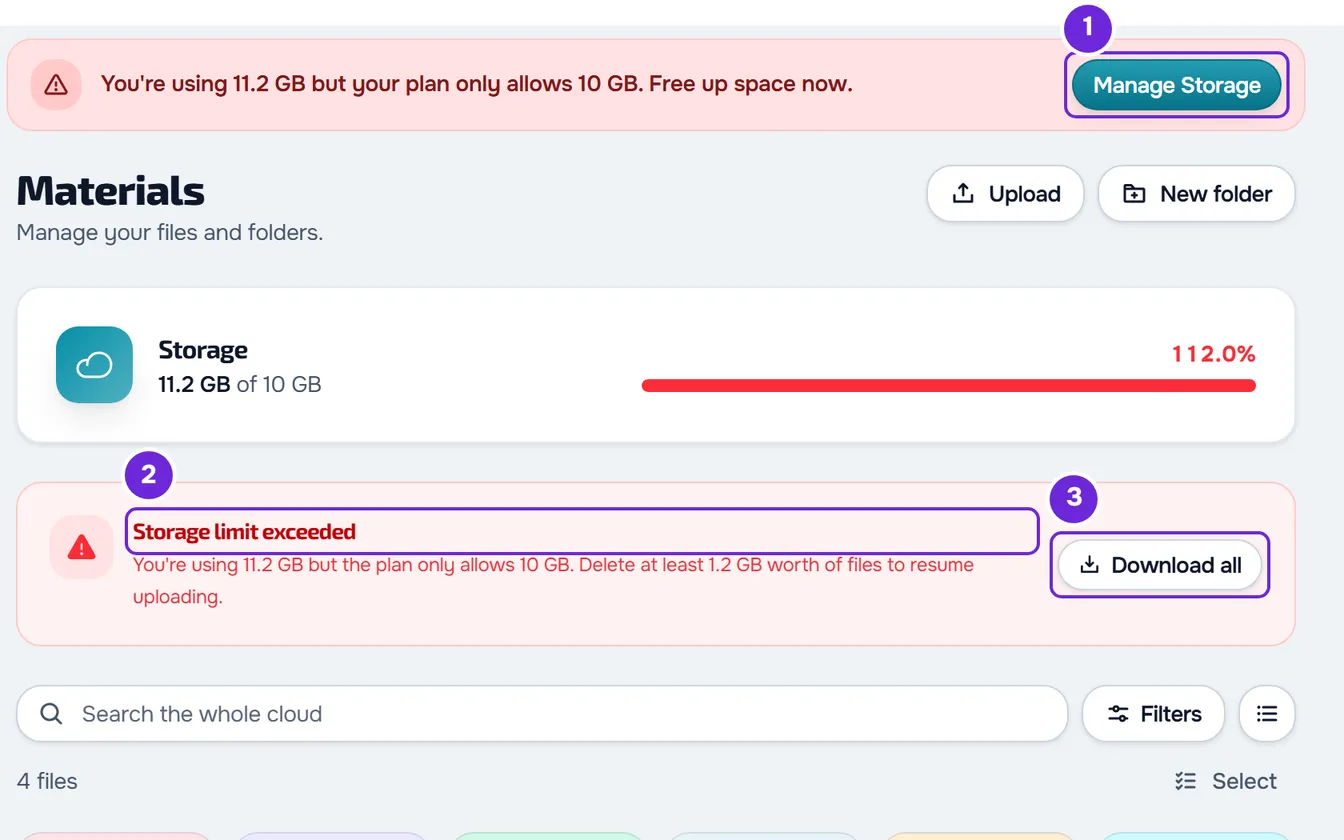
- In the side menu, select Materials. In the red banner at the top of the dashboard, the Manage Storage 1 button opens the same page.
- In the Storage limit exceeded 2 notice, read how much space you need to free up.
- Optional: to keep a copy of all the files on your computer before you delete, select Download all 3.
- Open a folder with the System badge, for example Chat or Check-ins. Each one gathers the files from one source, across all clients. The Clients folder has the same badge, but it holds each client's folders.
- Select Filters and, under Sort, choose Size. The largest files move to the start of the list.
- Select Select and tick the files you want to delete, up to 100 at a time.
- In the bar at the bottom of the screen, select Delete. A window opens that says, for each file, how many folders it is in and how many clients see it.
- In the window, select Delete. The files leave the list and the “Deleted” notice appears with the Undo button for 8 seconds.
The files are deleted when the “Deleted” notice closes, or as soon as you change folder or leave the page. After that, the Storage card updates on its own. Repeat steps 4 to 8 until the Storage limit exceeded notice disappears: from then on, uploads that fit in the free space are accepted again. To make the banner at the top of the dashboard disappear, reload the page.
On a narrow screen, the bar's actions are in the Options button. To delete a single file, open the file's ⋯ menu, or right-click it, and select Delete. Files in your own folders are deleted the same way.
Empty a system folder
To delete all the files in a system folder at once, for example all chat attachments:
- In Materials, open the folder with the System badge that you want to empty.
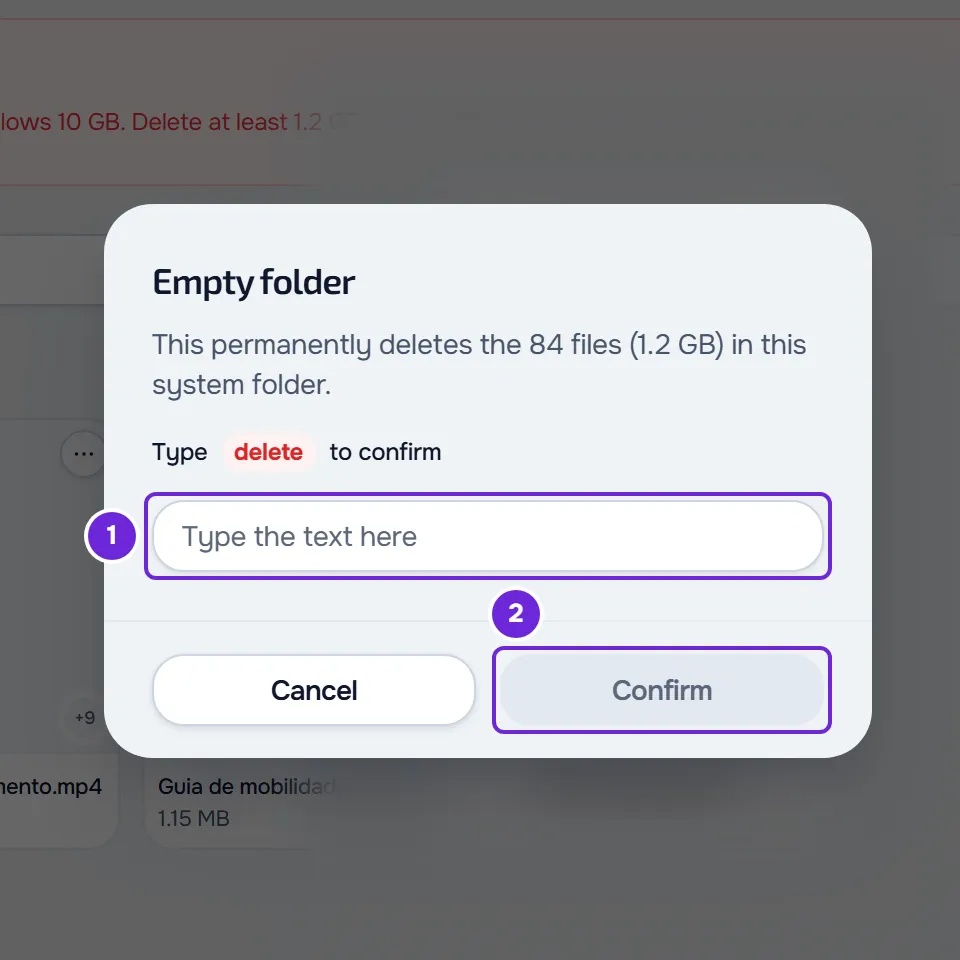
- Next to the folder title, select Empty. The Empty folder window says how many files will be deleted and how much space they take up.
- In the window's box 1, type
delete, in lowercase. The box does not accept pasted text. - Select Confirm 2.
The files are deleted in batches of 100 and, at the end, “Deleted” appears. If part of it fails, a notice says how many files were deleted and how many failed: repeat the steps to delete the remaining ones. Empty is permanent and has no Undo. The Clients folder does not have the Empty button.
Keep a copy with Download all
The Download all button only exists inside the Storage limit exceeded notice. It downloads every file in the account, one by one and without creating a ZIP, from all sources and not only those in Materials. Images inserted inside pages are left out.
- In browsers that let you choose a destination folder, such as Chrome and Edge on a computer, the browser asks for the folder and for permission to save to it. The files are saved one at a time, and repeated names get a number, for example
photo (1).jpg. Choose an empty folder: a file already there with the same name is replaced. Closing the folder picker cancels everything, with no notice. - In other browsers, such as Firefox and Safari, each file is a normal download, 0.3 seconds apart. The browser may ask for permission to download several files. A file that cannot be downloaded counts as failed, and MyFitnessClient tries to open it in a new tab.
“Starting downloads...” appears and, at the end, “Downloads complete”. If some files fail, the final notice says how many were downloaded and how many failed. If all of them fail, “Connection error” appears. To try again, select Download all once more: the download starts again from the first file.
If the notice stays or you cannot delete
I deleted files and the notice is still there
The notice says how much is left to free up: keep deleting until it disappears. Images inserted inside pages also take up space and do not appear in any list.
The notice is gone, but an upload is refused
The file has to fit in the free space. Besides the stored files, uploads still in progress count, for up to 2 hours when an upload is left unfinished, and so do deleted files that the storage has not yet confirmed as removed. Free up more space or try again later.
“Select up to 100 files at a time.”
It appears when you select more than 100 files and choose Delete or Move to folder in the bar: the window does not open and nothing changes. Select up to 100 files at a time, or use Empty.
“You have more active clients than your plan allows. Choose which to keep or upgrade your plan.”
The account is frozen because you have too many active clients for the plan. While it is, the Materials page opens read-only, with the notice “Read-only mode: you can view, download, and delete files, but you cannot upload or change folders.” Deleting files, with Select, from the ⋯ menu or with a right-click, and Empty keep working, so you can still free up space. Upload, New folder, the folders' ⋯ menu and the files' other actions don't appear, and pages open read-only. This message appears if you try another change, for example in a tab that was already open. To get everything back, resolve the client limit: see You have more active clients than your plan allows.
“You don't have permission to do this in this team.”
You are in a team's workspace and you do not have the Manage action in the Materials area, which is the one that lets you upload and delete files. Without it, Select, Upload, New folder and Empty do not appear, and the message only appears if the permission changed after you opened the page. Only the team owner changes permissions: see “No permission to access” and menu items missing for a member.
If you are a team member
The space is the team owner's. With access to Materials, you see the Storage card and the notice with the numbers of the owner's account. The banner at the top of the dashboard and the notification are only for the owner, and the owner's plan sets the limit. If you have access to only some clients, Download all downloads only the files you uploaded yourself.
Get more space instead of deleting
Instead of deleting files, you can move to a plan with more space: see Upgrade your plan and pay for your subscription. The space you use and the plan limit also appear in Settings > Subscription: see View your plan, what it includes and how much you use.
If your plan has no file storage
When your plan no longer includes Materials, for example because the subscription ended, the Materials page becomes read-only if you have files stored: at the top, the notice “Read-only mode: you can view, download, and delete files, but you cannot upload or change folders.” appears, with the button to upgrade to the cheapest plan that includes Materials (no button if the account is frozen). You can download and delete files and use Empty, but Upload and New folder don't appear. The Storage card shows 100%, because the plan's limit is 0, and the red notice does not appear. With no files stored, the page shows the plan's presentation. Your clients' uploads are refused with “Your professional's file storage is used up. We've let them know.” and you get the notification “Your plan has no file storage”. In this case, deleting files does not solve it: you need a plan that includes space. What happens to the files after the subscription ends is in Cancel your subscription and understand what happens next.
If this did not solve it
Contact support and send:
- your account email and the plan you are on;
- the space used and the limit that the Storage card shows;
- the exact text of the notice or message;
- what you deleted and when, and the day and time an upload was refused.