
Each section says when the problem happens, the cause and what to do, on the web and in the app. If the workout does not even appear in the list, see My workouts are missing or I see “Workout not found”.
Finishing and saving the workout
Finish is grayed out or “Complete at least one set before saving.” appears
A workout only saves with at least one working set marked as done. Warm-up sets (W) and feeder sets (Fs) do not count. On the web, until then the Finish button (in simple mode, Finish Workout) is grayed out and, if you select it, “Complete at least one set before saving.” appears. In the app, the button is not grayed out: when you select it, “Finish workout?” appears with the sentence “Mark at least one set as done.”.
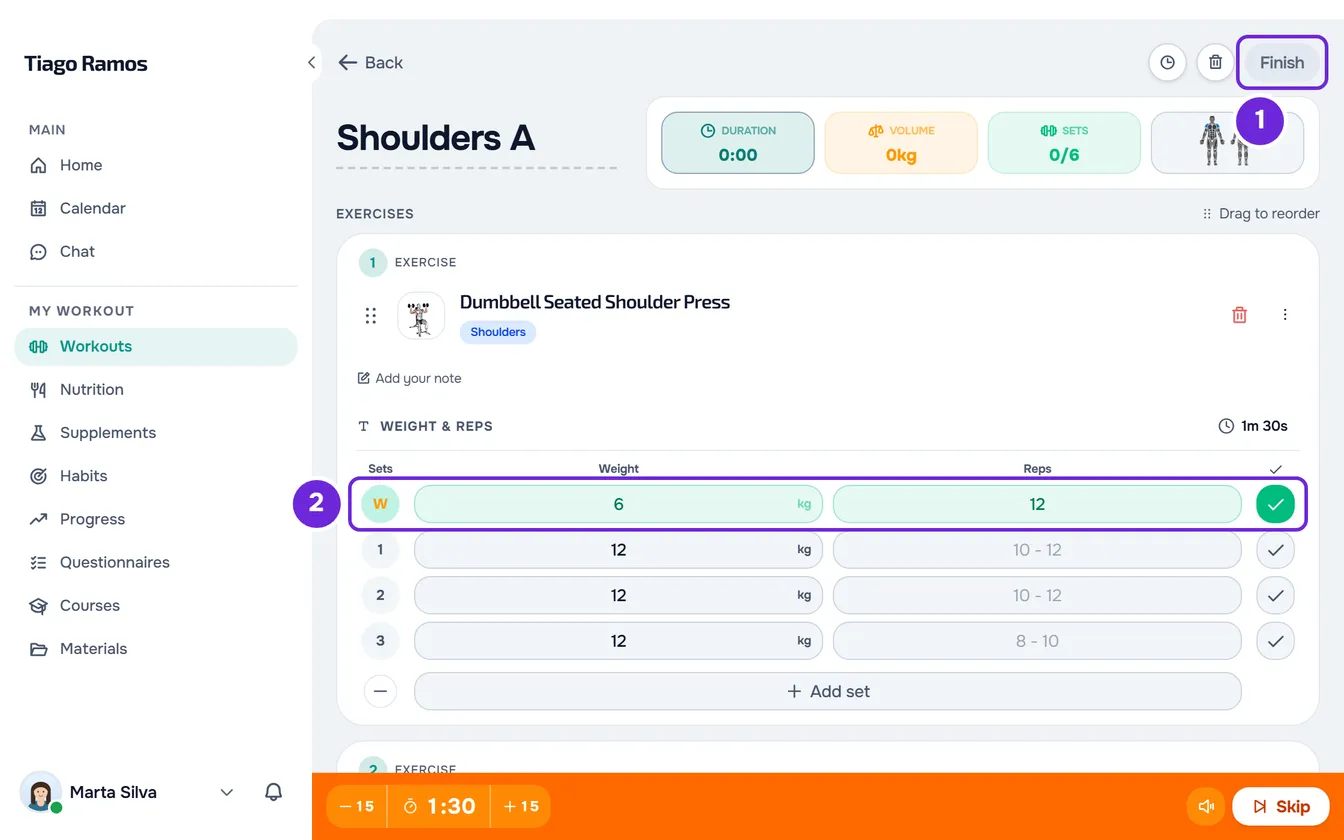
Mark at least one normal set as done and select Finish again.
“Connection error” when finishing
On the web, finishing a workout needs internet. Without a connection, “Connection error” appears and the workout stays on screen with everything you logged. Trying again does not save it twice. To finish when you are back online:
- Check that the device is connected to the internet.
- In the workout header, select Finish.
- In the Finish workout window, select Finish.
The workout summary appears and the session is saved in the history.
In simple mode, select Finish Workout on the last exercise and confirm in the window.
In the app, finishing does not need internet. Without a connection, the workout is saved on the phone, “Saved on this device. Waiting to sync.” appears and the app sends it when there is a connection. If the server rejects the workout, the app leaves it to review: see Record “to review” or “The server did not accept this record”.
I deleted a set or an exercise by mistake
During the workout, deleting a set or an exercise is immediate and cannot be undone. To restore a set, select Add set at the end of that exercise's sets and enter the values again. A deleted exercise has to be added to the workout again, and what you logged in it is lost.
The unfinished workout
I went back to the workout and it is empty
On the web, the unfinished workout is saved on the device with every change, including values you entered without marking the set as done, and a copy goes to the server. The workout starts over from the beginning when:
- you opened it, did nothing in it and more than 24 hours passed;
- you open it on another device or in another browser more than 24 hours after the last change, because the server copy only lasts 24 hours;
- you chose to discard it, for example in the “Workout in progress” window.
On another device, within the 24 hours, the workout comes back with what you logged, but the rest that was counting down does not come back.
In the app, the unfinished workout is saved only on the phone, even if you close the app, until you finish or discard it. It does not move to another phone or to the web.
“Workout in progress” appears when you open another workout
You already have another unfinished workout with something logged. In the window, choose an option and confirm with the button:
- Continue workout in progress: goes back to the unfinished workout;
- Discard and start new: deletes the unfinished workout, with everything you logged in it, and starts the new one.
In the app, the window is called “You have a workout in progress”, appears even if you have not logged anything in the other workout and has the same choices: continue the workout in progress or Discard and start.
If you are a professional and are already training another client in person, the window also offers Train at the same time: the workouts of several clients stay open simultaneously, up to 20. In that case, discarding is called Discard workout in progress.
“Client is not active”
It appears to the professional, on the web, when they open the in-person workout of a client who is archived, whose access has ended or whose coaching is scheduled to start later. Under it is the reason: “This client's coaching is closed. Reactivate them to make changes.” or, for a scheduled client, the date coaching starts. The server only saves workouts of active clients. If the workout was already in progress when this happened, the sets stay on screen, but Finish does not save it and shows the same reason.
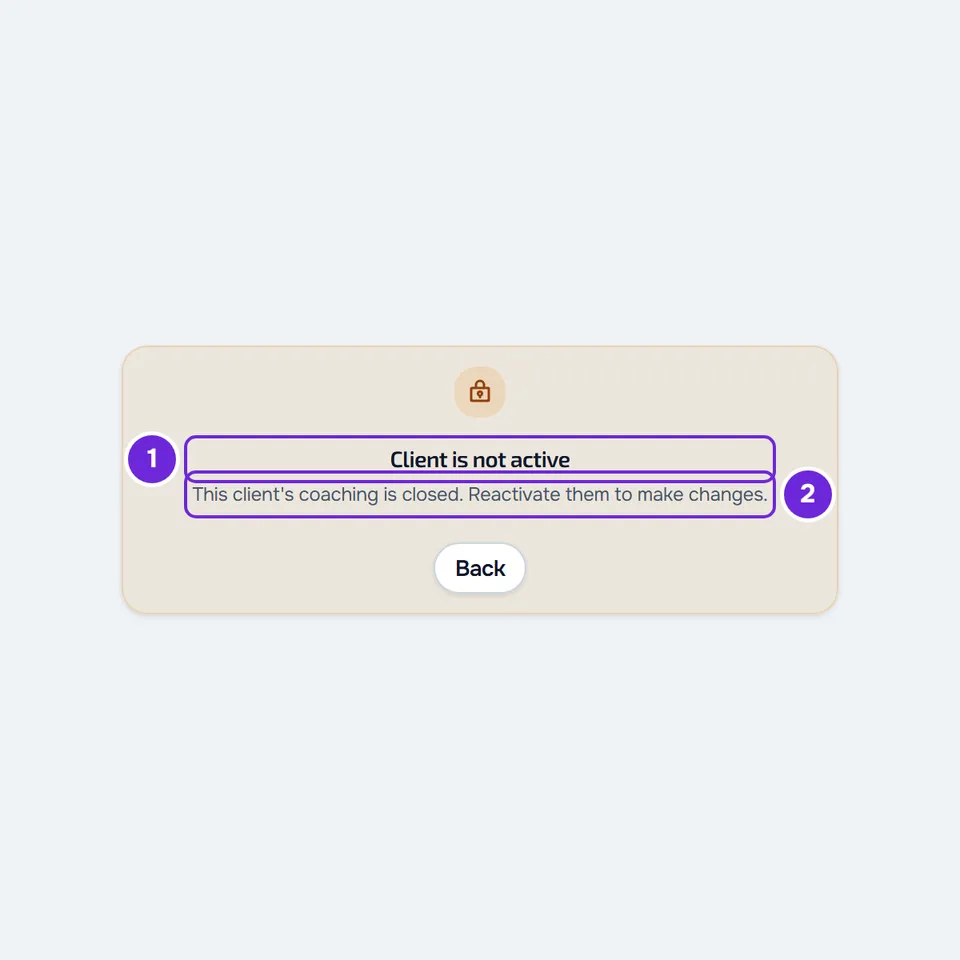
To fix it, reactivate the client: in their client profile, select Settings and, in Client management, select Reactivate. For a scheduled client, workouts are done from the date coaching starts; Reactivate opens coaching right away.
Sets and exercises
The Previous column does not appear
The Previous column shows what the person training did in that exercise last time. It does not appear when:
- it is the first time that person does the exercise;
- the exercise has custom tracking with 3 or more values per set: there the previous value appears under each field, instead of in a column;
- on the web, the history took more than 1.5 seconds to arrive: the workout opens without the column and the column appears when the history arrives.
Body weight does not appear in bodyweight exercises
Body weight appears on top of the sets (Body weight) and counts in the volume of those exercises only when a weight is logged in the Progress of the person training. Without a logged weight, it does not appear and body weight does not count in the volume. Log a weight in Progress and open the workout again. In simple mode on the web it always appears, with “N/A” when there is no weight, and you can enter it there.
Selecting body weight during the workout lets you change it for that workout only. The weight in Progress does not change.
Free workout is missing or I see “Your professional has turned off free workouts on your account. Talk to them to save this workout.”
Your professional turned on restricted mode for your workouts. With it on, you do the workouts as prescribed: Free workout disappears from the workouts page and you cannot swap, add or remove exercises. On the web, the message appears when you finish a free workout with restricted mode on. If you swapped, added or removed exercises in a prescribed workout, “Your professional doesn't allow swapping, adding or removing exercises in this workout. Put it back as prescribed to save it.” appears. A workout that was already in progress when the professional turned on restricted mode still saves, if it started up to 12 hours before.
Talk to your professional. To turn off restricted mode, the professional opens the client profile, selects Settings and turns off Restricted mode (workouts).
Rest alerts
No sound at the end of the rest
| Cause | What to do |
|---|---|
| Sound is off: on the orange rest bar, the speaker appears crossed out. | Select the speaker to turn the sound on. The choice is saved on that device. |
| On the web, on an iPhone with silent mode on, the site's sound does not play. The countdown stays on screen. | Turn off silent mode. In the app, the sound plays even with the iPhone on silent. |
| On the web, the page was not in view: another tab, another app or the screen locked. | In that case the web sends a notification instead of the sound, if you gave permission. See the next section. |
| On the web, the browser delayed the countdown and noticed the end of the rest more than 2 seconds late. The sound no longer plays, so that it does not play in the middle of the next set. | Keep the workout page open and in view during the rest. |
In the app, with the app in the background or the phone locked, the end of the rest arrives as a notification, with the same sound.
The end-of-rest notification does not arrive
On the web, the notification only goes out when no MyFitnessClient page is in view; with the page in view, the sound plays. It needs the browser's notification permission, which the workout screen never asks for. Even with the permission, the browser can stop the service that sends the notification, and it does not arrive.
In the app, the notification needs the app's notification permission. With the end-of-rest sound off, it arrives without sound.
To give the permission, see Not receiving notifications on your phone or in the browser.
Notes, attachments and replies
The option to attach photos or videos to the note does not appear
In an exercise note you can attach up to 3 photos or videos (on the web, with Attach). The option does not appear when:
- the note already has 3 attachments;
- you are a client and do not have active coaching with a professional, because the attachments are kept in their storage;
- your professional's storage is full;
- on the web, the workout is in simple mode, where notes are read-only.
In the last three cases, talk to your professional. On the web, a rejected file shows the reason: “Photos and videos only.”, “The photo must be 25 MB or less.”, “The video must be 250 MB or less.” or “The video must be 60 seconds or less.”.
The professional does not see Reply on a note
In the client's history, on the web, Reply appears to the professional on the note the client wrote in a workout, and the reply goes to the chat. It does not appear:
- in an in-person workout, which the professional logged: the note is theirs;
- while the workout is being edited: save or cancel the edit first;
- in some older sessions.
The client does not reply to notes: when the professional replies, the note shows the link to the reply in the chat.
Correcting or deleting finished workouts
The professional cannot edit or delete a finished workout
| Cause | What you see | What to do |
|---|---|---|
| The workout was logged by the client, as a free workout. | Edit and delete are not available. The workout shows “This workout was logged by the client. Only they can edit or delete it.” and the list shows “Logged by the client: only they can delete it”. | Ask the client to correct or delete it. |
| You are a team member without the Edit permission in the Clients area. | Edit and delete are not available. | Ask the team owner for that permission. |
| The client does not have active coaching: archived, with access ended or scheduled. | The change is rejected with “Not found.”. | Reactivate the client, as in the “Client is not active” section. |
| The account has more active clients than the limit and is frozen. | The change is rejected with a notice. | Changes come back when the account has, at most, the allowed number of active clients. |
If this did not solve it
If you are a client, talk to your professional first: they set restricted mode, simple mode and the workouts you do. For a problem with the website or the app, write to the MyFitnessClient team using the contact shown at the end of the Help Center home page (in the app, on the “Problems with the app” line). Include:
- the name of the workout and of the client;
- the day and time it happened;
- whether you use the web or the app and, on the web, which browser;
- the exact message, if one appears, and a screenshot.