
What you see in Workouts and what to do
Look in the table for what appears in Workouts instead of the program. The sentences are the ones on the screen.
| What you see | Why it happens | What to do |
|---|---|---|
| “Not in your plan”, with the sentence “This isn't part of your plan. Talk to your professional.” | The plan you have with your professional does not include Workouts. The Workouts entry disappears from the menu, and this page appears when you open Workouts from a link, a notification or a bookmark. | Talk to your professional about including Workouts in your plan. |
| A line instead of the list: “Available from {date}.”, “Coaching ended on {date}.” or “No access at the moment.” | Your coaching with your professional is scheduled, has ended or is inactive. While access is closed, their program and extra workouts do not appear. In the app, ended coaching also shows “No access at the moment.” | Open Home to see the status and the dates. On the website, with coaching ended or inactive, the View link takes you there. To change the dates, talk to your professional. |
| “You don't have any workouts assigned yet” on the website, or “No active programme” and “You don't have a programme assigned yet.” in the app | You have no active program and no extra workouts: your professional has not given you a program yet, has removed it, or the program has ended. | Ask your professional for a program. Until then, you can do a Free workout, if they have not turned off free workouts on your account. |
| “The “{name}” program has ended”, with “Talk to your professional to get a new program.” (in the app, “The “{name}” programme has ended”, with “Talk to your professional to get a new programme.”) | The program's end date has passed and the program is no longer active. | Talk to your professional to get a new program. The workouts you did stay in your history. |
| “Rest day” on the chosen day | The program is Weekly or Calendar and has no workout on that day. In a Calendar program, it also appears before the start date. | Choose another day in the week on the program card. If the program has not started yet, wait for the start date. |
| “Program has no workouts” on the website, or “No workout today” in the app (in a Sequential program, the app shows the program card with no workouts) | The program has no workouts yet. | Talk to your professional. |
More detail in “Not in your plan”: a section of the app has disappeared and in Access statuses: scheduled, ended and inactive.
“Pick your plan to start” on Home: your professional asks you to choose a plan before you get in. Workouts disappears from the menu, on the website and in the app. If you open Workouts from a link, the app shows the same title and the Choose a plan button, which takes you to Home, and the website shows the same card, with your professional's plans. See Choose and pay for a plan from your professional.
If you do not have a professional yet, or you disconnected from yours, Workouts disappears from the website menu and opening the page by its address takes you to another screen. See “You don't have a professional yet”: what to do.
The program ended notice
The card “The “{name}” program has ended” appears only once, on the Workouts load that closes the program. From 9:00 on the day after the end date, in your time zone, MyFitnessClient closes ended programs on its own. If the program is already closed when you open Workouts, you see “You don't have any workouts assigned yet” (in the app, “No active programme”) without the card. When the end was 7 days ago or less, you also get the “Program ended” notification.
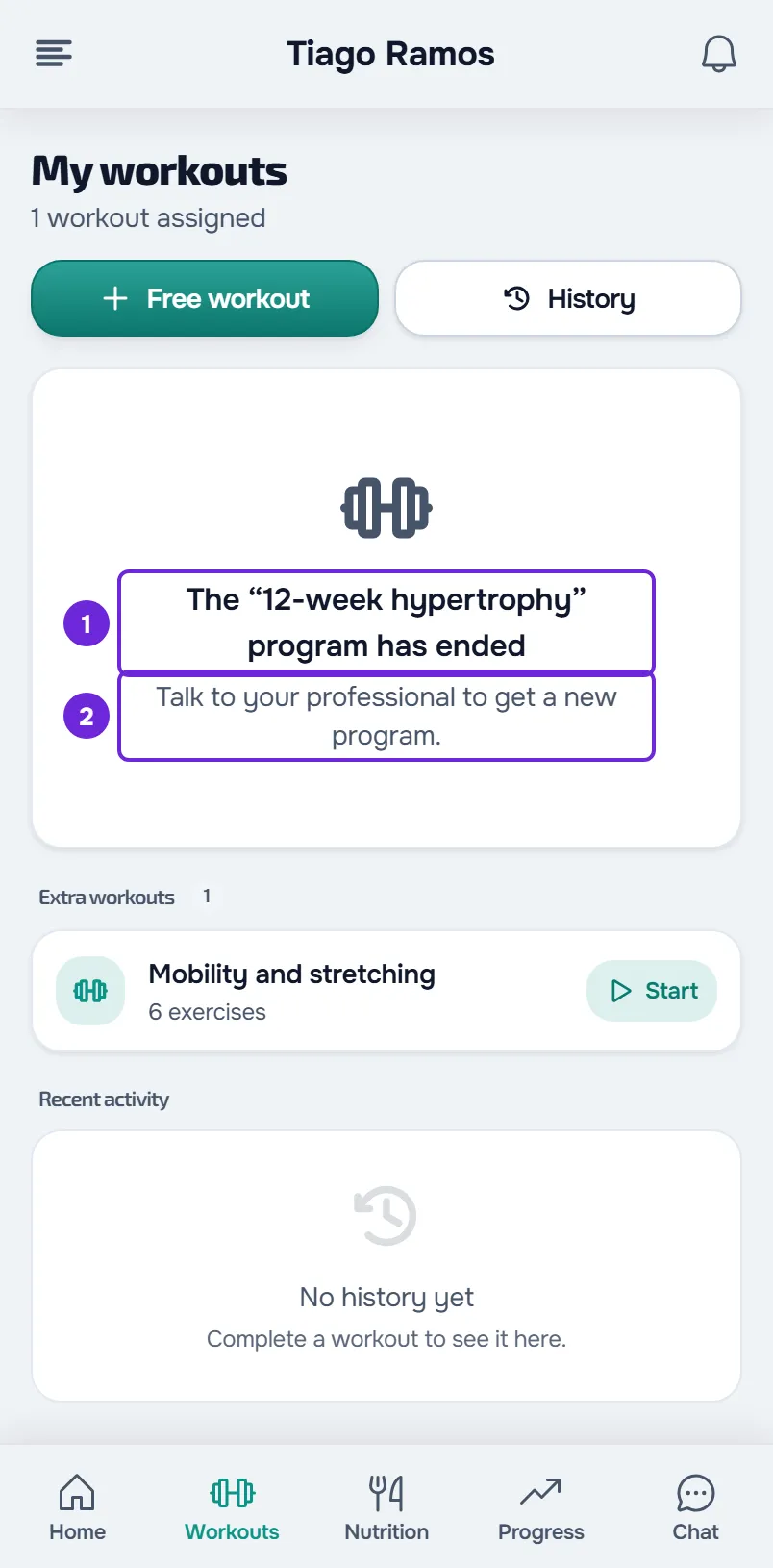
In the app, when the card appears, it stays in Workouts on that device until you get a new program, as long as you have no extra workouts.
“Workout not found”
On the website, when you open a workout that cannot be shown, the page says “Workout not found” and “This workout may have been removed or is not available.”, with the Back button. It happens when:
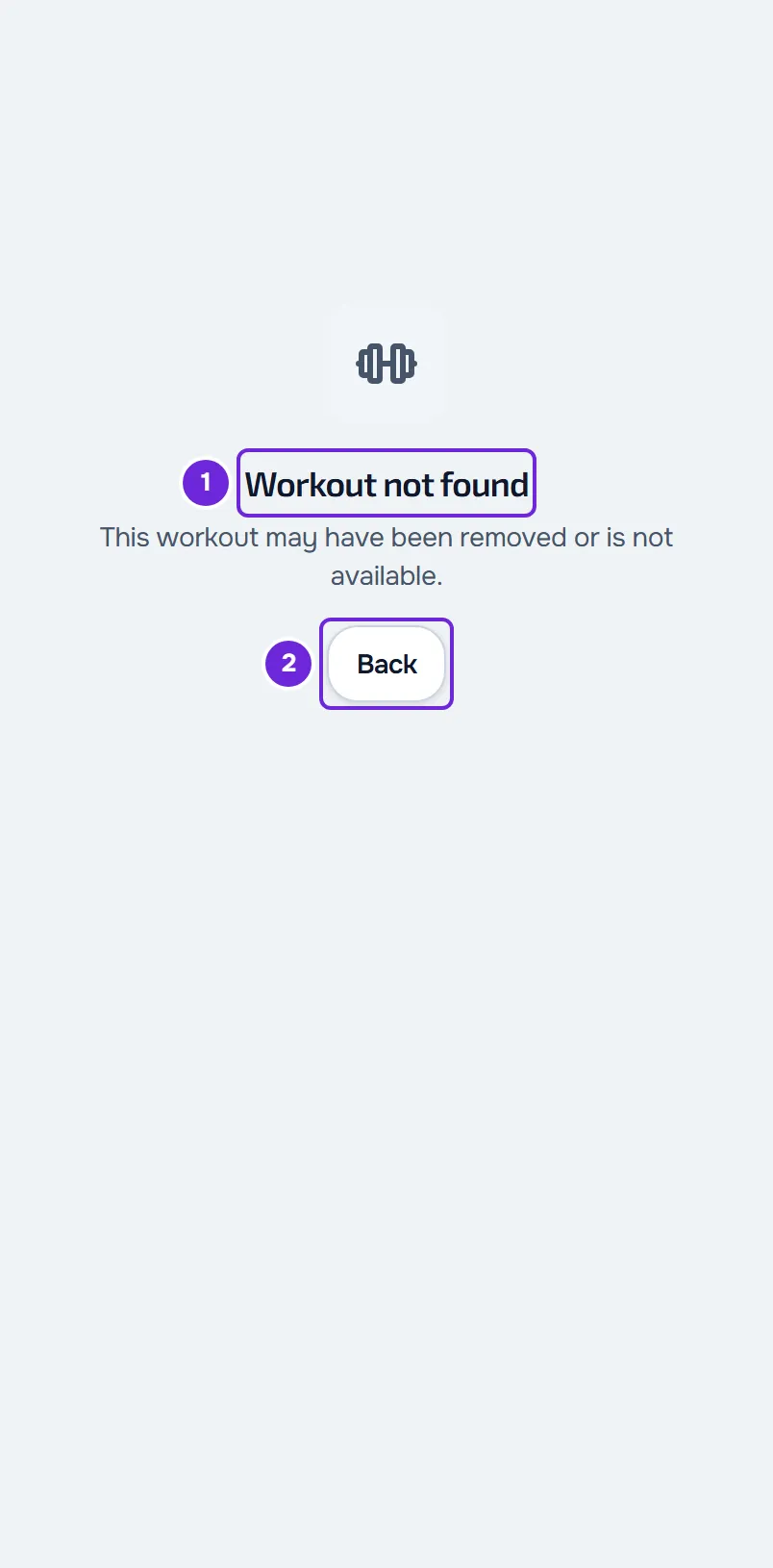
- your professional deleted the workout or the program;
- the program is no longer active for you, because it ended or your professional removed it;
- for a program workout, an extra workout or one sent in the chat, your coaching with the professional is not active, or they are no longer your professional;
- the extra workout expired, has not reached its start date yet, or your professional removed it;
- the workout your professional sent you in the chat was deleted, or the message is no longer in your conversation, for example because you cleared the history;
- the workout did not load because there was no connection or because of a server failure.
The page does not say what the cause was: the server answers the same way whenever it cannot show you a workout, so that it does not reveal which workouts exist.
On the website, the “New workout” notification opens the extra workout itself, and a workout reminder opens the program workout. If the workout expired or left your program after the notification, the notification opens this page.
In the app, a workout that is no longer available shows “Couldn't load the dashboard.” and the Try again button. A workout sent in the chat shows “This workout is no longer available.” and the View workouts button.
On the website, if you were offline, reload the page when the connection is back. In the other cases, to find the workout:
- In the menu, select Workouts.
- Look for the workout on the program card, on the day it is scheduled, or in the extra workouts.
- If the workout is in the list, open it from there.
- If it is not, talk to your professional: only they can give you that workout again.
Errors when loading
When Workouts cannot load and nothing was on the screen yet, the website shows a card instead of the list, with the Try again button. The card's title says what happened:
| Message | What it means | What to do |
|---|---|---|
| “You are offline” | The device has no internet. | Check Wi-Fi or mobile data and select Try again. |
| “The request took too long” | The server did not answer in time and the request was stopped. | Select Try again. |
| “Too many requests” | Many requests were made in a short time. | Wait a moment and select Try again. |
| “Service temporarily unavailable” | The server had a failure or is under maintenance. | Wait a few minutes and select Try again. |
| “We could not load this information” | Another failure. The sentence under the title gives the cause, when it is known. | Select Try again. If it keeps happening, note the code on the Reference button for support. |
If the list was already on the screen, an automatic refresh that fails shows no warning: what was there stays. Reload the page to request it again. History shows the same card, but there a request that takes too long appears as “We could not load this information”.
In the app, with no network and without the list already loaded on the device, Workouts shows “No internet connection” and “This page needs a connection. It'll refresh on its own as soon as you're back online.” With other failures, it shows “Couldn't load the dashboard.”, or a sentence with the cause when the server gives one, and the Try again button. With the list on the screen, pull it down to refresh it.
See also “We could not load this information” and other error cards and The app says “Offline” or takes a long time to load.
Other cases
When you reload, Workouts goes back to today
On the website, the day you choose in the program week is not saved: when you reload the page, Workouts shows today again. On the website and in the app, the same happens when you come back to Workouts after midnight. In History on the website, the search, sorting, filter and chart period also go back to their initial values when you reload the page. Calendar is the exception: it saves the last view you chose on your account.
The problem happens during the workout
If the workout opens but fails partway through or does not save, see Common problems during a workout and how to fix them.
Questions
With an overdue payment, do I stop seeing my workouts?
No. You keep seeing the program and logging workouts; what is paused are the exercise suggestions when you swap an exercise. See Payment overdue: what is paused and how to settle it.
Do the workouts I did disappear when the program ends?
No. They stay in your history: in Workouts, select History.
If this did not solve it
Talk to your professional: they are the one who assigns programs and extra workouts. If they confirm you have the workout assigned and you still cannot see it, write to the MyFitnessClient team through the contact shown in the Help Center (in the app, on the “Problems with the app” line). Send:
- the exact message you see and, on the website, the code on the Reference button, if it appears;
- the name of the workout or program and the name of your professional;
- the day and time it happened;
- whether you use the website or the app.