
Before you start
- The Your plan card appears in Payments when you have a plan from your professional. What the label, the date and each button mean is in States and buttons of the Your plan card.
- The pay buttons only appear when your professional accepts online payments. If they do not, the card says “Your professional confirms once they receive the payment.” instead of the button: pay them outside the platform and mark the payment as paid, as explained in Mark a payment made outside the platform as paid.
- If you do not have a plan yet, see Choose and pay for a plan from your professional. To cancel or resume a plan with automatic payment, see Cancel or resume your plan subscription.
Steps
To pay for or renew your plan:
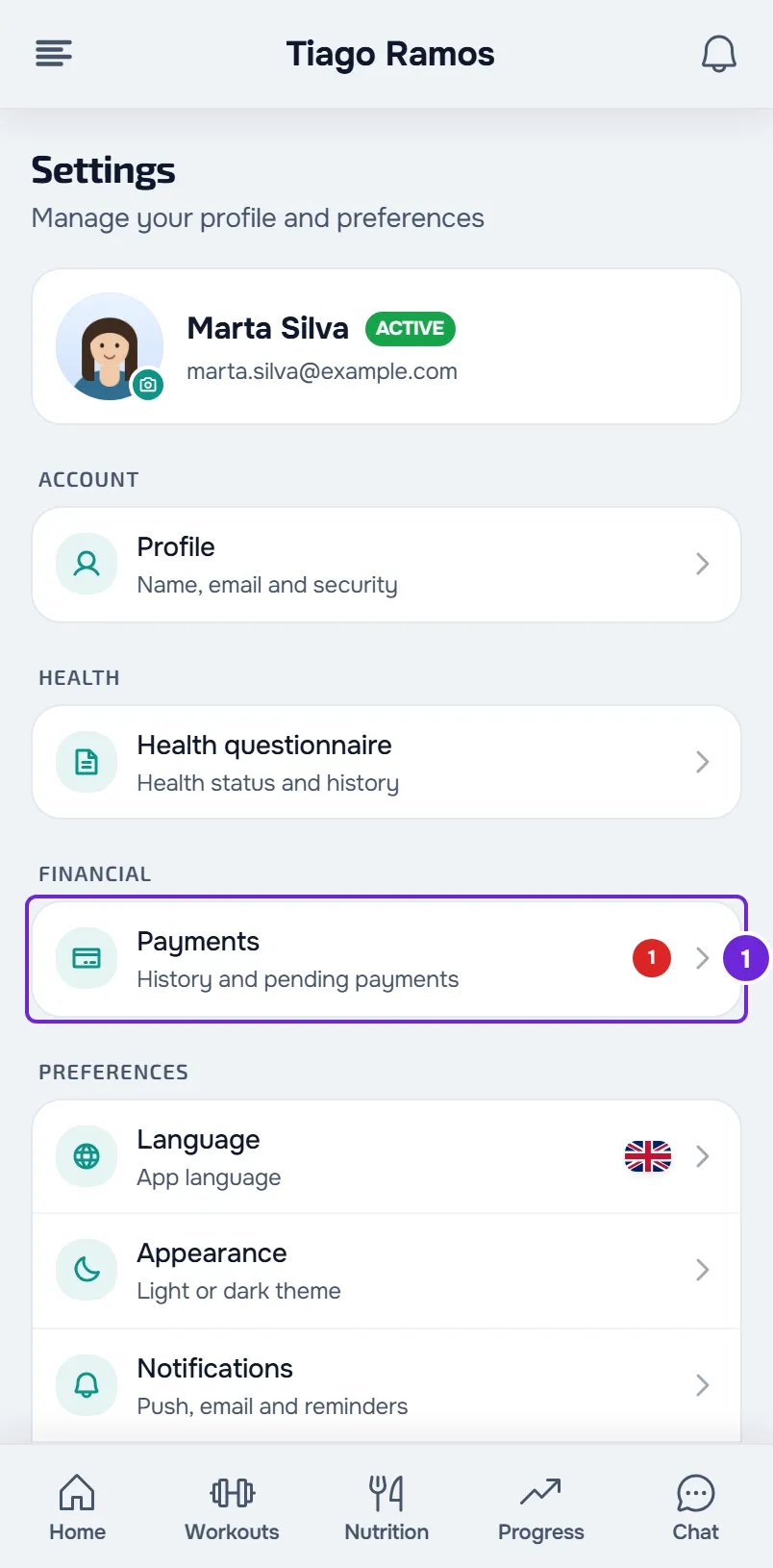
- Open Settings and select Payments 1. If you do not know where Settings is, see Client settings: where to find each option.
- In the Your plan section, select the button the card shows: Pay followed by the amount, Pay overdue or Renew. What each one pays for is in the “The card button” section.
- On the Stripe payment page, choose the method and complete the payment. The methods shown depend on what your professional turned on.
- When Stripe sends you back to MyFitnessClient, wait a few seconds while the page confirms the payment.
- Check that the page says Payment confirmed or, for a plan with automatic payment, Plan active.
- Select Back to payments or, on the Plan active page, View payments.
The Your plan card changes to Active and shows the date the plan ends or renews.
If the page says “Payment processing” or “Payment received”, the confirmation from Stripe has not arrived yet: do not pay again, and see Fix payment problems: Pay now, confirmation and plan. If you leave the Stripe page without paying, nothing is charged and the card stays as it was.
In the app
- In the latest version of the app, the Your plan card has the same buttons. It is in Settings, in the Financial group, under Payments.
- Instead of the label, the card has a status line: “Unpaid”, for an unpaid plan and also for an overdue payment, or the date the plan ends or renews.
- Renew only appears when there are 7 days or fewer left until the end of the pack. If the pack can no longer be renewed during those days, the card says “To renew, talk to your professional.”
- The Stripe page opens in your phone's browser. Back in the app, you see “Payment received. Confirming…” or, if you did not pay, “Payment not completed.”, and the app reads your plan again. If the card does not change after a few seconds, pull down on the screen to refresh.
The card button
The card shows at most one button to pay or renew. Which one appears depends on the status of the plan. A pack is a plan you pay for once that gives you a number of days of access.
| When it appears | Button | What it pays for |
|---|---|---|
| The plan has the Awaiting payment label: it has not been paid yet. | Pay followed by the amount | The plan. For a pack, the button also shows the days of access. For a plan you pay manually, the button shows the amount without the billing period, because it pays a single charge. For a plan with automatic payment, the payment method is saved in Stripe and the following charges are made automatically. |
| The plan has the Payment overdue label: it is active, but a charge was left unpaid. | Pay overdue | The outstanding charge. For a plan with automatic payment, it opens the open invoice on the Stripe page, which does not send you back to MyFitnessClient at the end: go back to Payments yourself after you pay. |
| An Active pack, when your professional lets you choose their plans and that pack is still available. | Renew | The same pack again. The new days start on the day after the last day of the pack you already have. |
If your professional does not accept online payments, Renew does not open Stripe: it sends them a request and you see “Request sent. Your professional confirms once it's received.” Pay them outside the platform and mark the new payment as paid.
Under the button, a plan with automatic payment has Cancel plan or Resume. See Cancel or resume your plan subscription.
If your access has already ended
When your access to your professional ends, Home shows the “Coaching ended” card. If your professional has plans that give you access again, the choice is inside that card, on the web and in the latest version of the app:
- “Choose a package to continue.” and the list of those plans, each with its name and amount. “What you had” marks the plan you had before.
- A sentence says that your contract is with your professional, not with MyFitnessClient.
- Choose a plan and select Pay and continue. The Stripe page follows, as in the steps. At the end, the web confirmation page shows Continue in the app, which opens Home, or, if your access is already back when the page opens, the same buttons as in the steps.
- If you have a plan from this professional awaiting payment, the card shows only that plan, with Pay followed by the amount. If you have an overdue charge from a plan of this professional, the card shows that charge, with “Payment overdue”, and the Pay overdue button. If it appears together with the list of plans, it comes first and is already selected.
- If your professional takes payments manually, Pay and continue sends them a request and you see “Request sent. Your professional confirms once it's received.”
- Message your professional opens the chat. With no plans to choose from, it is the only way forward.
On the web, the same choice can appear in the “View only” card on Home, when your plan ended and your professional left you with view-only access to what they had already given you. See Payment overdue: what is paused and how to settle it. The access statuses are in Access statuses: scheduled, ended and inactive.
Change plans in the app
In the latest version of the app, the Your plan card has the Change plan row at the bottom. It appears when your professional lets you choose their plans, the plan on the card is not awaiting payment and you do not have a plan from this professional that renews, such as a monthly fee.
Change plan opens the Choose a plan sheet, with “Choose one of your professional's plans.” and the list of their plans, each with its amount. “What you had” marks your most recent plan, and none is selected. Select a plan and, at the bottom of the sheet, Pay and continue. The Stripe page follows in the browser, as with a payment from the card. If your professional takes payments manually, Pay and continue sends them a request and you see “Request sent. Your professional confirms once it's received.”
The plan you have is not cancelled: you keep it until the end of what you paid for. If the new plan has automatic payment, the first charge may be set for the day after that end. See “The plan is active and you have not paid anything yet” in Fix payment problems: Pay now, confirmation and plan.
Common problems
“You have a payment to finish.”
It appears when you select Renew or Pay and continue and you already have another plan from this professional awaiting payment, and there can only be one at a time. If that payment is in your list of payments, pay it first. If you do not know what it is, talk to your professional. When the waiting plan is one of those that remove your access when they end, the message does not appear: the Stripe page opens straight away to pay that plan.
“This payment no longer reopens your access. Choose a package to come back.”
It appears when you select Pay overdue and your access ended too long ago for that charge to reopen it. Nothing is charged. Choose a plan from the list on the “Coaching ended” card and select Pay and continue.
“Your professional has no free spots right now.”
In the app, the message is “This professional has no free spots right now.” It happens when your access ended and your professional no longer has room for more clients: paying would not give you access again, so nothing is charged. Talk to your professional.
The Renew button does not appear
Renew only exists on an Active pack. It does not appear when your professional does not let you choose their plans, when that pack is no longer available or when you have a plan from this professional that renews, such as a monthly fee. In the app, it also does not appear while there are more than 7 days left until the end of the pack. After the pack ends, see the “If your access has already ended” section.
For other messages and to know what to send to support, see Fix payment problems: Pay now, confirmation and plan.
Questions
Do I lose days if I renew before the pack ends?
No. The days of the renewed pack start on the day after the last day of the pack you have, and the card then shows the new end date.
Can I change plans on the website?
The website has no Change plan. When your plan ends, the list of your professional's plans appears on Home, if your access ended, or in the Your plan section, if they let you choose: see Choose and pay for a plan from your professional. To change before that, talk to your professional or use the latest version of the app.
Who gets the money?
Your professional. The payment is made through Stripe, into their Stripe account, and your contract is with them, not with MyFitnessClient.