
Before you start
- What you change in a meal or a day applies to that day only. Your professional's plan does not change and the other days stay as they were.
- With a locked plan, meals do not have the ⋮ menu: you cannot edit, restore or delete a meal. The Reset the day button (in the app, Reset plan) is still available. See Meal plan modes, locked plan and days without a plan.
- On a day that has passed, first select Edit this day and confirm. See Correct a day that has passed.
Interactive tutorial
Opens in the app and needs you to be signed in.
Steps
To change the name or time of a plan meal for that day only, on the website:
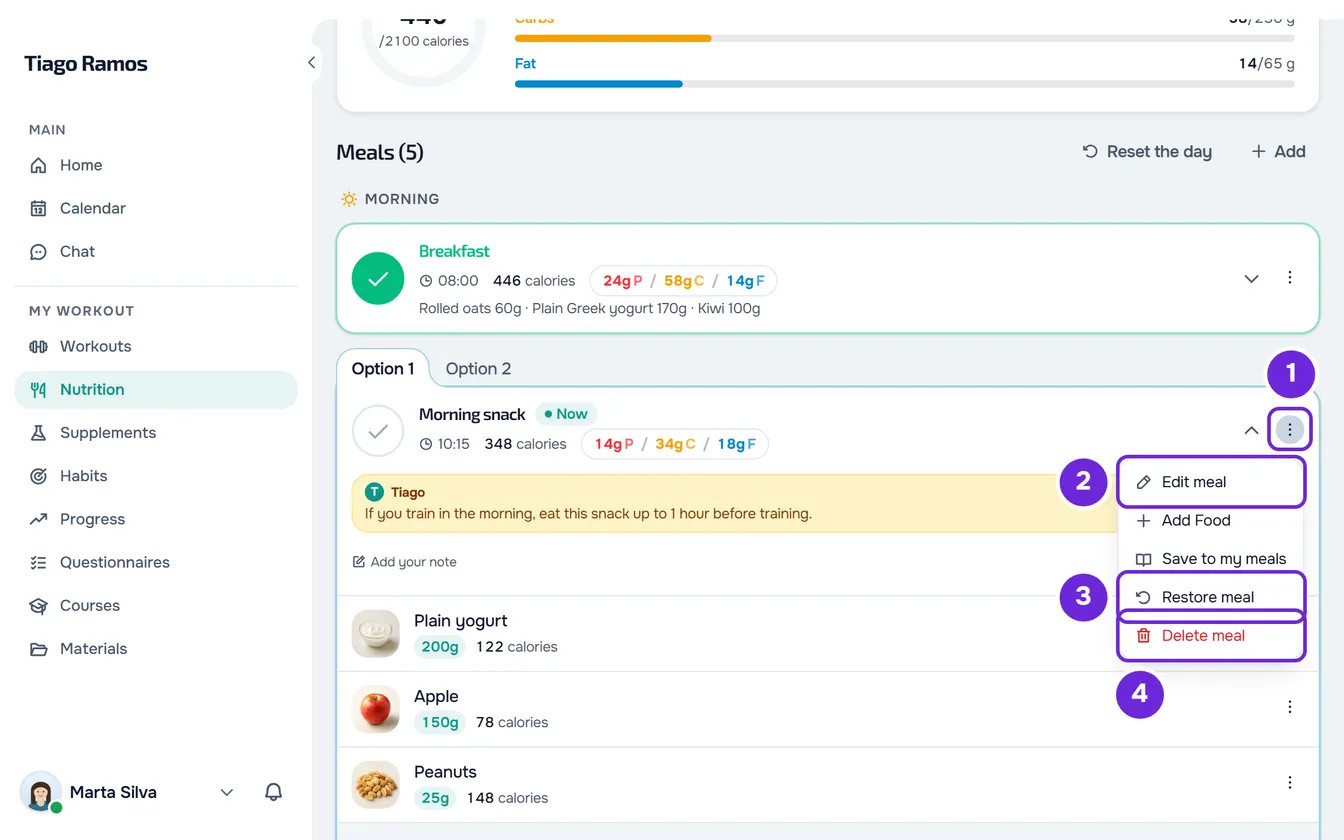
- In Nutrition, choose the day and find the meal.
- In the meal's header, open the ⋮ menu 1 and select Edit meal 2. You can also right-click anywhere on the header.
- In Meal Name 1, type the new name, up to 100 characters. Without a name, the save button stays disabled.
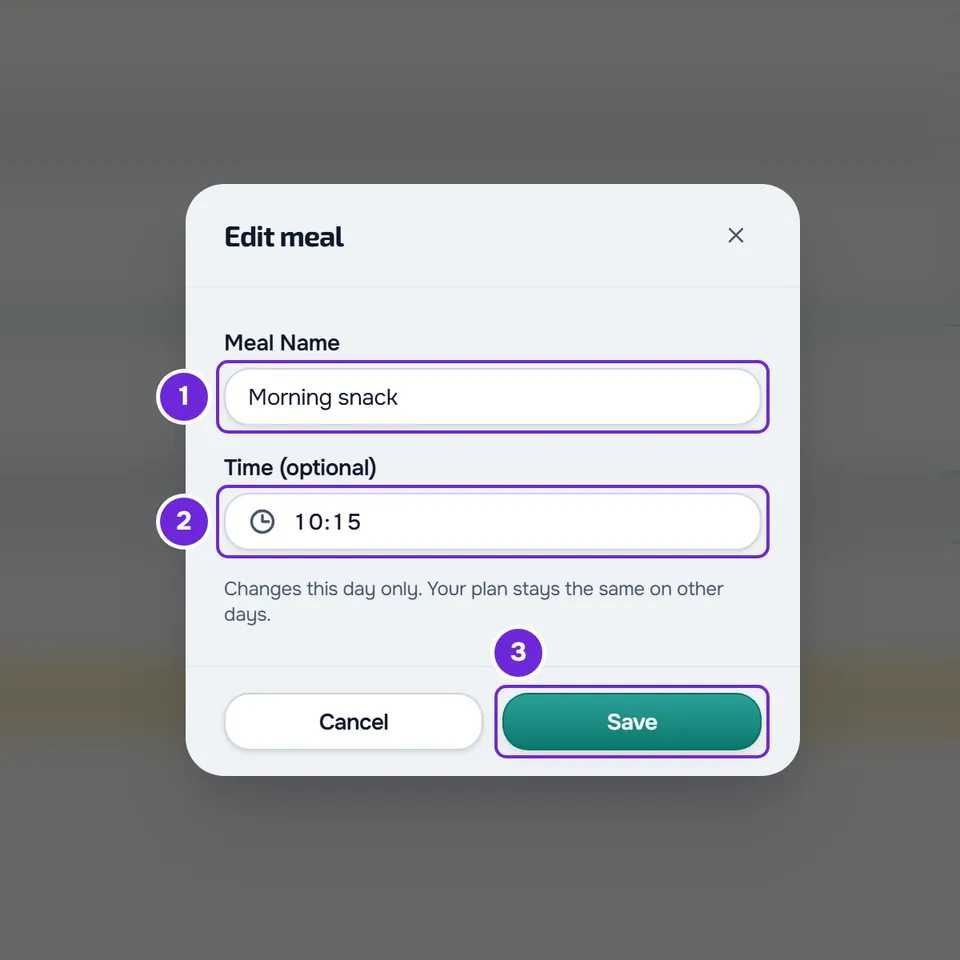
- Optional: in Time (optional) 2, choose the new time and select OK. To undo this day's time, open the time and select Remove time: the meal goes back to the plan's time, or has no time if the plan does not set one.
- Select Save 3.
The window closes and the “Meal updated” notice appears. On that day, the meal shows the new name and time. If you have meal reminders turned on, that meal's reminder arrives at the new time on that day.
In the app
- Open the meal's ⋮ and select Edit meal. The sheet has Meal name and Time (optional).
- To undo this day's time, open the time and select Reset to plan time. On a meal without a time in the plan, the option is called Remove time.
- Select Save. The “Meal updated” notice appears.
- Like marking meals as eaten, these changes are first stored on your phone and go to the server when there is a connection.
The meal menu
The ⋮ menu in each meal's header has these actions, in this order:
- Edit meal: that day's name and time, as in the steps. Only on plan meals.
- Add Food. See Add foods to a meal.
- Save to my meals, when the meal has foods. See Add extra meals: new, quick, saved or from yesterday.
- Restore meal, only on plan meals and when you have changed the foods of the option on screen, or when the chosen option no longer exists in the plan (your professional deleted it).
- Delete meal, in red.
In the app, the ⋮ has the same actions, with Add food in place of Add Food.
Restore a meal
Restore meal undoes what you changed in a meal's foods on that day and goes back to the foods your professional set.
- In the ⋮ menu, select Restore meal. The window warns “This drops what you edited in this meal on this day and goes back to what your professional set. Your other options stay as they are.” Confirm with Restore meal.
- The “Original meal restored” notice appears.
- It restores only the option on screen: what you changed in other options of the same meal stays as it was. If the chosen option no longer exists in the plan, the meal goes back to Option 1, with the plan foods.
- It does not change the name or time you set in Edit meal, and a meal marked as eaten stays marked.
Delete a meal
- In the ⋮ menu, select Delete meal. The Delete Meal window asks, for example, “Delete "Snack"? The meal leaves this day. If it came from the plan, it comes back when you reset the day.” Confirm with Delete.
- The “Meal deleted” notice appears. The meal is removed from that day: it no longer counts in the totals or in History, and it has no reminder on that day.
- The plan does not change: on the other days, the meal is still there.
- A plan meal you deleted comes back when you reset the whole day. A meal you created does not come back.
- In the app, select Delete meal and confirm with Delete.
Reset the whole day
The Reset the day button, next to the meals title, deletes everything you logged on that day. The plan meals come back as your professional set them, unmarked.
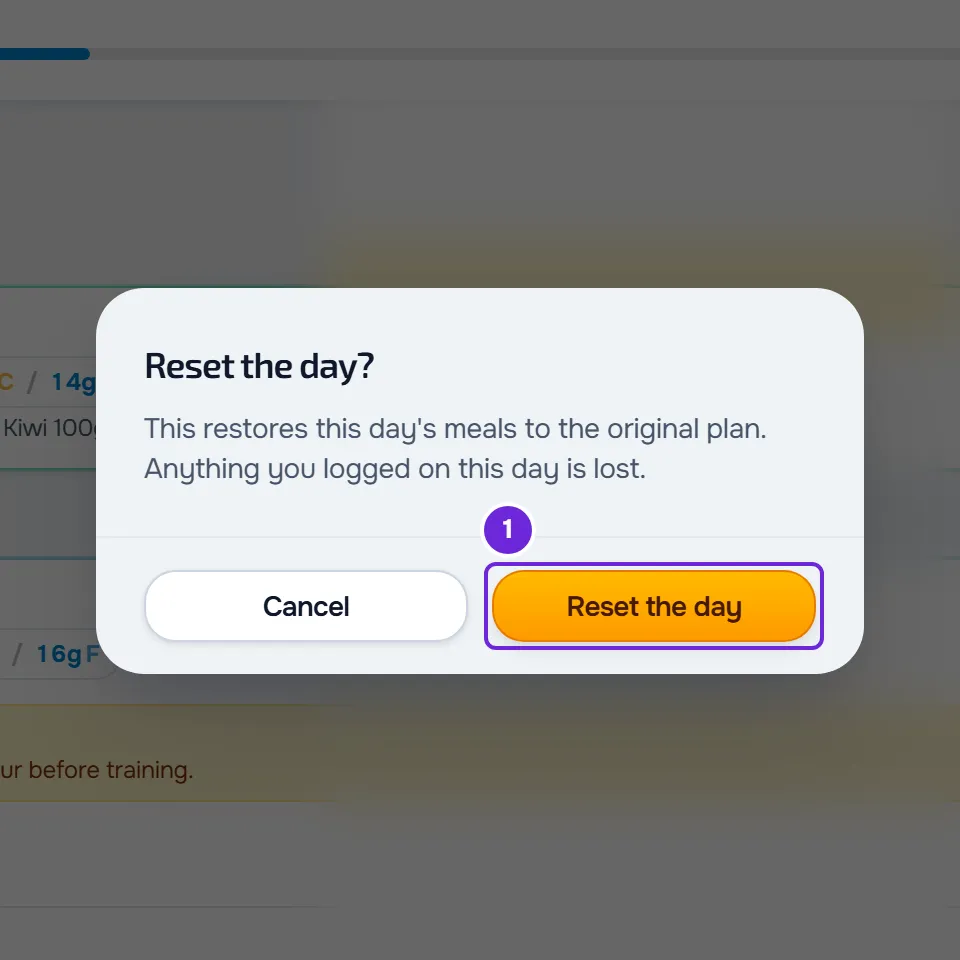
- It only appears when the day has at least one record. On a day that has passed, after Edit this day, and when you have no plan, it is called Clear records.
- Select the button. On a day that has passed, or when you have no plan, the Clear this day's records? window asks for confirmation: select Clear records. On other days, the Reset the day? window asks for confirmation: select Reset the day. Either way, the “Day reset” notice appears.
- On that day, it deletes the marked meals, the foods you changed, the chosen options, the names and times you set, the notes you wrote and the meals you created. The plan meals you had deleted come back. There is no way to undo it.
- Your professional no longer sees that day's records.
- In the app, the button is called Reset plan or Clear records, the window asks Reset to the original plan? or Clear this day's records? and you confirm with the same name as the button. The “Day reset” notice appears.
Delete a day in History
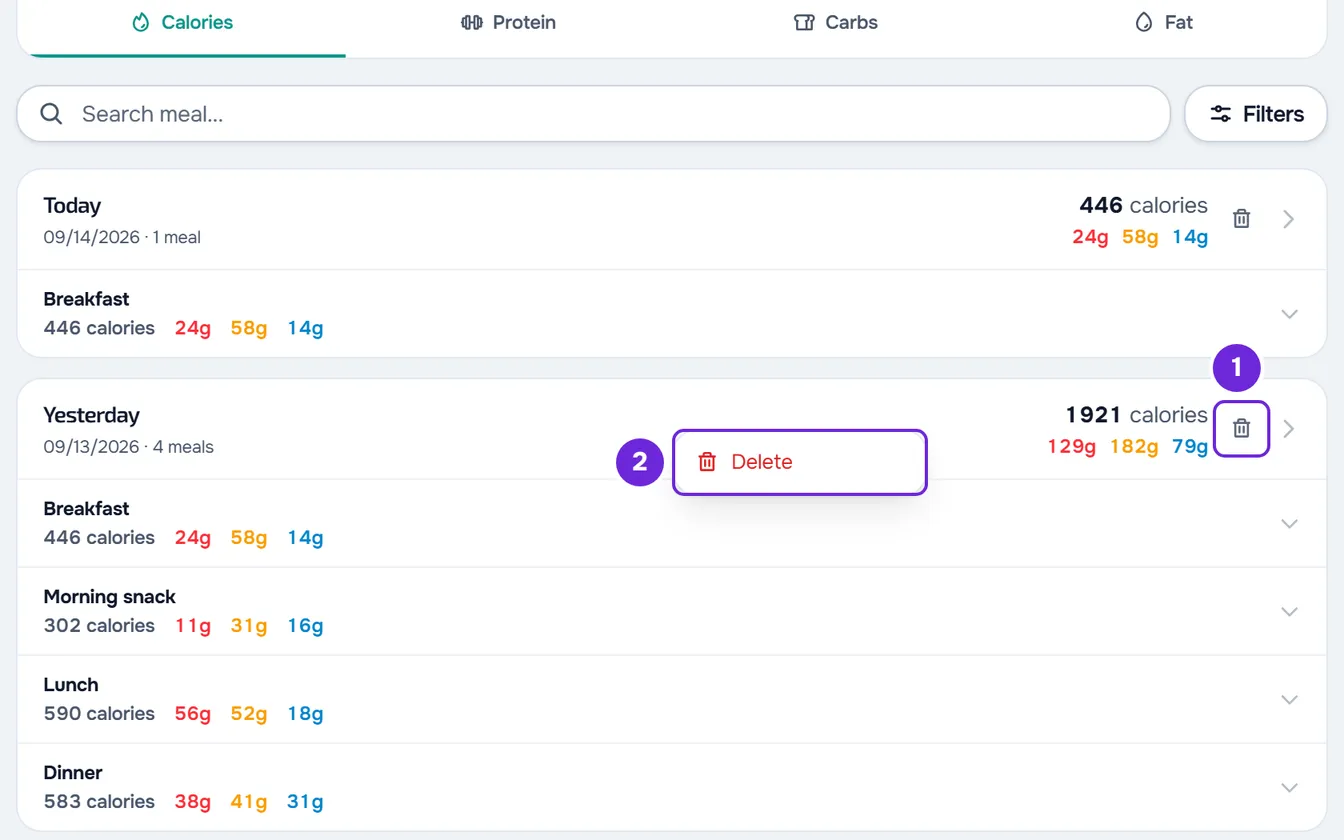
- In the nutrition History, select the bin icon in the day's header, or right-click the header and select Delete. In a day's detail, the bin icon is at the top of the page. To open History, see Browse your nutrition history.
- The Delete this day? window warns “This action cannot be undone. All meals logged on this day will be permanently deleted.” Confirm with Delete.
- The “Day deleted” notice appears and the day disappears from History. The effect is the same as Reset the day: in Nutrition, the day goes back to the plan, with nothing logged.
- Right-click only opens this menu on the day's header. On a meal or a food, it opens the browser's menu.
In the app
The app's History does not delete a whole day. Each meal with a record has a bin icon: select it and confirm with Delete. The “Meal deleted” notice appears. That meal's record is deleted: a plan meal goes back to Nutrition unmarked, and a meal you created disappears.
Common problems
The meal's ⋮ menu does not appear
The plan is locked, or the day has passed and you have not yet selected Edit this day. On a past day, select Edit this day and confirm. With a locked plan, only Reset the day (in the app, Reset plan) is available; to change a meal, talk to your professional.
The menu does not have Edit meal or Restore meal
Edit meal and Restore meal only exist on plan meals: on a meal you created, they do not appear. Restore meal only appears after you change the foods of the option on screen, or when the chosen option no longer exists in the plan; choosing another option is not enough.
I changed the name, but the header shows another one
You are on an option of the meal that is not Option 1 and that has its own name: the header shows that option's name. The name you set appears when you select Option 1.
“Couldn't delete the day. Try again.” when deleting a day
In History, this notice means that the deletion failed and the day was not deleted. Check your connection and try again. When the server refuses for a known reason, such as a missing permission, the notice says that reason. Without an internet connection, you see “Connection error.” If it keeps happening, see Common Nutrition problems and error messages.
Questions
How do I get back a meal I deleted?
If it came from the plan, it comes back when you reset the whole day, but that also deletes everything you logged on that day. If it was a meal you created, it does not come back: add it again. See Add extra meals: new, quick, saved or from yesterday.
Can I undo Reset the day or deleting a day?
No. The deleted records do not come back. To log again, mark the meals in Nutrition; on a day that has passed, first select Edit this day.