
Before you start
- You need a client account with a verified email. If you don't have one yet, see Open your professional's invitation and create your account and Verify your email with the 6-digit code or the link.
- You can only have one professional at a time. If you have active or scheduled coaching with another professional, end it first (End coaching or disconnect from your professional). Coaching that has already ended does not get in the way.
- An invitation that includes a package does not show Accept invitation. See the article about invitations with a package.
Steps
To answer the invitation:
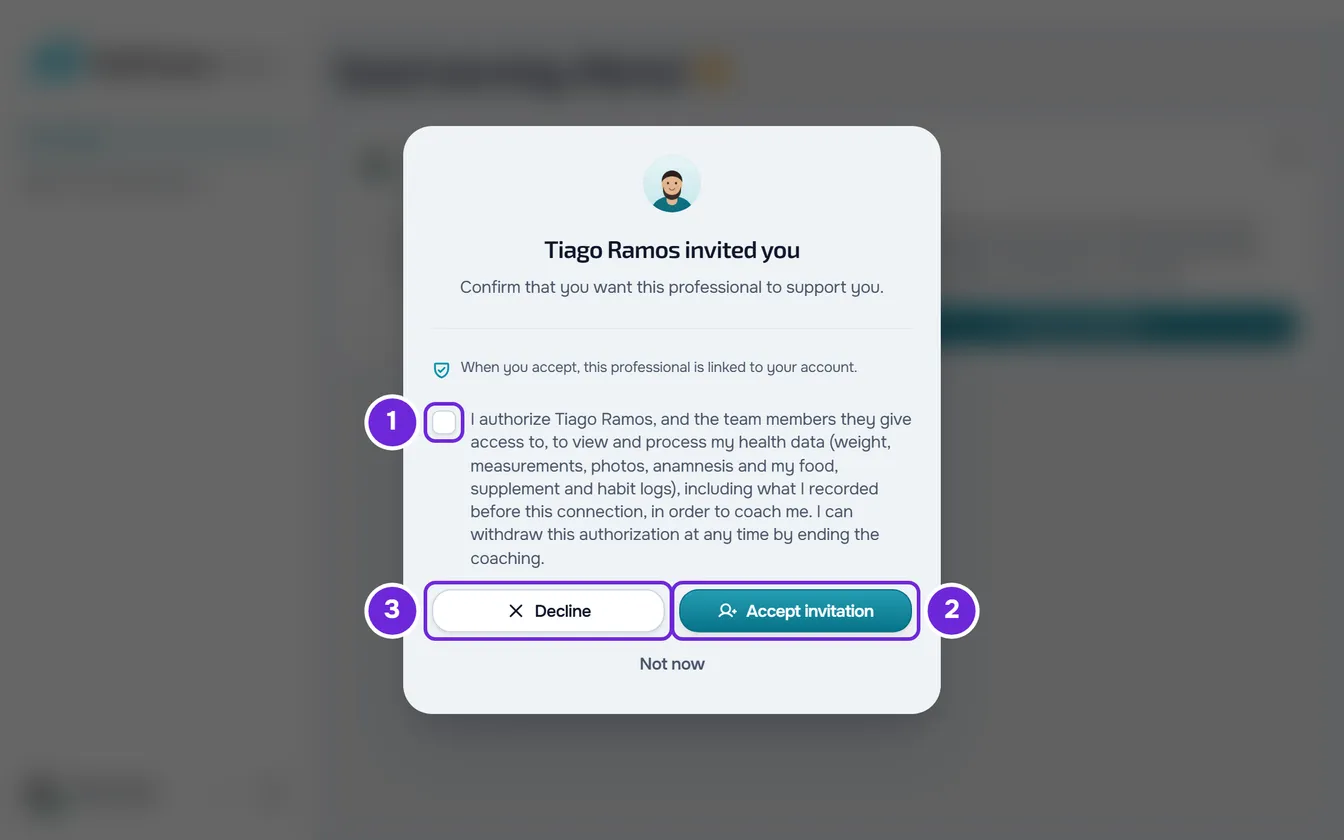
- Open Home. If you came from the invitation link, or if this is the first time you see this invitation in this browser, a window with it opens on its own. The same invitation is also on a card under the greeting, with the checkbox and the buttons to answer.
- Read the invitation: the professional's name, the company's name when the invitation comes from one, and the sentence that says what happens when you accept.
- Select the health data authorization checkbox 1, which starts with “I authorize” and the professional's name. The checkbox starts unchecked and the invitation is only accepted with it selected. On the website, if you select Accept invitation without selecting the checkbox, “Check the authorization to continue” appears. In the app, Accept invitation stays disabled until the checkbox is selected.
- Select Accept invitation 2 or, if you don't want this professional, Decline 3. Decline does not need the checkbox and does not ask for confirmation.
- Read the result, which appears in the window, and select Continue in the app. On the website, an invitation accepted on the card that does not wait for approval reloads Home right away, without this window.
If you accepted and the professional is now linked to you, Home shows your coaching. If the invitation needs their approval or starts on another day, see the next table. If you declined, the invitation disappears from Home.
To decide later, select Not now in the window. The window closes and the invitation stays on the Home card.
In the app
- The card and the window are the same, with the authorization checkbox and the Decline and Accept invitation buttons. Not now only exists in the window.
- The window opens on its own once per invitation and per account, on this phone.
- The app does not open invitation links. Without a professional, select Scan QR code or Paste link on Home, and the invitation window opens next. See Open your professional's invitation and create your account.
- An invitation waiting for approval shows “Waiting for approval” on the card, with no button to cancel the request.
- After you accept, the app may ask you for some profile details. See Complete your profile when you open the app.
What happens after you accept
| Situation | What you see | Next |
|---|---|---|
| The card says “When you accept, this professional is linked to your account.” | “Invitation accepted” in the window. On the website, if you accepted on the card, Home reloads. | Home shows your coaching and the professional is notified. |
| The card says “When you accept, the professional receives a request to approve.” | “Request sent” in the window and “Waiting for approval” on the card. | When the professional answers, you receive the “Request accepted” or “Request not accepted” notification. On the website, Cancel request, on the card, withdraws the request. |
| The invitation sets the start of coaching for another day. The card says “When you accept, this professional is linked to your account.” | “Invitation accepted” in the window (on the website, accepting on the card reloads Home) and, on Home, the “Coaching scheduled” card, with the day your access starts. | Access opens on its own on that day, without waiting for the professional's approval. |
What you can do until access starts is in Access statuses: scheduled, ended and inactive.
If the professional had already created a client profile for you, once you are linked that profile moves to your account, with what they already prepared.
To continue to your first workout, see Get started: from your invitation to your first workout.
Decline the invitation
Declining closes the invitation and creates no connection with the professional. They receive a notification that you declined. If you change your mind, ask them for a new invitation.
Several invitations and one professional at a time
- With more than one invitation waiting for an answer, the card shows the most recent one. When you accept one, the others close and those professionals receive the same notification as for a decline.
- If your coaching with another professional had already ended, being linked to the new one disconnects you from that previous professional: the chat with them closes and they are notified.
- On the website, if you already have a professional and open another one's invitation link, Home shows “You already have a professional”, with “You can't accept another professional's invitation.” and the way to end your current coaching.
Invitation notifications
- “New invite”, with the professional's name and “invited you to train.”, arrives when a professional invites your account's email. If the invitation arrived before you had an account, the notification arrives when the account email is confirmed. It always appears in your notifications and, if you have push notifications turned on, also as a push notification. Opening it takes you to Home.
- “Request accepted” or “Request not accepted” is the professional's answer to an invitation that needed their approval. On the website, when “Request accepted” arrives and access starts right away, Home switches to your coaching on its own.
Common problems
“Check the authorization to continue”
You selected Accept invitation without selecting the health data authorization checkbox. Select the checkbox, then Accept invitation again.
The Accept invitation button is disabled
In the app, the health data authorization checkbox is not selected yet. Select it and the button becomes active.
“This professional has no free places right now.”
In the app, the message is “This professional has no free spots right now.” The professional has reached their plan's client limit and is notified that you tried to join. When they have room, accept the invitation again. The message “This professional has too many pending requests.” means they have too many requests waiting: try again later.
“Cancel that request to accept this invitation.”
The message starts with “You already asked” and another professional's name, or with “You already have a request waiting with another professional.”: you have a request waiting for their answer, and you can only have one. On the website, select Cancel request, under the message, and confirm with Cancel request. The website carries on by itself from there: it accepts the invitation or opens its window. In the app, the message is “You already have a professional.”: cancel the request on the “You asked” card on Home and try again. If the message ends in “Wait for their answer.”, there is no button: wait for that professional to answer.
“This coaching relationship has ended. Ask your professional for a new invitation.”
The invitation was for a client profile the professional had created for you, and that coaching has since ended. The invitation stays closed. Ask the professional for a new invitation.
For other messages, such as an expired or already used invitation, see Invitation not working: expired, already used or for another email.
Questions
The invitation window did not open. Where is the invitation?
On the card under the greeting, on Home. The window only opens on its own the first time, in each browser or, in the app, on each phone. On the website, opening the invitation link again also opens it.
Does the professional know I declined?
Yes. They receive a notification that you declined the invitation.
Can I have two professionals at the same time?
No. Each account has one professional at a time, and accepting an invitation closes the others you had not answered yet.
Can I change my mind after accepting?
Yes, by ending the coaching. See End coaching or disconnect from your professional.