
Before you start
- There are two paths. End coaching is for coaching that is under way or scheduled. Disconnect from your professional is for coaching that has already ended or is inactive. Settings shows only the one that applies to you.
- To see when your access ends, check the Access period row: on the web, under Profile in Settings; in the app, on the main Settings screen. See Access statuses: scheduled, ended and inactive.
- You can leave even with payments still due. What you owe this professional is not erased.
- Ending coaching or disconnecting does not delete your account. For that, see Delete your client account.
Steps
To end coaching or disconnect from your professional on the web:
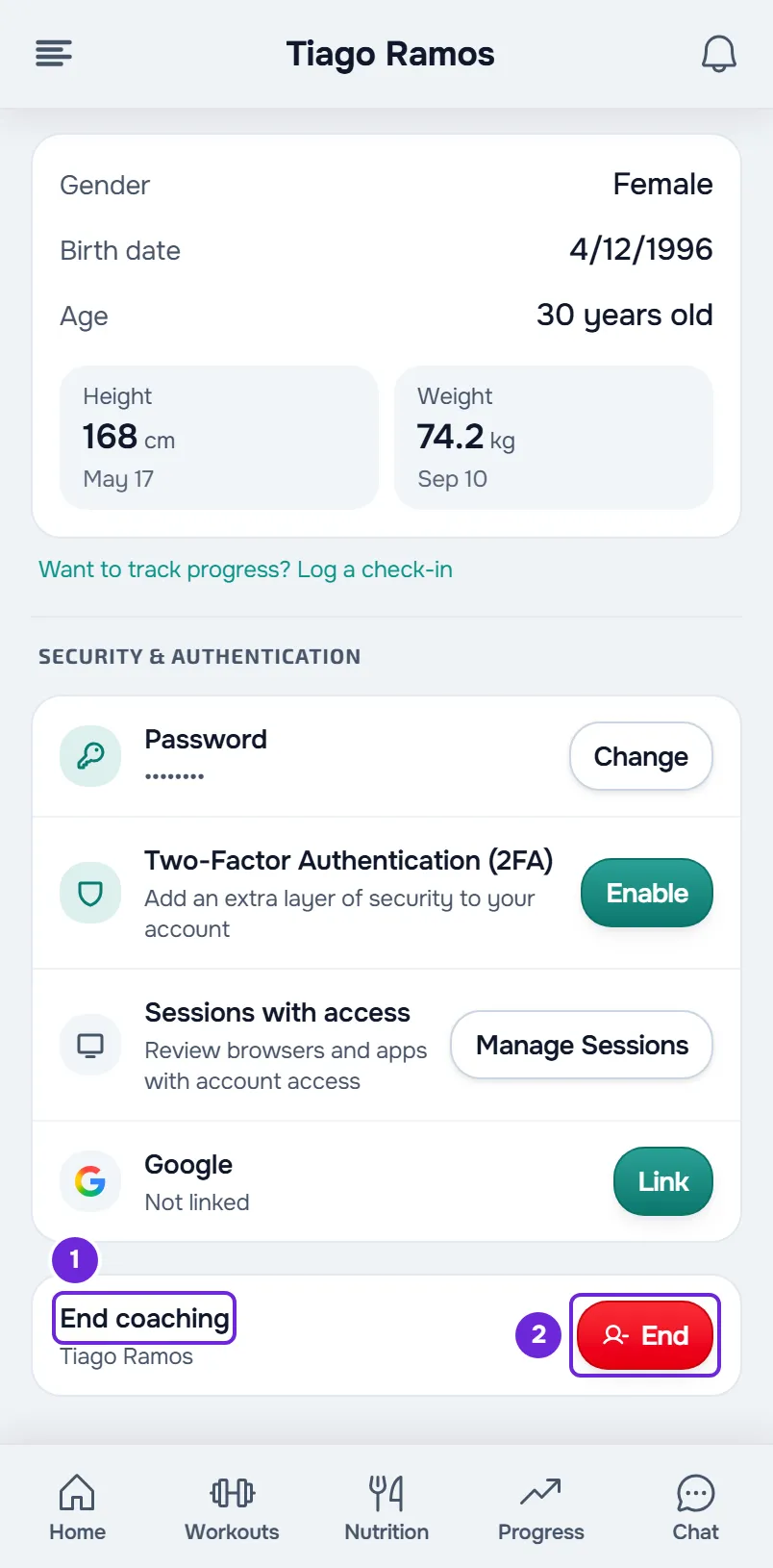
- Open Settings. On a computer, select your photo and your name at the bottom of the side menu, then Settings. On a phone, open the menu and select Settings at the bottom of the menu.
- Select Profile.
- If coaching is under way or scheduled, go to the end of the page and select End 2 in the End coaching 1 row. If it has already ended or is inactive, select Disconnect in the Disconnect from your professional row, at the end of the card with your name, email and phone.
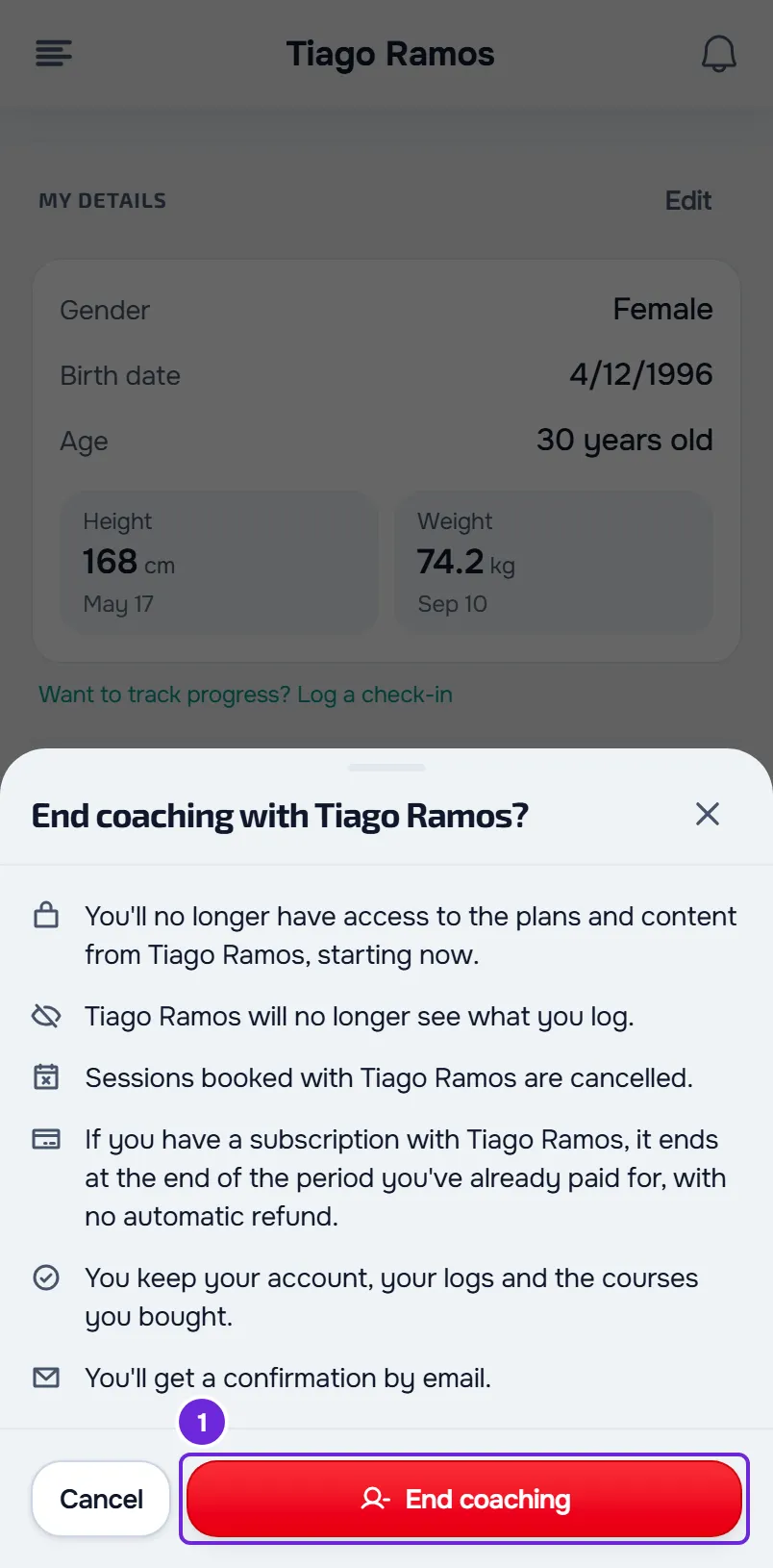
- Read the confirmation window. It says what changes and, if you still owe this professional a charge, shows what you owe.
- To confirm, select End coaching 1 or Disconnect, depending on the window. You do not need to type anything.
When you end coaching, “You've ended coaching with” appears with your professional's name, and the page for finding a professional opens (or Home, if that page is not available for your account). When you disconnect, “Disconnected” appears. In both cases, Home then shows the card for people who do not have a professional yet: see “You don't have a professional yet”: what to do.
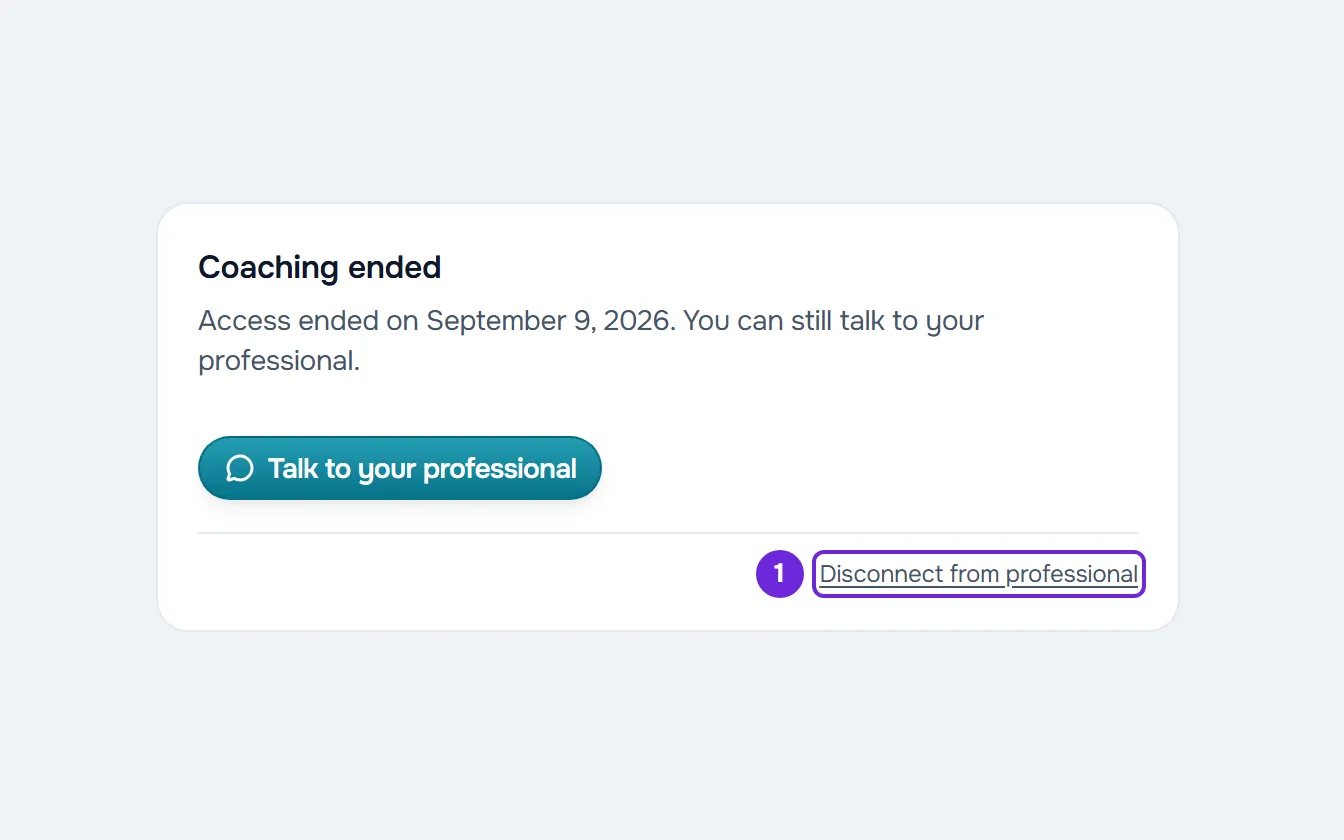
With access scheduled, ended or inactive, the Home card also has Disconnect from professional at the bottom. That confirmation does not show what you owe. For scheduled coaching, Disconnect from professional does the same as End coaching: it cancels the booked sessions and sends the confirmation by email.
In the app
- Open the menu with the button in the top-left corner and select your name at the bottom of the menu, with Profile and settings under it. On the main Settings screen, in the Account group, you find End coaching or, if coaching has already ended or is inactive, Disconnect from your professional.
- End coaching opens a screen with the same summary and, if you owe this professional a charge, what you owe. Confirm with End coaching, next to Cancel. When it is done, you go back to Home.
- Disconnect from your professional opens a confirmation that sums up what happens. Confirm with Disconnect.
- On the Home card, with access scheduled, ended or inactive, the button is called Disconnect.
What happens when you end coaching
- You lose access to your professional's plans and content right away. Scheduled coaching no longer starts.
- You leave your professional's client list and they are notified.
- Your chat conversation with them closes.
- Sessions booked with them that have not started yet are cancelled. In a group session, only you leave and the session goes on for the others.
- Your professional no longer sees the workouts you do after ending coaching, or the meals, supplements and habits you log from the next day on.
- A subscription to one of their plans stops renewing: it ends at the end of the period already paid, with no automatic refund. A monthly payment you pay manually stops creating new charges.
- You get the confirmation by email, with the subject “You ended your coaching”.
- You keep your account and your records.
What happens when you disconnect
- You are no longer linked to this professional and you leave their list. They are notified.
- Your chat conversation with them closes.
- Anything still renewing stops being charged: it ends at the end of the period already paid, and what you have already paid is not refunded.
- Your history stays saved in your account.
- For scheduled coaching, disconnecting has the same effects as ending it: booked sessions that have not started yet are cancelled and you get the confirmation by email.
If you still owe something
Leaving does not erase what you owe this professional. The charges stay in Payments, in Settings, and your professional still sees them. See View your payments, filter them and export them to CSV.
- With End coaching, the confirmation shows, before the summary, up to 3 unpaid charges, each with its due date, and two buttons: one to take care of the payment and one to talk to your professional, because the conversation is still open.
- With Disconnect from your professional, in Settings on the web, the confirmation adds what you owe. In the app and on the Home card, the confirmation does not list the charges.
Common problems
I don't see End coaching
It only appears while coaching is under way or scheduled. If coaching has already ended or is inactive, Disconnect from your professional appears in its place. If you have already disconnected, neither one appears. On the web, the row is at the end of Profile, after the security section.
“This coaching has already ended.”
Coaching closed between the moment you opened the window and the moment you confirmed, for example because the end date arrived or your professional deactivated you. Nothing changed. In Settings, Disconnect from your professional now appears in place of End coaching.
“Couldn't disconnect.”
The request failed. Check your internet connection and try again. If that did not solve it, contact support with your account email and your professional's name.
Questions
Can I go back to this professional?
Yes, if they accept you again, for example with a new invitation from them. There is no button to undo leaving. See Accept or decline your professional's invitation.
I want to change professionals. Do I have to end coaching first?
If your current coaching is under way or scheduled, yes: you can only have one professional at a time. If it has already ended or is inactive, you do not need to disconnect: once you are linked to the new professional, the link to the old one closes on its own.
Does my professional find out?
Yes. They get a notice when you end coaching or disconnect.