
Before you start
- The swap applies only to that meal, on that day. Your professional's plan does not change, and they see the food you chose in your day.
- In a locked plan, you can only swap for the substitutions your professional gave that food: there is no food menu, no search and no system suggestions. See Meal plan modes, locked plan and days without a plan.
- On a day that has passed, first select Edit this day. See Correct a day that has passed.
- The food you are swapping out must have calories, more than 0, even when you use a substitution from your professional. In search and suggestions, the new food's quantity is calculated from them.
Interactive tutorial
Opens in the app and needs you to be signed in.
Steps
To swap a food for an equivalent one, on the website:
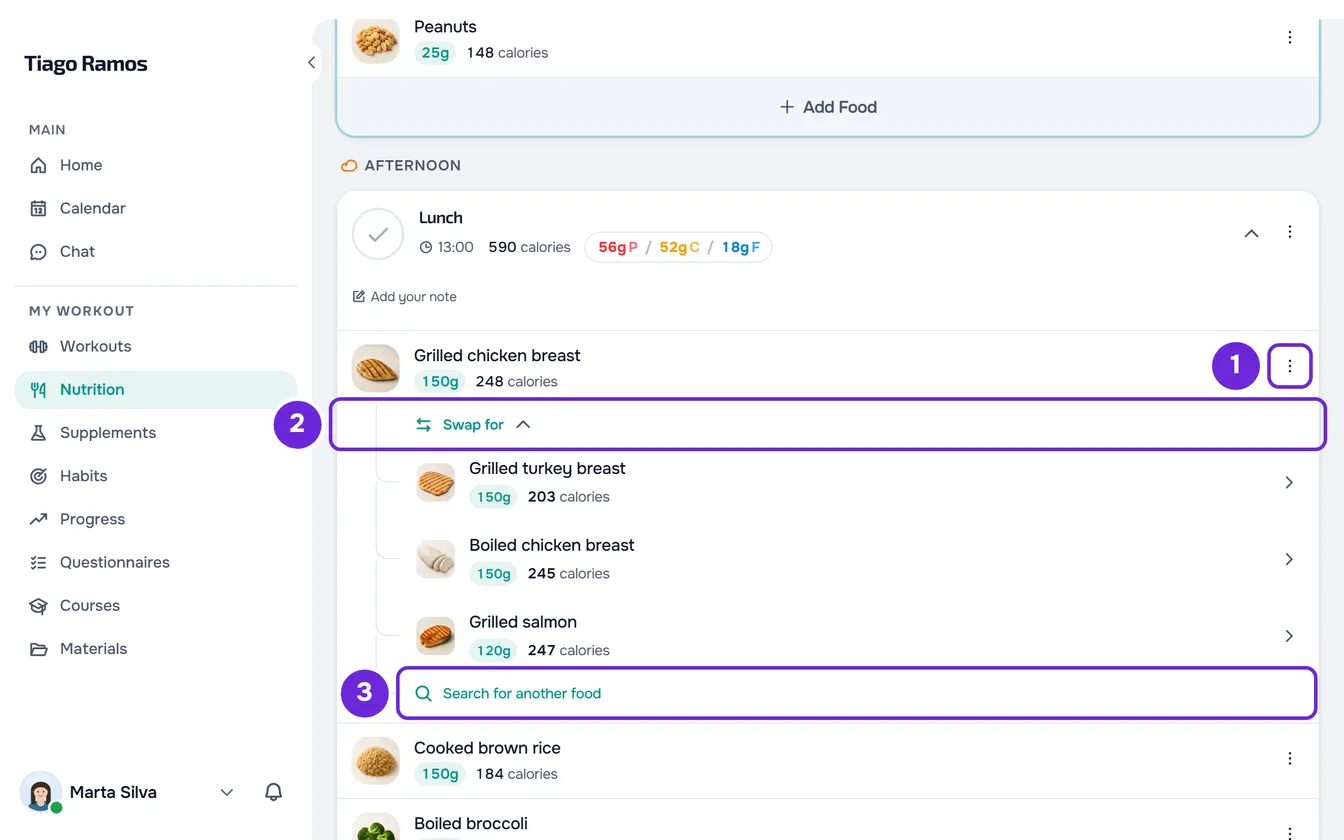
- In Nutrition, find the food in the meal. If the meal is collapsed, select its name to open it.
- Open the food's ⋮ menu 1, or right-click the row, and select Swap. The Swap food window opens.
- Optional: under Match 1, choose what the new food keeps. Calories is selected by default. With Protein, Carbs or Fat, it keeps that macro, and you can choose more than one. Calories goes back to keeping only the calories.
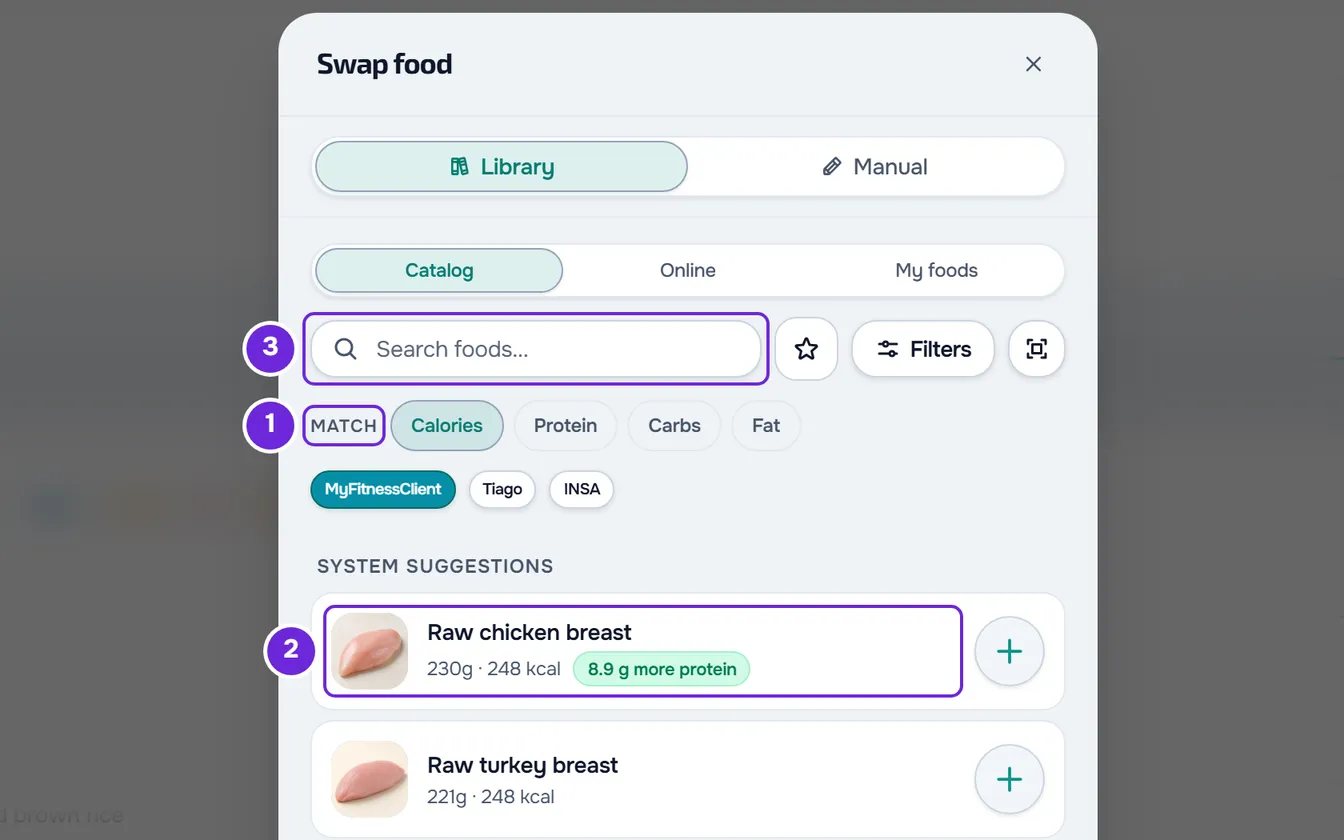
- Select a food under System suggestions 2, or type its name in Search foods... 3 and select a result. The food's details open, with the equivalent quantity.
- Optional: on a search result, change the quantity or the unit.
- Select Replace.
“Food replaced” appears, and the new food takes the old one's place, in the quantity shown in the details.
The + button next to a suggestion swaps straight away, without opening the details. The Swap food window also opens from Replace with another food, in a food's details, from Search for another food, at the end of your professional's list of substitutions, and, on a touchscreen, when you swipe the food's row to the left and select Swap.
In the app
- The food's ⋮ menu has Replace, which opens the Replace food sheet. In the food's details, Add substitutions opens the same sheet.
- With Catalogue chosen, and no search or filters, the sheet shows Match at the top of the list and, when there are suggestions, Suggested.
- Select the circle next to the food, or open its details and select Select. Then select Replace food, at the bottom of the sheet.
- The details of a substitution from your professional have Use as current, to swap for it. Outside a locked plan, they also have Edit.
- In a locked plan, the food's details have Replace with another, which opens the sheet with the From your professional list.
- Without an internet connection, there are no suggestions.
What suggestions and search show
- System suggestions are up to 12 foods similar to the one you are swapping out, each in the quantity that keeps what you chose under Match. Each suggestion has up to 3 green tags, for example “Matched on Protein”, “5 g more protein” or “40 fewer kcal”. See How substitution suggestions are chosen.
- With two or three macros under Match, the quantity keeps the sum of the calories from those macros, and each one stays as close as possible to the original.
- With one or more macros chosen and no suggestions, you see “No equivalent swaps for this filter: this food may not have that macro. Try another, or use search.”
- The foods in the list, with or without a search, show the quantity with the same calories as the food you are swapping out, for example “91g ≈ 180 kcal”. Match only changes the suggestions.
- While you type in the search, Match and the suggestions are hidden.
- In the Manual tab, you enter a food you cannot find. When you type the calories, Equivalent quantity appears, which is the quantity that goes into the meal. Replace is only available with the name, the calories (more than 0), the protein, the carbs and the fat. In this window, nothing is saved to your foods.
- A food without complete calories, protein, carbs and fat cannot be used for the swap: its details say “This food is missing calories, protein, carbohydrates, or fat. Choose another food.”
Use a substitution from your professional
When your professional has left substitutions for a food, a row with thumbnails and their number appears under it, for example “2 substitutions”.
- Select that row. The list opens with Swap for, and each substitution shows the quantity and the calories.
- Select a substitution to see its details and select Replace. It goes in with the quantity your professional set.
- To adjust it before using it, select Edit in the details, change what you need and select Save. “Substitution updated for this day” appears. Then open it again and select Replace. In a locked plan, there is no Edit.
- After the swap, the other substitutions stay under the new food. The food that was swapped out does not join the list: to go back to it, restore the meal or, in a locked plan, the day. See Edit, restore or delete a meal or a whole day.
Common problems
I don't see Swap in the food's menu
The plan is locked or the day has passed. In a locked plan, the food has no menu: use your professional's substitutions, in the row under the food, when they have given any. On a day that has passed, first select Edit this day.
“This food has no valid calorie value, so an equivalent substitution cannot be calculated.”
The food you want to swap has no calories, or has 0. Without them there is no equivalent quantity, and each result says “Equivalence unavailable”. First fix the food's calories: see Edit or delete a food in your meal. In the app, each result says “A calorie-equivalent quantity could not be calculated.”
No suggestions appear
System suggestions only appear with an active professional, in a plan that is not locked, for a food with calories, protein, carbs and fat filled in. They are hidden while you type in the search and when you choose the INSA button or your professional's button in Catalog. With an overdue payment, the payment notice appears in their place: see Payment overdue: what is paused and how to settle it. If no food is similar enough, the list is empty: use the search.
“A calorie-equivalent quantity could not be calculated.”
It appears when you use a substitution from your professional without complete calories, protein, carbs and fat, or when the food you are swapping out has no calories. If the substitution is incomplete, choose another one or search for another food. If the food you are swapping out has no calories, fix them as described in “This food has no valid calorie value…”. In both cases, let your professional know. In the app, Use as current is disabled in these cases.