
This message appears on Home when your account is not connected to any professional and you have no invitation waiting. Without a professional, you have no workouts, nutrition or coaching: the connection is made through your professional's invitation or, on the website, through a request from you.
When it appears
- You created your account without an invitation and are not connected to any professional yet.
- You ended coaching or disconnected from your professional. See End coaching or disconnect from your professional.
If your coaching is scheduled, ended or inactive and you have not disconnected, Home does not show this message: it shows your access status. See Access statuses: scheduled, ended and inactive. If you have an invitation waiting for your reply or for the professional's approval, Home shows the invitation card instead of this message.
What Home shows
The card depends on your situation and on where you are. With no request sent, the title is “You don't have a professional yet”.
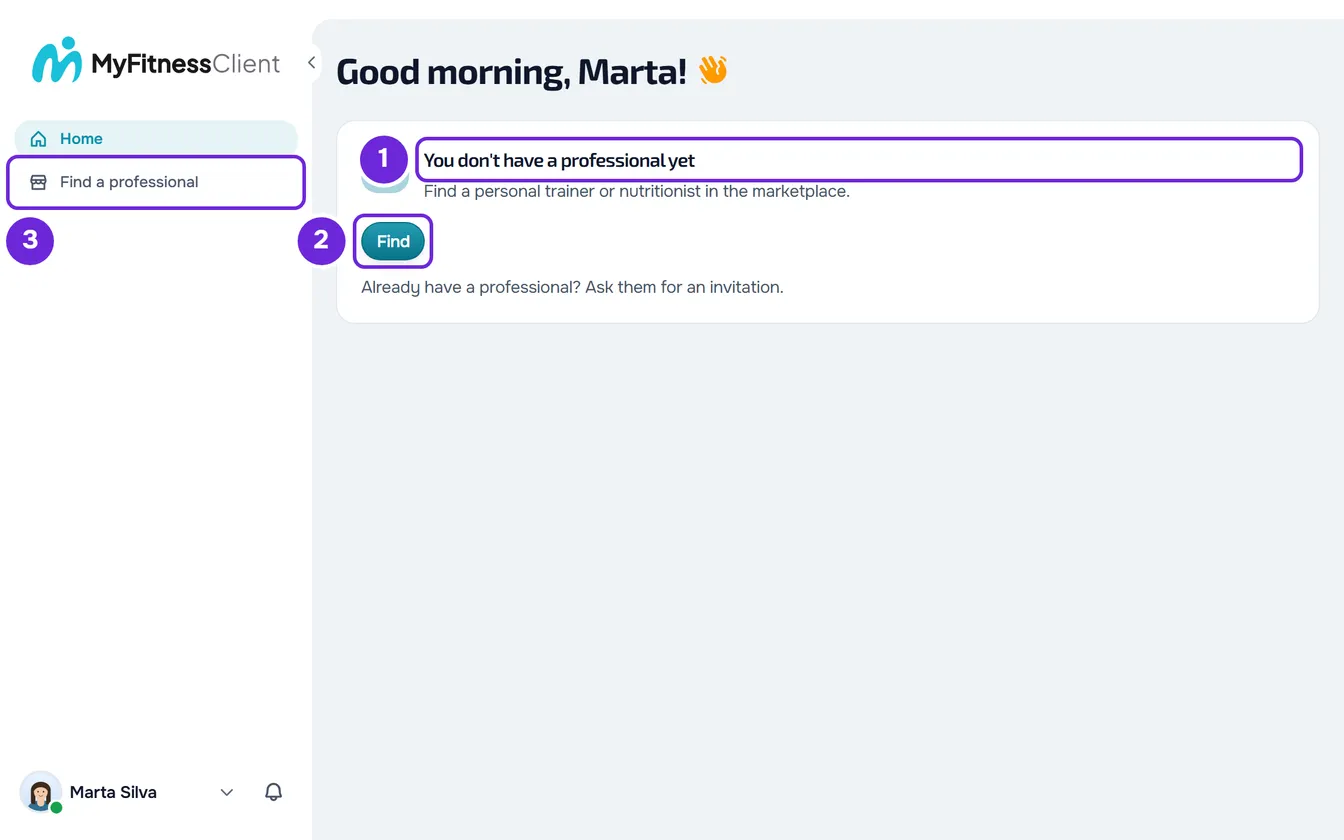
| Situation | On the web | In the app |
|---|---|---|
| No request sent | “Find a personal trainer or nutritionist in the marketplace.”, the Find button and the note “Already have a professional? Ask them for an invitation.” | “Scan the QR code or paste the link your professional sent you. Still looking for one? You can find personal trainers and nutritionists on the MyFitnessClient website.” and the Scan QR code and Paste link buttons. |
| No request sent, if you are under 16 | “To access workouts, nutrition and coaching you need to be linked to a professional. Ask them for an invitation to the platform.”, with no button. | Only the first sentence, “Scan the QR code or paste the link your professional sent you.”, and the same two buttons. |
| With a request waiting for a reply | “You asked {name}”, “Waiting for a reply” and the View request button. When the professional's page is not available, the button is Cancel request. | “You asked {name}”, “Waiting for a reply” and the Cancel request button. |
In a professional's branded app, the rest of the card's text is “Don't have it yet? Ask the professional behind this app.”
What to do
If your professional sent you an invitation
On the web, open the invitation link, or scan the QR code with your phone's camera, while signed in to your client account. You go straight to Home, where the invitation opens. If you don't have an account or are not signed in, follow Open your professional's invitation and create your account.
The app does not open invitation links: the link always opens in the browser. To open the invitation in the app, follow these steps.
- On Home, on the “You don't have a professional yet” card, select Paste link.
- In the “Open an invitation” window, paste the full link your professional sent you into Invitation link.
- Select Open invitation.
Instead of the link, you can select Scan QR code and point the camera at the invitation's QR code. The invitation appears on Home for you to respond to: see Accept or decline your professional's invitation. If you have a request waiting with another professional, the request card takes the place of these two buttons: cancel it first.
If you don't have a professional yet
On the web, select Find on the card or Find a professional in the menu, open a professional's profile and select Send request. In the window that opens, check the box that lets the professional see your health data and select Send request again. From then on, Home shows your request until the professional replies. The app does not have this search: make the request on the MyFitnessClient website, with the same account.
If you are under 16, you cannot send requests: you can only connect to a professional through their invitation. Ask them for the invitation link or QR code.
If you already sent a request
- On the web, View request opens the professional's page, where you can write to them while you wait.
- To withdraw, select Cancel request: in the app, on Home; on the web, on the professional's page, or on Home when that page is not available. Confirm in the “Cancel the request?” window. The professional no longer sees your request and the request's conversation closes.
- Each account can have only one waiting request at a time: to ask another professional, first cancel the one you have.
- When the professional accepts, Home shows your day, or the “Coaching scheduled” card if coaching only starts later.
- When the professional declines, you get a notification and the request disappears from Home. You can ask another professional right away; you can only ask the same one again 30 days after they declined, and their page shows when you can.
- If a request sent from Find a professional or from a professional's public profile gets no reply, the professional gets a reminder after 3 days and the request expires after 14 days. When it expires, you get a notification and can ask another professional.
What changes while you have no professional
- On the web, the menu only has Home, Courses, if you already have a course, and Find a professional, except if you are under 16. In a phone browser, the bottom bar also has Profile.
- On the web, opening Workouts, Nutrition, Supplements, Habits, Progress, Chat, Calendar, Materials or Courses (when you have no courses) by their address takes you to Find a professional or, if you are under 16, to Home.
- In Settings, Health questionnaire no longer appears and Payments only appears while you have something to pay.
- On the web, Tutorials disappear from Settings and the welcome tour does not start.
Common problems
The invitation link opens in the browser and not in the app
That is how it works: the app does not open invitation links. Copy the link and use Paste link on Home in the app, or open the invitation in the browser and then sign in to the app with the same account.
My professional says they sent me an invitation, but nothing appears
An invitation by link or QR code only reaches your account when you open it: ask them for the link or QR code and open it as in “If your professional sent you an invitation”. An email invitation appears on its own on Home for the account with that address, on a new account after you verify the email, and only works for that address: check that you signed in with that email. If, when you open the invitation, a message such as “Verify your email before opening an invitation.” appears, or if the invitation expired or was already used, see Invitation not working: expired, already used or for another email.
I don't see the Find button
The search for professionals only exists on the website. If you are under 16, the button does not appear either: in that case, the connection is made only through the professional's invitation. With a request waiting, the card shows the request instead of the button.
I have a professional, but Home says I don't
Check that you signed in with the account your professional invited: the connection belongs to the account, not to the device. If you ended coaching or disconnected, ask them for a new invitation.
If this did not solve it
Write to the MyFitnessClient team through the contact shown in the Help Center and send your account's email, the professional's name, the exact message you see and whether you use the web or the app.