
Before you start
- You need a linked professional. Without a professional, Payments only shows in Settings while you have pending or overdue payments from a previous professional. See “You don't have a professional yet”: what to do.
- Filtering by type and year and exporting to CSV only exist on the website. In the app, you see the list and the details of each payment, as explained in “In the app”.
Interactive tutorial
Opens in the app and needs you to be signed in.
Steps
To view, filter and export your payments:
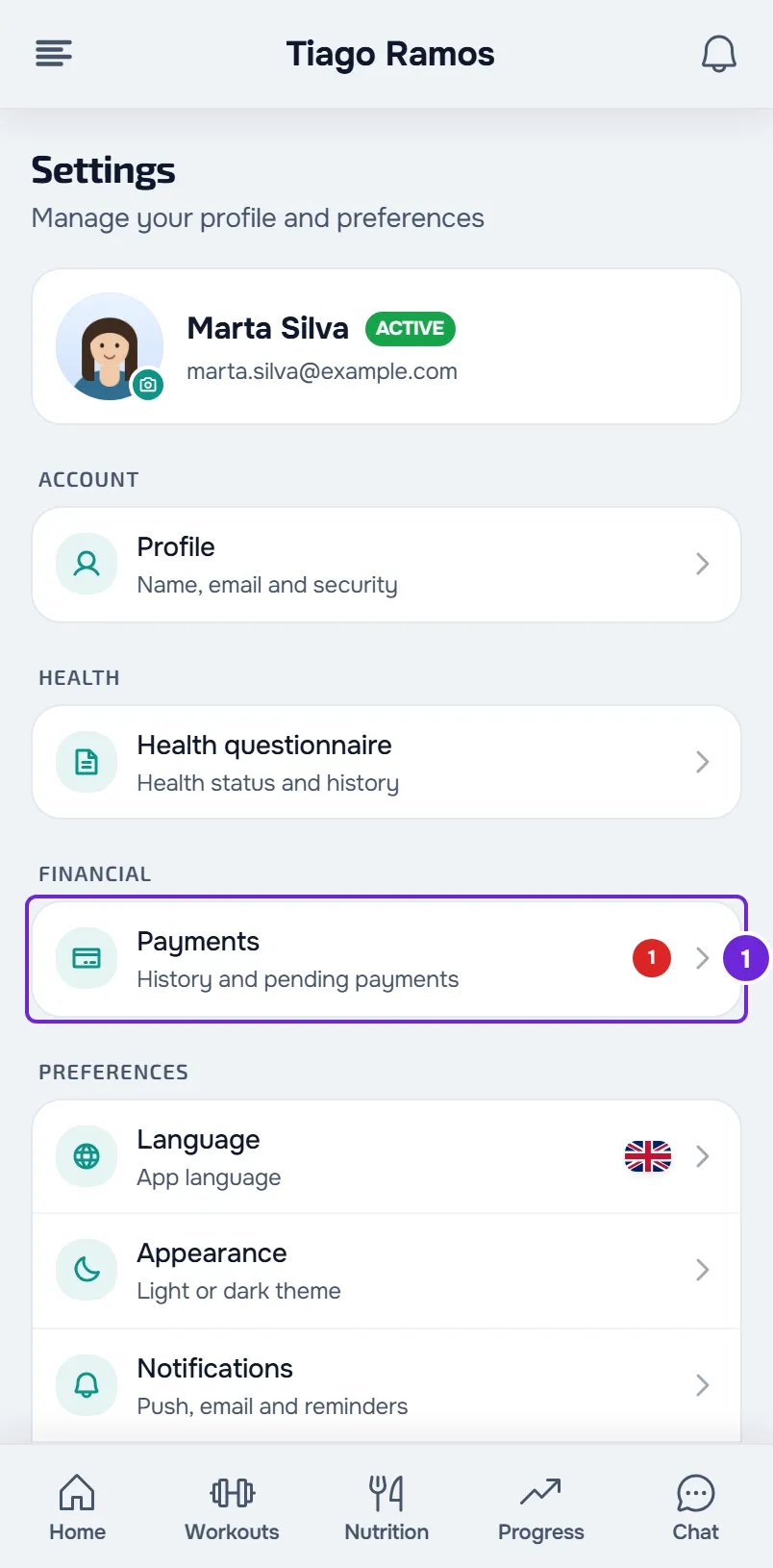
- Open Settings. On a computer, it is in the menu with your name, at the bottom of the side menu; on a phone, at the bottom of the menu you open in the top-left corner.
- In the FINANCIAL group, select Payments 1. The page shows the status card, when you have payments, the Your plan section and the list of your payments. In the menu, the number next to Payments counts your overdue payments.
- Choose the All, Pending or Paid tab. Each tab shows how many payments it has, and Pending groups pending payments, overdue payments and payments awaiting confirmation.
- Optional: to filter the list, choose a type in the All types selector (Monthly, Pack, Session or One-off) and a year in the All years selector, which only lists the years in which you have payments. The year is that of the payment date or, for a payment without a payment date (for example, an unpaid one), that of the due date. Once you choose a filter, Clear appears and resets both.
- Select a payment to open Payment details, with the amount, the status, the due date, the reference month (when there is one) and the professional and, if it has been paid, the payment date and, when it was recorded, the method. For a payment paid online, View receipt opens the Stripe receipt in a new tab.
- Optional: to save your payments to a file, select Export at the top of the page. The Export payments window opens.
- In What to export 1, choose Pending and overdue, History (paid) or Everything, which is selected by default.
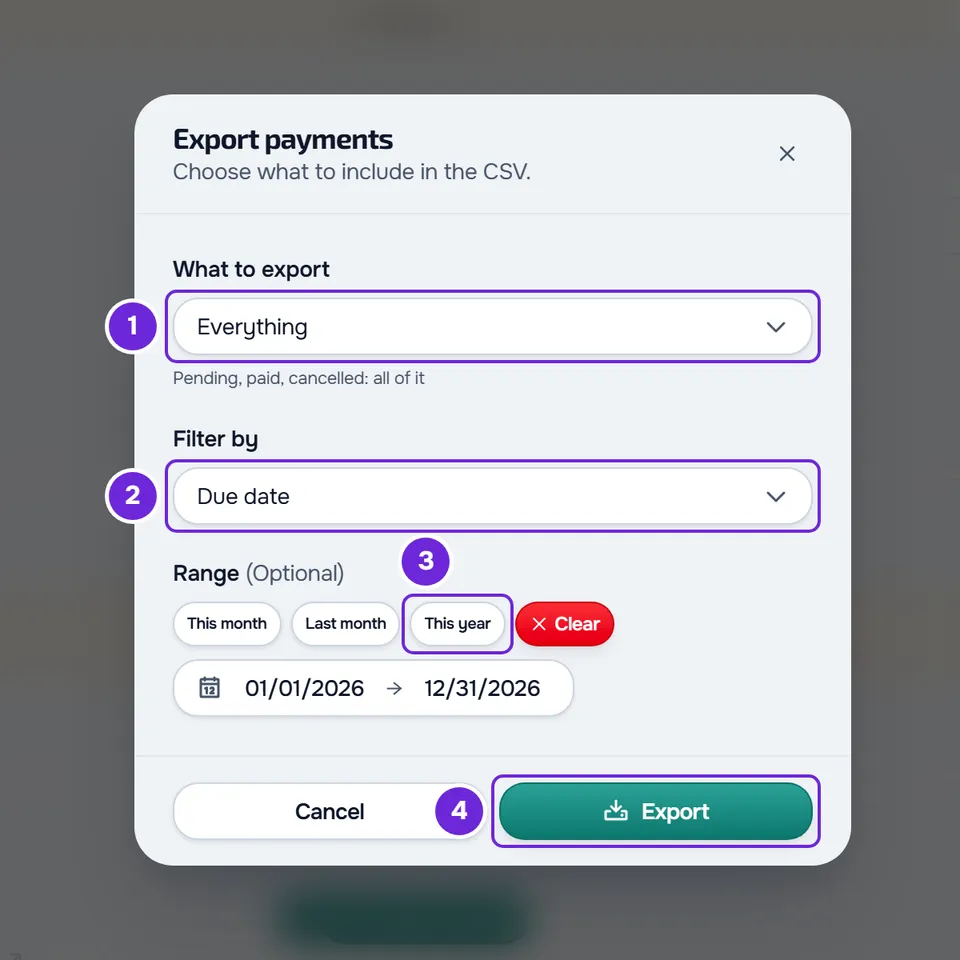
- Optional: to limit the dates, choose Due date or Payment date in Filter by 2 and, in Range, choose the two dates or a shortcut: This month, Last month or This year 3.
- Select Export 4 at the bottom of the window.
The CSV file downloads and a message shows the number of payments exported, for example “12 payments exported”.
In the app
- Open Settings (see Client settings: where to find each option) and, in the Financial group, select Payments. The number next to Payments counts your overdue payments.
- When you have something to pay, the top card is called Outstanding: it shows the total to pay, a bar with the overdue part and the counts, for example “1 overdue”, “2 to pay” and “1 awaiting”. With nothing to pay, it shows Awaiting confirmation with the amount waiting for your professional, or Payments up to date. In the first two cases, select the card to go to Pending.
- Under it, the Your plan and Your plans cards appear, when you have them. See States and buttons of the Your plan card.
- The All, Pending and Paid tabs work as on the website. There are no type or year filters and no export.
- On each payment, the date appears without “Paid on” or “Due date:”, and payments awaiting confirmation or cancelled show no date. The professional's name only appears in the payment details. View receipt is a button on the payment itself.
- Select a payment to open Payment details, with the same data and buttons as on the website.
- To refresh the list, pull down on the screen.
The status card
On the website, the card at the top of the page sums up what you owe. It only appears when you have at least one payment.
| Card | When it appears and what it shows |
|---|---|
| Overdue payments | You have at least one overdue payment. Under the title you see, for example, “3 to pay: €150.00”: the number and the amount count all unpaid payments, including pending ones that are not due yet. |
| “1 pending payment” or, for example, “3 pending payments” | You have unpaid payments and none is overdue. It shows “Total:” and the amount. |
| Awaiting confirmation | You have nothing to pay, but there are payments you marked as paid waiting for your professional. It shows how many there are and the amount. |
| Payments up to date | You have nothing to pay or to confirm. It shows “No pending payments.” |
In the first three cases, select the card to open the Pending tab. With payments in different currencies, the card shows one amount per currency.
What each payment shows
- The title (the payment description, the reference month or “Payment”), the amount and the status: Overdue, Awaiting confirmation, Pending, Paid or Cancelled.
- The deadline line: “Due today”, “1 day left” or, for example, “5 days left” when the due date is 7 days away or less; “1 day ago” or, for example, “10 days ago” for an overdue payment; “Paid on” and the date for a paid payment, with “Paid online” if you paid it online; “Due date:” and the date in other cases.
- A red box with “This payment wasn't confirmed” and the reason, when your professional did not confirm a payment you marked as paid. While a payment awaits confirmation, “Reported as:” appears with the method, the date and, if you wrote one, your note.
- The buttons that apply to the payment's status: Pay now (only when the payment can be paid online), Mark as paid, Unmark payment and View receipt. On the website, the card also shows the professional's name. To pay, see Pay what you owe your professional online with Pay now or Mark a payment made outside the platform as paid.
- The list starts with overdue payments, followed by those awaiting confirmation, pending, paid and cancelled ones. In each group, the oldest due date comes first.
The CSV file
The file has one row per payment. The name starts with pagamentos_, followed by what you exported (outstanding, history or all) and the dates of the range, for example pagamentos_all_inicio_fim.csv when you choose no dates. These are the columns:
| Column | What it holds |
|---|---|
id | The payment number. |
descricao | The payment description as stored, without translation. Descriptions that MyFitnessClient creates on its own for recurring payments (for example, monthly or weekly) are in English. |
montante | The amount, with two decimal places and a dot separating them. |
moeda | The currency code, for example EUR. |
estado | The status, with its internal name: paid, pending, overdue, pending_confirmation (awaiting confirmation) or cancelled. |
tipo | The type, with its internal name: monthly, pack, session or other (one-off). |
data_vencimento | The due date, in year-month-day format. |
data_pagamento | The payment date, in the same format. It is empty when the payment has no payment date, for example an unpaid one. |
metodo | The method you gave in Mark as paid, with its internal name, for example transfer or cash. It is empty when you did not mark the payment yourself, for example for an online payment. |
profissional | The professional's name. |
- The export does not follow the tab or the filters on the page: it only uses what you choose in the window.
- Pending and overdue also includes payments awaiting confirmation.
- With a range and Payment date, unpaid payments are left out, because they do not have a payment date yet.
- With more than 5000 payments, “An error occurred” appears and nothing is downloaded.
- The file starts with the UTF-8 BOM, so accented characters display correctly in Excel. Any text, such as the description or the professional's name, that starts with
=,+,-or@gets an apostrophe in front, so the spreadsheet does not read it as a formula.
Common problems
“No payments yet”
You do not have any payments yet. Without payments, the page does not show the status card, the tabs or Export. When there is a payment in your name, it appears on this page.
“No payments in this view”
The tab or the filters you chose have no payments. On the website, in a tab other than All, the notice has Clear, which goes back to All; if you chose a type or a year, select Clear next to the selectors. In the app, choose All.
The red card counts more payments than those marked Overdue
On the website, the Overdue payments card counts and adds up all unpaid payments, for example “3 to pay: €150.00”, including pending ones that are not due yet. Only payments with the Overdue status are past their due date. In the app, the Outstanding card separates the counts, for example “1 overdue” and “2 to pay”.
“Nothing to export with those filters”
No payment matches what you chose in the Export payments window. Widen the Range or choose Everything in What to export. If you filtered by Payment date, unpaid payments are left out: choose Due date. If reading the payments fails, “An error occurred” appears and nothing is downloaded: try again.
For other problems, such as a payment that does not get confirmed, see Fix payment problems: Pay now, confirmation and plan.
Questions
Why did a payment change to Overdue on its own?
A pending payment changes to Overdue on the day after its due date, in your account's time zone. To find out what changes when you have overdue payments, see Payment overdue: what is paused and how to settle it.
Does the list refresh on its own?
Yes, on the website and in the app, when your professional confirms or rejects a payment you marked as paid. In the app, you can also pull down on the screen to refresh the list.
Do all payments have a receipt?
No. Only payments paid online have View receipt, which opens the Stripe receipt. See Receipts and invoices for client payments.
Can I see payments from a previous professional?
Yes. The list includes payments from all the professionals you have had, and the details of each payment show the professional's name. Without a linked professional, Payments stays in Settings while you have pending or overdue payments. See End coaching or disconnect from your professional.