
Before you start
- The amount changes for one dose and one day only. Your professional's plan does not change and, on other days, the dose keeps the plan amount.
- You can only change the amount for today or for a day that has already passed. On a future day, the amount is read-only and has no pencil.
- You need a supplement plan from your professional on the Supplements page. If the page does not appear or is empty, see The Supplements page is empty or missing.
Steps
To log the amount you took on a day:
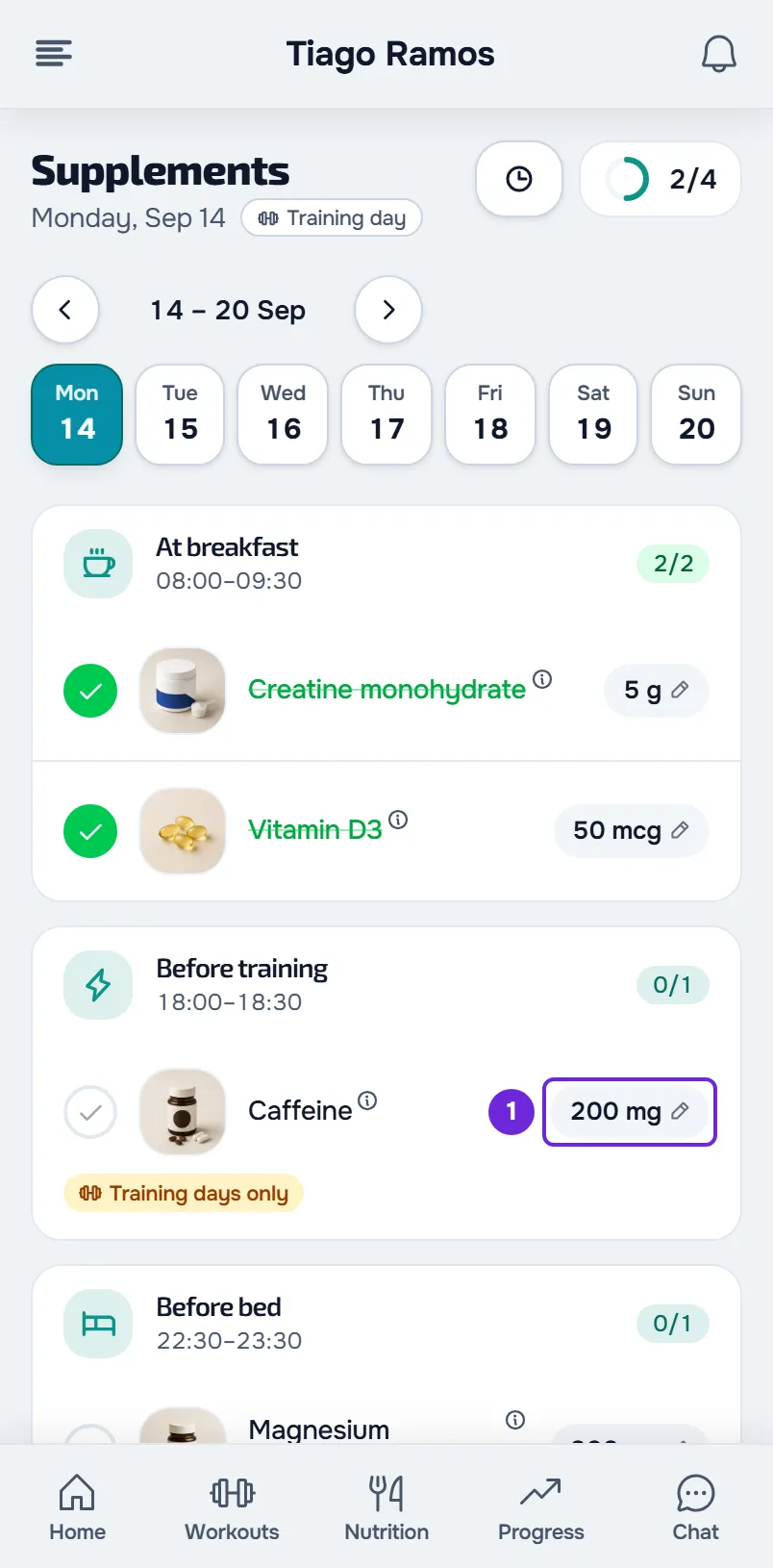
- In the menu, select Supplements. The page opens on today's date.
- Optional: to change a day that has already passed, select that day in the week strip.
- In the supplement row, select the amount, the chip with the pencil 1. The amount window opens, with the supplement's photo and name and the plan amount, for example “In the plan: 5 g”.
- Set the amount you took: use the − and + buttons, type the number in the field 1 or pick one of the quick amounts.
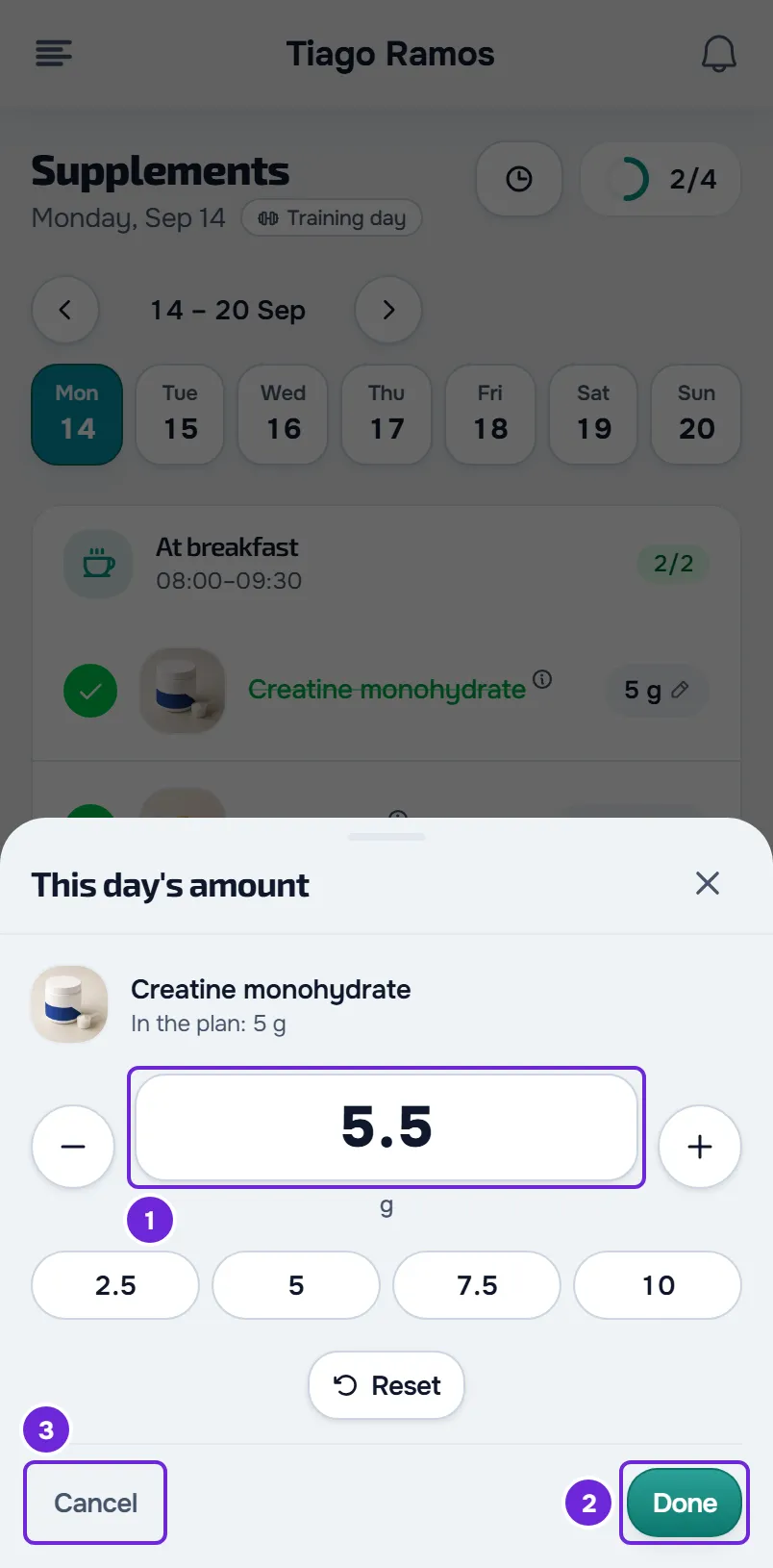
- Select Done 2 to save. To leave without saving, select Cancel 3.
The chip now shows the new amount, in amber, on that day only. If you had already marked the dose on that day, the record is updated to the new amount.
The − and + buttons and the quick amounts
- The − and + buttons change the amount in steps of about a tenth of the plan amount, rounded: for 500 mg the step is 50 and for 5 g it is 0.5. For countable units, such as capsules or tablets, the step is 1.
- There are up to four quick amounts around the plan amount: half, the plan amount, one and a half times and double. For countable units, they are the plan amount and the amounts around it, in steps of 1. The selected one is filled in.
- In the field, type the number with a comma or a period. The unit under the number matches it, for example “2 capsules”.
Go back to the plan amount
Select the amount chip again, select Reset and then Done. The chip is no longer amber and the dose goes back to the plan amount on that day. When the plan asks for a fixed amount, typing exactly that amount has the same effect.
On the web
- On a computer, the window opens next to the chip. On screens narrower than 640 px, it opens in a sheet titled This day's amount.
- Closing the window saves the amount you typed, including with the Esc key, by selecting outside it or by scrolling the page. Only Cancel leaves without saving.
- If saving fails, an error notice appears and the page reloads the day, with the amount that is actually saved. Without a connection, the page may show an error card with Try again.
In the app
- You change the amount in a sheet titled Today's amount.
- Only Done saves. Closing the sheet any other way, for example by dragging it down, leaves without saving, like Cancel.
- In the latest version of the app, you can also change the amount without a connection: the change is saved on your phone and is sent when the connection comes back. If the server does not accept it, see Record “to review” or “The server did not accept this record”.
- If saving fails, an error notice appears and the chip goes back to the amount it had.
Common problems
“Enter an amount greater than zero.”
The field is empty or contains zero. When you select Done, the window does not close or save until you enter an amount greater than zero. To leave without changing anything, select Cancel.
I entered an amount and the chip did not turn amber
You entered exactly the plan amount. That does not count as a change: the dose keeps the plan amount on that day. For an amount given as a range, for example 3–5 g, opening and closing the window without changing anything does not save anything either, and the range stays as it is.
The amount changed without me meaning to
On the web, closing the window saves what is in the field, including with Esc or by selecting outside it. To go back to the plan amount, select the chip again, select Reset and then Done. If it was not you, your professional may have changed the amount for that day for you.
The amount is shown per kilo, for example “3 mg/kg”
The dose is per kilo of body weight and you have no weight logged yet, so the dose cannot be marked. If you know how much you took, enter that amount on that day: the first time, the field opens empty. The amount you enter only applies to that day and the dose can then be marked. For these doses, the window never has quick amounts or Reset, even after you change the amount. See “An up-to-date weight is needed to calculate the amount”.
Questions
Does changing the amount change my plan?
No. It only changes that dose on that day. On other days, the dose keeps the plan amount. To change the plan, talk to your professional.
Can my professional see the amount I entered?
Yes. Your professional sees the amount you entered on that day, even for a dose you have not marked yet. They can also change the amount for a day for you: in that case, the chip turns amber even though you did not change anything.
Does changing the amount mark the dose as taken?
No. Mark the dose in the row, as usual. See Mark your supplement doses for the day.