
Before you start
- Nutrition has to be part of your coaching with your professional. If you can't find it, see “Not in your plan”: a section of the app has disappeared.
- On a day that has passed, you only see the meals that have a log, and the circle stays disabled until you select Edit this day and confirm; from then on, the plan's meals that were left unmarked also appear. See Correct a day that has passed.
- If your professional has locked the plan, you can still mark the meals and choose the option you ate. See Meal plan modes, locked plan and days without a plan.
Interactive tutorial
Opens in the app and needs you to be signed in.
Steps
To log a meal you ate:
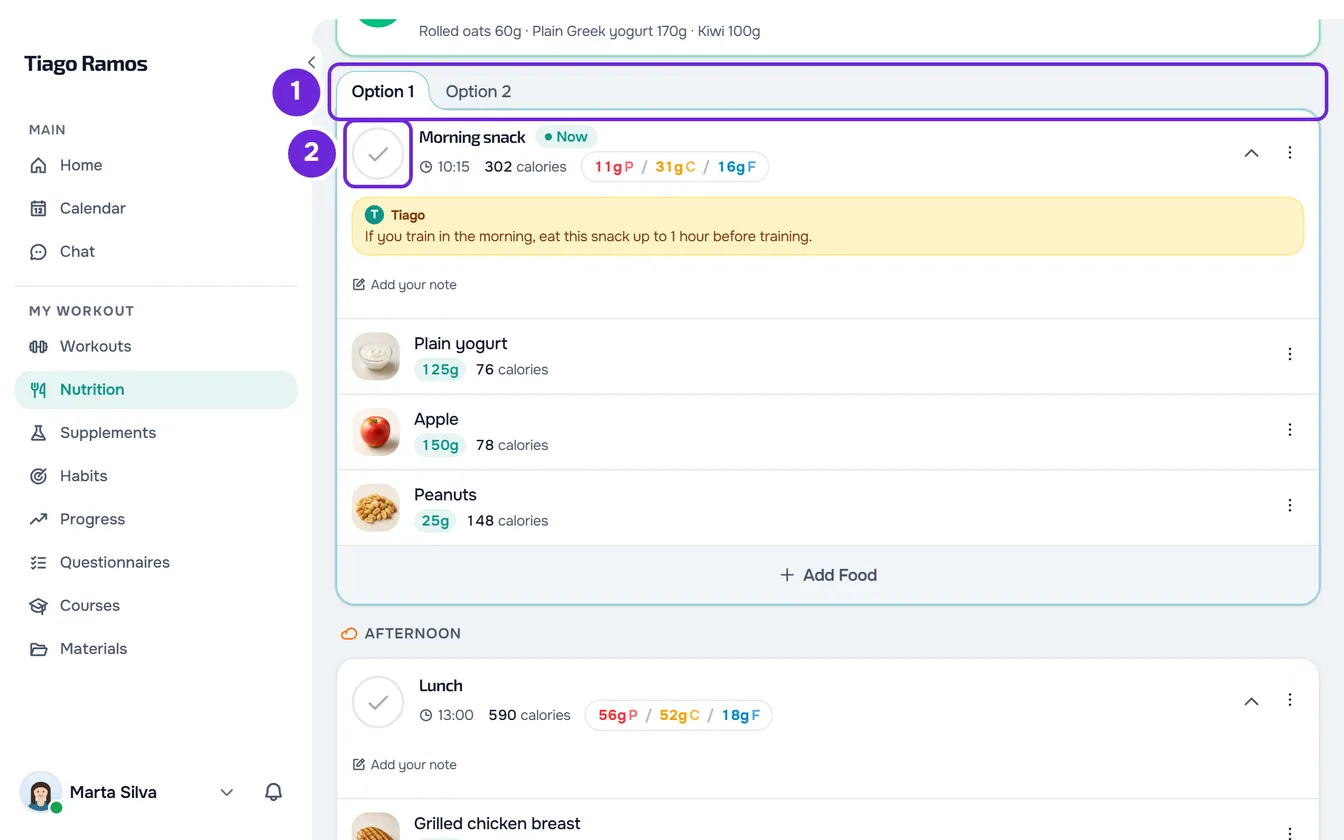
- In Nutrition, open the day of the meal. To change the day, see View your meal plan for the day and your goals.
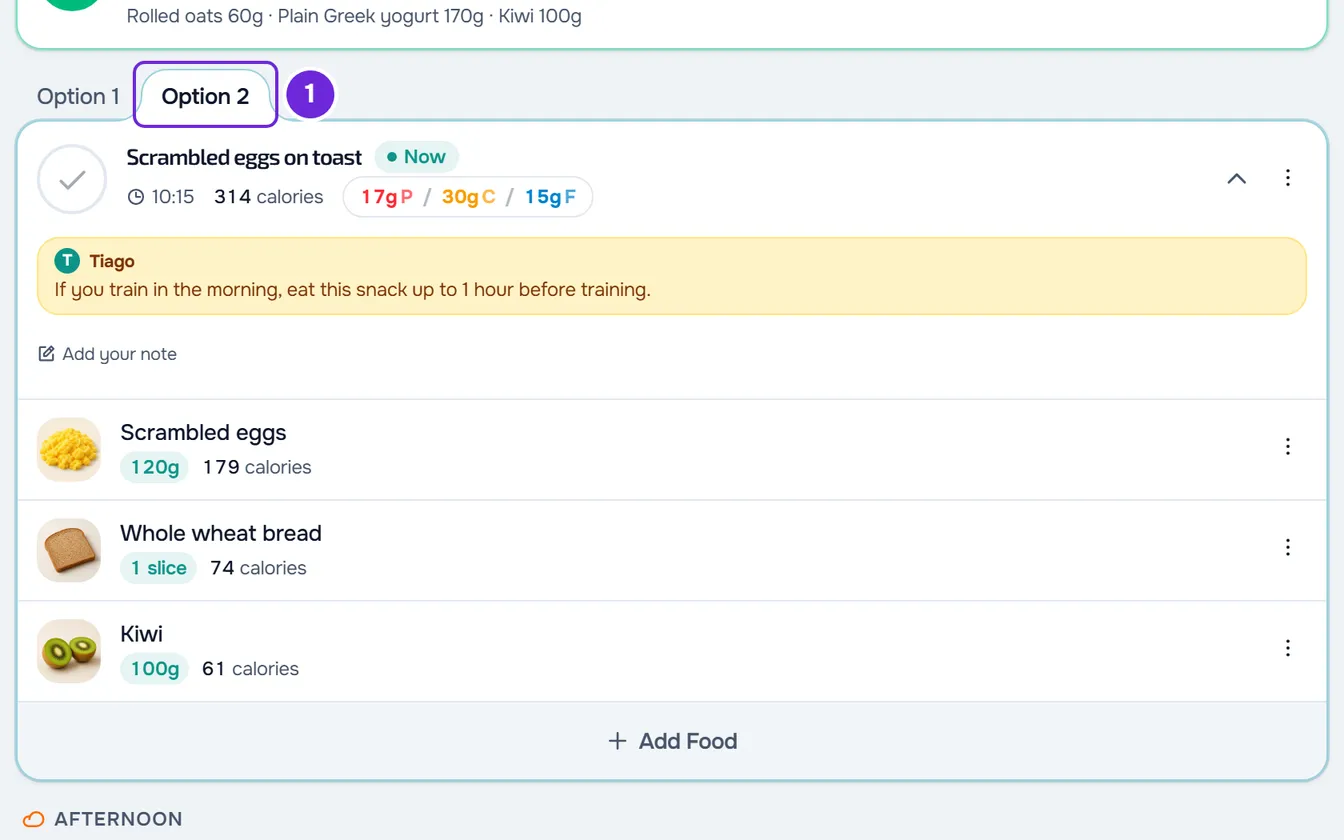
- Optional: if the meal card has tabs at the top (Option 1, Option 2 and so on), select the option you ate 1. The foods, the calories and the card's name switch straight away to those of that option.
- Select the circle at the start of the card 1, before the meal's name.
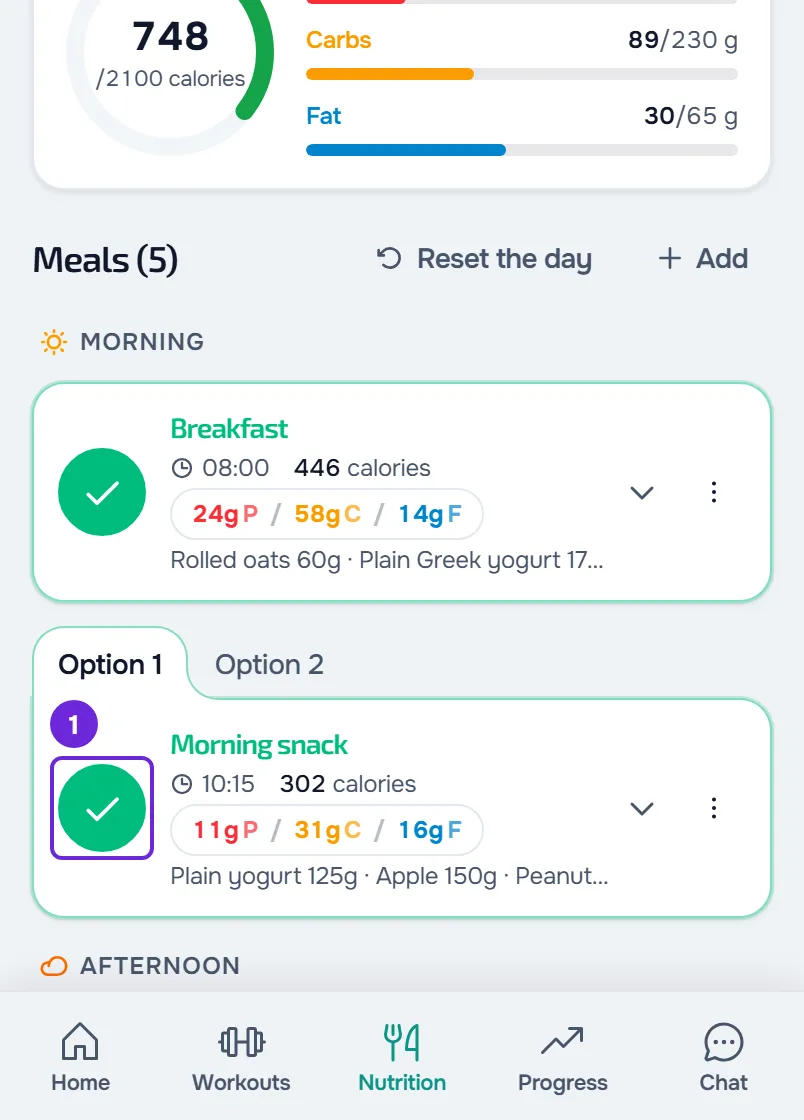
The circle turns green with a tick, the card gets a green outline and collapses, and the day's ring and bars add the meal's calories and macros. The “Meal logged” notice appears or, if this meal takes you to the day's calorie goal, “Today's goal reached!”. Your professional sees the meal as eaten in your log for that day. To unmark it, select the circle again.
In the app
- The circle works the same way. The notice appears straight away, and you can mark and unmark quickly: the saves go through in the order you made them.
- What you mark is first stored on your phone and goes to the server when there is a connection. Without internet, you can mark meals on the days the app has already stored.
- Selecting an option tab also opens the card.
The meal card
Each meal of the day is a card. From top to bottom, it has:
- The option tabs, when your professional prepared more than one version of the meal.
- The circle to mark the meal as eaten. On the website and in the app, screen readers announce it as Mark as eaten and, once marked, Unmark.
- The name, the Now highlight on the current meal, the time, the calories and the grams of protein, carbs and fat (P, C and F). A “-” in place of a number means that one of the foods does not declare that value.
- An arrow that opens and closes the meal; selecting the name or the numbers does the same. When collapsed, the meal shows its foods on a single line.
- The ⋮ menu, with the meal's actions; on the website, a right-click on the top of the card opens the same menu. It does not appear with a locked plan or on a day that has passed, before Edit this day. See Edit, restore or delete a meal or a whole day.
- Your professional's note, in an amber box with their name, when the meal has one.
- Add your note, to tell your professional how the meal went, with up to 500 characters. The note saves automatically one second after you stop typing, and your professional gets a notice, at most one per hour. When they reply in the chat, the note shows that they replied. On your phone, your note is available in the latest version of the app.
- The foods and, at the end, Add Food, which does not appear with a locked plan or on a day that has passed, before Edit this day. See Add foods to a meal.
The green outline means the meal is eaten; the outline in the app's main color marks the current meal. A meal collapses on its own when you mark it and opens again when you unmark it, until you open or close it yourself: from then on, it stays as you left it. On the website, when you change day, the meals open again, except those already marked.
Meal options
- Option 1 is the meal as your professional prescribed it. The others are alternative versions they prepared, always in the same order.
- Choosing an option saves the choice for that day, but does not mark the meal as eaten. When you mark it, the chosen option is logged, with the changes you made to it.
- Each option keeps your changes for that day: if you change foods in Option 1, move to Option 2 and come back, the changes are still there. Switching tabs never deletes anything.
- To go back to what your professional prescribed in the option on screen, use Restore meal in the ⋮ menu. See Edit, restore or delete a meal or a whole day.
- The tabs only appear on plan meals that have options, not on meals you created. They also appear with a locked plan.
What changes for your professional
- They see the meals you marked in your log for that day.
- On a sequential plan, when all the day's meals are marked, the plan moves on to the next day.
- If they set up a questionnaire for when you complete your nutrition day, you receive it when all of today's meals are marked, once a day.
See Nutrition reminders, notices and what your professional sees.
Common problems
“Try again” appears and the meal goes back to unmarked
On the website, the save failed and the page went back to what is saved. It may be a lack of connection or the limit of 30 saves per minute: marking a meal that has no log yet on that day counts towards that limit. Check your connection, wait a minute and mark it again. If it keeps happening, see Common Nutrition problems and error messages.
The circle is gray and does not respond
The day has passed: select Edit this day and confirm. On the website, the circle also turns gray for a moment while another change on the page is saving; wait for it to finish.
The foods of a marked meal changed
Your professional changed that meal in the plan. A meal that is only marked always shows the plan's current foods. The foods only stop following the plan when you change them on that day, or when you choose an option other than Option 1. See Edit or delete a food in your meal.
“Could not replace the meal”
The option switch failed, for example because of a lack of connection, and the tab goes back to the previous option. Check your connection and choose the option again. On the website, if it keeps happening, reload the page.
Questions
Does unmarking delete what I logged?
Unmarking removes the meal from the day's totals and from the nutrition history. On the website, on a day that has passed, the ring adds up all the meals that have a log, marked or not. If you had only marked it, the log disappears, as if you had never touched it. If you changed the foods, chose an option, changed the name or the time, or wrote a note, that stays saved and the meal is just no longer marked as eaten. A meal you created stays on the day, unmarked.
Does marking save the foods on the card?
In the nutrition history, yes: the meal stays as it was when you marked it. On the Nutrition card, no: a meal that is only marked always shows the plan's current foods, and if your professional changes the meal later, you see the change on the card. The foods become yours for that day when you change them or when you choose an option other than Option 1.
Why don't I see the option tabs?
The meal has no options in the plan, it is a meal you created, or the day has passed and you have not selected Edit this day yet.