
Before you start
- This is done on the MyFitnessClient website: in the browser on your computer or phone, or in the app installed from the website. The app from the app stores does not show course purchases or subscription management.
- The Courses section of your payments only appears if you have already bought or subscribed to a course with this account. A purchase or a subscription only appears after the payment is confirmed.
- Course payments are made on Stripe: in this section they are not marked as paid by hand.
- Subscription management opens even with an overdue payment to your professional and even if Courses is no longer in the plan they gave you.
Steps
To see what you paid for courses and manage a subscription:
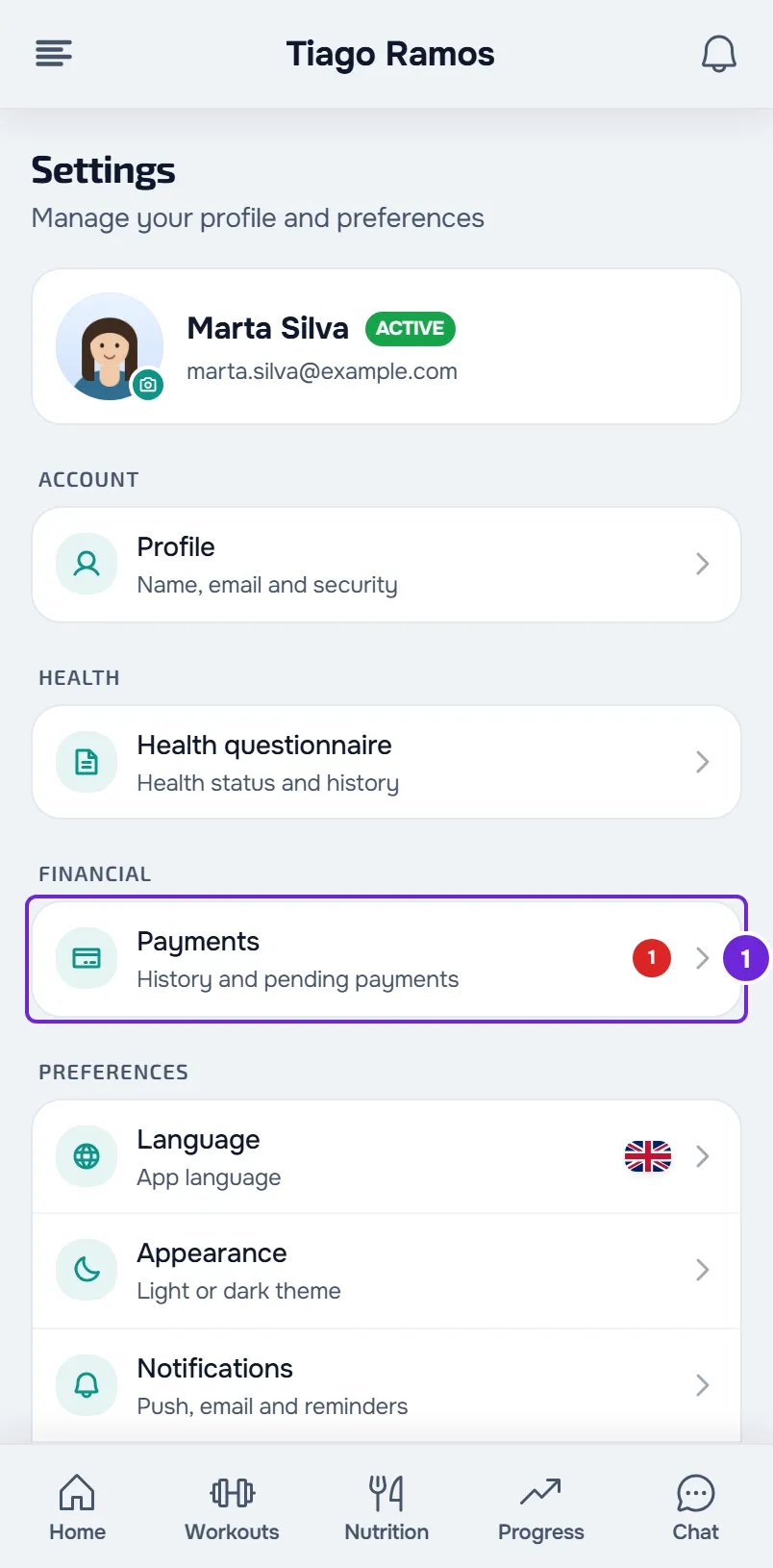
- Open Settings. On a computer, it is in the menu under your name, at the bottom of the side menu; on a phone, at the bottom of the menu.
- Select Payments 1. Your payments to your professional appear.
- Scroll to the end of the page, to the Courses section, with “Course purchases and subscriptions” next to the title. Each purchase and each subscription has a card, from the most recent to the oldest.
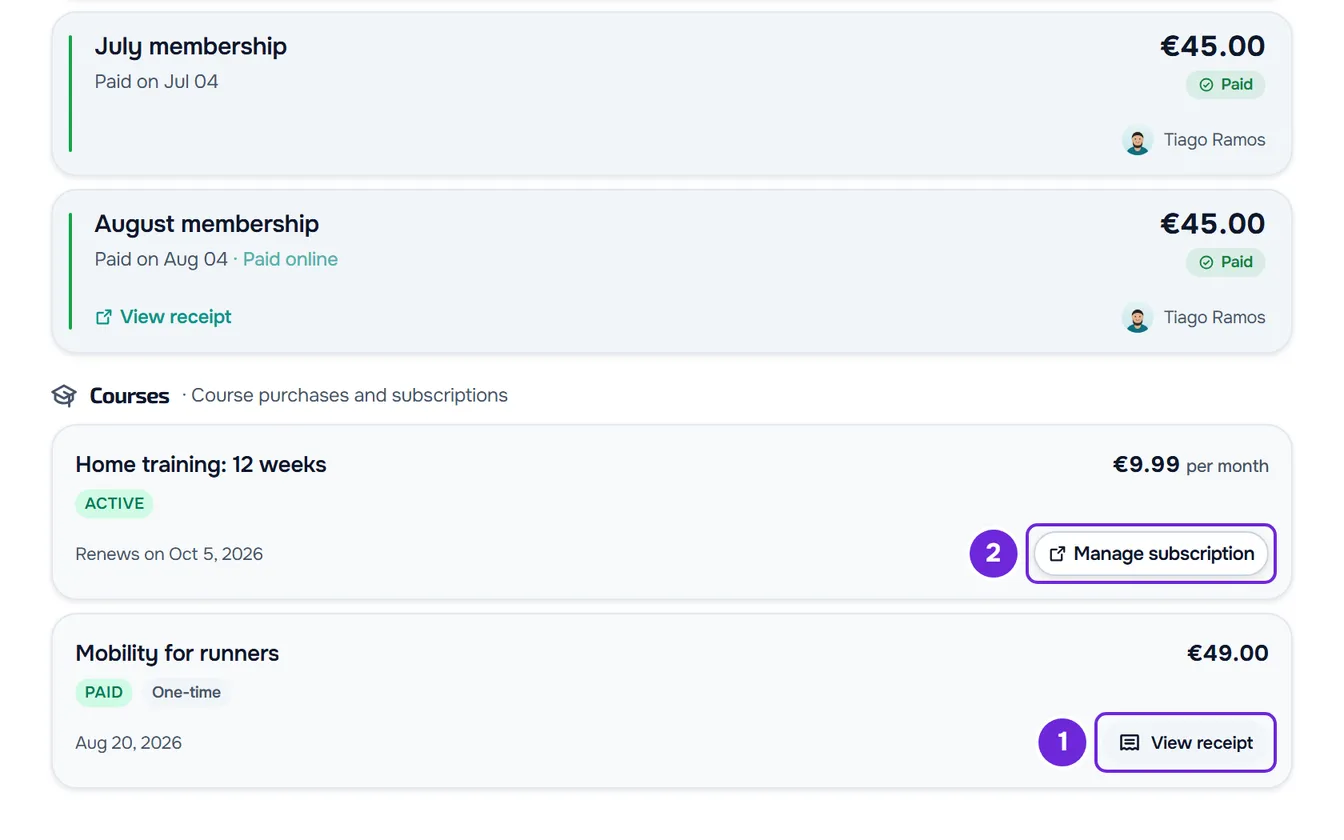
- Optional: on a one-time purchase, select View receipt 1. The Stripe receipt opens in a new tab.
- On a subscription, select Manage subscription 2. The subscription management page opens, on Stripe.
- On Stripe, change the payment method, check the invoices or cancel the subscription.
- To come back, use the return link on the Stripe page. You go back to your courses page on MyFitnessClient.
After you cancel, the subscription card changes from “Renews on” to “Ends on”, with the last day of access.
What each card shows
Each card shows the course name, the amount, the status and a date. The name takes you to the course page, as long as the course exists. On a one-time purchase, the “One-time” label and the payment date appear. On a subscription, the amount comes with the billing frequency, for example “per month”, “per year” or “every 3 months”, and the date says “Renews on”, with the day of the next charge, or “Ends on”, with the last day of access after you cancel. On a one-time purchase with a refund, the refunded amount appears with “refunded”. The section shows the 50 most recent purchases and subscriptions.
The statuses you can see:
| Status | What it means |
|---|---|
| Paid | The one-time purchase is paid. |
| Refunded | The payment for the one-time purchase was refunded. |
| Disputed | The payment was disputed with the bank. On a subscription, access to the course is paused. |
| Active | The subscription is up to date. |
| Trialing | The subscription is in a trial period. |
| Past due | The latest charge for the subscription failed. Change the payment method on Stripe. |
| Unpaid | The subscription was left unpaid and you no longer have access to the course. |
| Paused | The subscription is paused and you no longer have access to the course. |
| Canceled | The subscription has ended and you no longer have access to the course. |
Cancel the subscription
- The cancellation only takes effect at the end of the period you have already paid for. Until then, the course stays open and the subscription is not charged again.
- At the end of that period, the subscription changes to “Canceled”, you no longer have access to the course and it is removed from My Courses.
- To get the course back, subscribe to it again, if the professional still sells it online. See Buy or subscribe to a course.
Another way: the course page
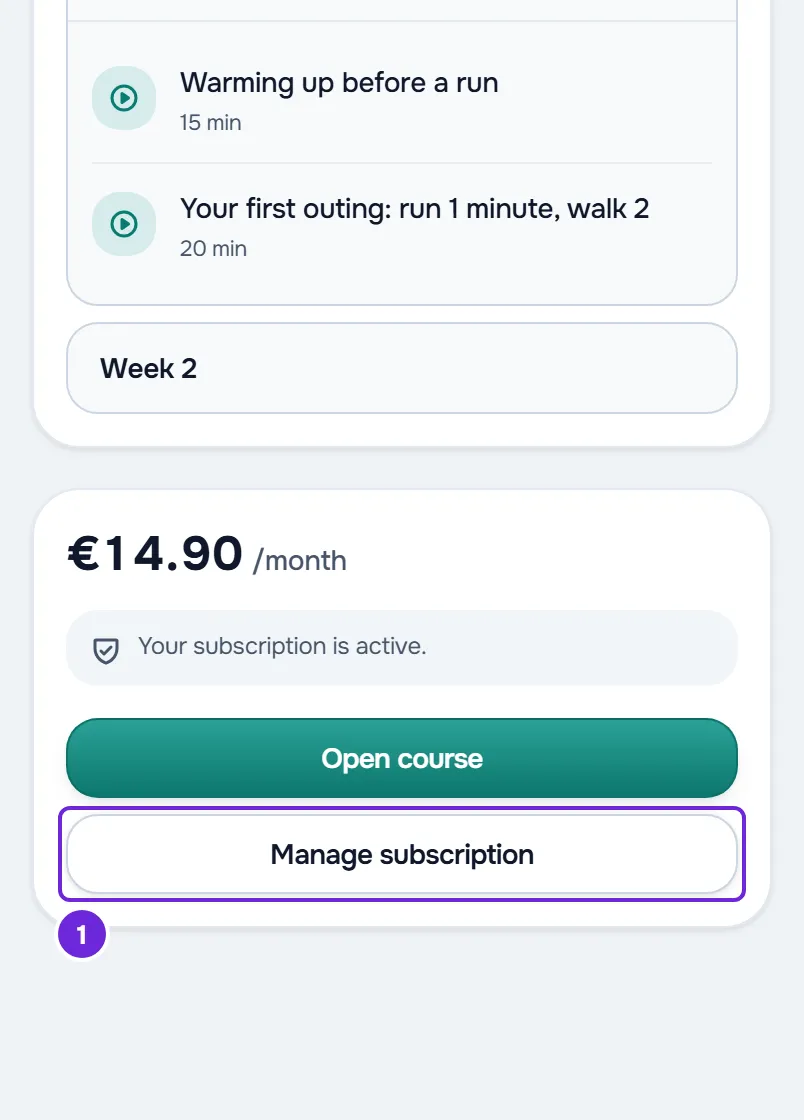
The purchase panel on the page of a subscription course also has Manage subscription, which opens the same Stripe page. When the subscription no longer gives you access, the course card in Discover takes you to that page, which can say “This subscription needs attention. Update payment or manage the subscription.” When an overdue payment pauses your courses, or when Courses is not in your plan, the course page does not open: use the payments in Settings. See Payment overdue: what is paused and how to settle it.
Common problems
“Subscription management could not be opened.”
Stripe did not open the management page, or you asked for it more than 10 times in the same minute. Wait a minute and try again. If the message comes back, talk to your professional or write to support.
“Subscription management is temporarily unavailable.”
A configuration problem on our side prevents the Stripe page from opening. Try again later. If it continues, write to support.
“We could not find a subscription to manage.”
This happens when your professional has closed their account and the subscription is already set to end. There is nothing to do: the subscription is not charged again and the course stays open until the “Ends on” date. If your professional has not closed their account, write to support.
The Courses section does not appear
The section only appears when this account has at least one course purchase or subscription with the payment confirmed. If you paid a short while ago, reload the page. If the payment was never confirmed, see Can't buy or subscribe to a course.
Questions
Where are the receipts for a subscription?
In the Stripe invoices: select Manage subscription on the subscription card. The View receipt button only exists on one-time purchases.
Can I change the price or billing frequency of the subscription?
No. The Stripe page does not let you change the subscription: there you change the payment method, view the invoices or cancel.
I got “Course subscription under review”. What do I do?
Your professional's connection to Stripe was turned off and the subscription may still be charged. To cancel it, contact your professional or support, as the notification says.
I no longer have a professional. Where do I manage the subscription?
When the coaching ends and you owe your professional nothing, Payments no longer appears in Settings. The courses section is still at the website address /en/app/settings?tab=payments, with Manage subscription on each subscription.