
Before you start
- You need the invitation your professional sent you: the link, the QR code or the email.
- You must be 13 or older. From 13 to 15, sign-up also asks for parental consent (Minimum age and accounts for minors).
- An invitation sent by email only works for that address. A company invitation can accept only emails from one domain, and the invitation page says which one, for example “This invitation only accepts @company.com addresses.”
- The invitation is for a client account. If you are signed in to a professional account, the page shows “This invitation is for a client”.
- You need access to your email to receive the 6-digit verification code.
Steps
To open the invitation and create your account on the website, on a computer or in your phone's browser, follow these steps.
- Open the invitation link, select Accept invitation in the invitation email, or scan the QR code with your phone's camera. The invitation page opens in the browser, with your professional's name and a line that says what happens next.
- If the page shows Choose your package, select a package. Create account and I already have an account only become active once a package is selected (Pay and join with an invitation that includes a package).
- If you don't have an account yet, select Create account. Sign-up opens already set to a client account, with the invitation card 1 at the top and no choice of account type.
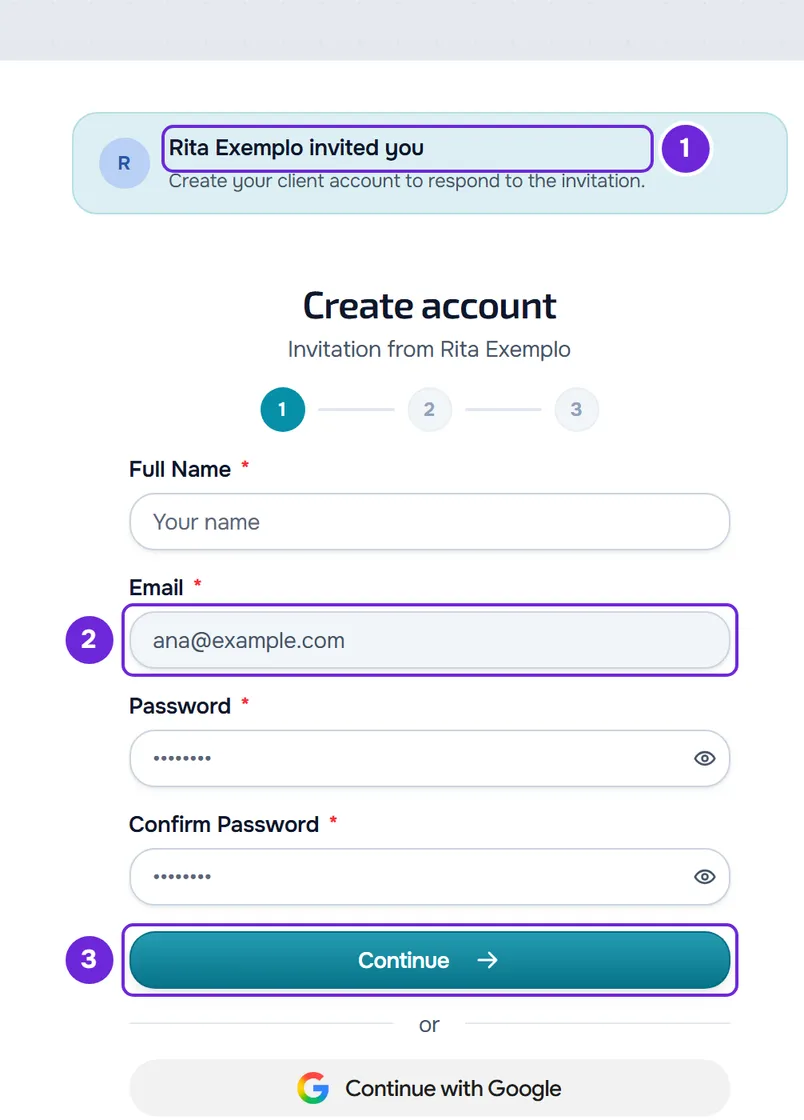
- Enter your first name and last name, your email and a password of at least 8 characters, repeat the password and select Continue 3. In an email invitation, the email is already filled in 2 and can't be changed.
- Enter your gender and date of birth, tick the terms box and select Create account. From 13 to 15, also tick the parental consent box.
- Enter the 6-digit code you received by email. Verification starts on its own when you enter the last digit. Instead of the code, you can open the link in the same email (Verify your email with the 6-digit code or the link).
At the end, you land on Home in your account and the invitation opens so you can accept or decline it (Accept or decline your professional's invitation). In an invitation with a package, the invitation opens with the package you chose already selected, so you can finish joining (Pay and join with an invitation that includes a package). Instead of the form, you can also create your account with Google or Apple (Sign in or create an account with Google or Apple).
If you already have an account
On the invitation page, select I already have an account and sign in to your client account. In an email invitation, sign in with the email that received the invitation. You return to Home, with the invitation open. When the invitation was sent to an email that already has an account, I already have an account is the main button. In an email invitation, the card also shows part of the invited address, with the rest hidden by asterisks, so you know which email to sign in with.
If you are already signed in as a client, you don't see the invitation page: the link takes you straight to Home, where the invitation opens.
In the app
The MyFitnessClient app doesn't open invitation links: opening the link always takes you to the browser. You can follow the steps in the browser and then sign in to the app with the same account, or do everything in the app.
- On the welcome screen, select Get started, fill in the sign-up form and confirm your email with the code (Create a professional or client account). If you already have an account, sign in with it.
- On Home, on the “You don't have a professional yet” card, select Scan QR code and point the camera at the invitation's QR code.
- Alternatively, select Paste link, paste the full link into Invitation link and select Open invitation.
The invitation appears on Home for you to respond to. An invitation sent by email to your address appears there on its own when you confirm your email, without needing the link. The rest of Home without a professional is covered in “You don't have a professional yet”: what to do.
The email invitation
The email subject is your professional's name followed by “sent you an invitation”. The Accept invitation button opens the invitation page. At the end, the email says in how many days the invitation expires, or that it doesn't expire. If the professional has set up their brand, the email comes with that brand.
- If the invitation requires the professional's approval, the email warns that, after you accept, the professional still has to approve the request, and that, if you get more than one invitation, you should use the latest one.
- If your email already has a client account, the invitation also appears on Home and you get the “New invite” notice, without having to open the email.
- If you don't have an account yet, the invitation links to the new account when you confirm your email, even if you never open the link, as long as it hasn't expired.
Invitation from a company
In a company invitation, the page shows “Invitation from” and the company name over the professional's name. If the company limited the email domain, you can only accept the invitation with an email from that domain.
Common problems
I didn't get the invitation email
Check your spam or promotions folder. Confirm with your professional the exact address they sent the invitation to, because the invitation only works for that email. You can also ask them for the invitation link and open it directly.
“Different invited account”
This message appears when you open the link of an email invitation while signed in to a client account with a different email. Sign out (Sign in and sign out) and open the link again, to sign in or create the account with the invited email.
The invitation says it expired or is no longer available
The invitation page shows “This invitation has expired”, “This invitation reached its limit” or “This link is no longer available”. After you sign in, Home shows “This invitation is no longer available: it expired, was already used, or was meant for another account.” when the invitation no longer works or is for another email or another domain. Check that you signed in with the invited email and, if the invitation no longer works, ask your professional for a new one (Invitation not working: expired, already used or for another email). If you open sign-up with an invitation that no longer works, you can still create your account: sign-up warns “You can still create your account; the professional can connect you afterwards.”
“That does not look like an invitation link. Copy the full link you received.”
This message appears in the app when the text pasted into Invitation link doesn't have the invitation code. Copy the whole link again from the message or email and paste it without cutting anything.
If that didn't solve it, contact support with the exact message, your account email and your professional's name.
Questions
Do I have to enter an invitation code?
No. The invitation is the link or the QR code, and there is no field to enter a code. An address with /join/ leads to the same invitation page. The only code you enter is the 6-digit one that confirms your email.
Can I create an account without an invitation?
Yes. You create a client account on the website or in the app and open the invitation later, on Home, when your professional sends it to you.
What language does the invitation page open in?
The page exists in Portuguese, Brazilian Portuguese, English, Spanish, French and German. The link in an email invitation opens in your account's language, if you already have an account, or in the language the professional chose for the invitation. In other cases, including the link and the QR code, it opens in the language you already used on the website in this browser or, if there isn't one, in your browser's language.
Does the invitation page have my professional's brand?
Yes, if they set up their brand: the page shows that brand's name and colors, and the logo, if they uploaded one. Without a brand, it shows MyFitnessClient's.