
Before you start
- The Pay now button only appears on a Pending or Overdue payment, and only when your professional accepts online payments. If they do not, pay them outside the platform and mark the payment as paid: see Mark a payment made outside the platform as paid.
- On the website and in the latest version of the app, the payment for your plan can have its pay button on the Your plan card, before the list. In that case, that payment only shows Mark as paid in the list, but the payment details still have Pay now. See Pay, renew or change your professional's plan.
- If the button does not appear, see the causes in Fix payment problems: Pay now, confirmation and plan.
Steps
To pay your professional online for a payment:
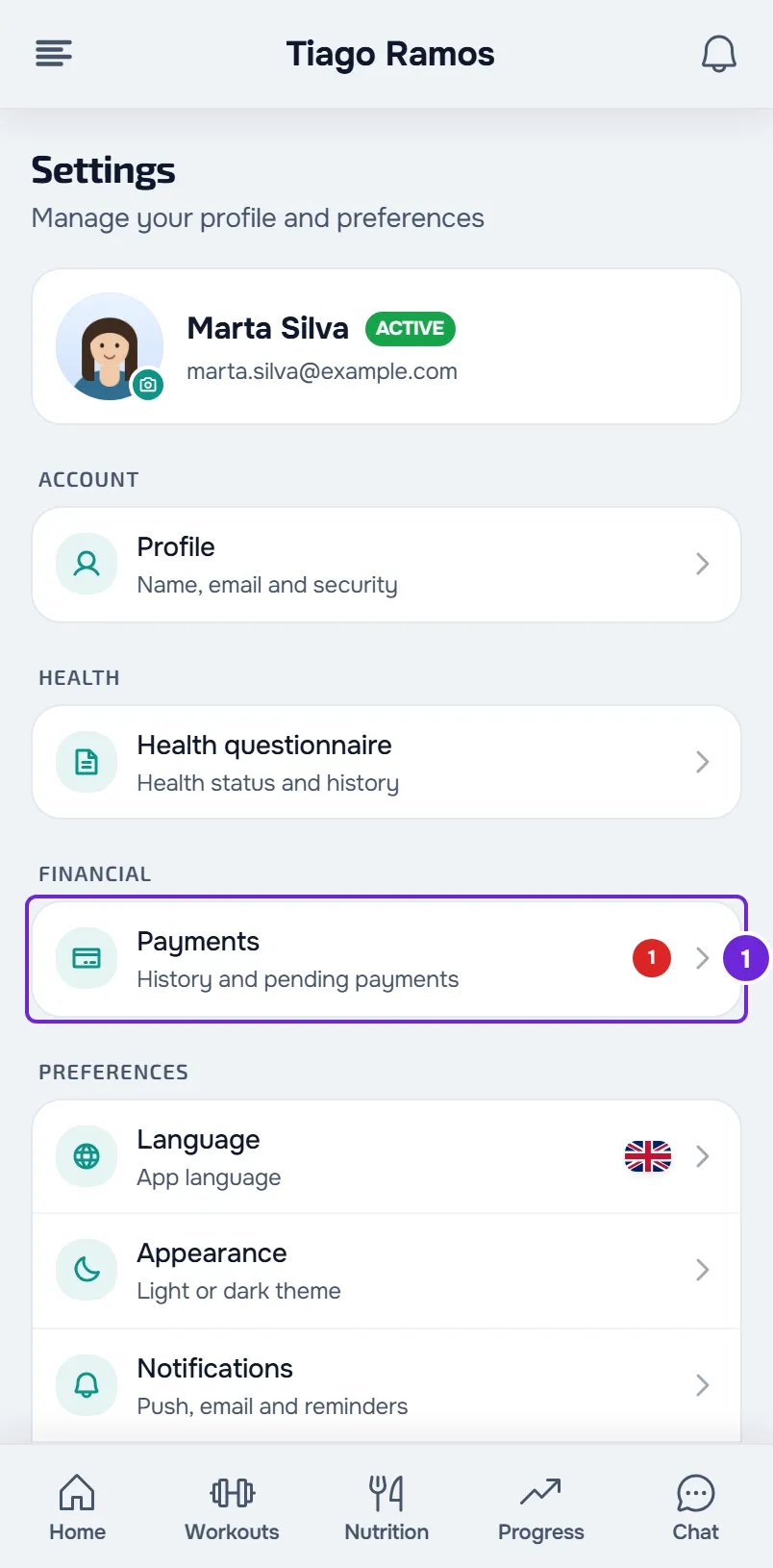
- In Settings, select Payments 1. To find out where they are and what each card shows, see View your payments, filter them and export them to CSV.
- On the payment with the Pending or Overdue tag, select Pay now. The same button is in Payment details, which opens when you select the card.
- On the Stripe payment page, choose the method, fill in the details and pay. The methods shown depend on what your professional has turned on, the amount and your device.
- When Stripe sends you back to MyFitnessClient, wait a few seconds: the page checks the payment up to 8 times, every 2 seconds.
- In Payment confirmed, check the amount and the Charge, Date, Method and Professional rows.
- Optional: select View receipt to open the Stripe receipt in a new tab.
- Select Back to payments.
The payment changes to Paid in the list, with “Paid online” after the date it was paid. Your professional does not have to confirm it. If you no longer have a linked professional, instead of Back to payments you see Continue in the app, which takes you to Home.
If you leave the Stripe page without paying, you go back to your payments, nothing is charged and the payment stays Pending or Overdue.
If “Payment processing” appears
If the confirmation does not arrive during the 8 checks, the page shows “Payment processing” and “Your payment is being processed and will be confirmed shortly.” This is not a failure: Stripe has not confirmed the payment to MyFitnessClient yet. With Multibanco, the payment is only confirmed after you pay the reference Stripe shows you.
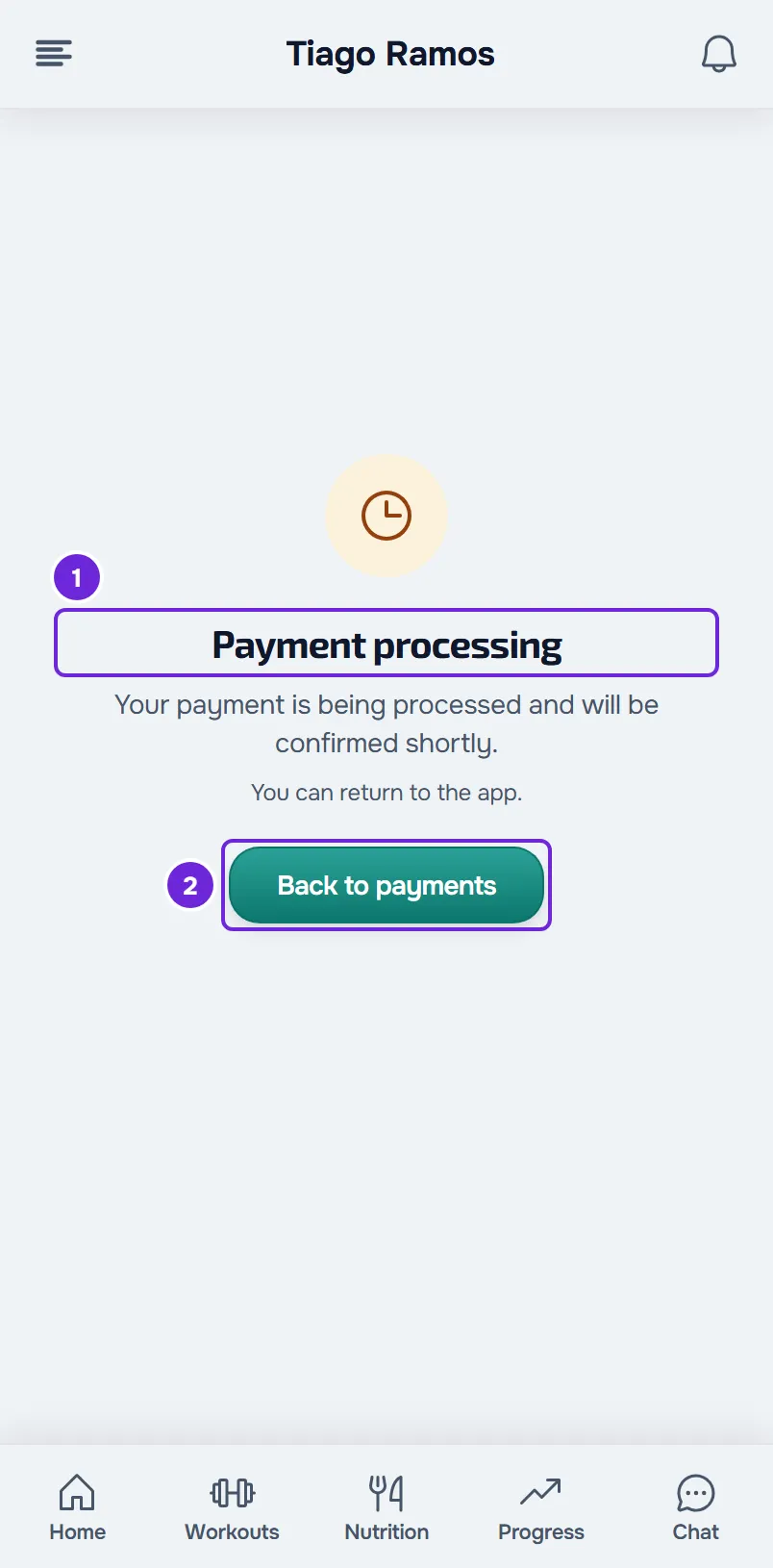
Select Back to payments: the list updates on its own when the confirmation arrives, and you get the “Payment confirmed” notification. If you reload the confirmation page, MyFitnessClient checks the payment again and shows “Payment confirmed” if the confirmation has already arrived.
In the app
- Payments are in Settings, in the Financial group, under Payments. Pay now is on the payment card and in Payment details, which opens when you select the card.
- The Stripe page opens in your phone's browser. When you finish, the browser goes back to the app. If the app does not open on its own, the page shows “Payment received” or “Payment not completed” and the Open MyFitnessClient button.
- Back in the app, “Payment received. Confirming…” appears and the app reloads your payments up to 8 times, every 2 seconds. If you did not get as far as paying, “Payment not completed.” appears.
- The app does not have the Payment confirmed screen. When the payment becomes Paid, the receipt opens with View receipt, on the payment card. If the payment stays Pending or Overdue, pull down on the screen to refresh.
Pay later or try again
- The Stripe payment page stays valid for 30 to 60 minutes. If it expires before you pay, go back to MyFitnessClient and select Pay now again: a valid page opens, with the current amount of the payment.
- If your professional changes the payment's amount, description or due date, cancels it, deletes it or marks it as paid while you have the Stripe page open, that page stops accepting the payment. Go back to your payments to see the current status.
- You can select Pay now up to 10 times per minute, counting the payments you open from the Your plan card too. If you go over that number, a too-many-requests warning appears: wait a minute and try again.
Common problems
The Pay now button does not appear
The payment may no longer be Pending or Overdue, your professional may not accept online payments, or the button to pay it is on the Your plan card. See all the causes in Fix payment problems: Pay now, confirmation and plan.
“An online payment is in progress. Wait a few minutes and try again.”
You have already completed the Stripe page for this payment and the confirmation has not arrived yet, for example a Multibanco reference you have not paid yet. Do not pay again: wait for the confirmation and, with Multibanco, pay the reference Stripe showed you. The message also appears when MyFitnessClient cannot confirm the status of the previous payment with Stripe; in that case, wait a few minutes and try again.
“Online payments are not accepted yet.”
Your professional does not have online payments active right now. Pay them outside the platform and select Mark as paid.
“The payment changed in the meantime. Reload and confirm the amount.”
The payment changed while the payment page was being prepared, for example because your professional edited it at that moment. Reload the page (in the app, pull down on the screen), confirm the amount and select Pay now again.
For the other messages and to find out what to send to support, see Fix payment problems: Pay now, confirmation and plan.
Questions
Who gets the money?
Your professional. The payment goes through Stripe, into their Stripe account.
How long does the confirmation take?
Stripe usually notifies MyFitnessClient a few seconds after you pay. With Multibanco, the notification only arrives after you pay the reference. When the payment is confirmed, you get the “Payment confirmed” notification.
I already paid outside the platform. Do I use Pay now?
No. Select Mark as paid and say how you paid, so your professional can confirm it. If you had opened the Stripe page for that payment, it stops accepting the payment when you mark it, so you do not pay twice. See Mark a payment made outside the platform as paid.
Can I pay after ending coaching?
Yes. Without a linked professional, Payments stays in Settings while you still owe a payment, and Pay now appears on the ones that can be paid online. The exception is payments for your plan after you end coaching, disconnect or your professional ends it. See End coaching or disconnect from your professional.
Where do I find the receipt?
On the Payment confirmed screen and, later, on the payment card and in the payment details, under View receipt. The receipt is from Stripe: on the website it opens in a new tab and, in the app, in your phone's browser. Only payments made online have a receipt. See Receipts and invoices for client payments.