
Before you start
- You need access to the new address’s mailbox: that’s where we send the link that confirms the change.
- If your account has a password, you’ll need it. If your account has no password, for example because you only sign in with Google or Apple, you confirm with a 6-digit code sent to your current email, and you also need access to that email.
- When you confirm, every session on the account ends and you sign in again on each device with the new email.
Interactive tutorial
Opens in the app and needs you to be signed in.
Steps
To change your email on the web, in the professional dashboard or in the client account:
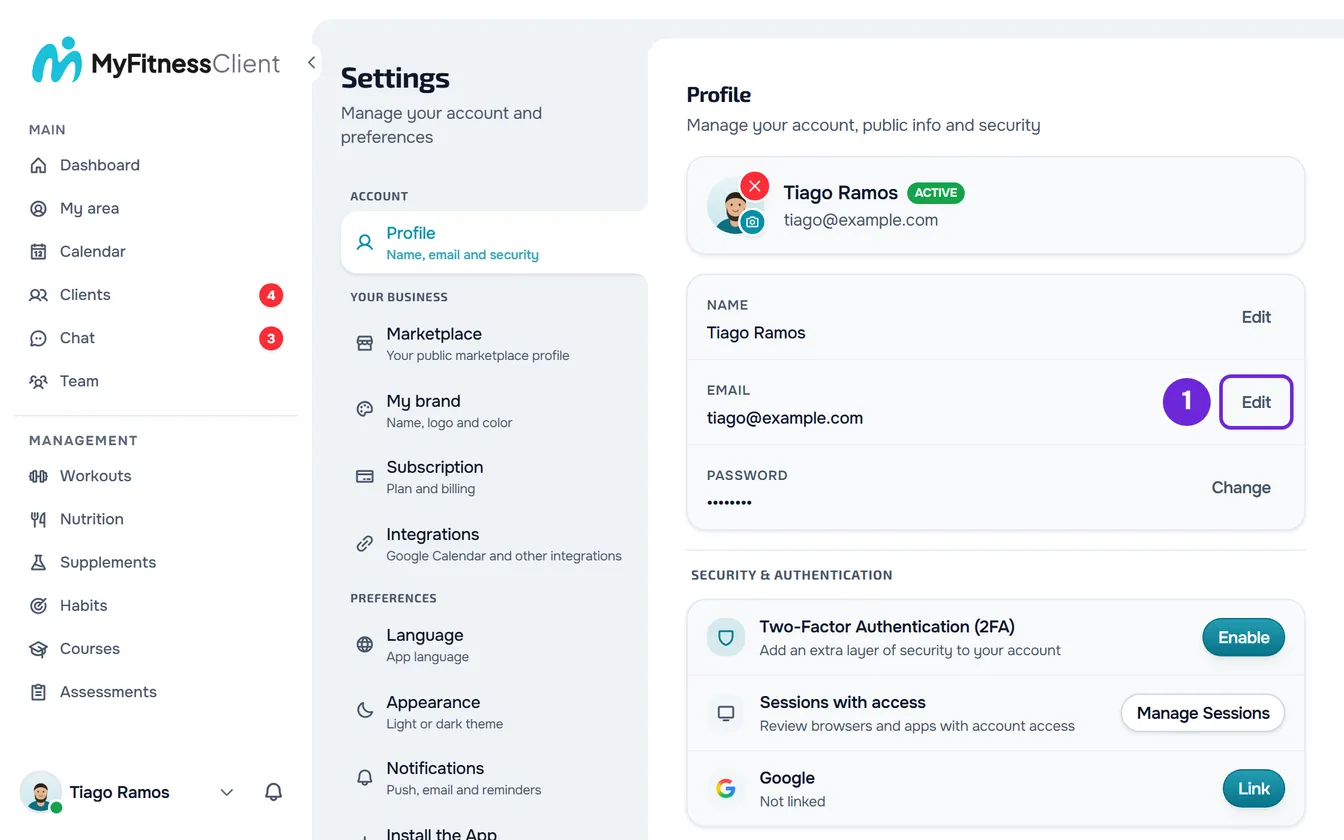
- Open Settings. On a computer, select your photo and name at the bottom of the side menu, then Settings. On a phone, open the menu and select Settings at the bottom of the menu.
- Select Profile.
- On the Email row, select Edit 1. The Change Email window opens.
- If your account has a password, enter it in Current Password 1.
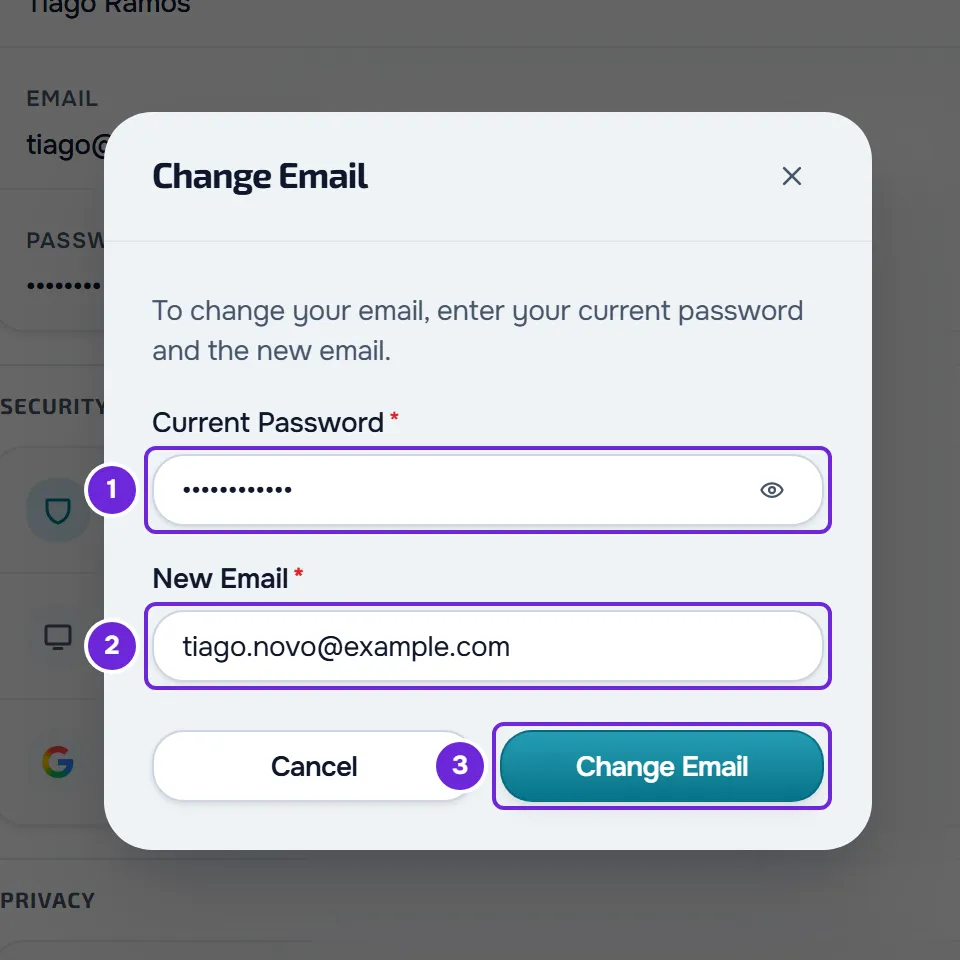
- In the new email field 2, enter the new address.
- If your account has no password, select Send code and, in Code from the email, enter the 6-digit code from the “Your confirmation code” email, which arrives at your current email.
- Select Change Email 3. The window confirms that we sent a confirmation email to the new address.
- In the new address’s mailbox, open the “Confirm your new email” email and select Confirm new email.
- On the page that opens, wait for the message “Email Changed Successfully!”, select Go to Login and sign in with the new email.
Your account now uses the new email: it’s the one you sign in with and the one we send account emails to.
In the app
- Open the menu with the button in the top-left corner and select your name at the bottom of the menu. In Settings, select the card with your name and email at the top to open Profile.
- On the Email row, select Edit. Change email opens, with the same fields as on the web: Current password and New email or, on an account without a password, New email, Send code and Code from the email.
- Select Change email. “Email sent” appears and the link goes to the new address.
- The link in the email opens in the browser. After you confirm, sign in to the app again with the new email.
What happens when you confirm
- You now sign in with the new email. The old one no longer works for signing in.
- Every session ends, in all browsers and apps, including the one where you made the request, and those devices stop receiving push notifications. Sign in again on each one with the new email. See Why was I signed out of my account?
- The old address receives the notice “Your account email has changed”, with the new address. If you didn’t make the change, reply to that email and support will help you get your account back.
- If you opted out of MyFitnessClient news emails, the opt-out carries over to the new address.
Expiry times and limits
- The confirmation link is valid for 1 hour. If you request another change, the previous link stops working: always open the most recent email.
- You can try the change up to 3 times in 10 minutes, including refused attempts, for example with the wrong password. After that, the web shows “Too many requests. Wait a moment.” and the app shows “Too many attempts.” and asks you to try again shortly.
- On an account without a password, the code is valid for 10 minutes and stops working after 5 wrong attempts. A new code is only sent 60 seconds after the previous one, with at most 5 code requests in 10 minutes: until then, use the one you already received.
- If you see “Code expired. Request a new one.” or “Too many attempts. Try again later.”, select Resend code and enter the new code. If you see “Invalid code. Try again.”, check that you’re using the code from the most recent email and enter it again.
Common problems
The confirmation email doesn’t arrive
Look in the spam or promotions folder of the new address and check that you typed it correctly. If it’s still missing, make a new request: a new email arrives and the previous link stops working. If that didn’t fix it, contact support with your account’s current email and the new address.
“This link has expired or is invalid.”
The page the link opens shows “An error occurred while processing your request.” and this sentence when the link is more than 1 hour old, when you requested another change after it, or when the link’s address got cut off. Make a new request and open the link in the most recent email within 1 hour. If the page says “This email is already registered to another account.”, another account started using the new address after your request: request the change to a different address.
“This email cannot be used. Try another one.”
MyFitnessClient doesn’t accept that address for your account and, for security, doesn’t say why. In the app, the same refusal shows “This email cannot be used.” Choose another address. On an account without a password, the code you entered is still valid for the new attempt, within the 10 minutes.
“Incorrect password.”
The password entered in Current Password isn’t your account’s. In the app, the same situation shows “Current password is incorrect.” under the field. Enter it again. If you don’t remember it, see Reset a forgotten password.
Questions
I made the request, but Settings still shows the old email. Is that normal?
Yes. Until you open the link, the account keeps the old email, and Settings doesn’t show that a change is pending.
I typed the new email wrong. What do I do?
Nothing changes as long as nobody opens the link. Make a new request with the right address: the link sent to the wrong address stops working.
I sign in with Google or Apple. Can I still sign in that way?
Yes. Signing in with Google or Apple finds your account through its link to that Google or Apple account, not through your MyFitnessClient email, and it keeps working after the change.
I don’t have access to my current email. Can I change my email?
With a password, yes: the request doesn’t use your current email. Without a password, the code goes to your current email: first set a password, as explained in Change or set your account password, and then make the request with it. When support makes the change for you, the confirmation link arrives at the new address and is valid for 24 hours.