
Before you start
- Subscription is available on every plan, including the free one.
- The page shows the plan of your own account. If you work in another professional's team, in their workspace the features and limits of the owner's plan apply, and they do not appear here. See Feature locked by your plan: what it means.
Interactive tutorial
Opens in the app and needs you to be signed in.
Steps
To see your plan and how much you already use:
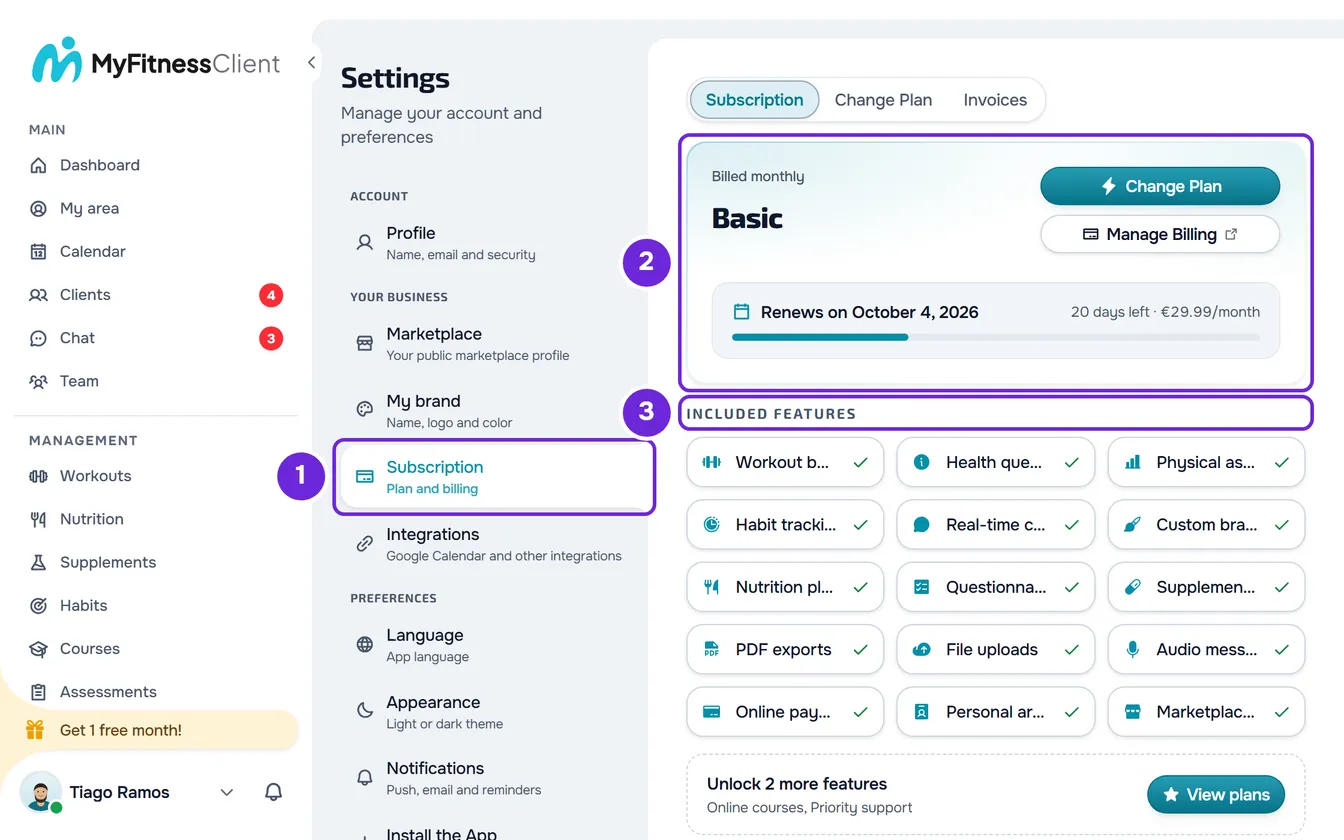
- At the bottom of the sidebar, select your photo and name, then Settings. On a phone, or in a window less than 1024 px wide, first open the menu with the button in the top-left corner; Settings is at the bottom of the menu.
- In the YOUR BUSINESS group (on a phone, BUSINESS), select Subscription 1. The page opens on the Subscription tab, the first of three, before Change Plan and Invoices.
- On the plan card 2, check the plan name and, on a paid plan, the date of the next renewal. With an active, up-to-date subscription, even on the free plan, the card shows no status label. A label appears only without any subscription (“Free Plan”), on a free trial (“Trial”), on a granted plan (“Granted”) or when the last charge failed (“Past Due”).
- In Included features 3, check what your plan includes.
- In Usage, check on the Storage 1 and Clients 2 cards how much of each plan limit you already use.
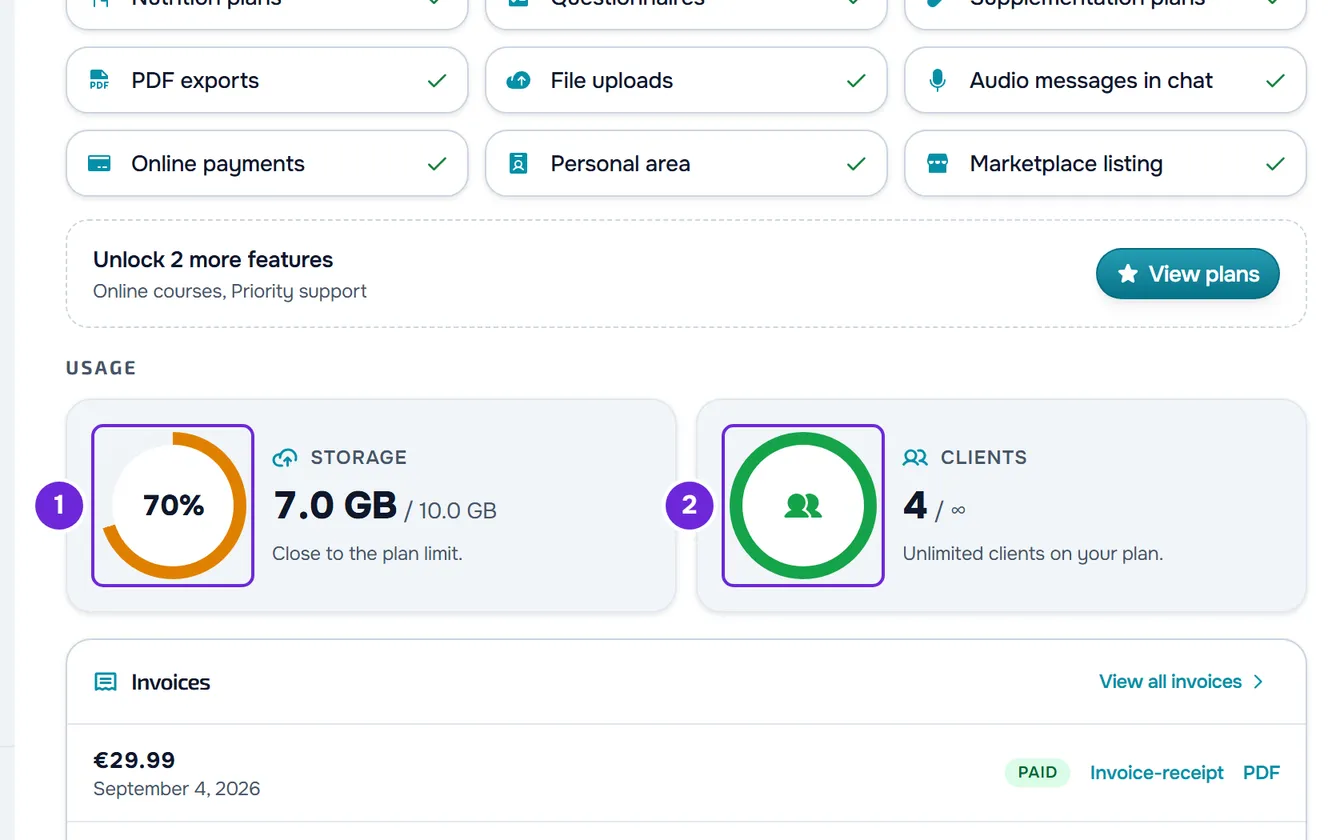
You now know which plan you have, its status, when it renews and how much of each limit you have left.
The plan card
The card shows, in this order: the status label, when there is one, and, on a paid plan, the billing interval (“Billed monthly” or “Billed yearly”); the plan name and its description, if it has one; and, during a free trial, the line that starts with “Trial ends”, with the date, the time and the time remaining, updated every minute.
Next to the name (on narrow screens, under it) are the buttons. Change Plan opens the tab of the same name, where you compare the plans and change your plan: see Upgrade your plan and pay for your subscription and Downgrade your plan and confirm the scheduled change. Manage Billing opens the Stripe billing portal and only appears when your account already has billing details in Stripe, for example after you open the payment for a plan for the first time.
Status labels
With an active, up-to-date subscription, the card shows no label, even on the free plan. These are the labels that can appear, in capital letters:
| Label | What it means |
|---|---|
| Free Plan | Your account uses the free plan without any subscription, for example because you have never subscribed to a plan. |
| Trial | You are on the free trial of a paid plan. The card shows when the trial ends and how much time is left. |
| Granted | MyFitnessClient gave you the plan, with no charge and no renewal. When the grant has an end date, the card shows “Ends on” and that date instead of the renewal; on that date, the account goes back to the free plan. Without an end date, the card shows no date. |
| Past Due | The last charge failed. The plan keeps working for 7 days from the first failure. If the payment does not go through within that time, the account moves to the free plan. |
To resolve a past-due payment, see Failed payment, 3D Secure or dispute on your subscription.
The renewal date
On a paid plan, the bottom of the card has a box with a date: “Renews on” and the date of the next renewal; “Cancels on” and the date, if you requested cancellation; or “Ends on” and the date, on a granted plan with an end date. Next to it are the days left, rounded up, and the amount of the next charge, with “/month” or “/year”. That amount is what Stripe expects to charge, with credit and discounts already applied; if Stripe has not provided it yet, it is the plan price minus the credit you have. When there is no charge, for example after you request cancellation or on a granted plan, the amount does not appear.
The bar under the date shows how much of the period has passed. After you request cancellation, it turns amber. If you have credit, for example from a free month of the affiliate program, the box says how much it is and that it is deducted automatically from the next invoice. See Earn free months with the affiliate program.
Included features
The section is a grid with one cell for each feature your plan includes, with the icon, the name and a check mark. It does not show My app in the stores, which is an add-on you subscribe to separately, or Marketplace listing, which every plan has.
When the plan has features that are not included, a dashed box appears under the grid saying how many there are, for example “Unlock 3 more features”, with the names of the first three and “and more” if there are more than three. The View plans button opens the Change Plan tab. The box counts everything your plan leaves out, except add-ons and Marketplace listing: the full comparison is in Plans and prices.
If you have an add-on that is active or unpaid, such as My app in the stores, the “Add-ons” block appears before this section, with the price, the status and the buttons to manage it.
Usage
Two cards show how much of the plan limits you use, each with a ring and the percentage used.
- Storage: the space your account's files take up and, after it, the plan limit, in GB, MB or KB. Materials count, and so do files stored elsewhere, such as chat attachments and check-in photos. The note says “Plenty of room to grow.” while less than 70% is used, “Close to the plan limit.” from 70% and “Plan limit reached. Delete files to resume uploading.” once the space used reaches the limit. On a plan without storage, the note says “No storage”. See “Storage limit exceeded”: how to free up space.
- Clients: the slots taken and the plan limit, with the note “active and scheduled”. Active clients count, and so do clients with a scheduled start and the requests from people paying for a package to join. The demo client does not count. On a plan with no limit, the limit shows as ∞, the note says “Unlimited clients on your plan.” and the ring is full and green, with the clients icon instead of the percentage. See Client limit and occupied slots on your plan.
The ring uses the dashboard's main color while less than 70% is used, turns amber from 70% and red from 90%. Usage greater than 0 and less than 1% shows as “<1%”.
Other blocks on the tab
Depending on your account, notices can appear at the top of the tab, before the plan card:
- “Code applied”, with your partner code and the free months still unused, or “Invited by” and the name of the person who invited you, until the first payment. See Apply a referral code, a partner code or a coupon.
- “Client Limit Exceeded”, when you have more active clients than the plan allows, with the Choose Clients and Change Plan buttons. See You have more active clients than your plan allows.
- “Your subscription will be cancelled”, when you have requested cancellation, with the Resubscribe button, which opens the Stripe portal. See Cancel your subscription and understand what happens next.
- “Plan change scheduled”, when you have requested a downgrade, with the Keep current plan button, which undoes it. See the questions at the end of this page.
At the end of the tab, once you have invoices, the Invoices card shows the 3 most recent. With more than 3, View all invoices opens the Invoices tab. See View your invoices and update the card for your subscription.
Common problems
“Couldn't load your subscription details.”
Loading your plan failed, for example because of a connection problem. If the page had no data yet, the tab shows only this card, so that it does not show you the wrong plan. Select Try again: the page loads your plan, the plans, the invoices and the codes again. If the failure happens when you reload with the data already on screen, the data stays and the card appears at a reduced size, with the same button.
If that did not solve it, see Subscription problems: payment, plan and billing or contact support with the time you tried and the reference, if the card shows one.
I don't see the Manage Billing button
The button only appears when your account has billing details in Stripe, for example after you open the payment for a plan for the first time. It also does not appear while the page is loading. To see your invoices, use the Invoices tab.
Questions
Where is Subscription in the sidebar?
It has no item of its own in the sidebar: you open it from Settings, as in the steps. You can also open it at the address /en/dashboard/settings?tab=subscription, which you can save in your browser bookmarks, or at /en/dashboard/subscription.
I asked to downgrade. Why does the card still show my current plan?
The downgrade only happens at the end of the period already paid for. Until then, the card shows the current plan on purpose and, at the top of the tab, the “Plan change scheduled” notice says which plan you are moving to and on which day. Until that date you keep all the features of the current plan. See Downgrade your plan and confirm the scheduled change.
Is the renewal bar exact?
No. The bar counts a month as 30 days and a year as 365, so it is an approximation. The renewal date comes from your subscription and is exact; the days left are counted from it.