
There are two formats: a full page, when you open an area your plan does not have, and a window, when you choose an action inside a page you do have. Both say what the feature does and which plan includes it, so you can decide right there, without having to look for Subscription. They only exist in the professional's dashboard: your clients never see them.
What a locked page shows
The presentation takes the place of the page and has:
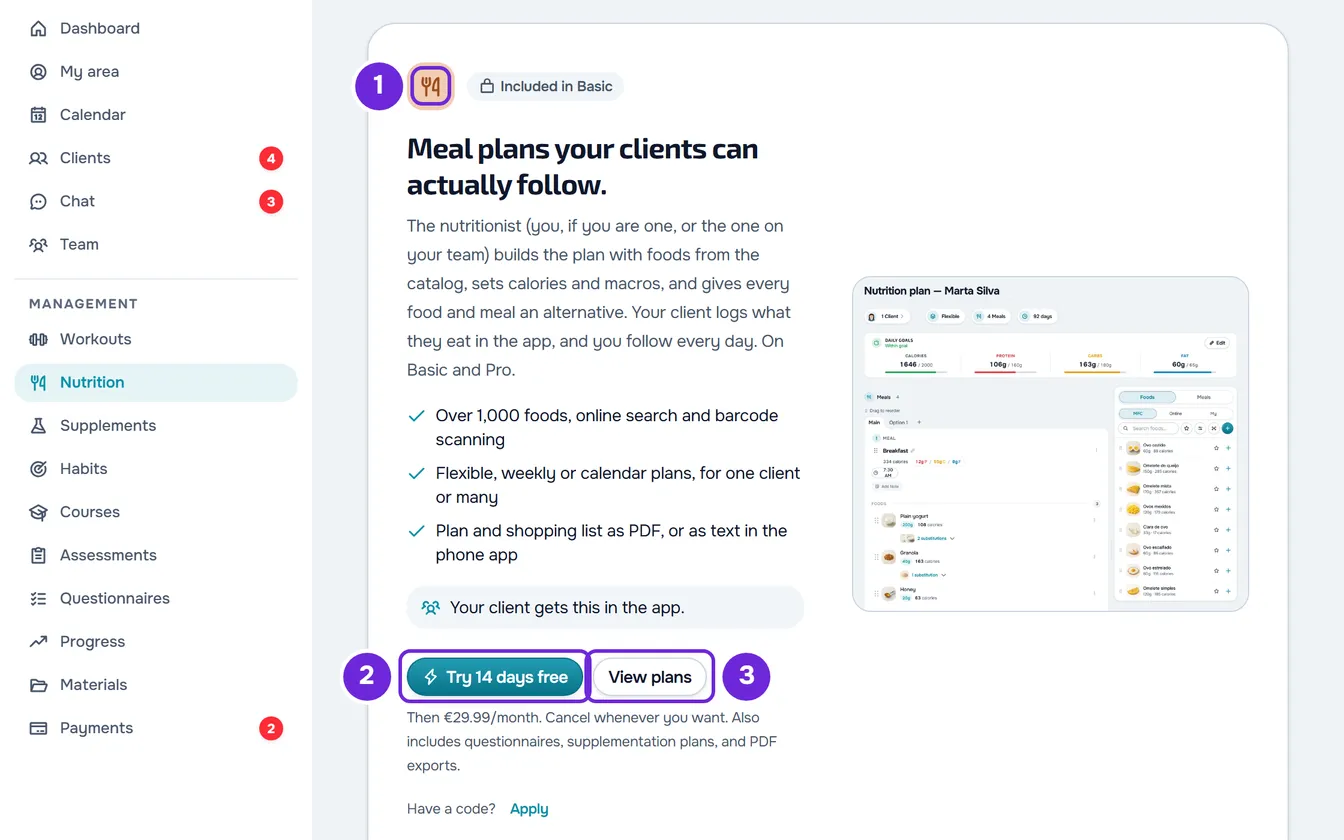
- the feature's icon and the “Included in” badge, followed by the plan's name;
- a title, a paragraph and three points about what the feature does;
- if you already have clients, a line saying they get this in the app (except in My area and Team);
- the main button, which opens the payment for the plan, and the View plans button;
- under the buttons, the price per month (with “Then” before it, when there are free days), “Cancel whenever you want.” and, when there are any, “Also includes” with up to three other features that plan gives you and that you do not have yet;
- while you have no paid plan, “Have a code?” with Apply, which opens the code field; a coupon you already applied shows in a green line, with an X to remove it;
- an image of the real page with sample data, next to the text on wide screens and under it on the others. If the image is not available, the presentation appears without it.
On the Team page, the clients line does not appear and, instead of “Also includes”, the note says how many professionals each plan with teams allows. Team seats are covered in Team seats: the member limit on each plan.
The pages each feature opens are in the table in Plans and prices.
Which plan you are offered
- It is the cheapest of the public paid plans that include the feature, with its monthly price. A custom plan made just for you is not part of this choice. When what is missing is client slots, it is the cheapest plan with more slots than yours.
- The main button says “Try” and the free days when the plan has them and your account has never paid for or tried a paid plan; an earlier free trial already counts, a granted plan in force does not. In the other cases it says “Upgrade to” and the plan's name.
- That button opens the payment for the plan, always monthly: the Stripe checkout page or, if you already pay for a plan, the Stripe confirmation page with the new price. Nothing is charged before you confirm on Stripe. See Upgrade your plan and pay for your subscription.
- View plans opens Settings > Subscription, on the Change Plan tab, where you compare all the plans and choose between monthly and yearly.
- If MyFitnessClient cannot read the list of plans, or if no plan includes the feature, the plan and the price do not appear and View plans takes the place of the main button.
- If the payment does not open, a message gives the reason, for example “Connection error.” when the connection fails; with no reason, “Couldn't open the checkout. Try again.” appears.
Actions that open the plan window
Some actions, inside pages your plan has, depend on another feature. When you choose one, a window opens with the same presentation: the feature's name as the title, “Included in” and the plan's name, the text, the three points, the plan, the price per month and, while you have no paid plan, “Have a code?”. The buttons are Maybe later, which closes the window, and the same main button as on the locked page, or View plans when there is no plan to offer. If MyFitnessClient could not read your plan, exporting as a PDF shows the notice “Our services seem to be down” instead of the window.
| Action | Window title |
|---|---|
| Export a workout, a program, a meal plan or an assessment as a PDF | PDF exports |
| Record a voice message in the chat or when replying to a workout note | Audio messages in chat |
| Select Create questionnaire, on a plan without Questionnaires | Questionnaires |
| Connect Stripe in Payments, for example with Activate online payments | Online payments |
| In Give plan, choose Automatic under How it's paid, without Online payments in your plan | Online payments |
| Create, invite or accept a client when the plan has no free slots left | More clients |
| Select Put your logo and color on your PDFs, in the PDF export window, on a plan without custom branding | Custom branding |
Special cases
- Questionnaires: on a plan without Questionnaires, the Questionnaires page shows your check-in with the “View only” badge. When you open it you see the questions and the sending setup, without being able to change anything, and your clients keep answering it. The Create questionnaire button has a padlock and opens the plan window, and a card shows examples of what you can create.
- Courses: if you already had courses when your plan stopped including Courses, the list stays open, read-only, and the presentation only appears if you have no courses. What you can do with those courses is in Cancel your subscription and understand what happens next. Creating a new course requires the plan.
- Materials: if you had files stored when your plan stopped including Materials, the page stays open, read-only, with the notice “Read-only mode: you can view, download, and delete files, but you cannot upload or change folders.” and, unless the account is frozen, the button for the plan that unlocks it. You can download and delete files and use Empty; the presentation only appears if you have no files. The deadline for the files is in Cancel your subscription and understand what happens next.
- My area always uses your own plan, even when you are in a team's workspace.
- If MyFitnessClient cannot read your plan when the dashboard opens, for example because of a connection failure, a page that depends on the plan shows “Our services seem to be down” instead of the presentation, because it does not know whether your plan includes it. It retries by itself, at intervals of 3, 6, 12 and 20 seconds and then every 30 seconds, and as soon as you are back online or return to this browser tab; the page opens once your plan can be read. Try now retries right away. See “Our services seem to be down” and section under maintenance.
In a team
In a team's workspace, the owner's plan applies, never the member's. That is why a member does not see the presentation, the plan window or the branding line when exporting to PDF: only the owner changes the plan. If the owner's plan does not include a feature, it is the server that refuses it, and with no free client slots the member only sees the message “Client limit for the current plan reached.”.
There are two exceptions. My area uses the member's own plan. Courses are only managed in the personal workspace: in the team's workspace, Courses does not appear in the menu and, if you open the page from its address, you see “Available in your personal workspace” and the Switch to personal workspace button.
The server refuses too
The lock is not only on screen. The plan's features are also checked on the server, against the plan of the workspace owner. A request the plan does not allow is refused and nothing is saved, even if the screen let it through, for example on a page that stayed open while the plan changed. Depending on the screen, you see “This feature is not included in the current plan.” or a specific sentence, such as “Online payments aren't included in your plan. Upgrade to turn them on.” in Payments. PDF export is the exception: it happens in your browser, so only the screen stops it.
- With no free client slots, the server refuses to create, invite or accept a client: in your workspace the More clients window opens, and a team member sees “Client limit for the current plan reached.”. See Client limit and occupied slots on your plan.
- With more active clients than the plan allows, for example after you move to a plan with fewer slots, the account is frozen and what you save may be refused with “You have more active clients than your plan allows. Choose which to keep or upgrade your plan.”. See You have more active clients than your plan allows.
Questions
Why do I see features in the menu that my plan does not include?
The side menu does not hide any item because of the plan: when you open an item your plan does not have, you see what it does and the plan that includes it. In a team workspace, the items a member is missing depend on the permissions the owner gave them, and Courses does not appear. See “No permission to access” and menu items missing for a member.
Do I lose the data on a page that became locked?
No. The page stays closed while the plan does not include the feature, but the data stays saved. The exception is the files in Materials, which have a time limit after the paid subscription ends: see Cancel your subscription and understand what happens next.
I want to pay for the plan yearly. Do I use the presentation's button?
No: that button always opens the monthly payment. Open Settings > Subscription > Change Plan (on the locked page, View plans takes you there; the window only shows it when it does not offer a plan) and choose Yearly before you choose the plan.