
It happens when you copied a workout, a meal, a question or another item and, at the destination, neither Paste nor Paste here appears, the bar showing what you copied doesn't appear at the bottom of the page, or pasting shows an error and nothing is pasted.
How copying works
- It holds one item at a time: copying something else replaces what was copied.
- It lasts 24 hours.
- It is stored in this browser, for your account and for the workspace where you copied. It carries over from one tab to another in the same browser.
- On the pages that accept what you copied, a bar appears at the bottom with the name of what you copied, for example “Week 19 copied”, and where it came from. That bar's Done button empties the copy.
The bar showing what you copied doesn't appear
| Cause | What to do |
|---|---|
| The open page doesn't accept that type of item, for example a meal in a program. The copy is kept. | Open a page that accepts it (section “Where each thing pastes”). |
| The copy is gone: more than 24 hours have passed, you selected Done, you logged out or another account signed in on this browser. If the session ends without you logging out, the copy is kept when you sign back in with the same account. | Copy again (section “Copy again and paste”). |
| You copied in another browser, on another device or in a private window. The copy stays in the browser where you made it, not in the account. | Copy again in the browser where you'll paste. |
| You selected more than 70 days of a calendar. When you copy, you see “You can copy up to 70 days at a time.” and nothing is copied. | Copy fewer days at a time, for example one week. |
| You switched workspace. Copy and paste only works within the same workspace: in another workspace, the copy is hidden, but not deleted. | In the switcher at the top of the sidebar, go back to the workspace where you copied. |
| Rows are selected in a list. While the selection bar is open, the bar showing what you copied is hidden. | Deselect the rows or close the selection bar. |
| You're missing a permission, or the page doesn't accept pastes yet. | See the section “No bar or Paste on the correct page”. |
Where each thing pastes
Each type of item only pastes on certain pages. On any other page, the bar doesn't appear.
| What you copied | Where it pastes |
|---|---|
| A whole workout, from the workout list, a program or a client's profile | In the workout list, in programs of any mode and in the workouts on a client's profile. It doesn't paste inside a workout's editor. |
| An exercise, a superset, a circuit or a section, in a workout's editor | Only inside a workout's editor. |
| Days or a week of a program | In a program of the same mode, calendar or weekly. It can be the same program. |
| A meal | In meal plans of any mode and in the meal library. It doesn't paste into a program. |
| A food | Inside a meal, in a meal plan or in the meal library. |
| Days of a meal plan | In a meal plan of the same mode, calendar, weekly or sequential. |
| A supplement | In a supplement plan. |
| A question | In a questionnaire, on the Questions tab. |
| A lesson or a module | In a course, the same one or another. |
The bar says where the days paste
If you copied days or a week and open a program or a plan in another mode, the bar shows, in place of the source, where the days paste. With a question copied, it shows when the questionnaire is full.
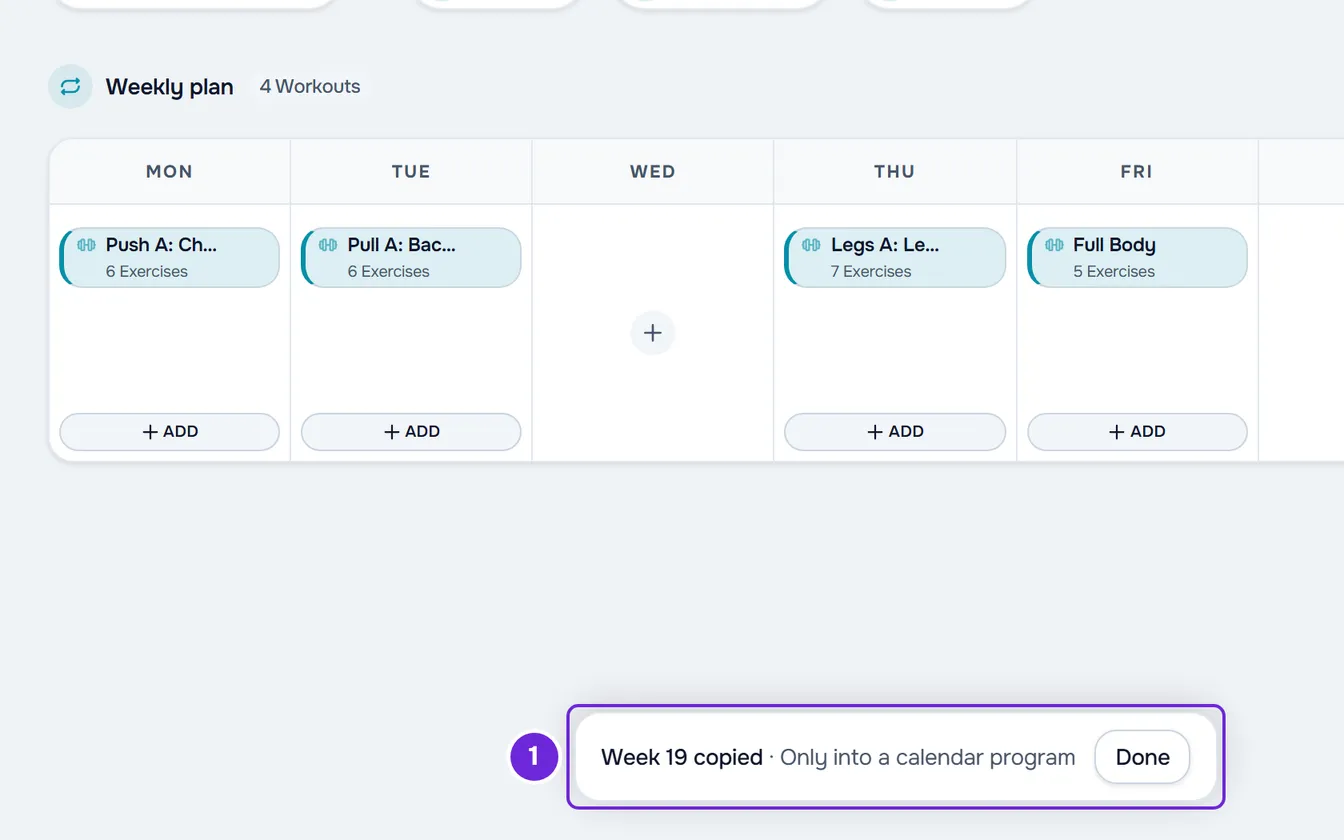
| The bar says | What to do |
|---|---|
| “Only into a calendar program” or “Only into a weekly program” | Open a program in that mode. To bring over just one workout, copy the workout instead of the days: a workout pastes into programs of any mode. |
| “Only into a calendar plan”, “Only into a weekly plan” or “Only into a sequential plan” | Open a meal plan in that mode. To bring over just one meal, copy the meal: a meal pastes into plans of any mode. |
| “This questionnaire already has 200 blocks” | Delete questions from that questionnaire or paste into another one. |
No bar or Paste on the correct page
In these cases, the page doesn't accept pastes and shows neither the bar nor the paste spots:
- You're a team member and you lack the permission to change the destination (see the following table). In supplement plans and questionnaires, without that permission Copy doesn't appear either.
- The meal plan hasn't been created yet: the creation screen has no Copy or Paste. Create the plan, open it and paste.
- In the questionnaire, you're on the Delivery tab or viewing a translation. Go back to the Questions tab, in the questionnaire's original language.
- The course is read-only, because the plan no longer includes courses or because the account is frozen. In that state Copy doesn't appear either.
- The client is archived or their access has ended: only active or scheduled clients receive pasted workouts.
- In the supplement plan, the Preview button is on. Turn it off to go back to the list.
| Destination | Permission the member needs |
|---|---|
| Workout list | Workouts > Create |
| Workouts on a client's profile | Workouts > Assign |
| Program | Programs > Edit |
| Meal plan | Nutrition > Edit |
| Meal library | Nutrition > Create |
| Supplement plan | Supplements > Edit |
| Questionnaire | Questionnaires > Create |
Only the workspace owner changes permissions. See “No permission to access” and menu items missing for a member.
The bar appears, but Paste is missing in one spot
- The spot says Pasted: each spot accepts one paste per copy. Copy again, even the same thing, and the spots show Paste again. In a workout's editor, undoing the paste also brings the spot back.
- In a workout's editor, Paste here only appears where the block fits. A section only pastes outside other sections and groups. A superset or a circuit doesn't paste inside another group. An exercise pastes into any gap; between two exercises of a group, the line says Paste into superset or Paste into circuit and the exercise joins that group.
- A collapsed section only shows Paste here after it. To paste inside it, select Done, expand the section and copy the block again.
- In a weekly program, copied days paste as a block starting from the day you choose. A day where the block would go past Sunday doesn't show Paste: choose an earlier day.
- In the meal library and in a calendar meal plan, a copied food has no Paste in the list or in the grid: open a meal and use Paste here in its food list. A member with Nutrition > Edit, but without Nutrition > Create, sees the bar with a copied meal, but not Paste.
Cards don't respond after copying
With a copy that fits the page, the editor of a workout, a program, a meal plan, a supplement plan, a questionnaire or a course goes into paste mode: the cards don't respond and only the paste spots work. In a calendar meal plan, a copied food doesn't lock the grid. To edit again, select Done on the bar. The copy is emptied.
Pasting shows an error
When pasting is refused, a notice appears and nothing is pasted.
| Cause | What to do |
|---|---|
| What you copied was deleted, or you no longer have access to it. It happens with workouts, meals, days, lessons and modules, which are read from the source at the moment of pasting. In a course, you see “What you copied no longer exists.” On the other pages, you see “Not found.” | Copy again from an item that exists. |
| The source or the destination changed after you copied, for example the program's or the plan's mode changed in another tab. You see “What you copied only pastes into a plan of the same mode.”, “The copied days don't fit before Sunday.” or, in a program, “What you copied isn't a workout.” | Reload the page and copy again. |
| The paste would create more than 500 workouts in a program or more than 500 meals in a meal plan. | Copy fewer days at a time, for example one week. |
| The paste would go past the last possible day: day 365 in a calendar meal plan, where you see “Duration can be up to 365 days.”, or day 728 in a calendar program. | Paste on an earlier day, or copy fewer days. |
| The destination meal is full: the meal or the option receiving the food already has 500 foods, or the meal already has 51 options. | Remove foods or options, or paste into another meal. |
| The course would end up with more than 100 modules, more than 500 lessons or more than 200 lessons in one module. For example, you see “This course has reached the 500-lesson limit.” | Delete lessons or modules from that course, or paste into another one. |
| The account is frozen. You see “You have more active clients than your plan allows. Choose which to keep or upgrade your plan.” | Choose which clients stay active, or upgrade your plan. |
| You lost a permission after opening the page. You see “You don't have permission to do this in this team.” | Ask the workspace owner for the permission. |
When the cause is a limit on workouts, meals, foods or options, or day 728 of a program, the notice only says “Invalid data. Check the fields.” and doesn't say which limit it is. For the frozen account, see You have more active clients than your plan allows.
Copy again and paste
In most cases, copying again and pasting in the right spot fixes it:
- Open the page where the item is, in the browser and the workspace where you'll paste.
- In the item's ⋮ menu, or in the right-click menu, select Copy. For days, use Copy day or Copy week, or select the days and choose Copy on the selection bar.
- Open the destination page. The bar with the name of what you copied appears at the bottom of the page.
- Select Paste or Paste here in the spot where you want the item.
- When you finish pasting, select Done on the bar.
The item is at the destination and the copy is emptied. To copy meals, foods, supplements, questions and lessons, see Copy and paste meals, supplements, questions and lessons.
If this did not solve it
Contact support and include:
- what you copied and the page you copied it from;
- the page where you wanted to paste it;
- the text of the bar at the bottom, if it appears;
- the exact message of the notice, if it appears;
- the browser you use and the approximate time.