
Before you start
- The Charges list brings together all the money in your workspace: charges made by hand (one-off, recurring and pack charges), invoices from automatic subscriptions and course sales. Invoices and courses are read-only. What each status and each type means is in Totals, statuses and charge types in Payments.
- In a team workspace, you need the Payments > View permission. Without it, Payments does not appear in the side menu and the page shows “No permission to access”: see “No permission to access” and menu items missing for a member. A member with Client access set to Specific clients only sees those clients' charges.
- Until you sort by a column, the list is in order of priority: first Overdue charges, then To confirm and To pay ones, with the oldest due date first in each group. At the end come paid, cancelled and refunded charges, from the most recent due date to the oldest.
Interactive tutorial
Opens in the app and needs you to be signed in.
Steps
To find and open a charge:
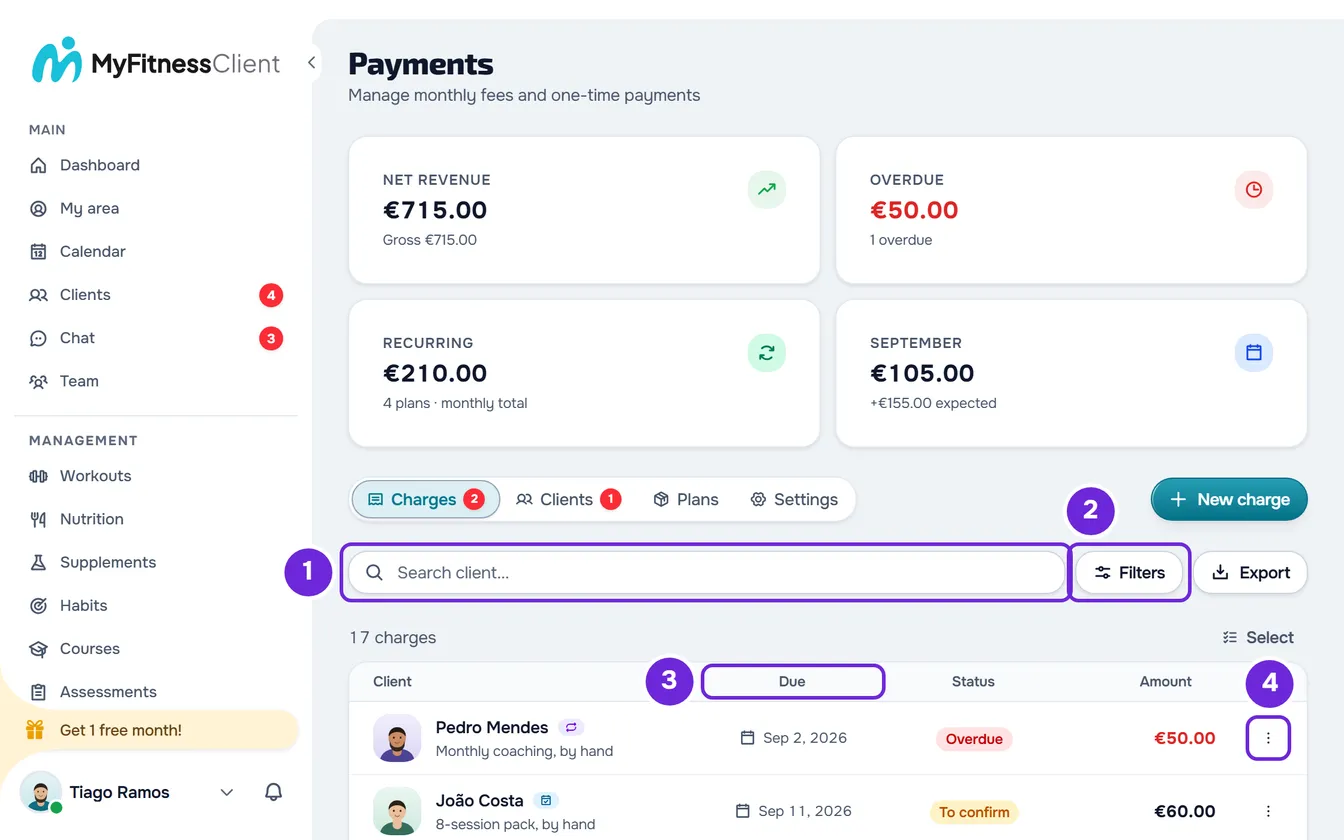
- In the side menu, under Management, select Payments. The page opens on the Charges tab.
- Optional: in the Search client... 1 box, type the client's name or the nickname you gave them. The list updates 0.25 seconds after you stop typing.
- Optional: to filter, select Filters 2 (on a narrow screen, only the icon).
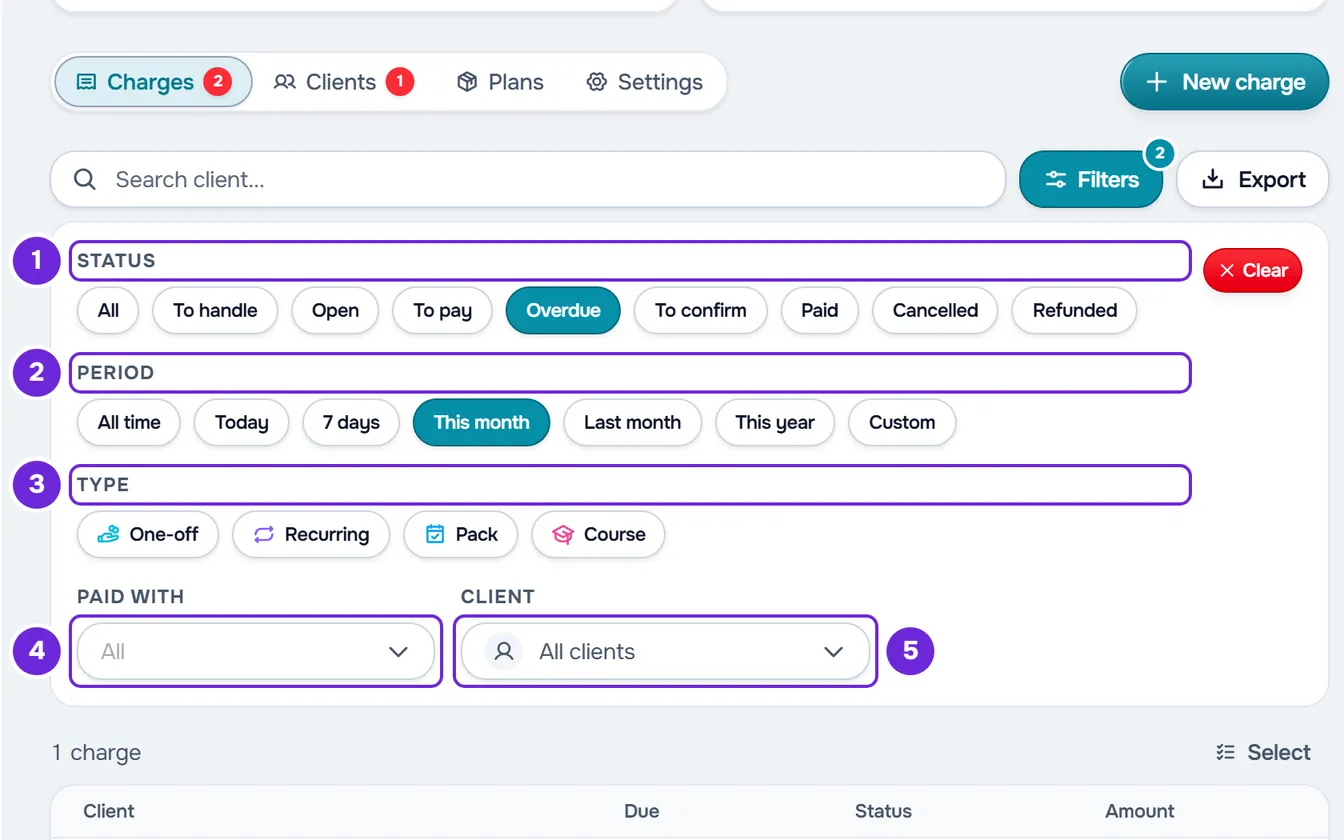
- Optional: in the panel, choose what you want to see under Status 1, Period 2, Type 3, Paid with 4 or Client 5. Each choice applies right away.
- Optional: to sort, select the Due 3 or Amount column header (on a narrow screen, Sort). The first selection sorts in ascending order, the second in descending order and the third goes back to priority order.
- Optional: in the list footer, change page or choose under Show how many charges you see at a time: 10, 20 or 50.
- Select the charge's row. What opens depends on the charge and on your permissions: see the table that follows.
- Optional: to see all the actions for a charge, select ⋮ 4 at the end of the row or right-click the row.
The list only shows the charges that match the search and the filters, with their number at the top, for example “12 charges”. To download that list with the same filters, see Export client charges to CSV.
The filters
| Filter | What you can choose |
|---|---|
| Status | One at a time: All, To handle (charges made by hand that are overdue or waiting for you to confirm an “I've paid”, the same number as the red counter), Open (To pay, Overdue and To confirm together), To pay, Overdue, To confirm, Paid, Cancelled or Refunded (online payments returned in full; a partial refund stays under Paid). A To return charge shows under Paid. |
| Period | All time, Today, 7 days (today and the six days before), This month, Last month, This year or Custom, which shows From and To (you can fill in only one of the dates). It counts the due date; for paid subscription invoices and course sales, the day of payment. |
| Type | One-off, Recurring, Pack and Course. You can choose several. |
| Paid with | All, Online, MB Way, Bizum, Transfer, Cash, Multibanco, Card or Other. Online groups everything that goes through Stripe, whatever the means of payment; each of the others shows the charges where that method was recorded: when marking as paid by hand, when changing the method of a paid charge in Edit or when confirming the client's “I've paid”. MB Way and Multibanco only in a workspace in Portugal, Bizum only in one in Spain. |
| Client | Opens Choose client, with your active and scheduled clients. Choose one to see only their charges. |
- The number on the Filters button counts the filters that are on; each type you choose counts as one.
- With the panel closed, the filters that are on appear at the top of the list, each with an X that removes it. With the panel open, what is chosen shows in the controls themselves.
- In the panel, Clear removes all filters at once and leaves the search as it is. It only appears when at least one filter is on.
- The search finds the text anywhere in the client's name, in the nickname you gave them or in the name of a client who deleted their account with charges still to pay; in that case, the row also shows their email. It ignores upper and lower case but not accents: “Joao” does not find “João”. It reads at most 100 characters.
- Changing the search, a filter, the order or the number under Show goes back to page 1. If the page you are on becomes empty, for example after you delete its last charges, the list moves back on its own to the last page with charges.
What each row opens
| Charge | What opens |
|---|---|
| To confirm, made by hand, when you have the Mark paid and assign plans permission | The Review payment window, to confirm or reject the client's “I've paid”. |
| To pay or Overdue, made by hand, when you have the same permission | The Mark as paid window. |
| Any other charge: paid, cancelled, paid online, or without the permission | The charge details, read-only. |
| Purchase of a course | The Stripe receipt, in a new tab, when there is one; without a receipt, the row does not open. |
| Invoice from an automatic subscription, for a plan or a course | Nothing: the row does not open. |
What to do in each window is in Mark a charge as paid and Confirm or reject a client's “I've paid”.
The actions in the ⋮ menu
The ⋮ at the end of the row and a right-click on the row open the same menu, with the actions in this order. Only the ones that the charge and your role allow appear.
| Action | When it appears |
|---|---|
| Review request | A To confirm charge, for whoever has the Mark paid and assign plans permission. |
| Mark as paid | A To pay or Overdue charge, with the same permission. |
| Edit | Any charge that was not paid online. Workspace owner only. |
| Send reminder | A To pay or Overdue charge of an active or scheduled client, with the Mark paid and assign plans permission. |
| Cancel charge | A To pay, Overdue or To confirm charge. Owner only. |
| Delete | Any charge made by hand that is not paid. Owner only. |
- Charges paid online, subscription invoices and course sales have no actions.
- If you hold down Shift, a right-click opens the browser's own menu.
- The owner also has Select, at the top of the list, to delete several charges at once.
- Each action has its own article: Edit a charge: amount, due date, status and notes, Send a payment reminder to a client and Cancel or delete charges, one at a time or in bulk.
The details of a charge
The details show the client, the amount, the status and the Due date, Paid on (when there is a payment date), Payment Method (when there is one), Type (for charges from a plan that repeats, with the frequency) and Modality (for one-off charges that have one) lines. They also show what the client entered when saying they paid, if the charge is waiting for confirmation; the reason, if an “I've paid” was rejected; and the Internal notes, which the client does not see. At the bottom are Close and, for the owner, Edit.
For a charge paid online, the details add the payment amounts (the amount captured, refunds, fees and the net amount) and, when there is one, a button to open the Stripe receipt, without Edit. See Fees on client online payments and Receipts and invoices for client payments.
On a phone
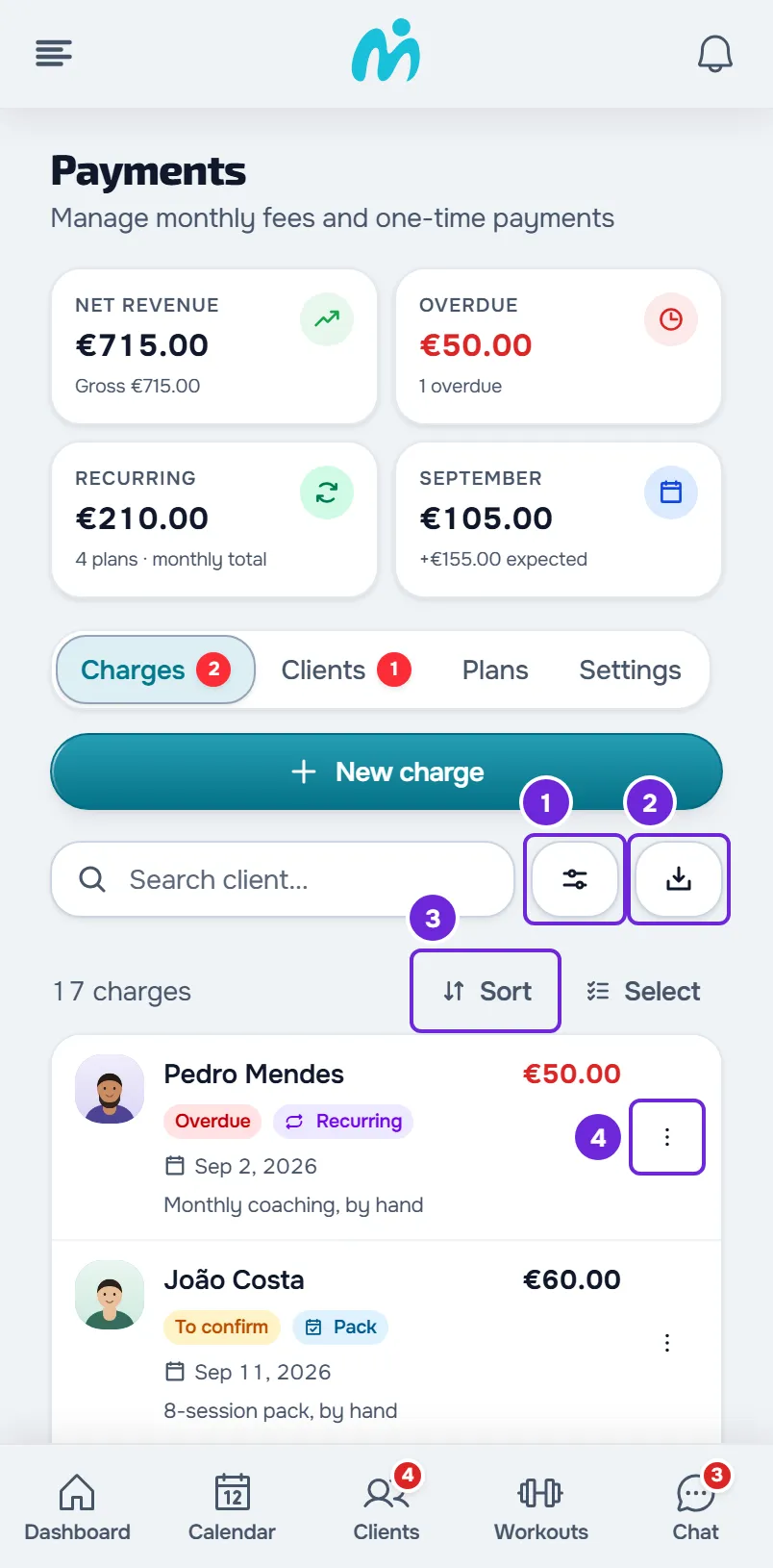
- Each charge is a card with the name and the amount, the status and the type, the date and the method and, last, the plan or the description, with “by hand” or “automatic”.
- Filters and Export show only the icon.
- The column headers do not appear: to sort, select Sort, at the top of the list.
- There is no right-click: the actions are in each card's ⋮.
The address keeps the view
The tab, the search, the filters, the order, the page and the number under Show are kept in the page address. If you reload the page or come back to it with the browser's back button, the list opens as you left it. Changing a filter does not add a step to the browser history: the back button leaves the page instead of undoing the filter.
The “Payment to confirm” notification opens Charges already set to the To confirm status, and some notifications about a client open them already filtered by that client.
Common problems
“No charges yet”, “No charges match these filters” or “All up to date”
“No charges yet” means there is no charge you can see; for a member with Specific clients, it also appears if no clients have been assigned to them yet. “No charges match these filters” appears when the search or the filters leave none: remove words from the search, remove filters or select Clear in the panel. “All up to date” appears when the only filter is Open, with no search, and there are no charges to pay, overdue or to confirm.
“We could not load the charges.”
The request for the list failed, for example because there was no connection. It also appears when you change a filter or the page and the list does not load. Select Try again. If the error continues, see “We could not load this information” and other error cards.
“This charge no longer exists. The list was refreshed.”
The charge you opened was deleted in the meantime, for example in another browser tab. The list reloads on its own, without it.
For other problems, see Common charge problems and how to fix them. If it continues, contact support with the client's name, the filters you had and a screenshot: see Contact Support and create a request.
Questions
Can I filter by modality?
No. The modality of a one-off charge shows in its details and in Edit.
Does the list include automatic subscription invoices?
Yes. Each paid invoice from a plan subscription is a Recurring row, and each one from a course subscription is a Course row. When Stripe cannot charge a plan subscription, an Overdue row appears with the plan's amount. These rows have no actions and do not open anything, and the failure does not count under To handle.
How do I see only one client's charges?
In the Filters panel, choose them under Client. A client who is no longer active or scheduled does not appear in that list: type their name in the search. In the client's profile, the Payments tab shows the same list under History, with only their charges.
Is the view saved in my account?
No. It is only kept in the page address. When you open Payments from the side menu on another page, the list starts with no search and no filters.
Which date does the Period filter use?
The due date of each charge. For paid subscription invoices and course sales, it uses the day of payment.