
Before you start
- On the web, you change the theme in two places: under Appearance, in Settings, with Light, Dark and System; and in the account menu, on a computer, with only Light and Dark.
- In the app, the theme is saved on the phone and starts as System. On the web, Light and Dark are saved to the account, and System is saved in the browser where you choose it; it starts as Light.
- If you are a client, your professional can lock the theme of their app. In that case, the theme they chose applies.
Interactive tutorial
Opens in the app and needs you to be signed in.
Steps
To change the theme on the web, in the professional dashboard or in the client account:
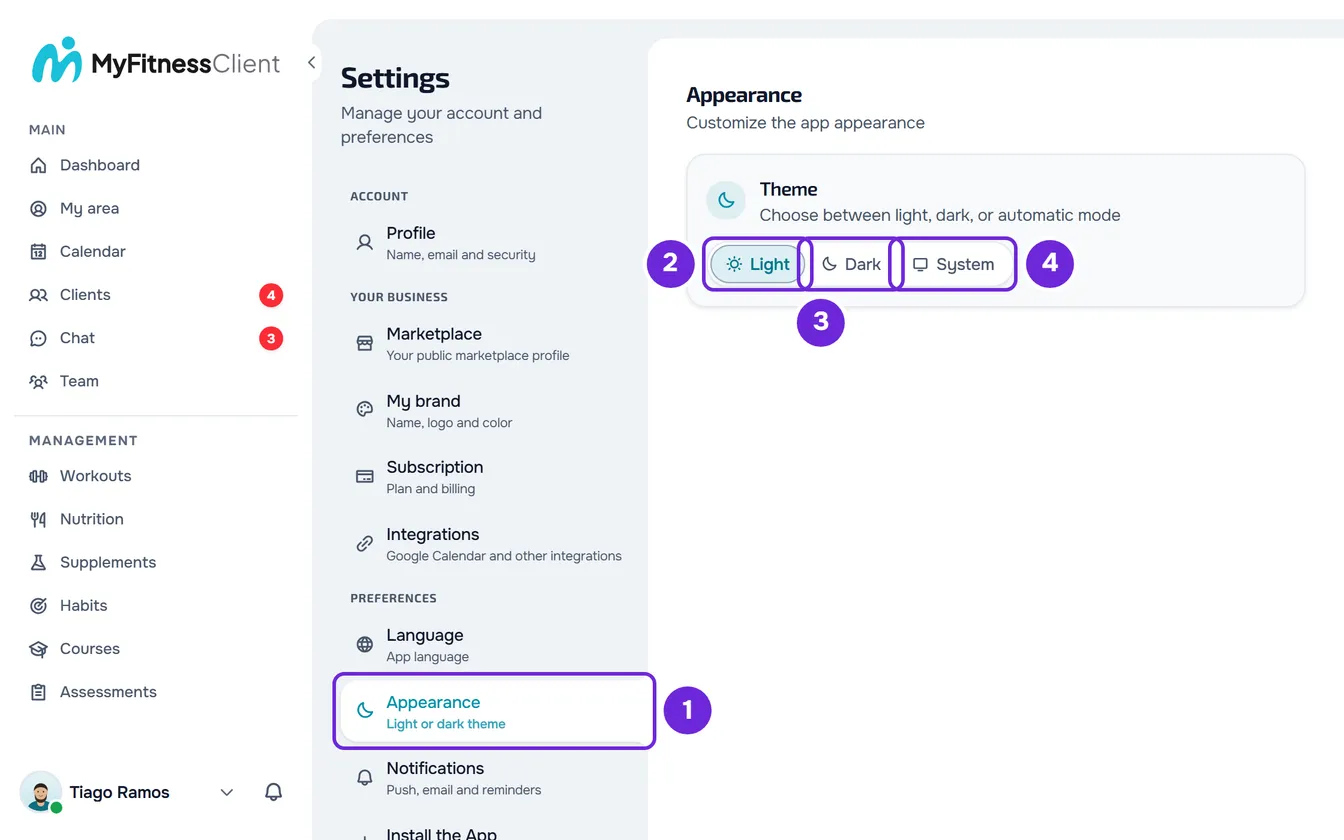
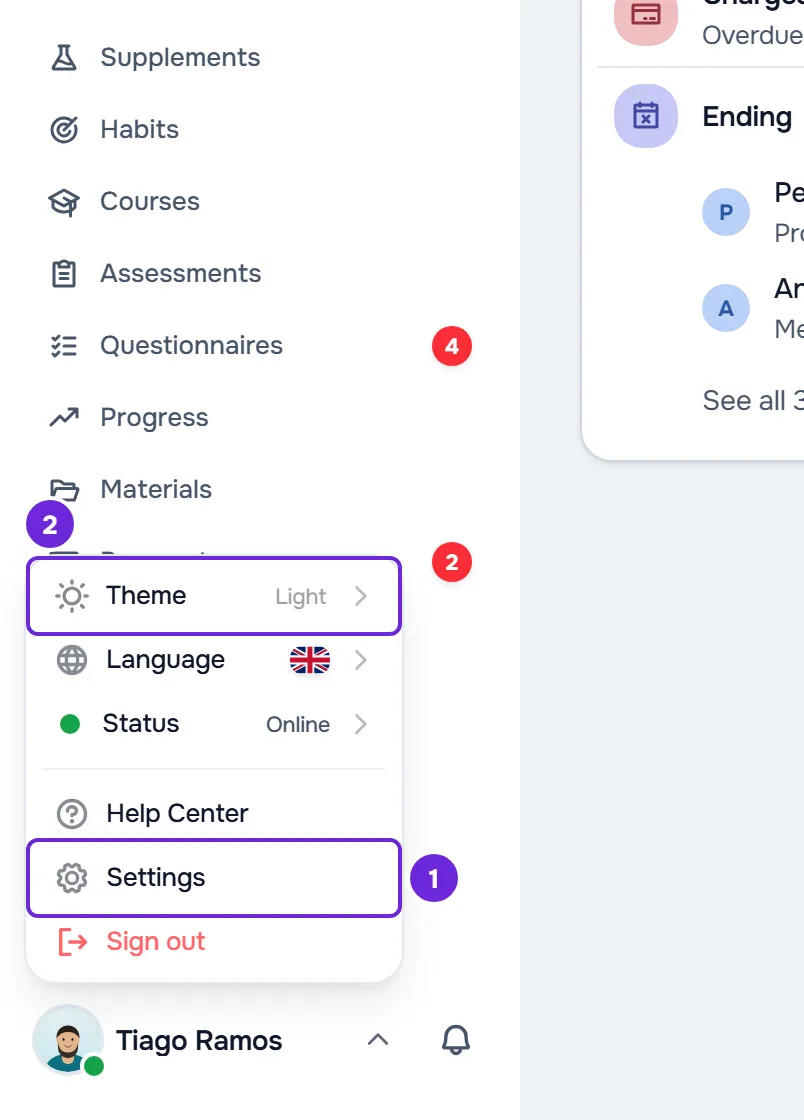
- Open Settings 1. On a computer, select your photo and name at the bottom of the side menu, then Settings. On a phone, open the menu and select Settings at the bottom of the menu.
- Select Appearance 1.
- In the Theme card, select Light 2, Dark 3 or System 4. On a narrow screen, the buttons show only the icon: the sun for Light, the moon for Dark and the monitor for System.
The screen switches to the chosen theme right away. Light and Dark stay fixed; System follows the device's mode.
From the account menu, on a computer
Select your photo and name at the bottom of the side menu, then Theme. Choose Light or Dark: the theme changes right away and the menu closes. The current theme has a check mark. This menu has no System option: to have the theme follow the device, use Appearance.
In the app
- Open the menu with the button in the top-left corner and select your name at the bottom of the menu to open Settings.
- Select Appearance.
- In the Theme card, select Light, Dark or System. Light and Dark fix the app's theme; System follows the phone's mode, even while the app is open.
- On the same screen, you choose the text size: Change the text size in the app.
Common problems
The theme I choose doesn't stick
If you are a client, your professional may have locked the theme of their app: light, dark or the device's. In that case, their theme applies, in the app and on the web. On the web, under Appearance, the theme options are disabled, with their theme selected, and “Your professional has set the theme for this app.” appears. If you prefer another theme, talk to your professional.
I chose System and, in another browser, the theme is Light or Dark
System is saved only in the browser where you chose it. The account saves only Light or Dark: when you choose System, it saves the mode the device shows at that moment. In a browser where you didn't choose System, the web applies the account's mode. Choose System in that browser too, under Appearance.
The page reloads after choosing the theme
This happens in the app installed from the browser, when you choose the theme under Appearance. The page opens again right after so that the status bar color follows the theme. This is the normal behavior.
Questions
Does the theme I choose carry over to my other devices?
On the web, yes: when you open MyFitnessClient in another browser, the account theme applies, Light or Dark. System stays only in the browser where you chose it. The app keeps its own theme on the phone and doesn't change with what you choose on the web. What you choose in the app is also saved to the account and reaches the web when you open it again.
Why are the sign-in pages always light on the web?
On the web, the sign-in, sign-up and password recovery pages and the public pages, such as the marketplace and public profiles, were designed for a white background. They stay light with any theme, including in the app installed from the browser. Your theme applies as soon as you sign in to your account.
I'm a professional: does my theme change my clients' app?
No. Each client chooses their own theme, and the theme you choose for yourself doesn't change theirs. In Settings > My brand, you can choose the theme of your clients' app and prevent them from changing it.