
Before you start
- In a team workspace, you need the Nutrition > Edit permission. Without it, the plan opens read-only. To save a food entered by hand or a product from Online to the library, you also need Nutrition > Create.
- Only foods with calories, protein, carbohydrates and fat filled in can go into a meal. To complete one of your foods, see Create or edit a custom food.
- Each food goes into the meal as a copy of its values at that moment. Changing the food in the library later does not change the plan: see Library foods and meals: what changes in plans.
- On a screen at least 1024 px wide, outside Calendar mode, the editor also has a side panel for adding foods without opening this window: see Build a plan with the food and meal side panel.
Interactive tutorial
Opens in the app and needs you to be signed in.
Steps
To add foods to a meal:
- On the meal's card, select Add Food; in Calendar mode, the card opens when you select the meal in the calendar. The Add Food window opens on Library 1 > Catalog.
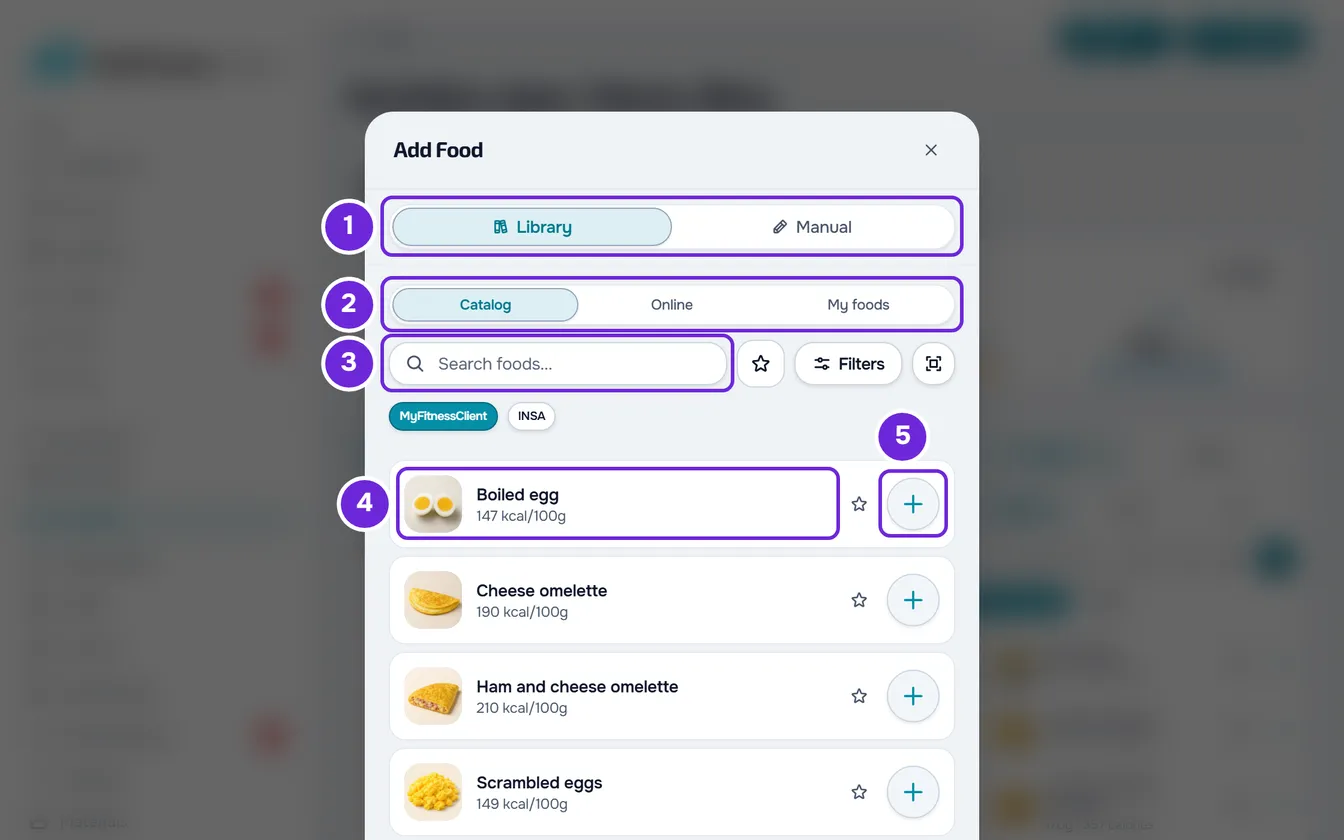
- Choose where to search: stay on Catalog 2 or switch to Online or My foods (on a small screen, My). In the Catalog, if the MyFitnessClient and INSA buttons appear, choose where the foods come from.
- Find the food: type part of its name in the search 3, select Filters to choose a category, or select the star button to see only favorites (these two buttons do not exist in Online). With no search, the list starts with the Favorites and Recent sections, when you have them.
- Select the food 4. Its detail view opens with a quantity in g or ml, usually the weight of one serving (for a product from Online, 100), and with the calories and nutrients for that quantity.
- In Quantity 1, type the number or select one of the quick buttons. The calories and nutrients in the detail view change straight away.
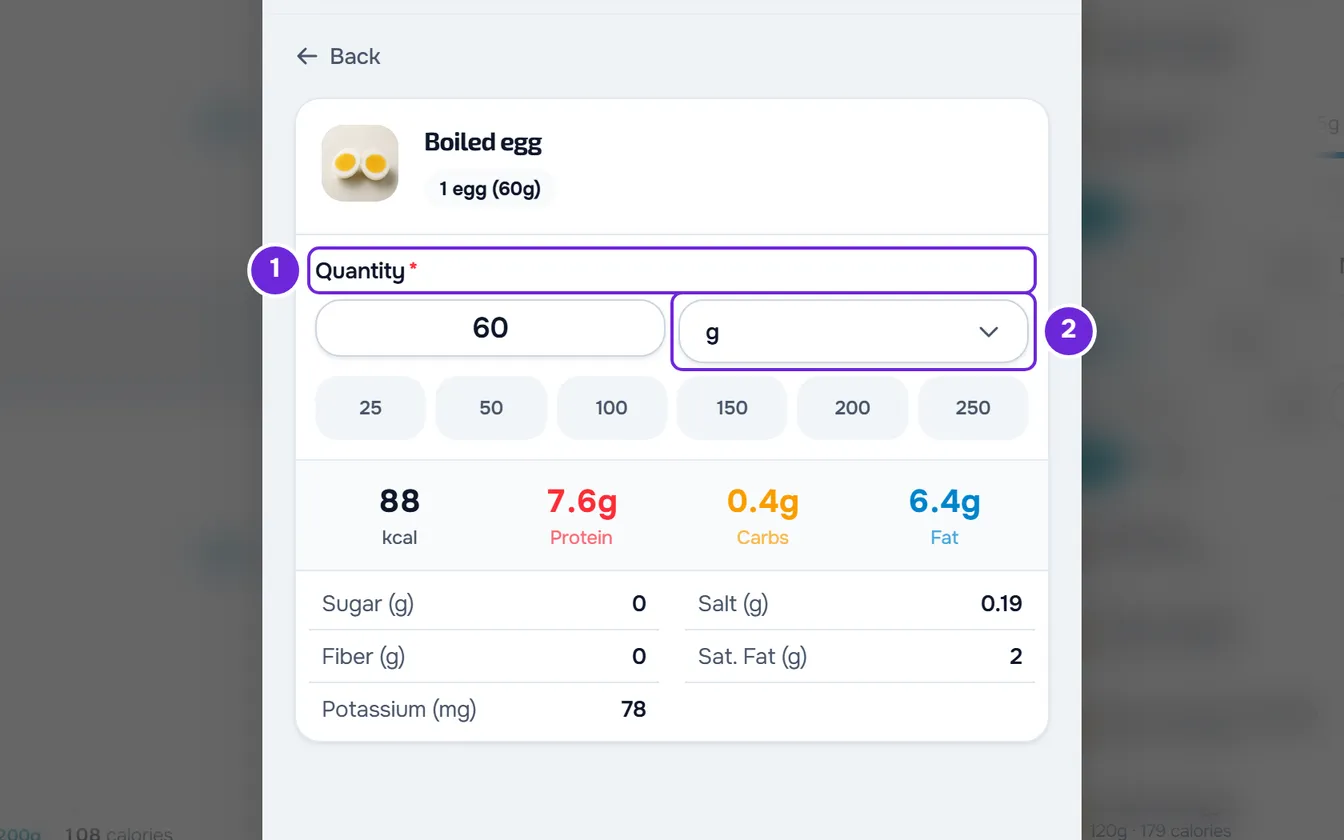
- Optional: choose another unit in the menu next to the field 2, for example slice or tablespoon. If the “How much is 1 …?” field is empty, type how much one weighs, in g or ml.
- Confirm with Select. The detail view closes and the food is marked in the list, with a tick, the quantity and the calories.
- Optional: to add more foods, choose another the same way or, in the Catalog and in My foods, select the circle with + 5 at the end of the row, which marks the food with the quantity its detail view would open with, without opening it.
- Select Add. The button shows in brackets how many foods you have marked.
The window closes, the foods go to the end of the meal and the “Food added” notice appears or, with several, “Foods added”. The meal's card and the day's totals now count them, and the clients on this plan now see them. If saving fails, an error notice appears, for example “Error updating meal” or “Connection error”, and the window stays open with the foods marked: check the connection and select Add again.
Where the foods come from
- Catalog > MyFitnessClient: the platform's catalog.
- INSA: the Portuguese food composition table. The button only appears when the catalog has this table, and each food's detail view says “Source: INSA, Portuguese food composition table, version 7.1 (2026).”
- My foods: the custom foods in your library.
- Online: supermarket products from Open Food Facts, by name or by barcode. The barcode icon next to the search reads the code with the camera. In a product's detail view, Save to library is on and also puts the product in My foods; if that save fails, a notice appears and the product still goes into the meal, without staying in the library. See Add a product by name or barcode.
- An empty list offers Create food, which opens the Manual tab. A search with no results, with at least 2 characters, offers Search Online.
Quantity and unit
The limits and the quick buttons depend on the unit:
| Unit | Minimum | Maximum | Quick buttons |
|---|---|---|---|
| g and ml | 1 | 5000 | 25, 50, 100, 150, 200 and 250 |
| mg | 1 | 5,000,000 | 100, 250, 500, 1000, 2000 and 5000 |
| kg and l | 0.01 | 50 | 0.25, 0.5, 1, 1.5, 2 and 3 |
| The others (slice, tablespoon, a unit of your own) | 0.5 | 50 | 0.5, 1, 1.5, 2, 3 and 4 |
- When you leave the field, a value less than the minimum becomes the minimum and one greater than the maximum becomes the maximum. Empty or at 0, it goes back to 100 in g, ml and mg, and to 1 in the other units.
- The unit menu starts with the food's own unit, when it has one, with the weight of one serving (for example “slice (30g)”), and with g or ml. The others are under All. A food measured in g does not offer ml or l, and one measured in ml does not offer g, kg or mg.
- At the end of the menu, under Custom, you type a unit of your own and confirm with the tick. It has up to 20 characters, starts with a letter, has no brackets and cannot be g, ml, kg, l or mg.
- Changing the unit does not change the amount of food: for bread with 30 g slices, 150 g becomes 5 slices.
- For a unit that is neither weight nor volume, “How much is 1 slice?” appears, with the weight of one in g or ml. For the food's own unit, the field is already filled in. For a unit from All or one of your own, it stays empty until you type the weight, and the quantity adjusts so it is still the same amount of food.
Several foods at once
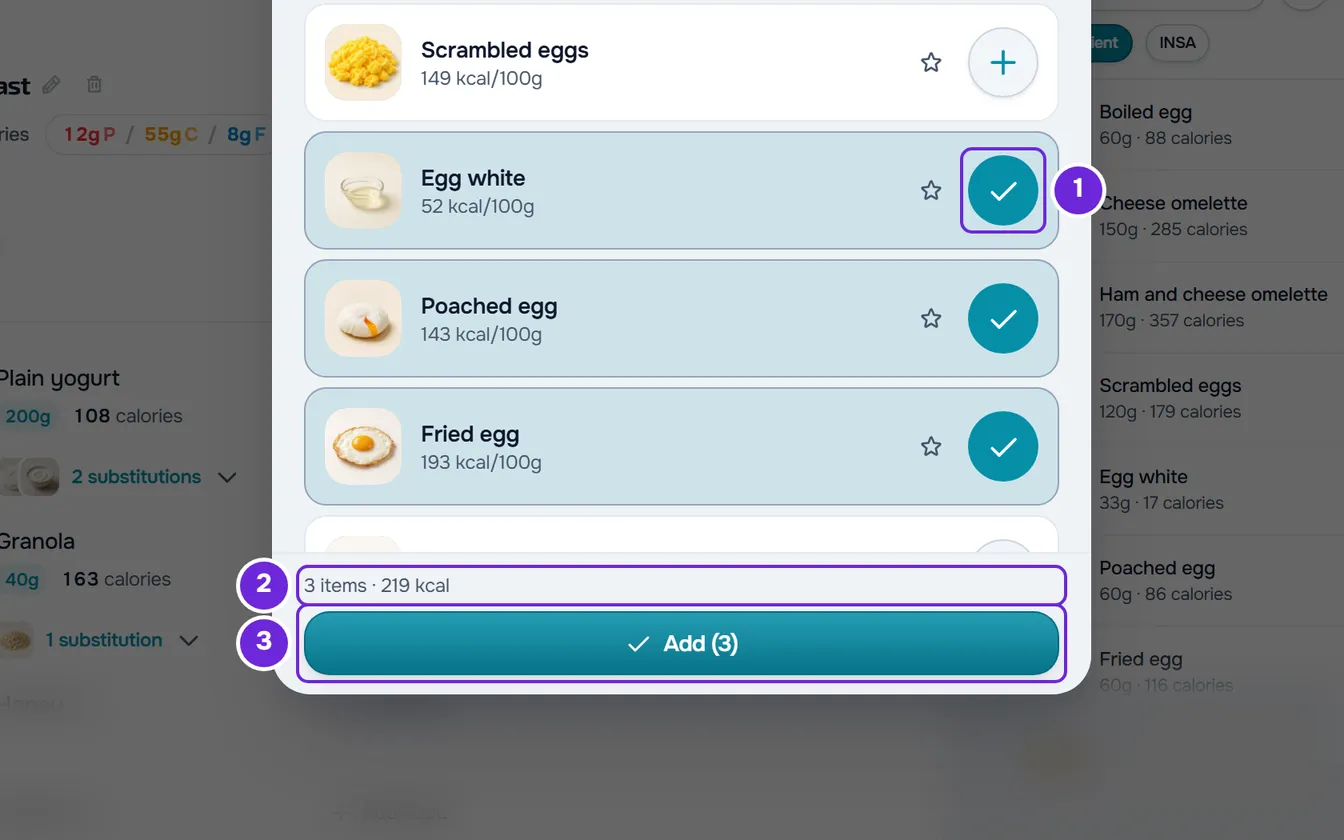
- The circle with + at the end of each row marks the food with the quantity its detail view would open with, without opening it. Select it again to unmark the food. For a food without the four main values, the circle shows an exclamation mark and does not mark it.
- In Online, the list does not include the nutritional values: until you open a product, the circle shows an arrow and opens its detail view. To mark it, confirm in the detail view with Select.
- To change the quantity of a marked food, open it again: the detail view opens with the quantity you chose.
- Over the Add button, a line shows how many items you have marked and how many calories they add up to, for example “3 items · 540 kcal”. The line only appears when the calories of all the marked foods are known.
- A food that is already in the meal has the Already in this meal tag. It is only for information: you can add it again.
- Closing the window with foods marked asks “Save before leaving?”: Save and leave adds them and Discard closes without adding them.
Entering a food by hand
For a food you cannot find, open the Manual tab. The form is the one for creating a food (see Create or edit a custom food), with two differences: the quantity is the one that goes into the meal, and the nutritional values start out per 100 g or 100 ml.
- Add only becomes active with the name and the calories, protein, carbohydrates and fat filled in. In the meal, the brand appears in brackets after the name.
- To also save the food to the library, turn on Save to library (“To use again later”), which starts off. The food goes into My foods and the meal stays linked to it, but the photo stays only in the meal. If saving to the library fails, an error appears and the food does not go into the meal.
- Without that switch, the food exists only in this meal. Foods entered by hand do not go into Recent.
- If you had foods marked in the Library, Add adds them to the meal together with the food entered by hand.
- Closing the window on the Manual tab with the form filled in asks “Save before leaving?”: Save and leave adds the food.
Favorites and recent foods
- The star on each row marks the food as a favorite and, selected again, removes it. Favorites are the same in the food library and in the side panel: see Search foods, filter by category and mark favorites.
- The star button next to the search shows only favorites.
- With no search, the Favorites section is at the top of the list, with the number next to it, and each favorite moves there from the general list. Selecting the section title closes or opens it; with the section closed, favorites go back to the general list. The category filters also apply to the section.
- The Recent section shows up to 6 of the last library foods you added in this browser, and only with no search or filters. On another computer or in another browser, the list is different. A product from Online goes into it only once it is saved with Save to library; foods entered by hand do not.
Editing, moving and removing a food
- Selecting a food's row opens its detail view, for viewing only, with the Edit button.
- The row's ⋮ has Edit Food, Copy and Remove food. Right-clicking anywhere on the row opens the same menu.
- While the food has no substitutions, Add substitution is also on the row itself (on a computer, on hover), in the right-click menu and, on a small screen, in the ⋮. See Add substitutions for a food in the plan.
- Edit Food, or Edit in the detail view, opens the editor: name (up to 100 characters), quantity and unit, image and nutritional values. Save changes only this food in this plan, and the library food stays as it was. If the food has substitutions and the values changed, “The substitutions no longer match the main food” may open.
- Copy keeps the food, with its substitutions, for you to paste into another meal or another plan: see Copy and paste meals, supplements, questions and lessons.
- Remove food asks for confirmation. Select Delete to take it out of the meal.
- To change the order, drag the food by the row's dotted handle and drop it in another position in the meal. Outside Calendar mode, dropping it on another meal's card moves it there, at the position of the insertion line, with any substitutions it has.
- Adding, editing, removing, reordering and moving a food to another meal can be reversed with the editor's Undo. Changes to the foods in Option 2 onwards are not kept in Undo and clear the history. See The meal plan editor: autosave and Undo.
Common problems
“This food is missing calories, protein, carbohydrates, or fat. Choose another food.”
The food is missing one of these four values, so it cannot go into a meal. Choose another food or, if the food is yours, complete it in the library, as in Create or edit a custom food. A catalog food cannot be edited: first copy it to your foods, as in Copy a catalog food to your foods.
“Set how much 1 tablespoon is (in g or ml).”
You chose a unit with no known weight and the “How much is 1 tablespoon?” field is empty. Type how much one weighs, in g or ml, and confirm again with Select.
“Foods could not be loaded. Try again.”
The list did not load, for example because there is no connection. Check the connection and switch tab or search, or close the window and open it again.
The Add Food button disappeared and “Paste here” rows appear
You copied a food and the plan is waiting for where to paste it: until then, the foods in the meals are locked and cannot be dragged. Paste it on a “Paste here” row or select Done in the copy bar. See Copy and paste meals, supplements, questions and lessons.
If this did not solve it, contact support with the plan's name, the meal, the food and the exact message that appeared.
Questions
I changed the food in the library. Why didn't the plan change?
The plan keeps a copy of the values from when the food was added. To use the new values, remove the food from the meal and add it again, or correct it in the plan with Edit Food.
How many foods fit in a meal?
Up to 500 per meal.
How do I put the same food in several meals?
Select Copy in the food's ⋮ and paste it into each meal, on a “Paste here” row. See Copy and paste meals, supplements, questions and lessons.