
In a client's profile, almost every problem has one of four causes: the client's status, your permissions in a team, your account's plan or a connection failure. The status is on the badge at the top of the profile: Active, Scheduled, Ended or Archived.
- Scheduled: the client's access has a start date that has not arrived yet.
- Ended: the end date of the access has passed.
- Archived: the client was deactivated manually.
The profile does not open
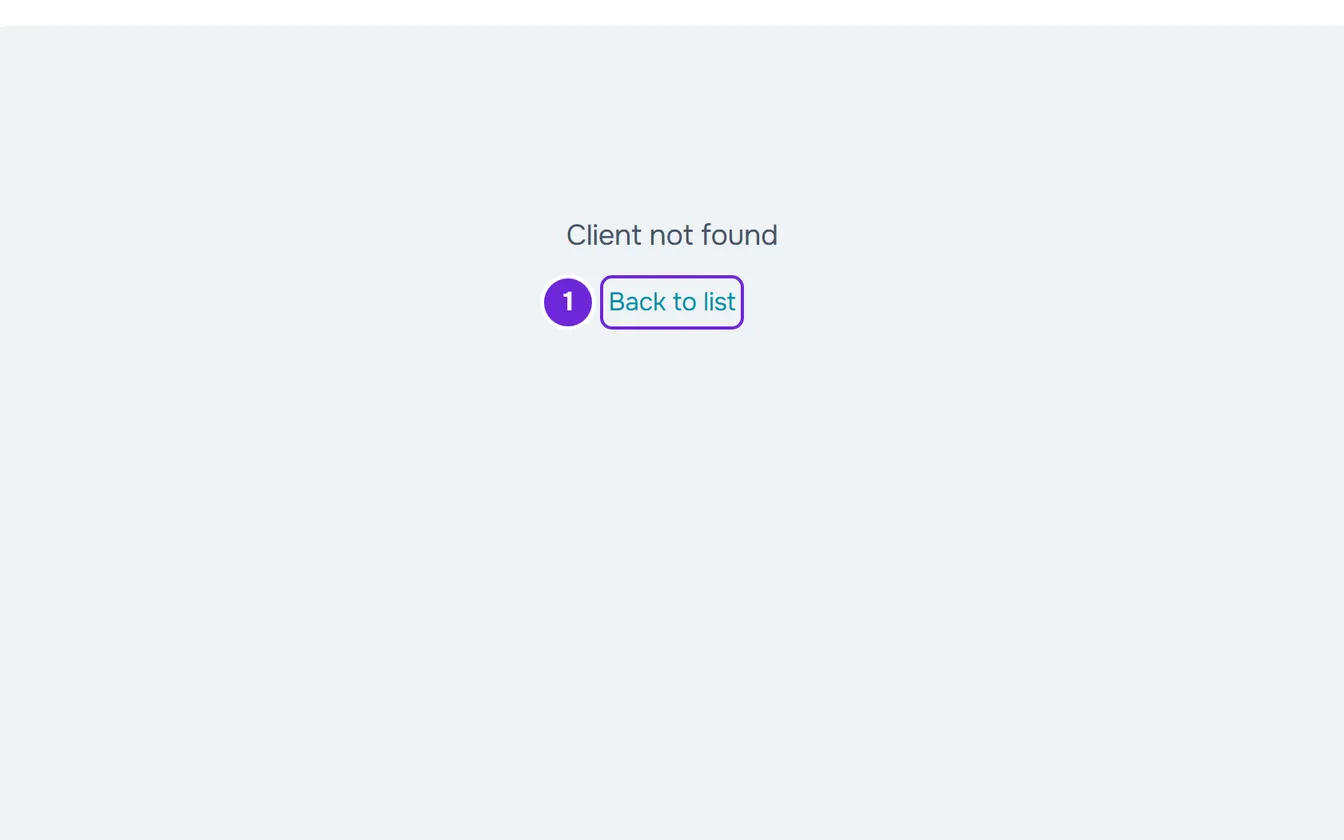
| What appears | Cause | What to do |
|---|---|---|
| “Client not found”, with the Back to list link | The client left your list: they ended the coaching or disconnected from you, deleted their account, joined another professional after the coaching with you closed, or were dissociated. | A client who left the list cannot be reactivated. To coach them again, send them a new invitation. |
| “Client not found” | You are in another workspace. A team's client does not open in your personal workspace, and a client of yours does not open in a team's workspace. | Choose the correct workspace in the workspace switcher at the top of the side menu and open the client from the list. |
| “Client not found” | You are a member of a team with client access set to “Specific clients” and this client is not one of them. | Ask the team owner to give you access to this client. |
| “Client not found” | The address is wrong, or it belongs to someone who is not your client yet, with an invitation or a request still to be accepted. | Select Back to list and open the client from the list. |
| “No permission to access” | You are a member of a team without the View permission in Clients. | Ask the team owner for that permission. |
| “We couldn't confirm your access” | The dashboard could not read your access, usually because of a connection failure. It is not a permissions problem. | Select Try again. |
| An error card with the Try again and Back to list buttons, for example “We could not load this information”, “You are offline” or “Service temporarily unavailable” | The connection or the server failed. The client is still in your list. | Select Try again. If the card has a button with “Reference” and a code, select it to copy the reference and keep it for support. |
The profile can also change to “Client not found” while you have it open, when the client leaves your list in the meantime.
About the permissions screen, see “No permission to access” and menu items missing for a member. About the error cards, see “We could not load this information” and other error cards.
A tab shows a notice instead of the content
| What appears | Cause | What to do |
|---|---|---|
| “You do not have access to this area”, in Nutrition, Supplements, Habits, Assessments, Questionnaires, Progress or Payments, and on the health questionnaire, photos and payments cards in Overview | You are a member of a team and you do not have the View permission for that tab's area. Progress uses the Assessments area. | Ask the team owner for the permission. In Payments, the notice says “Ask the account owner for access to payments.” |
| A card that presents the feature, with a padlock and the name of the plan that includes it, in Nutrition, Supplements or Questionnaires | Your account's plan does not include that feature. In a team workspace, the owner's plan is the one that counts, and the member does not see this card. | The card's main button opens the payment for that plan, and View plans opens the subscription plans, in Settings. |
| “Our services seem to be down”, in the same three tabs | The dashboard could not read your account's plan, usually because of a connection failure. | The tab opens by itself when the connection returns. To avoid waiting, select Try now. |
| “Client is not active”, in Habits or in Supplements | The client is Archived or Ended. | Reactivate the client. In Supplements, the history stays visible. |
| “Client is not active”, in Nutrition, in the Nutrition log sub-tab | The client is not Active. The food diary can only be edited with active coaching, so it is also closed for a Scheduled client. | Reactivate the client or wait for the start day. The nutrition history stays visible. |
For a member of a team, in the Calendar, the program days also need View in Programs, and the check-ins need View in Assessments.
About a member's permissions, see “No permission to access” and menu items missing for a member. About the plan card, see Feature locked by your plan: what it means. About the services notice, see “Our services seem to be down” and section under maintenance.
A button is missing
The profile hides the buttons for actions the server would refuse. There are three causes.
| Cause | What no longer appears | What to do |
|---|---|---|
| The client is Archived or Ended. | New event in the Calendar, Assign in Workouts and in Nutrition, Assign Workout in Extra Workouts, Start in the In-Person Session and on each workout, Schedule and New Assessment in Assessments, Send in Questionnaires, Check-in in Progress, New charge in Payments and Manage on the tags. In almost every tab, the profile shows in their place “This client's coaching is closed. Reactivate them to make changes.” | Reactivate the client. |
| The client is Scheduled. | Start, in the In-Person Session and on each workout, the food diary, in the Nutrition log sub-tab, and the day's doses in Supplements, which say “The client's access hasn't started yet.”. The rest can already be prepared: the program, the plans, the events, the questionnaires and the habits. | Wait for the start day, or reactivate the client to open access now. |
| You are a member of a team and you do not have the permission for that action. | The button for the action you cannot do. Settings only appears for those who can edit or deactivate clients, and Message for those who can view the Chat. New charge only appears for the owner. | Ask the owner for the permission for that action. The View permission only lets you see. |
Reactivate an archived or ended client
To reactivate the client:
- At the top of the profile, select Settings.
- Under Client management, select Reactivate.
The “Status updated” notice appears and the badge changes to Active. The client has access to the app again, takes up a slot on your plan, and the recurring billing that was suspended resumes.
If “Client limit for the current plan reached.” appears, you have no free slots: see Client limit and occupied slots on your plan. In a team, Reactivate only works for those who can deactivate clients.
The client does not see what I assigned to them
| Cause | How to confirm it | What to do |
|---|---|---|
| The client's access has not started yet. | The badge says Scheduled. In Overview, the Client Details card has the start date on the Access period row. | Nothing, if the date is correct: what you assigned appears in their app on the start day. Until then, the pages of the app say “Available from”, followed by the start date. To open access now, reactivate the client. |
| The plan the client has with you does not include that section. | In that plan's form, the Includes field does not have the section, for example Nutrition or Supplements. In the client's app, the section disappears from the menu. | Add the section under Includes, which changes at once for every client with that plan, or give the client another plan. A client with no plan sees every section. |
| You have the “They must pick to come in” option turned on and the client does not have a plan yet. | The client joined after you turned the option on and has not chosen a plan yet. | Until they choose and pay for a plan, the client sees only the catalog and the chat. Assign them a plan yourself or change the option. |
| The client does not have an account in the app. | In the profile header, instead of Message you see Invite to the app, “Invitation pending” or “Request to approve”. | With Invite to the app, send them the invitation. With “Invitation pending”, the client still has to accept the invitation. With “Request to approve”, the client has already confirmed the invitation: select the notice to open it and accept the request. The client only sees the app after that. |
An overdue payment can also limit or close the client's access, depending on the If they don't pay rule of their plan: see Choose what happens when a client does not pay.
About plans, see Create recurring plans and packs for clients and Let clients choose and pay for their plan themselves. To help the client understand what they see on their side, send them Access statuses: scheduled, ended and inactive or “Not in your plan”: a section of the app has disappeared.
An action is refused with a message
| Message | Cause | What to do |
|---|---|---|
| “Enter the event date: some phases count from it.”, in Supplements, when you assign a plan or change its dates | The plan has phases counted backwards from an event, and the profile does not ask for that event's date. | Assign the plan from its own page, in the Supplements menu: there, the dates step has the Event date field. |
| “You have more active clients than your plan allows. Choose which to keep or upgrade your plan.” | The account has more active clients than the plan allows, and changes stay blocked until that changes. | Choose the clients who stay active or change your plan. |
| “You don't have permission to do this in this team.” | You are a member of a team and the action needs a permission you do not have. | Ask the team owner for that permission. |
| “You have reached your plan storage limit.” or “The team's file storage is full. We've let the team owner know.”, in Materials, when you upload a file | The account's file storage is full. In a team workspace, the storage is the owner's. | Free up space, or ask the team owner to do it. |
| “This feature is not included in the current plan.”, in Materials, when you upload a file | The account's plan does not include file uploads. | See the article about file upload errors, listed after the table. |
About supplements, see Assign a supplement plan to clients and Common problems with supplement plans. About the account block, see You have more active clients than your plan allows. About files, see “Storage limit exceeded”: how to free up space and Can't upload or attach a file.
Records or charts are missing
| Symptom | Cause | What to do |
|---|---|---|
| For an Archived or Ended client, the most recent workouts, meals or supplement doses are missing. | After the coaching closes, you only see what the client logged up to the end of the coaching. What they log afterwards does not appear, and the profile does not tell you. | Reactivate the client: with active coaching, you see everything again. |
| In Progress, the Weight Progress card says “Insufficient data”. | The client has fewer than two records with weight. Check-ins and assessments count. | Log the weight in a check-in or in an assessment. The chart appears with the second record with weight. |
| In the Calendar, the workout the client did has not marked the program day as completed. | The program day is only completed, in green, with a finished session of that program, started on that day and with the same name as the workout. A free workout, an extra workout or a session started on another day appears as a separate event, at the time it started. | Nothing: the workout is logged. Look for it on the day the client started it. |
About the charts, see Weight chart and Measurements card problems in Progress. About the events, see Common Calendar problems and how to fix them.
If this did not solve it
Reload the page and check the client's badge and, in a team, your permissions. If the problem continues, contact support (see Contact Support and create a request) and send:
- the address of the profile and the tab you were in
- the exact sentence the screen shows
- the reference from the error card, if there is one
- the name of the team, if you work in a team's workspace