
Before you start
- In a team workspace, opening the list requires the Nutrition > View permission. Without it, Nutrition does not appear in the side menu and the page, opened from its address, shows “No permission to access”: see “No permission to access” and menu items missing for a member.
- Each plan's ⋮ menu, the right-click menu, the Select button and creating, changing or deleting tags require the Nutrition > Edit permission, and Duplicate also requires Nutrition > Create. The team owner always has every permission.
Interactive tutorial
Opens in the app and needs you to be signed in.
Steps
To find a meal plan:
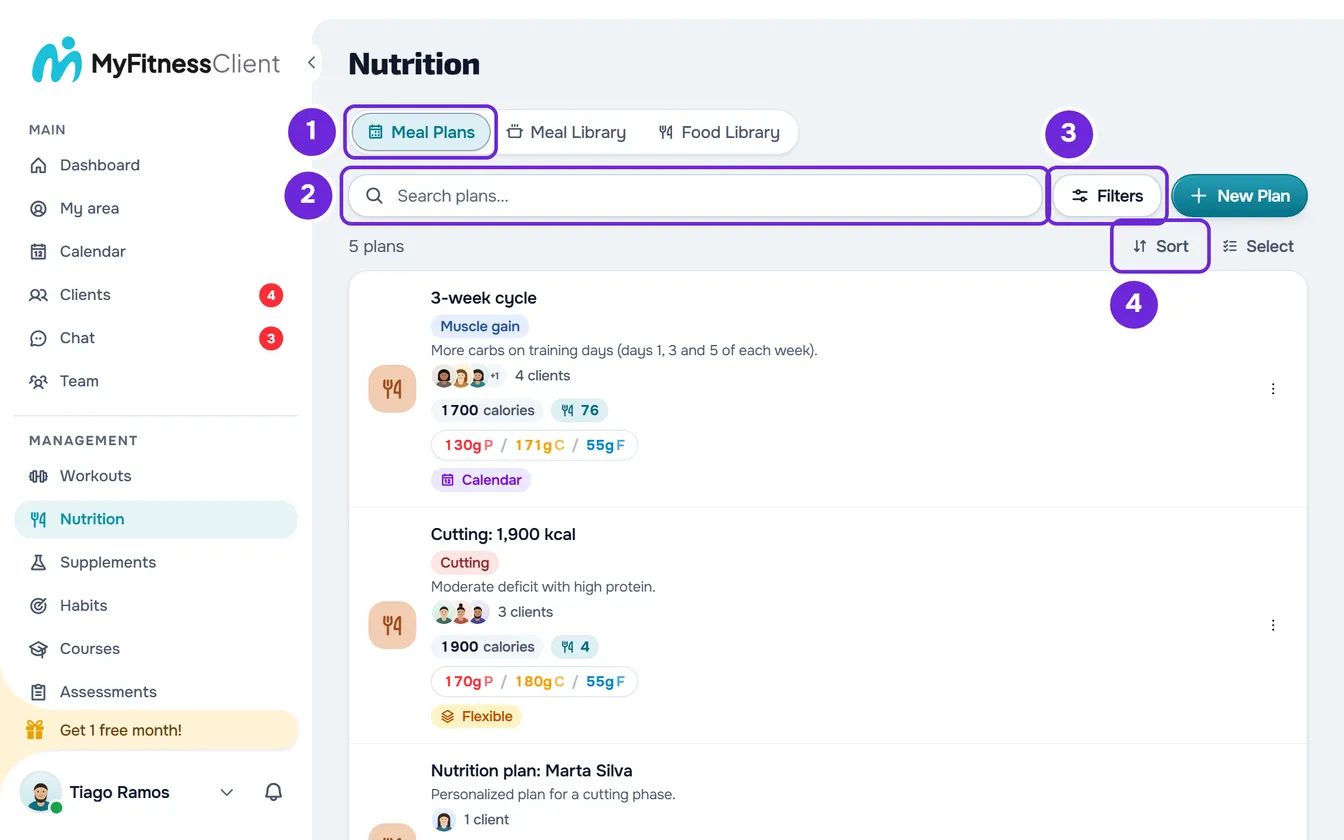
- In the side menu, select Nutrition. The page opens on the Meal Plans 1 tab (on a small screen, Plans).
- In the search box 2, type part of the plan's name. The list updates when you stop typing and goes back to page 1.
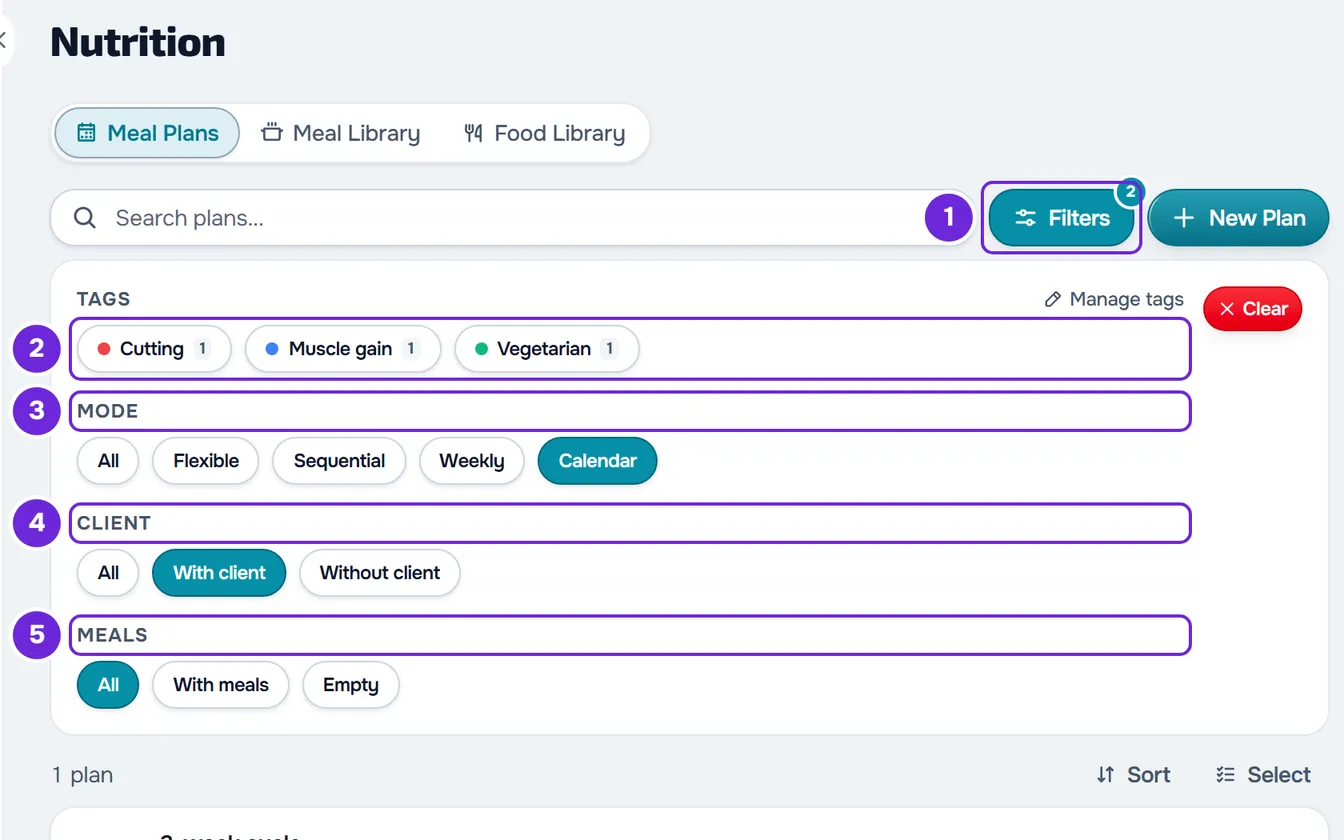
- Optional: select Filters 1 (on a small screen, it only shows the icon) and choose the Tags 2, the Mode 3, the Client 4 (With client or Without client) or the Meals 5 (With meals or Empty). The Tags group only appears once tags exist.
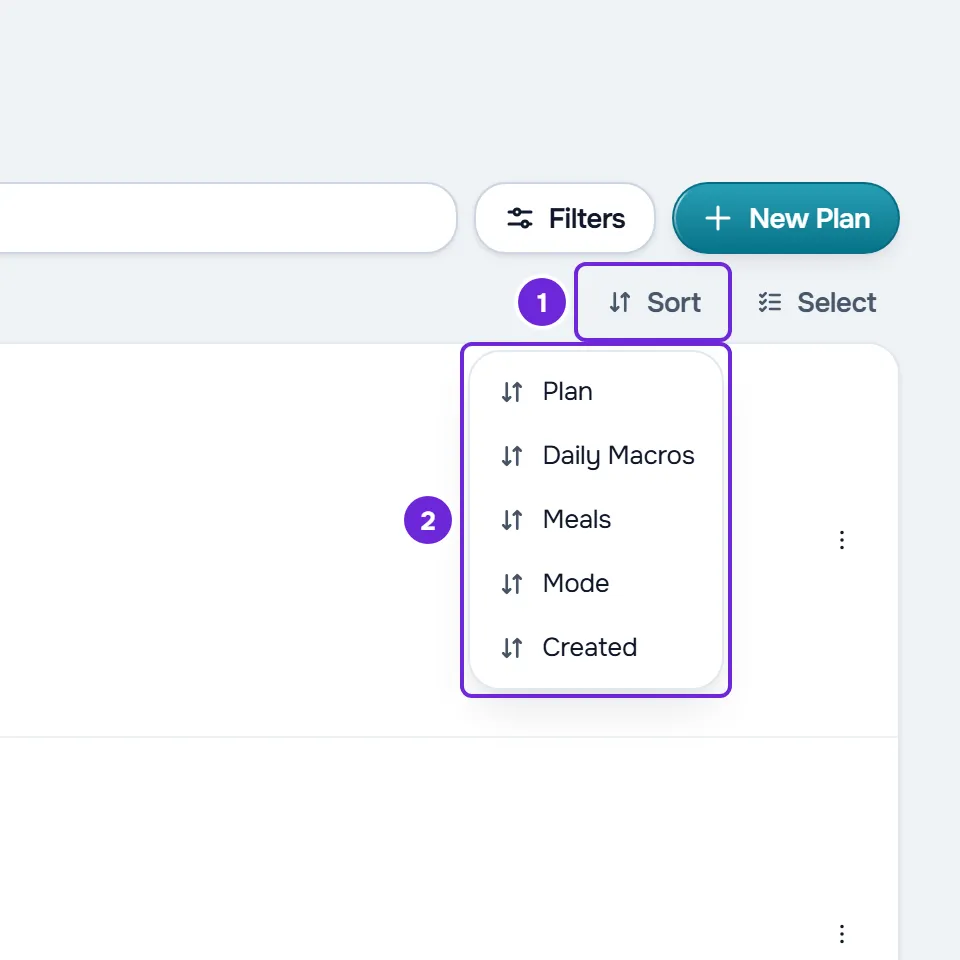
- Optional: to change the order, select a column heading in the table: Plan, Daily Macros, Meals, Mode or Created. In the card list, select Sort 1 and the column 2.
- Optional: in the list footer, under Show, choose 10, 25 or 50 plans per page and use the arrows to change page.
- Select the plan to open it in the editor.
The list shows only the plans that match the search and the filters, and the counter at the top of the list says how many there are across all pages, for example “12 plans”.
How to read the list
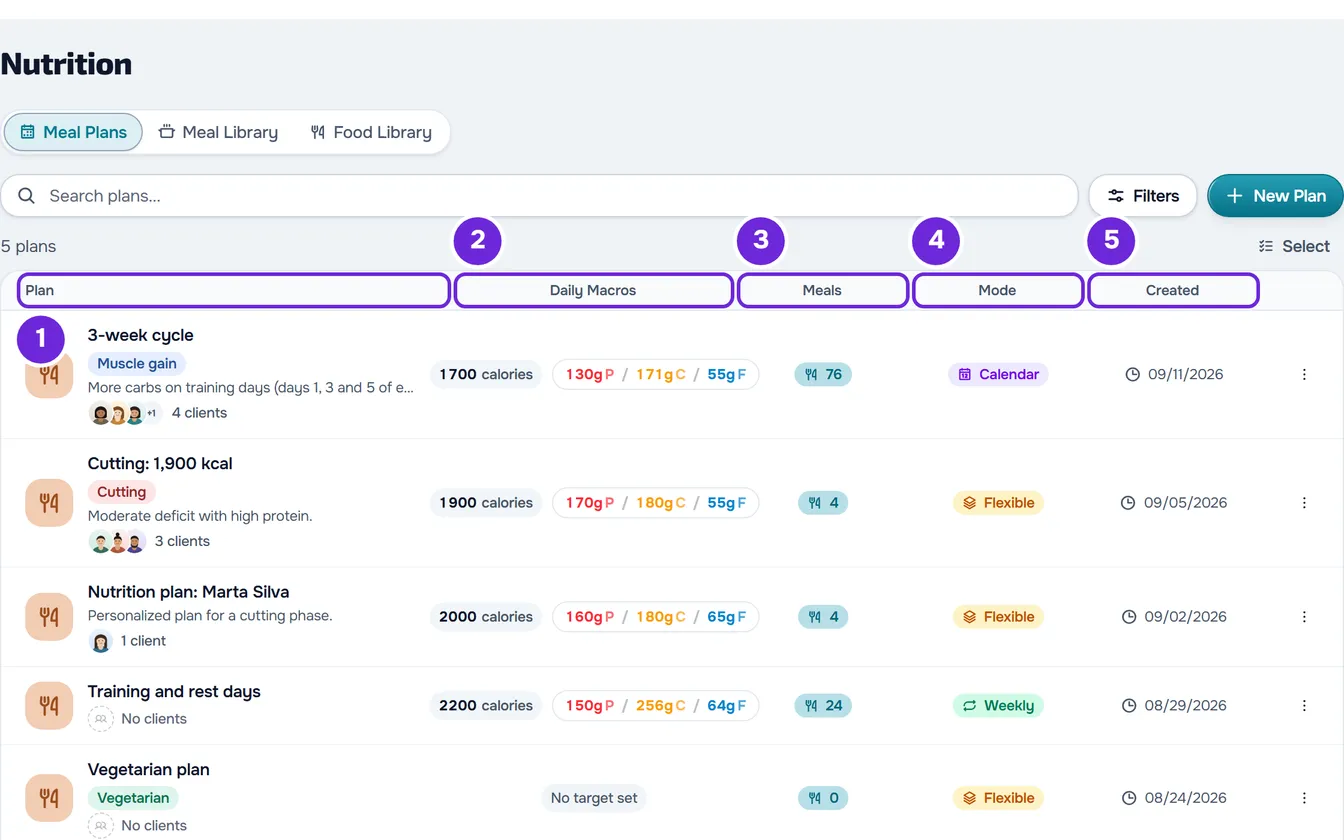
- In a window at least 1280 px wide, the list is a table. In a narrower window, each plan is a card with the same information, except the creation date and, on a plan without meals, the number of meals.
- Plan: the cover or icon, the name, the tags, the start of the description on a single line and the clients the plan is assigned to: up to 3 avatars, “+N” when there are more, and the number of clients. A plan without clients shows No clients. Hover over an avatar to see the client's name or the nickname you gave them.
- Daily Macros: the plan's daily goals in calories, protein, carbs and fat, not the sum of the foods. Only what is set appears; with no goal at all, No target set appears. See Set a plan's daily calorie and macro goals.
- Meals: how many meals the plan has. A meal's options do not count separately.
- Mode: Flexible, Weekly, Calendar or, on an older plan, Sequential. See Meal plan modes: Flexible, Weekly and Calendar.
- Created: the day the plan was created.
- In a team workspace, a plan created by a colleague shows “Created by” and their name.
- If you use a plan in My area, you do not count as one of its clients.
- With no plans at all, the list says “No plans found” and “No plans yet. Create your first one!”. To get started, see Create a meal plan.
Filter and sort
- The number on the Filters button shows how many filters are active. Each chosen tag counts as one.
- In Mode, Client and Meals, you choose one option per group. Selecting the active option again goes back to All.
- Each tag shows how many plans have it. With several tags chosen, the list shows only the plans that have all of them.
- With client shows the plans assigned to at least one client and Without client shows the rest. For a team member with access to only some clients, only those count. Empty shows the plans without meals.
- Clear appears when at least one filter is active and resets the four groups. The search stays as it was.
- The search, the filters and the sorting cover all plans, not just the open page, and each change goes back to page 1.
- On the same column, the first selection sorts in ascending order, the second in descending order and the third goes back to the original order, with the newest plans first. Daily Macros sorts by calories and Mode in the order Flexible, Sequential, Weekly and Calendar.
Tag plans
Tags organize plans your way, for example by goal. They belong to the workspace, are separate from the workout and program tags, and clients never see them.
- On one plan: in the ⋮ menu of the row or card, or with a right-click, select Tags. Check or uncheck the tags and select Save. “Tags updated” appears.
- A new tag: in the same window, type the name in the search and select the option to create it. The tag is created right away and starts checked, with a color from the palette; the plan only gets it when you select Save.
- On several plans: select Select, check the plans and, in the selection bar, select Tags. Each tag you check or uncheck changes right away on all the checked plans; a tag that only some of them have appears half-checked. Selection is explained in Delete meal plans, one at a time or several at once.
- To manage tags, select Manage tags, in the Tags group of Filters or at the end of the list in the Tags window. Under New Tag, you type the name (up to 50 characters), choose the color and select Add.
- Under Your Tags, each tag shows how many plans it is on. The pencil changes the name and color, and the trash can deletes it after you confirm; right-clicking the row offers the same two actions.
- Deleting a tag removes it from every plan that had it, and the plans themselves are kept. If the tag is in use, the confirmation says on how many, for example “It's on 3 plans. Deleting it removes it from all of them.”
- Each plan's settings also have a tags field: see Change a meal plan's name, cover and duration.
Each plan's menu
The ⋮ on each row or card and a right-click anywhere on the row or card open the same menu:
- Edit opens the plan in the editor, like selecting the row: see The meal plan editor: autosave and Undo.
- Duplicate creates a copy of the plan, without clients: see Duplicate a meal plan.
- Tags opens that plan's tags.
- Delete asks for confirmation before deleting the plan: see Delete meal plans, one at a time or several at once.
With Shift held down, or over text you had already selected, a right-click opens the browser's menu.
The list keeps your view
The page, the number of plans per page, the search, the filters and the sorting are stored in the page address. When you go back from a plan to the list, it reopens the way you left it.
Common problems
Search does not find the plan by the client's name
Search only looks in the plan's name. To get to a client's plan, open their profile in Clients and select the Nutrition tab, as in Assign a meal plan to a client from their profile. In the list, the With client filter keeps only the plans with clients, and each client's name appears when you hover over the avatar.
“No plans found” and “Try adjusting the filters”
No plan matches the search and the active filters. Check the number on the Filters button and select Clear, or delete the search. Search ignores capital letters but not accents: “cafe” does not find “Café”.
Red banner with “Try again”
The list did not load, for example with “Connection error” or “Error loading data”. It is not an empty list: your plans are still there. Check your connection and select Try again.
I can't see the ⋮ menu or the Select button
You are missing the Nutrition > Edit permission: ask the team owner for it. Without it, you can search for and open plans, view-only.
If this did not solve it, contact support with the address of the list page, the search text, the active filters and the exact message that appeared.
Questions
How many plans appear per page?
10 by default. Under Show, in the list footer, you can choose 25 or 50.
Does the team see the same list?
Yes. Plans belong to the workspace and anyone with the Nutrition > View permission sees all of them. A member with access to only some clients sees only those clients' avatars.
Do clients see the tags?
No. Plan tags are only for you and your team.