
Before you start
- You need an email address you can access: the 6-digit code that confirms the account arrives at that address.
- If your professional sent you an invitation, create the account from it, as explained in Open your professional's invitation and create your account.
- Professional accounts are created on the website. The MyFitnessClient app only creates client accounts.
- A client account requires you to be 13 or older. From 13 to 15, you also need permission from your parents or legal representative: see Minimum age and accounts for minors.
- To create the account with Google or Apple, without a password, see Sign in or create an account with Google or Apple.
Steps
To create the account on the website:
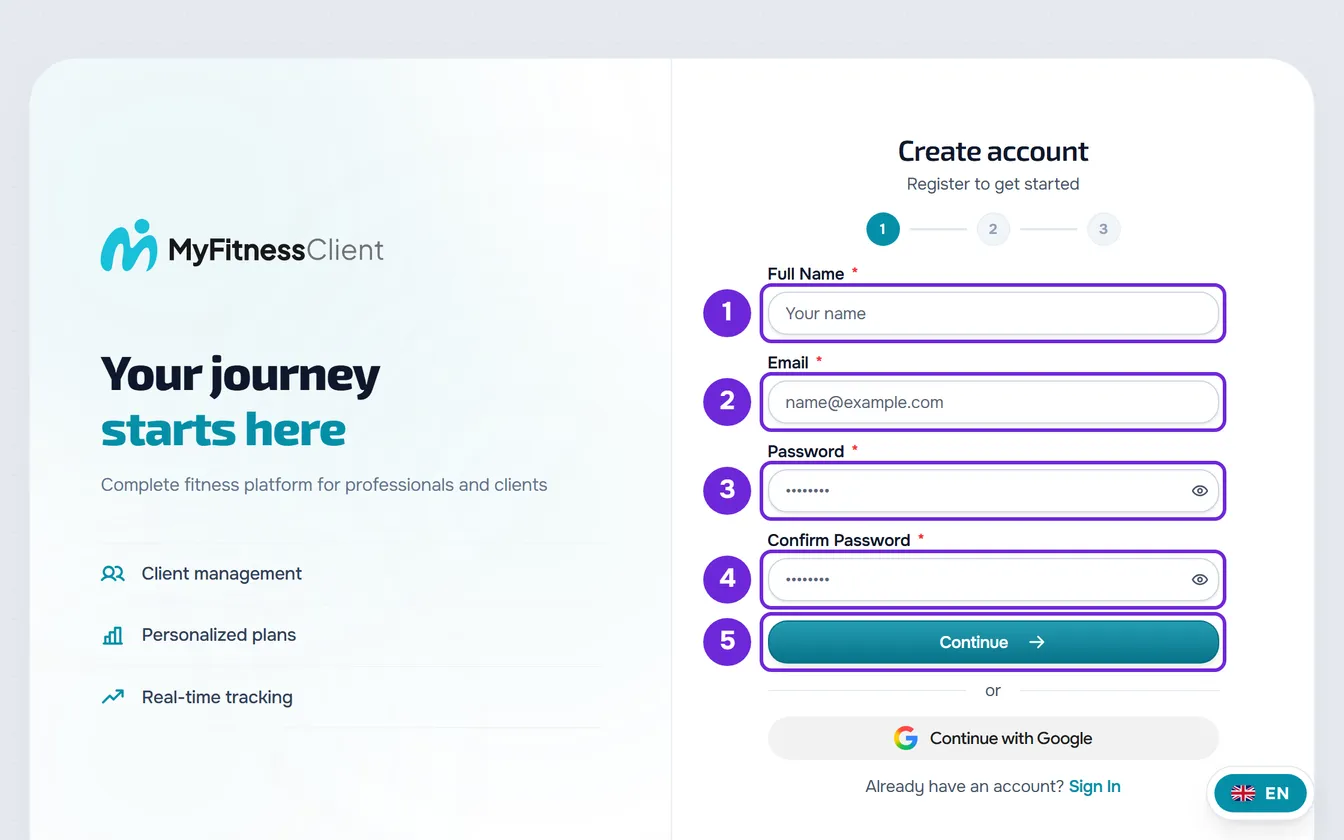
- On the website's home page, select Start free. The Create account page opens at step 1.
- Enter your first and last name in Full Name 1, your email in Email 2 and the same password, 8 to 72 characters long, in Password 3 and Confirm Password 4.
- Select Continue 5. You move on to step 2. The Enter key does not move you forward in this step.
- In Choose your profile, select Professional 1 or Client 2. The Professional card is already selected. If you came from a team invitation, the account is a professional account and this choice doesn't appear.
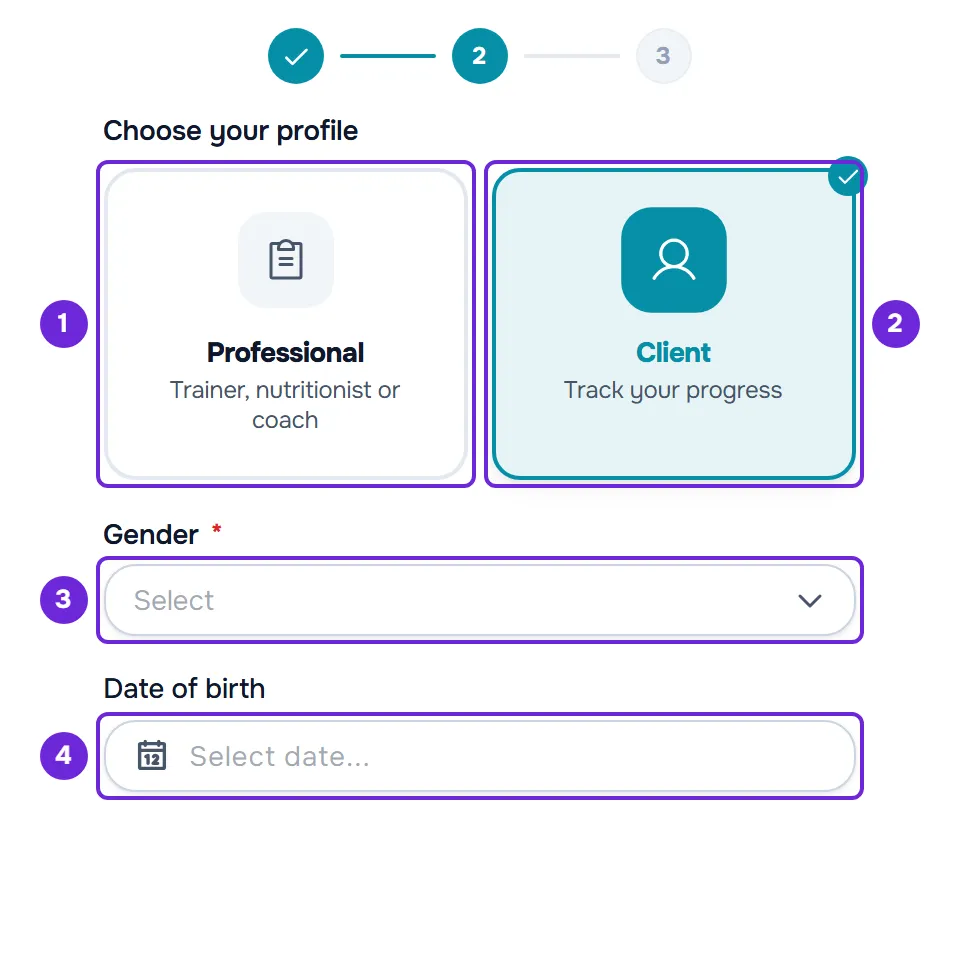
- If you chose Client, choose your Gender 3 and Date of birth 4. The calendar opens showing the years: choose the year, then the month and the day.
- Optional, if you chose Professional: in How did you find us?, choose an option.
- Optional, if you chose Professional and have a referral code, a partner code or a coupon: select I have a code and enter it.
- Tick the box “By creating an account, I accept the Terms of Service and have read the Privacy Policy”. As a professional, the same box also declares that you hold the legal qualifications required for the services you provide. If you are between 13 and 15, also tick the box “I have authorization from my parents or legal representative to create this account.”
- When the security check finishes, select Create account. We send an email with a 6-digit code and the page moves to step 3, Verify your email.
- Enter the 6-digit code from the “Confirm your email” email in the boxes 1. When you enter the sixth digit, the code is submitted automatically. The code is valid for 30 minutes. You can also select Confirm email in the email itself.
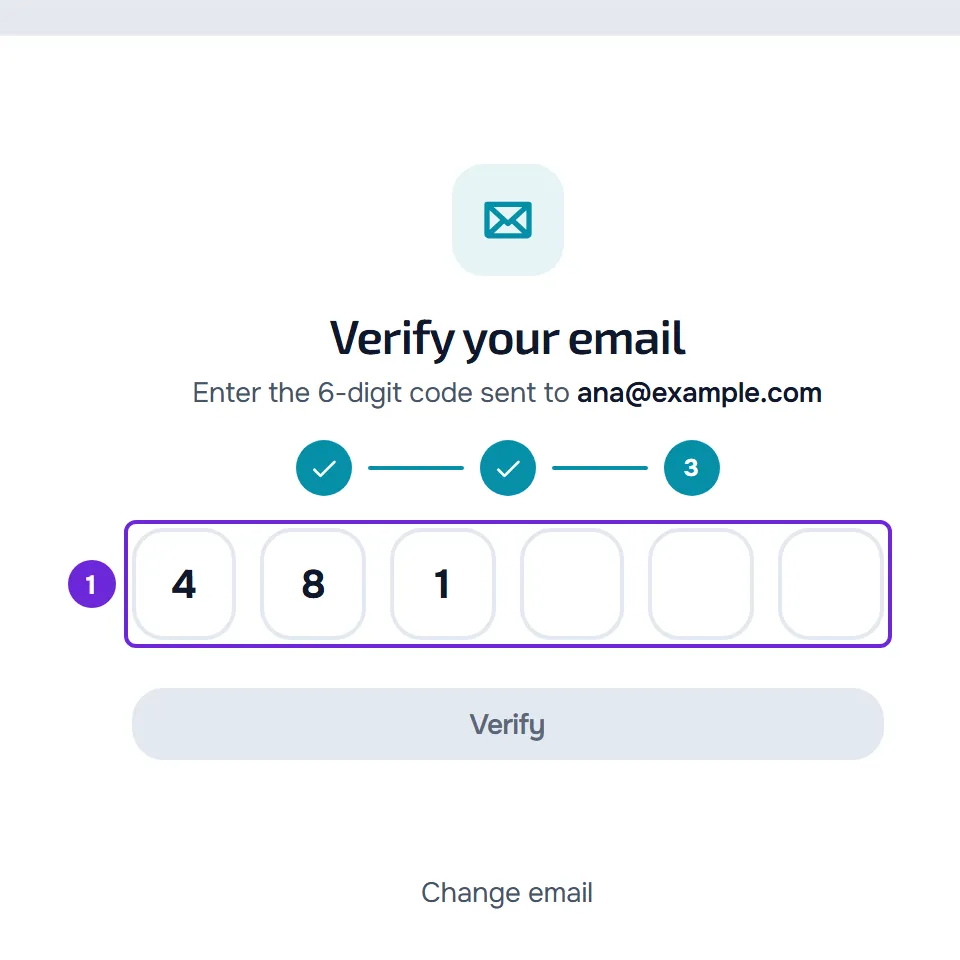
The account is verified, you are signed in automatically and your area opens: the Dashboard if you are a professional, or the client app if you are a client.
In the app
The MyFitnessClient app creates client accounts, also in 3 steps:
- On the welcome screen, select Get started.
- In About you, choose Male or Female, enter your date of birth in the DD, MM and YYYY boxes and select Continue. From 13 to 15, also tick the parental permission box before you continue.
- In Your details, enter your Full name and Email and select Continue.
- In Security, enter your Password, repeat it in Confirm password and select Create account.
- On the Verify your email screen, enter the 6-digit code, as explained in Verify your email with the 6-digit code or the link.
What is different from the website:
- There is no profile choice, no “How did you find us?” question and no referral code.
- The app only checks whether the email already has an account when you select Create account. If it does, “This email is already registered.” appears and you go back to Your details.
- There is no Terms box. Under the button, the app shows “By creating an account you agree to the Terms and confirm you have read the Privacy Policy”, with links to both documents.
- There is no security check on screen: the app checks the phone automatically. If that fails, a message that starts with “We could not verify this device's security.” appears, and what to do is in I can't sign up, sign in or reset my password.
- Back, or the Android Back button, goes back one step without erasing what you have already entered.
What each field accepts
On the website, the sign-up fields accept:
| Field | What it accepts |
|---|---|
| Full Name | At least two words, your first and last name, with 3 to 100 characters in total. Each word starts with a letter and contains only letters, apostrophes or hyphens. The first and last words have 2 letters or more. |
| Up to 254 characters. When you stop typing, the website checks whether the email already has an account. | |
| Password | 8 to 72 characters. The Weak, Fair, Good or Strong bar is for information only and does not stop the account from being created. |
| Confirm Password | The same password. |
| Gender | Clients only: Male or Female. |
| Date of birth | Clients only: an age from 13 to 100. |
| Code | Professionals only, optional: letters, digits and hyphens, up to 20 characters. |
| How did you find us? | Professionals only, optional: one of 8 options. With Other, the Where? box accepts up to 120 characters. |
The full email rules, with the addresses accepted and refused, are in I can't sign up, sign in or reset my password.
After you create the account
If you reached sign-up from an invitation or from a professional's public profile, you go back to that invitation or profile after you confirm your email. To sign in later, see Sign in and sign out.
Common problems
Message asking you to fix the highlighted fields
It appears when you select Continue while a field in step 1 still needs fixing. Each field in red says what is missing, for example the message asking for your first and last name or “Passwords don't match”. Fix the field and select Continue again. With “This email already has an account. Sign in instead.”, that email already has an account: sign in with it, as explained in Sign in and sign out.
Message asking you to confirm you're not a robot
The step 2 security check had not finished yet when you selected Create account. Wait a few seconds: if it finishes soon, the request is sent automatically. If it isn't, select Create account again.
The Create account button doesn't respond
The button stays disabled until you tick the Terms box and, from 13 to 15, the parental permission box. Sign-up accepts 3 attempts per minute with the same email. After that, the button shows a padlock and a countdown in seconds, with “Too many requests. Wait a moment.”: wait for the countdown to end.
“Invalid code. Remove it or enter a valid one”
The code in the Code field does not exist or is no longer valid. When you open sign-up from a link with a code, the field comes filled in and stays locked only while the code is valid. If the link's code is not valid, “Invalid or unknown code.” appears and the field unlocks: delete the code to create the account without it, or enter another one.
If the 6-digit code did not arrive, see Not receiving the email verification code. Every sign-up message, with the cause and what to do, is in I can't sign up, sign in or reset my password.
Questions
I'm a nutritionist. Which profile do I choose?
Professional. It is the same profile for trainers, nutritionists and coaches: sign-up does not ask for your profession.
Can I change the account type later?
There is no screen to change an account's type.
Why is the client asked for gender and date of birth?
The professional uses them to calculate body composition in assessments and calorie needs. Professional sign-up does not ask for them.
What is the “How did you find us?” question?
It tells MyFitnessClient how you heard about the platform. It is optional and never stops the account from being created. If you accepted the “Ad measurement” cookies, the answer may already be chosen, with the note “Detected automatically. You can change it.”
Do I have to accept promotional emails?
No. The promotional emails box only appears in professional sign-up and is unticked. Without it, MyFitnessClient does not send you promotional emails, and service emails, such as verification codes, are still sent. You can change your choice later in Settings.