
Before you start
- There are six languages: Português (Portugal), Português (Brasil), English, Español, Français and Deutsch.
- The language is saved on your account. Besides what you see on screen, it decides the language of the emails and push notifications you receive.
- On the web, the page reloads completely in the new language. In the app, the language changes straight away, without reloading.
- On the web, the language does not change the time format: 12 or 24 hours follows the browser's first language. With US English first, for example, times show AM and PM.
Interactive tutorial
Opens in the app and needs you to be signed in.
Steps
To change the language on the web, in the professional dashboard or in the client account:
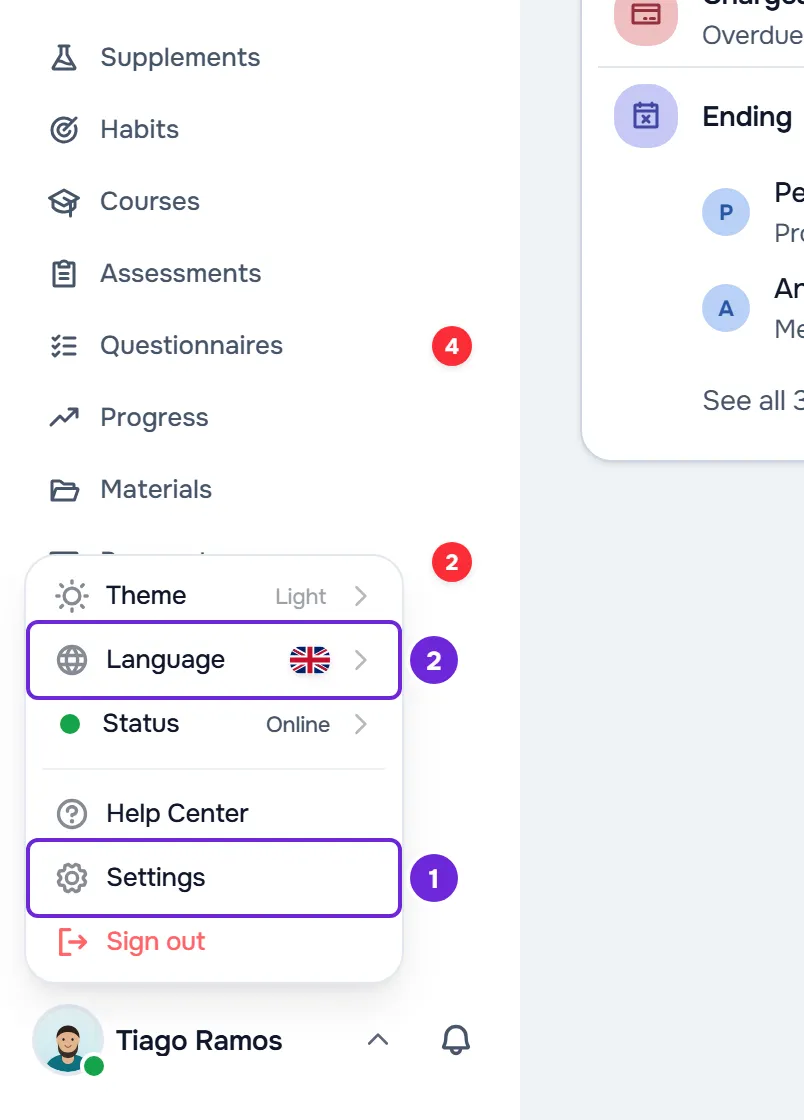
- At the bottom of the side menu, select your photo and name, then Settings 1. On a phone, open the menu and, at the bottom of it, select Settings.
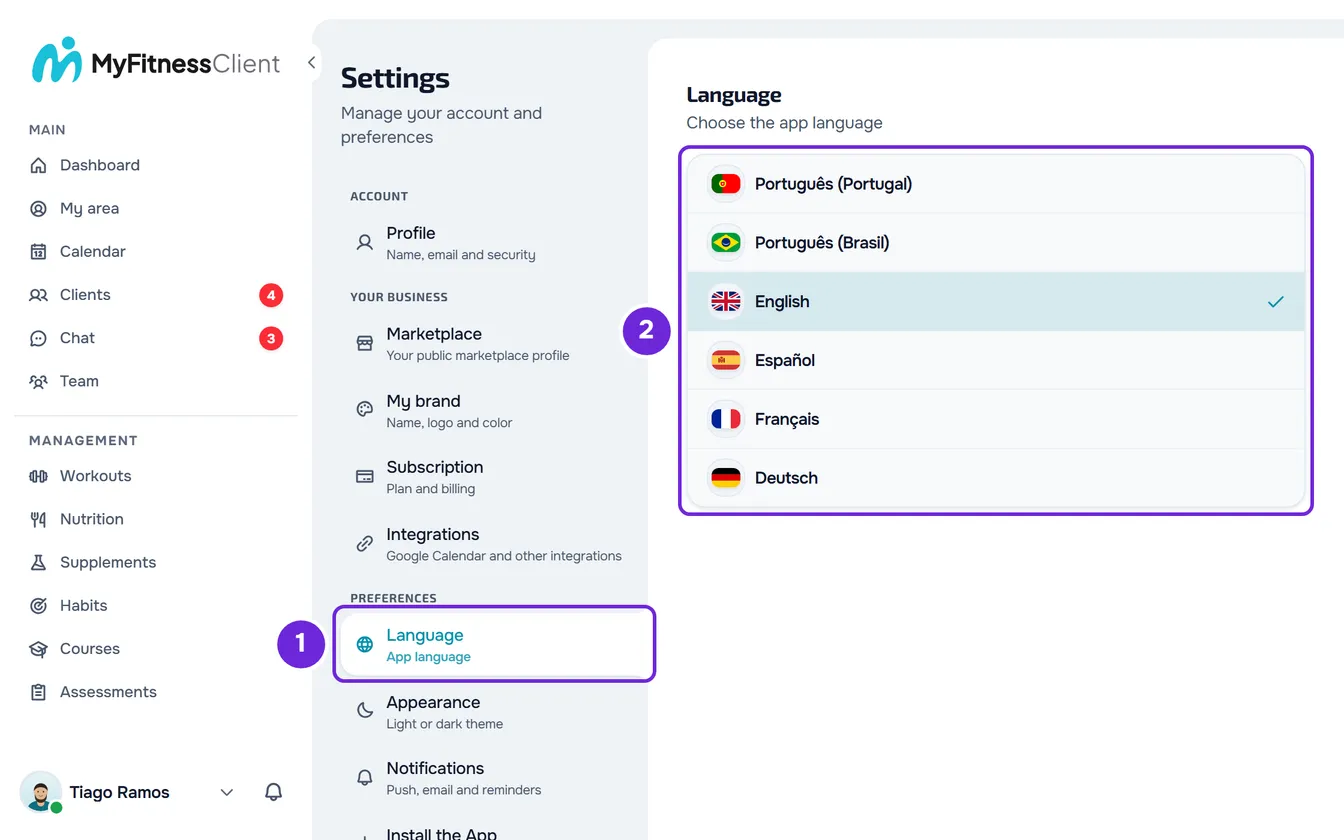
- In the PREFERENCES group, select Language 1.
- Select the language you want 2. The current language is the one with the check mark.
While the account saves your choice, a spinning circle appears. Then the page reloads in the new language and opens on the same Settings tab, with the check mark on the language you chose.
From the account menu, on a computer
In the professional dashboard and in the client account, you can also change the language without opening Settings: select your photo and name at the bottom of the side menu, then Language, and choose the language from the list. Next to Language is the flag of the current language. The page reloads in the new language, on the same page.
In the app
- Open the menu with the button in the top-left corner and select your name at the bottom of the menu.
- In Settings, in the Preferences group, select Language. The row shows the current language.
- Choose the language from the list. Under Suggested are the current language, the languages of your phone and your country, and English; under All languages, all six in alphabetical order. You can also type the name in the search.
- The app switches language straight away and saves the choice on the phone and on the account.
Before you sign in
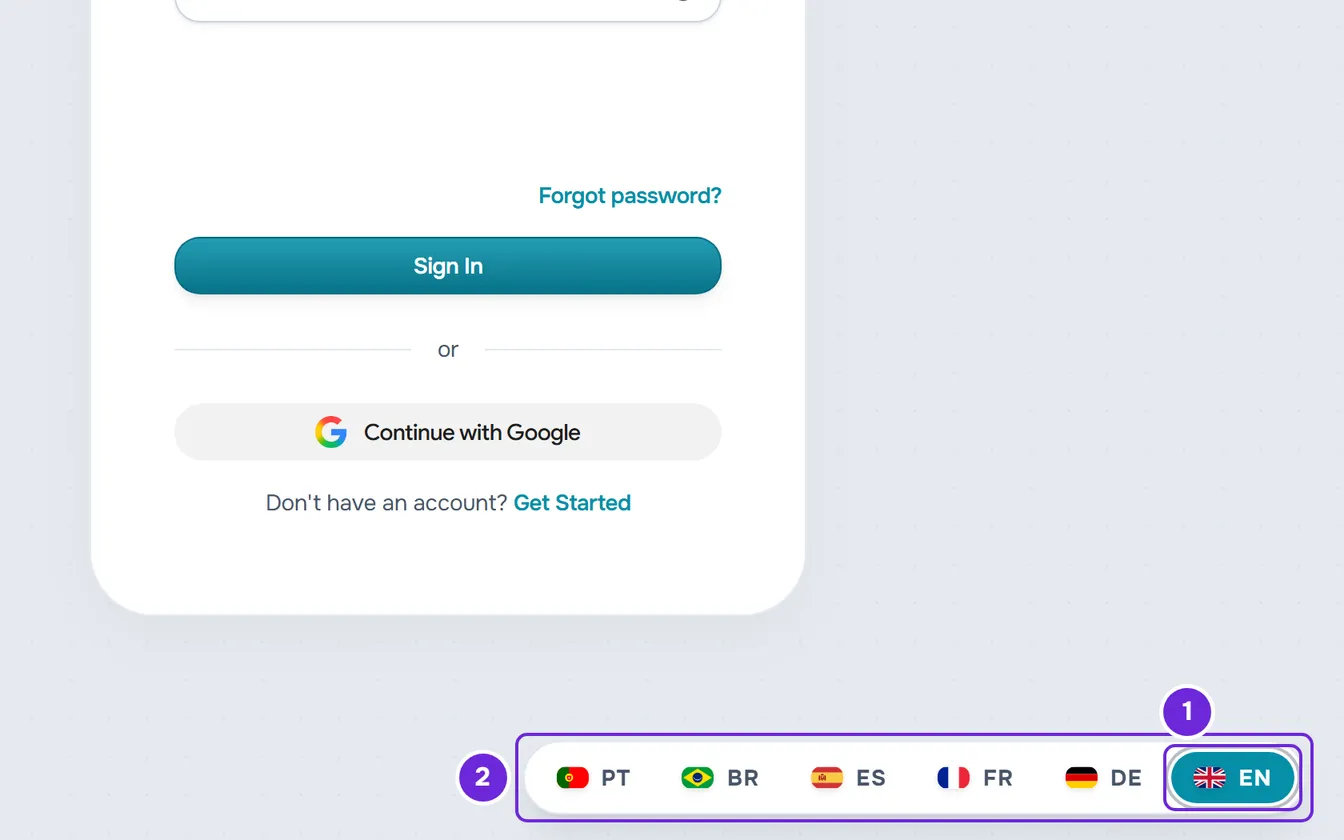
- On the site's sign-in, sign-up and invite pages, the pill in the bottom-right corner shows the flag and code of the current language (PT, BR, EN, ES, FR, DE). On a computer, hover over it; on a phone, select it. Then choose another language. The page reloads and keeps the invite and the professional's branding that came in the address.
- On the pages to recover your password, verify your email and reset your password, the selector is in the top-right corner, with the flag of the current language.
- In the app, on the screens before you sign in, the button with the flag and the language code opens the list of languages.
- When you create an account, it gets the language you are using. When you sign in to an account you already have, the language saved on the account applies.
Which language appears the first time
When you open the site's address without a language, for example myfitnessclient.com, MyFitnessClient uses the first of these it finds:
- Your account's language, if you are signed in on this browser.
- The language of the last site page you opened on this browser.
- The first of the browser's languages that MyFitnessClient has: Brazilian Portuguese opens in Português (Brasil) and any other Portuguese in Português (Portugal).
- Português (Portugal), if none of the previous ones applies.
Until you choose a language, the app follows the phone's language: Brazilian Portuguese opens in Português (Brasil), any other Portuguese in Português (Portugal), and a language the app doesn't have opens in English. Once you choose, the app saves the language on the phone.
Common problems
The language didn't change and an error message appeared
On the web, the account didn't save the new language, for example because there was no internet connection. So that the page and the account don't end up in different languages, the page stays in the previous language. Check your connection and choose the language again.
“Couldn't save.”
In the app, the language changed on the phone, but the account didn't save it: emails, notifications and your other devices stay in the previous language. Check your connection and, without leaving the language screen, select the same language in the list again so the app tries to save it again.
I opened a link and the page went back to the account language
When you are signed in, the dashboard and the client area always open in the account's language, even if the link is for another language. The Help Center also opens in the account's language, but you can read it in another one: pick it in the button with the flag and the language's letters (for example, EN), in a corner of the screen. To change the language of everything else, change the account's language.
Questions
Does changing my language change my clients' language?
No. Each account has its own language: changing yours doesn't affect your clients' language or your professional's.
I changed the language on the site. Does the app change too?
The app uses the account's language every time you sign in to it. If the app was already signed in, it may stay in the previous language: change it there too in Settings > Language, or sign out and sign back in. The same goes for another browser where you were already signed in.