
Before you start
- In a team workspace, creating a meal requires the Nutrition > Create permission. Duplicating requires the same permission: without it, Duplicate doesn't appear in the meal's menu. The workspace owner has all permissions.
- You choose foods in the same picker as in meal plans: from the catalog, from your foods, from the online search or typed in by hand. Only foods with calories, protein, carbohydrates and fat declared can be added. To create a food of your own first, see Create or edit a custom food.
- If “You have more active clients than your plan allows. Choose which to keep or upgrade your plan.” appears, creating and duplicating meals doesn't save until you fix it: see You have more active clients than your plan allows.
Interactive tutorial
Opens in the app and needs you to be signed in.
Steps
To create a meal in the library:
- In the side menu, select Nutrition.
- Select the Meal Library tab. On a narrow screen, such as a phone's, the tab is called Meals.
- Select Create Meal. The New Meal window opens.
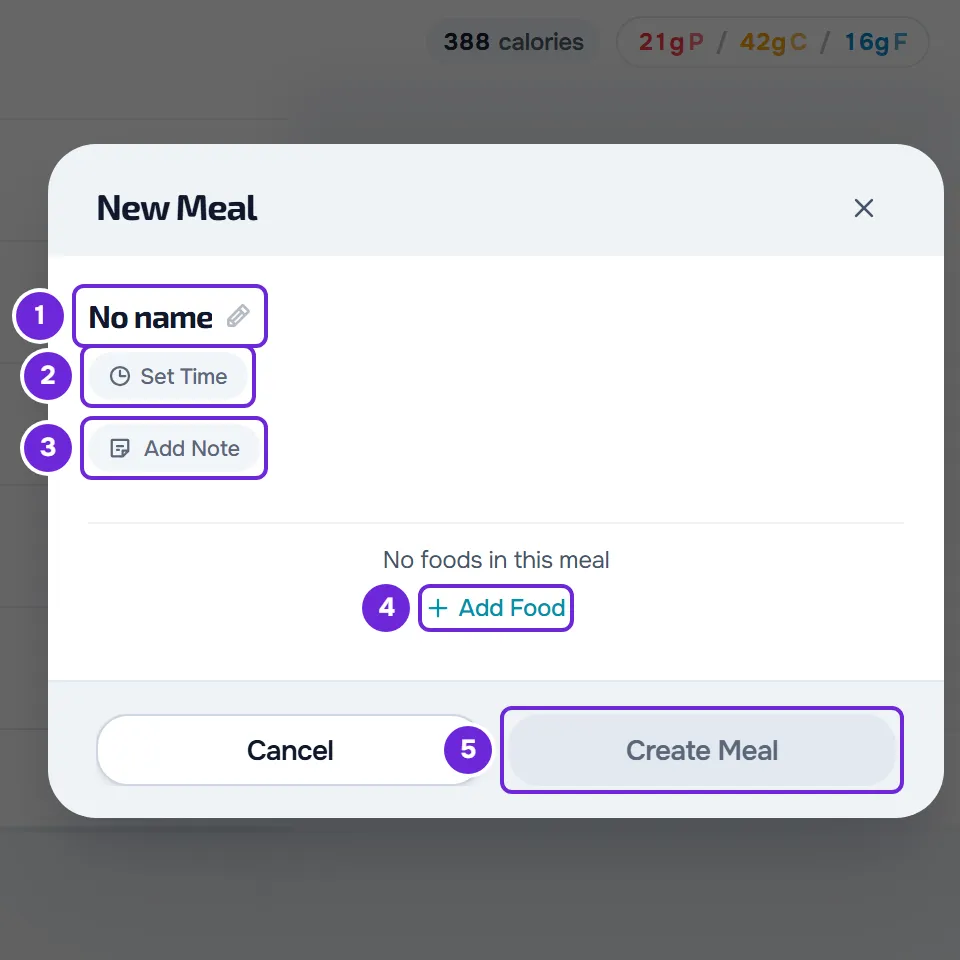
- Select No name 1, type the meal's name and press Enter. The name can be up to 50 characters.
- Optional: select Set Time 2 and, in the picker that opens, choose the hours and minutes. The time starts at 08:00.
- Optional: select Add Note 3 and type the note, up to 5000 characters.
- Select Add Food 4 and choose one or more foods in the picker. The foods go into the window, and the meal's calories and macros appear under the name.
- Select Create Meal 5 at the bottom of the window.
The window closes, the “Meal created” notice appears and the meal is first in the list, which shows the most recent first. If you are on another page of the list, the new meal is on the first one.
To use the picker and choose each food's quantity and unit, see Add, edit and remove foods in a meal. In the same window you can give each food substitutions before you create the meal: see Add food substitutions to a library meal. To change the order of the foods, edit them or remove them, see Edit a library meal and the foods in it.
Duplicate a meal
Duplicating creates a new meal identical to another, so you can adapt it without touching the original.
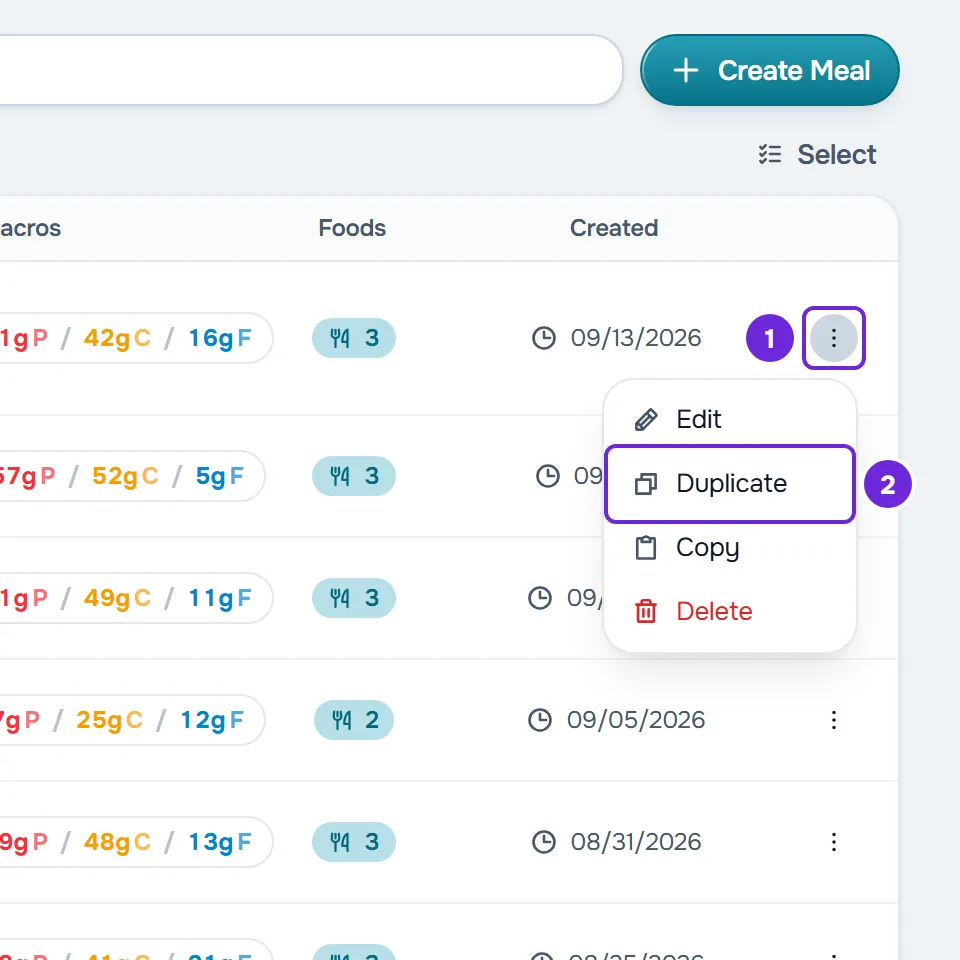
- In the list, open the meal's ⋮ menu, or right-click the row, and select Duplicate.
- The “Meal duplicated” notice appears and the copy is first in the list, on the first page.
- The copy has the original's name followed by “(Copy)”. Duplicating a copy doesn't add another “(Copy)”: “Lunch (Copy)” becomes “Lunch (Copy 2)”, and that one becomes “Lunch (Copy 3)”. The name doesn't count the copies that already exist: duplicating “Lunch” again gives another “Lunch (Copy)”.
- The copy takes the time, the note, all the foods and each one's substitutions. To change it, open it: see Edit a library meal and the foods in it.
- Duplicate one at a time: while one is saving, another Duplicate does nothing.
- In a meal plan, a meal's name can be up to 50 characters. If you use a copy with a longer name in a plan, the name appears cut off.
How the window saves
- Nothing is saved until you select Create Meal: the name, time, note and foods are all saved together.
- If you close the window with unsaved changes, for example with Cancel, “Save before leaving?” appears. Discard closes the window without creating the meal. Save and leave creates the meal and is only active with a name and at least one food.
- If saving fails, the window stays open, with everything you prepared.
- On a narrow screen, such as a phone's, the window fills the whole screen.
Name, time, note and totals
- You change the name in the window itself: select it, next to the pencil, type and press Enter or leave the field. If you delete everything, the previous name stays.
- The time is the meal's suggested time. To remove it, select the time and then Remove time.
- The note sits in an amber block that grows with the text. To delete it, select the block's X; an empty block disappears when you leave it.
- Under the name, the window adds up the calories and the grams of protein, carbs and fat (P, C and F) of the foods. Substitutions don't count towards the totals.
- When you add the meal to a meal plan, the time and the note go with it, and the client sees the note in the plan.
Common problems
“Create Meal” is disabled
The name or at least one food is missing. Select No name to type the name and add a food with Add Food.
An error message appears when creating or duplicating
The meal was not saved. With “Connection error.”, check your internet connection and try again. With “Server error.” or “Error saving”, wait a moment and try again.
I can't see “Create Meal” or “Duplicate”
In a team workspace, Create Meal, Paste and Duplicate only appear with the Nutrition > Create permission. Without Create or Edit, the meal's ⋮ menu only has Copy. Ask the workspace owner for the permission.
“This food is missing calories, protein, carbohydrates, or fat. Choose another food.”
The food you chose doesn't declare one of these four values and isn't added to the meal. Choose another one, or complete the values in a copy of your own: see Can't find or use a food from the library.
If this did not solve it, contact support with the meal's name, the exact message and the approximate time.
Questions
Can I save a meal from a meal plan to the library?
Yes. In the plan editor, the meal's ⋮ menu has Save to library while the meal is not yet in the library; it opens a window where you can adjust it before saving it. You can also use Copy on the plan's meal and Paste in the library: see Copy and paste meals, supplements, questions and lessons.
How many meals and foods fit in the library?
There is no limit on meals. Each meal holds up to 500 foods, and each food up to 20 substitutions. See Food and meal library limits.
Does the client see the meal library?
No. The client only sees the meals you add to one of their meal plans, and the plan keeps a copy: changing the meal in the library afterwards doesn't change the plan. See Library foods and meals: what changes in plans.