
Before you start
- A substitution is an equivalent food the client can choose instead of another. Swapping the whole meal is something else, meal options, which only exist in the meal plan: see Create meal options for the client to choose from.
- In a team workspace, saving a meal that already exists requires the Nutrition > Edit permission. Without it, the meal doesn't open.
- The food being replaced must have more than 0 kcal: each substitution's quantity is calculated from the calories.
- If “You have more active clients than your plan allows. Choose which to keep or upgrade your plan.” appears, the meal doesn't save until you fix it: see You have more active clients than your plan allows.
Steps
To give substitutions to a food in a library meal:
- In the side menu, select Nutrition.
- In the Meal Library tab (on a narrow screen, Meals), select the meal. The Edit Meal window opens.
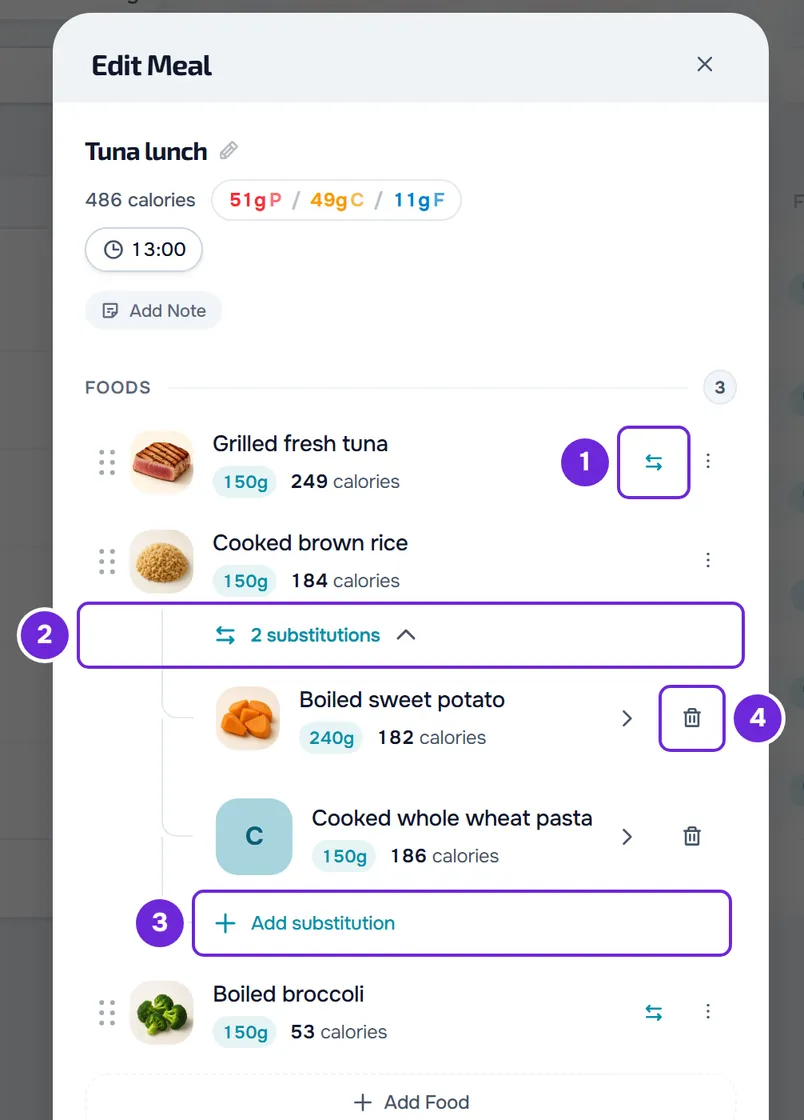
- In the food's row, select the two-arrow icon, Add substitution 1, next to the ⋮. It's also in the menu that opens when you right-click the row. The food picker opens.
- Optional: in the Match 1 strip, select Protein, Carbs or Fat so the suggestions match that macro instead of the calories. You can choose more than one; Calories, the initial choice, goes back to matching the calories.
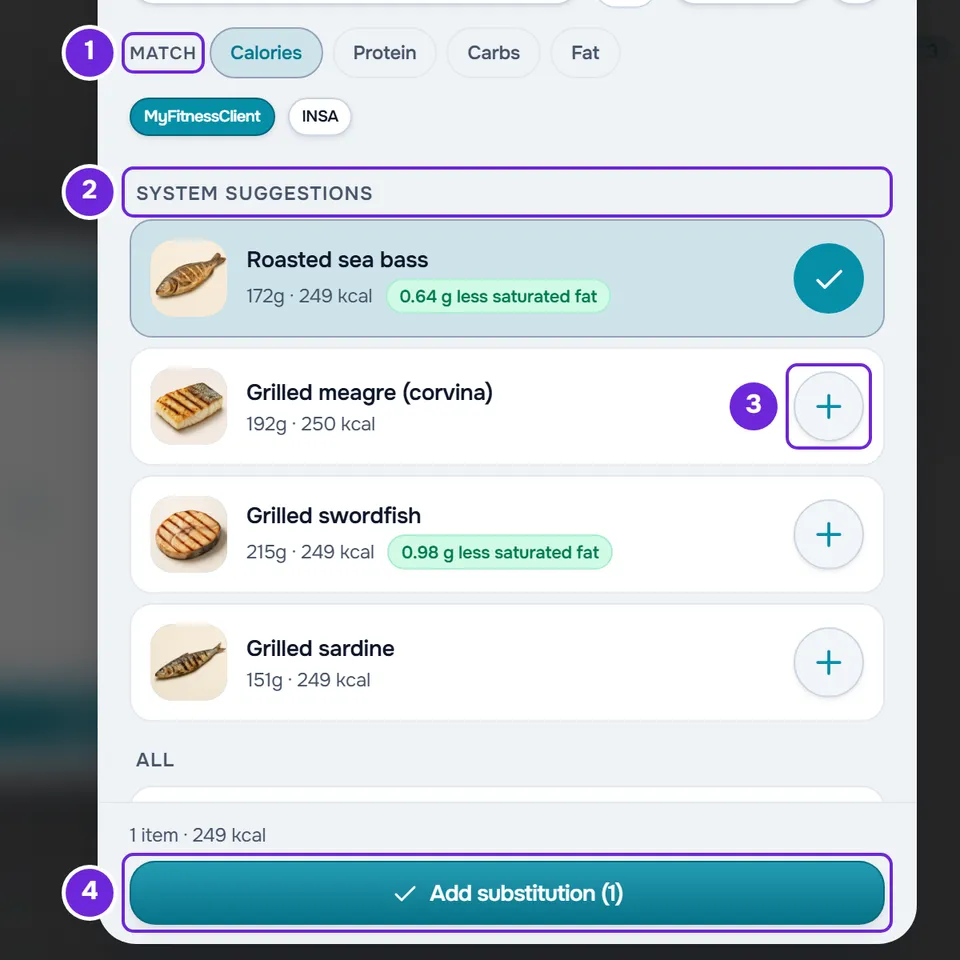
- In System suggestions 2, select the + 3 of each food you want to give as a substitution. Each suggestion already comes with the quantity that makes it equivalent. For another food, type its name in the search and select its +: the quantity is calculated to give the same calories.
- Select Add substitution 4 at the bottom of the picker. The button shows in brackets how many foods you've marked. The picker closes and the substitutions appear under the food.
- Select Save Meal.
The window closes and the “Meal updated” notice appears. In a new meal, steps 3 to 6 work the same way in the New Meal window, which saves with Create Meal: see Create or duplicate a meal in the meal library.
What gets saved and where it goes
- Nothing is saved until you select Save Meal or Create Meal. The “Substitution added”, “Substitution updated” and “Substitution deleted” notices appear straight away, but if you close the window and choose Discard, the changes are lost.
- Each food takes up to 20 substitutions, and a substitution has no substitutions of its own. With 20, Add substitution no longer appears; if you choose more than fit, “This food already has 20 substitutions, the maximum.” appears and only the ones that fit are added. The other limits are in Food and meal library limits.
- Substitutions don't count towards the meal's calories or macros: the totals add up only the main foods.
- When you use the meal in a meal plan, or copy and paste it into a plan, each food takes its substitutions with it. The plan keeps a copy: changing them later in the library doesn't change the plans the meal is already in. See Library foods and meals: what changes in plans.
- The client doesn't see the library. They see the substitutions in the meal plan you assign them and can swap the food for one of them: see Add substitutions for a food in the plan.
Manage a food's substitutions
- The two-arrow icon only appears while the food has no substitutions. After that, under the food, “1 substitution” or “N substitutions” opens and closes the list. To add more, open it and select Add substitution at the end.
- Selecting a substitution opens its food card, with Edit, to change the name, quantity, unit or values, and Use as primary.
- The row's bin icon deletes the substitution, after you confirm with Delete, in the question that shows its name. When you delete the last one, the list closes and the two-arrow icon comes back.
- Right-clicking a substitution opens Edit, Use as primary and Delete.
- Use as primary swaps the roles: the substitution becomes the main food and the main food becomes a substitution. The “Food replaced” notice appears and the meal's totals now count the new main food.
When the substitutions no longer match the main food
After Use as primary, if the new main food's calories, protein, carbs or fat differ from the old one's, the “The substitutions no longer match the main food” window opens:
- In the Match strip, choose what the other substitutions should match: Calories, which comes selected, or one or more macros.
- Each row shows the current quantity struck through and the new one, with “at the quantity limit” when the new one hits the unit's limit. Instead, it can say “already matched” or the reason it can't be recalculated.
- Leave as is keeps the quantities as they were. “Update (N)” changes the N substitutions that need it and a notice confirms it.
The new quantities are also only saved with Save Meal.
Common problems
“This food has no valid calorie value, so an equivalent substitution cannot be calculated.”
It appears at the top of the picker when the main food has 0 kcal or no calories. Without calories there is no equivalent quantity to calculate, so no food in the picker can be added. Give substitutions only to foods with calories. If the calories are wrong, fix them first with Edit Food and only then add the substitutions.
“Equivalence unavailable” on a food in the picker
That food has 0 kcal or no calories, so the quantity that matches the main food isn't calculated. Its + is disabled and, if you open the food, the reason appears over the button, for example “Calories could not be matched because one of the foods has no valid calorie value.” Choose another food.
If this didn't solve it, contact support with the meal's name, the food's name and the exact message.
Questions
Why are there only a few suggestions, or none?
The suggestions are foods similar to the one being replaced, from your foods and the MyFitnessClient catalog, without the food itself or the substitutions it already has. With a macro chosen in Match and no equivalent, “No equivalent swaps for this filter: this food may not have that macro. Try another, or use search.” appears. To learn how the list is chosen, see How substitution suggestions are chosen.
Can I paste a food that already has substitutions into the meal?
Yes. A copied food takes its substitutions with it and, when you paste it into the meal window, up to 20 come in. See Copy and paste meals, supplements, questions and lessons.