
Before you start
- Only the workspace owner creates and edits plans. In a team workspace, a member with access to Payments sees the Plans tab as view-only, with the Only the owner creates plans and changes prices badge in place of the New plan button.
- The price is in the workspace currency, and the currency becomes fixed as soon as the first price or payment exists, this plan included. If you don't have any yet, confirm the currency first: see Choose the country and currency you charge in.
- Without online payments connected, a recurring plan is paid manually, and the form warns you: “With no online payments connected, this plan is paid manually: mark it as paid when you receive the money.” For clients to pay online, see Connect Stripe to receive online payments from clients.
- With more active clients than your plan allows, MyFitnessClient refuses to create and edit plans until you resolve it: see You have more active clients than your plan allows.
Interactive tutorial
Opens in the app and needs you to be signed in.
Steps
To create a plan:
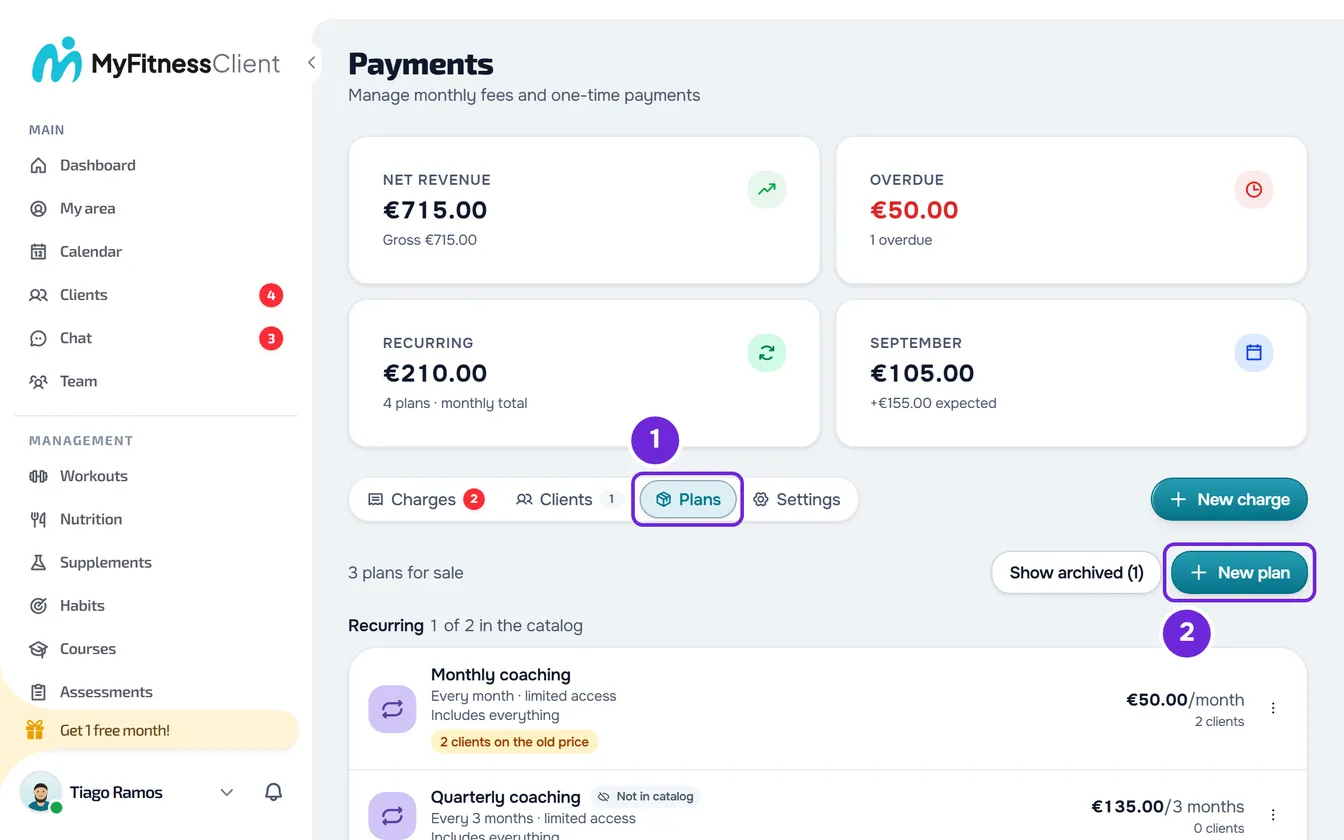
- In the side menu, in the Management section, select Payments and open the Plans 1 tab.
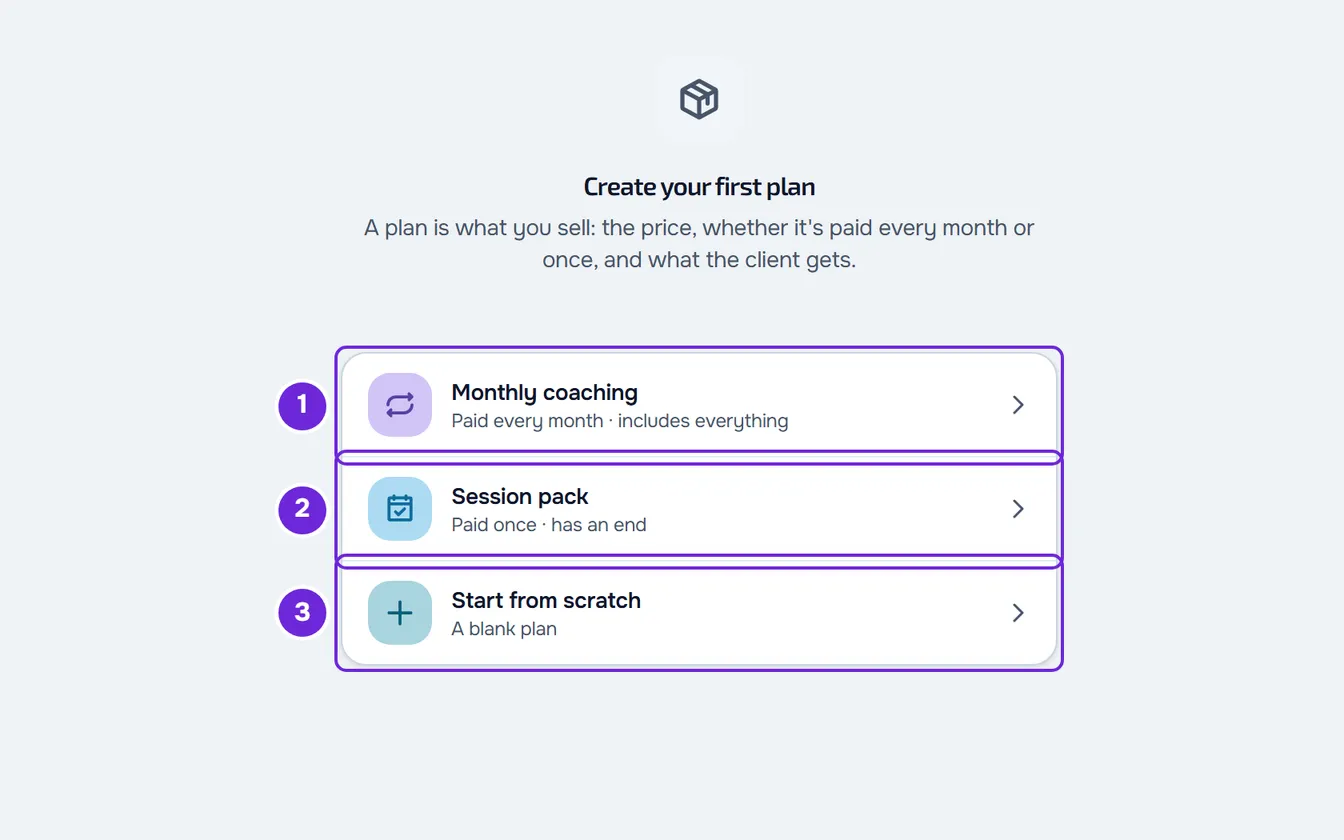
- Select New plan. If you have no plans, or only archived plans, the button doesn't appear: select one of the shortcuts Monthly coaching 1, Session pack 2 or Start from scratch 3. The first two open the form with the type and name already filled in.
- Choose the type: Recurring 1, which the client pays every month or every year, or Pack, which the client pays once and which has an end.
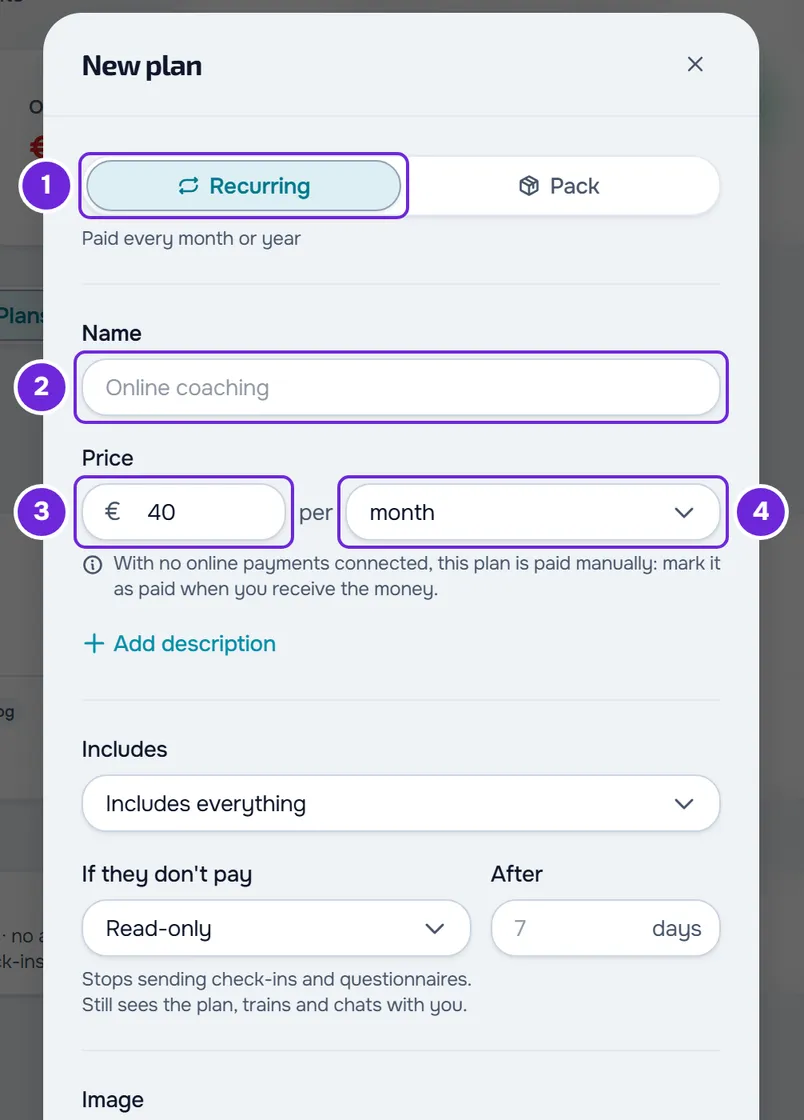
- Type the Name 2, up to 100 characters, and the Price 3.
- For a recurring plan, under per 4, choose month, 2 months, 3 months, 6 months, year or other, which asks for a number from 1 to 12 months. For a pack, type the days of access in the same place, from 1 to 3650.
- Optional: select Add description and type up to 500 characters.
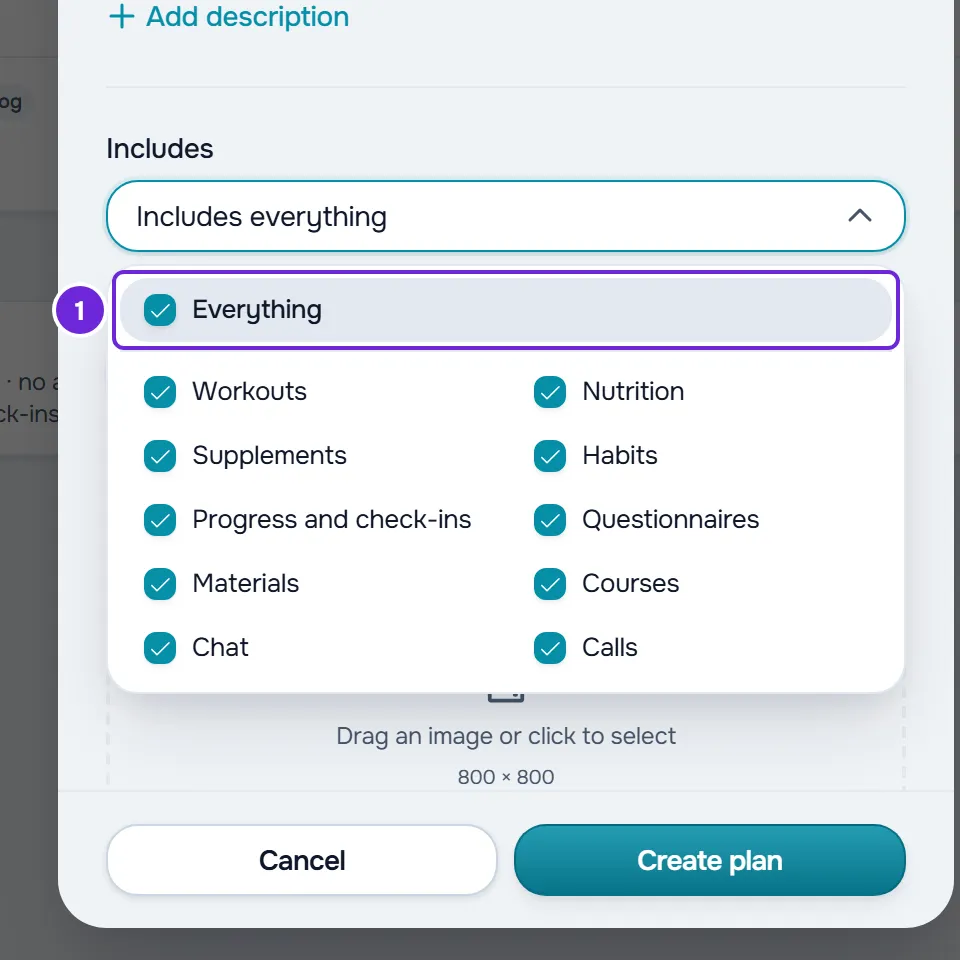
- Under Includes, open the list and check the sections the client has access to with this plan. The first row, Everything 1, checks or unchecks them all.
- Under If they don't pay, choose Stays the same, Read-only or No access. With the last two, under After, type how many grace days you give after the due date, from 0 to 90, or leave the field empty to use the default value it shows. The rule takes effect on the day after the last grace day; with 0, on the day after the due date.
- Optional: under Image, upload the image the client sees when choosing the plan, and turn off Show to clients if only you will give this plan.
- Review the What will happen and What the client sees panels, which appear when you type the price, and select Create plan.
The window closes with the “Plan saved” message and the plan appears in the Recurring or Packs (paid once) group, with the price and “0 clients”. If you turned off Show to clients, the row has the Not in catalog tag. To give it to a client, see Give a client a recurring plan or a pack.
Choose what the plan includes
The Includes field decides which parts of the app the client has access to while they have this plan. There are 10 sections: Workouts, Nutrition, Supplements, Habits, Progress and check-ins, Questionnaires, Materials, Courses, Chat and Calls. A new plan comes with Everything, and the field sums up the choice: “Includes everything”, “Includes no sections” or the first two sections and the number of the others, for example “Includes: Workouts, Nutrition +3”.
- Home, Calendar, Settings and payments always stay, even in a plan with no sections.
- A section the plan doesn't include leaves the client's menu and, if the client opens it through a link, they see “Not in your plan”. Habits and Chat always stay in the menu: without Chat, the client reads your messages but can't reply to you. Courses stays as long as the client has courses of their own. What the client sees in each case is in “Not in your plan”: a section of the app has disappeared.
- Paying an overdue charge doesn't open a section the plan doesn't include.
What a new plan comes with
- Includes is set to Everything and Show to clients is on.
- For a pack, If they don't pay is set to No access: the pack has an end and access ends with it, and the What will happen panel shows “Access ends”. If you choose Stays the same or Read-only, the panel shows “Keeps access” instead: the pack ends and access to the app stays.
- For a recurring plan, If they don't pay comes with your default rule, the one in Payments > Settings. As long as you don't touch the field, the plan follows that rule, including when you change it later. See Choose what happens when a client does not pay.
- An empty After always follows the default grace period.
Edit a plan
In the Plans tab, open the plan's ⋮, or right-click the row, and select Edit. When you select Save, only what you changed is updated.
- The type, the billing interval of a recurring plan and the days of a pack are locked: “How it's paid can't change after creation. Archive this one and create another.” See Archive a plan or remove it from the client catalog.
- What the plan includes changes right away for every client who has it.
- A new rule or grace period only applies to whoever receives the plan from now on. Anyone who already has it keeps the rule they had.
- For a recurring plan, a new price opens, when you save, the question “Change the price?”, so you can choose whether it applies only to new clients or also to those who already have the plan: see Change a plan's price for new or all clients. For a pack, the new price only applies to whoever receives it from now on: “Anyone who already bought this pack is unaffected.”
Common problems
“You have more active clients than your plan allows. Choose which to keep or upgrade your plan.”
It appears when you select Create plan or Save while the workspace has more active clients than its plan allows. Choose the clients who stay or change your plan, as explained in You have more active clients than your plan allows, and try again.
“The price must be between €0.50 and €10,000.”
The Price field is empty or outside the currency's limits. In euros, the price goes from €0.50 to €10,000; in another currency, the message shows that currency's limits. Correct the value and select Create plan again.
“Type the amount without a thousands separator, for example 1200.50.”
The price has a thousands separator, such as 1,200, or more than two decimal places. Type only the digits and, if you need it, the decimal point for the cents: 1200 or 1200.50.
“Give the plan a name”
The Name field is empty. Type a name and select Create plan again.
If that didn't solve it, contact support with the exact message, the plan type and the price you typed.
Questions
Can I sell a plan billed every two weeks?
Not in a catalog plan: the billing interval is always 1 to 12 months or one year. Intervals in days or weeks only exist in a custom plan, which you give to a single client: see Give a client a recurring plan or a pack.
Where does the plan image appear?
Only in the client's catalog, when they choose a plan. Your list of plans doesn't show it. The field recommends an 800 × 800 image.
When does the client see the plan in the catalog?
With Show to clients on, the plan goes into the catalog the client sees when you let them choose a plan. With it off, only you give it: it doesn't appear in the client's catalog, and anyone who already has it still sees it. Even if you don't let them choose, the catalog opens for a client whose access has ended, so they can pay again, and there it only shows the plans set to No access. See Let clients choose and pay for their plan themselves.
How do I stop selling a plan?
Remove it from the catalog or archive it; either way, anyone who already has it keeps what they have. See Archive a plan or remove it from the client catalog.