
This happens in My area when the Workouts tab shows the “No active program” card or the Nutrition tab shows “No active plan”. Having programs and meal plans in the library is not enough: in My area you follow only what you activate for yourself, one program and one plan at a time.
“No active program” or “No active plan” even though you have programs and plans
In Workouts, the card has the sentence “Choose one of your programs.” and the Choose program button. In Nutrition, the sentence is “Choose one of your plans.” and the button is Choose plan. The card appears for one of these reasons:
| Cause | What to do |
|---|---|
| You have not activated any program or plan in My area yet. | Activate one, with the steps in this section. |
| The program or plan you were following reached the end of its duration and is no longer active. | Activate it again, or activate another one. The dates start again today. |
| You deactivated it, with Deactivate. | Activate it again, or activate another one. |
| You deleted it in the library. | Activate another one, or create a new one. |
To activate a program or a meal plan:
- In the side menu, in the Main section, select My area.
- Open the Workouts tab, for a program, or Nutrition, for a meal plan.
- Select Choose program or Choose plan.
- Optional: in the Search box, type part of the name.
- Select the row of the program or plan you want to follow. The rows not yet activated say Activate.
The window closes, the “Active program” or “Active plan” notice appears and the tab now shows what you activated. The first day is today, in your account's time zone. Activating another program or another plan deactivates the previous one, without deleting it.
If the tab does not open or the activation is not saved, see My area does not open, does not load or does not let you save.
The program or plan does not appear in the selection window
The “Choose one of your programs” window, or “Choose one of your plans”, lists only the programs and meal plans that belong to your account. The list does not show:
- what was created in the workspace of a team you are a member of, even if you created it yourself: that content belongs to the team owner's account;
- what belongs to another professional;
- what was deleted;
- what was left out of the 100 programs or plans the window loads. What is active comes first, then what you have activated before and, last, the rest. In each group, the most recently changed come first.
If you are the owner of a team, the window also shows what the members created in your workspace.
The Search box searches by name, in all the programs or plans in your account and not only in the 100 loaded. When the list is empty, the window says why:
| Message | What it means | What to do |
|---|---|---|
| “No results match your search.” | No program or plan in your account has that text in its name. | Type only part of the name or clear the search. |
| “You have not created any programs yet.” | Your account has no programs. | Select Create now, at the bottom of the window. |
| “You have not created any nutrition plans yet.” | Your account has no meal plans. | Create a plan in your account, with the steps in this section. The Create first plan button opens Nutrition in the workspace you have selected. |
| “Your content could not be loaded.” | The list did not load. | Select Try again. |
The Create now button exists only for programs and opens the “New Program” window. The new program is always saved in your account and is activated when you create it. In your personal workspace, the site then opens that program's editor. With a team's workspace selected, you stay in My area with the program already active; to add workouts to it, choose Personal workspace, at the top of the side menu, and open it in Workouts.
To create the program or the plan in your account from the library:
- If the top of the side menu shows the name of a team, open that switcher and choose Personal workspace.
- In the side menu, select Workouts and create the program. For a meal plan, select Nutrition and create the plan.
- Go back to My area, open the tab and select Choose program or Choose plan.
- Select the row of what you created.
To create the plan, see Create a meal plan.
“The “{name}” program has ended” or “The plan “{name}” has ended”
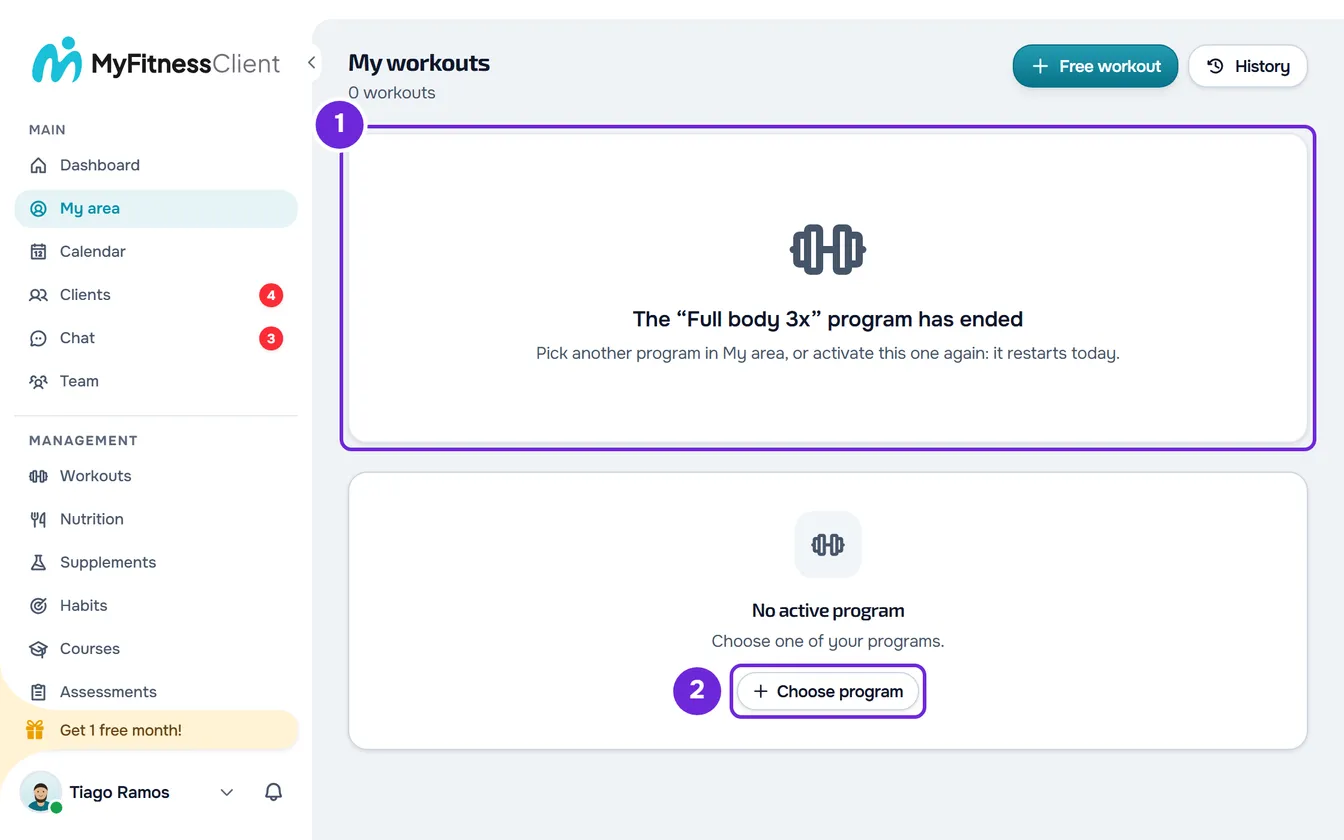
In place of {name}, the name of the program or plan appears. In Workouts, the card has the sentence “Pick another program in My area, or activate this one again: it restarts today.” and, under it, the “No active program” card. In Nutrition, it says “It ended on”, with the date of the last day, and “Pick another plan in My area, or activate this one again: it restarts today.”, with the “No active plan” card under it.
Why it ends
A program or plan with a duration has a last day: the day you activated it plus the duration, minus one day. A 28-day program activated on 1 March runs until 28 March and is no longer active on 29 March. A program or plan with no duration does not end. The dates count in your account's time zone.
What to do
Select Choose program or Choose plan and activate the same one, or another. The dates start again today. In a Sequential program, you continue at the workout you were on. The workouts and meals you logged are not lost.
In My area, the dates of an activation cannot be edited. To make the program or plan last longer, change its duration in its settings, in the library, and activate it again. In Calendar mode, the duration is required. In the other modes, it can stay empty.
The new duration applies only to activations made after the change. If the program or plan is still active, first select Deactivate, in the ⋮ menu next to Change, confirm with Deactivate in the “Deactivate this content?” window and activate it again. For the duration of a plan, see Change a meal plan's name, cover and duration.
Why the card does not always appear
The card appears only once: when a load of Workouts or Nutrition finds the program or plan after its last day and closes it. If another read closes it first, the tab shows only “No active program” or “No active plan”. This happens when:
- you open Overview first, which is the entry page of My area and reads the program and the plan. Overview then shows “You do not have an active workout yet” or “You do not have an active plan yet”;
- the server closes the program by itself, from 9:00 on the day after the last day, in your account's time zone. A meal plan closes only when a page reads it;
- you reload the page, or leave the tab and come back, after the card has appeared.
You get no notification or email when one of your programs or plans ends. While the card of the ended plan is on the screen, Nutrition does not show the day: choose a plan or reload the page to see it again.
If this did not solve it
Reload the page and repeat the steps. If the program or plan still does not appear or does not become active, contact support (see Contact Support and create a request) with:
- the name of the program or plan;
- the day you activated it, if it has been active before;
- the tab where it happens, Workouts or Nutrition, and the exact sentence on the screen;
- the workspace you have selected, yours or a team's.