
Before you start
- The library has three lists: Catalog, Online and My foods. Here you search the Catalog and My foods; what each list holds is in The food library: catalog, INSA and your foods, and the online product search in Add a product by name or barcode.
- In a team workspace, you need the Nutrition > View permission. Without it, Nutrition doesn't appear in the side menu and the page shows “No permission to access”: see “No permission to access” and menu items missing for a member.
Interactive tutorial
Opens in the app and needs you to be signed in.
Steps
To find a food and mark it as a favorite:
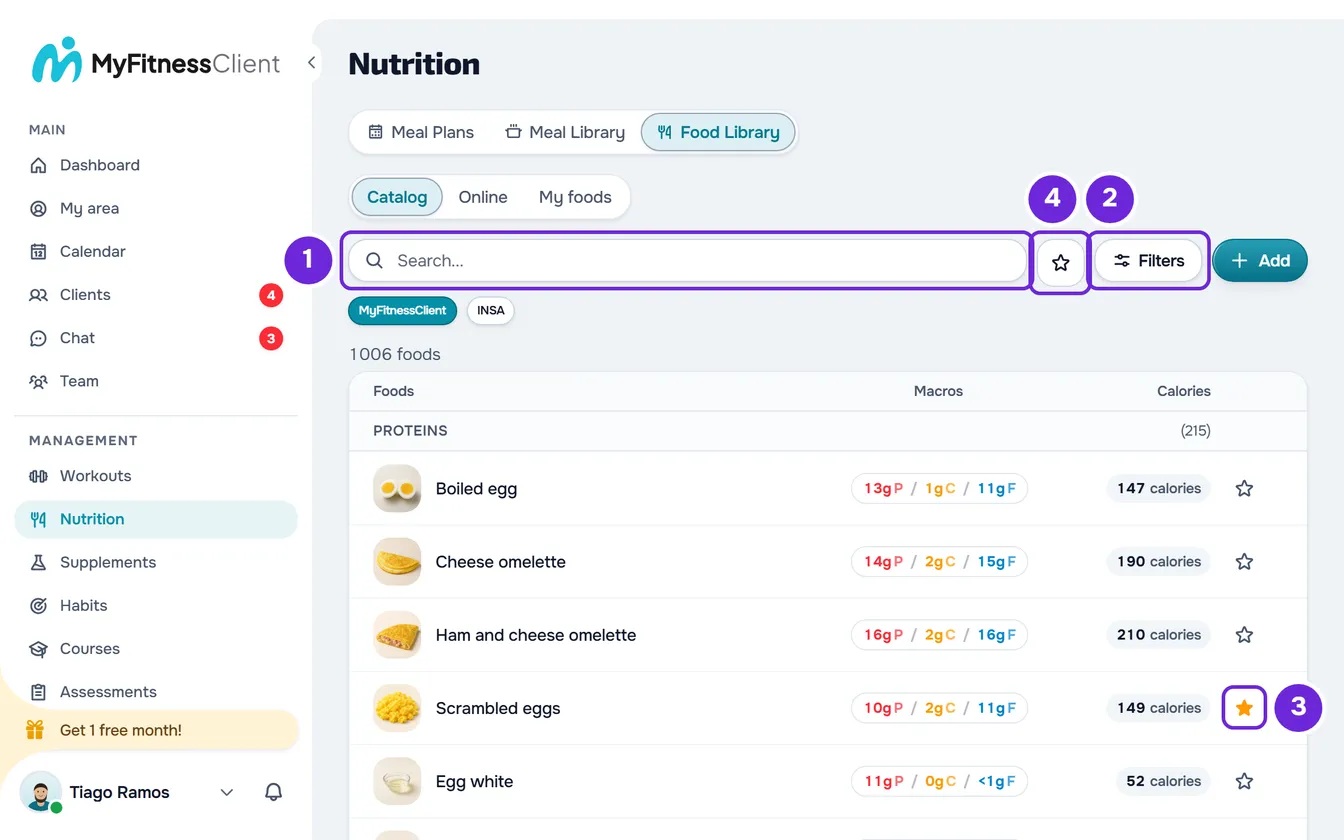
- In the side menu, select Nutrition.
- Select the Food Library tab (on a narrow screen, Foods).
- Select Catalog or My foods (on a narrow screen, My).
- Optional: in the Catalog, if the MyFitnessClient and INSA buttons appear under the search, choose the table you want to search in.
- In the search box 1, type the name, brand or barcode of the food. The list updates 0.3 seconds after you stop typing.
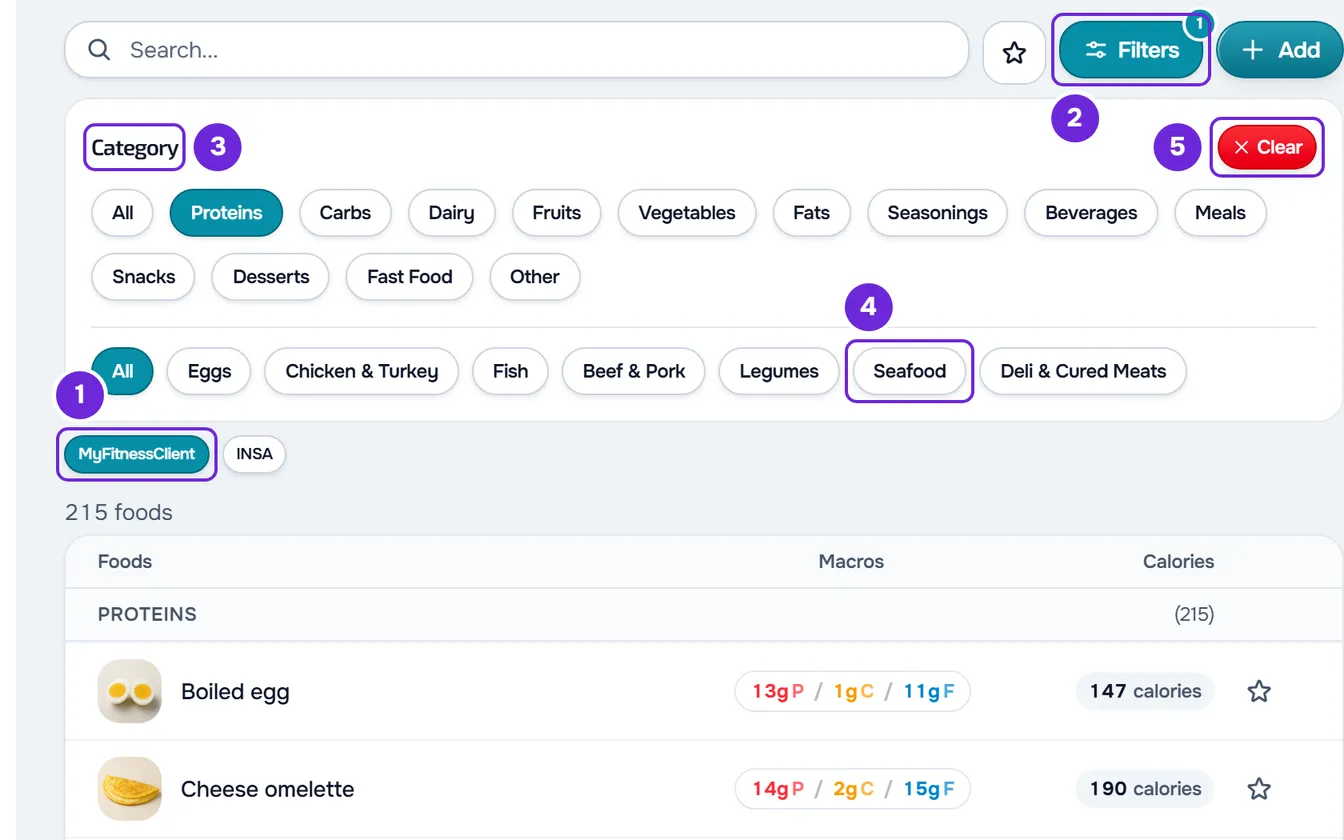
- Optional: to filter, select Filters 2 (on a narrow screen, only the icon) and, in Category 3, choose a category. If it has subcategories 4, they appear under it, so you can narrow down the list.
- To mark a food as a favorite, select the star in its row 3. The star fills in amber; selecting it again removes the food from your favorites.
- Optional: to see only your favorites, select the star button next to Filters, Show favorites only 4. The button stays filled while the filter is on.
- Optional: in the list footer, change page or, in Show, choose how many foods you see at a time: 10, 20 or 50.
- To see a food's values, select its row. The food's detail view opens.
The list shows only the foods that match the search, the category and the favorites filter, with the total at the top. To read the detail view and copy a Catalog food to yours, see Copy a catalog food to your foods.
How the search finds a food
- Every word you type must match the food, in any order.
- A word matches when it appears in the name or the brand, ignoring accents and capital letters: “agua” finds “Água”. It also matches the food's subcategory, by its Portuguese name, such as “iogurtes”.
- With 4 or more letters, a word also finds similar words in the name, which catches small typos.
- A number of 8 to 14 digits finds the food saved with that exact barcode.
- With the site in a language other than Portuguese, the search finds a catalog food by its translated name and also by its Portuguese name.
- The search reads at most 100 characters and 8 words; the rest is left out.
- In the results, your favorites come first, followed by the foods most similar to what you typed. What you typed is highlighted in the name, when it is in it.
How the list is organized
- Without a search, the foods follow the order of the categories in the Filters panel.
- Without a search and without a chosen subcategory, the list is split into sections by category, each with its total in brackets. That total counts all the foods in the category that match the filters, not only those on the page. Foods without a category go in the “Other” section, and its total counts them too.
- When you search or choose a subcategory, the sections disappear.
- The number on the Filters button counts the chosen category and subcategory; the favorites filter doesn't count towards that number.
- In the Filters panel, Clear removes the category and the subcategory. Selecting the chosen category or subcategory again also removes it, and All shows them all again.
- Changing the search, the category, the subcategory, the favorites filter, the list or the Catalog table takes you back to page 1. So does changing the number in Show.
Favorites
- Your favorites are your own: each team member has their own, and marking a food changes nothing for the others or for clients.
- You can have up to 200 favorite foods. At the limit, the star you mark goes back to empty and “You have reached the limit of 200 favorites” appears: remove another favorite first.
- A favorite marked here is also marked when you choose foods for a meal plan or for a library meal, and the other way round.
- In the food library there is no favorites section at the top of the list: use the Show favorites only filter or the search, which puts favorites first.
- A food you delete is no longer a favorite. A food that MyFitnessClient removes from the catalog no longer appears in your favorites.
- The star is saved even when the workspace has more active clients than the plan allows and doesn't let you create or edit foods. See You have more active clients than your plan allows.
The address keeps your place
The list, the Catalog table, the page, the number in Show, the search, the category and the subcategory are kept in the page address. If you reload the page or come back to it with the browser's back button, the list opens as you left it. The Show favorites only filter isn't kept in the address and comes back off.
Common problems
“No foods yet” appears after searching
No food matches the search and the filters. It is the same screen as an empty list, with “Create your first custom food” and Create Food, but it doesn't mean the library is empty. Check the chosen list and table, remove words from the search, select Clear in the Filters panel and turn off Show favorites only. If an error card appears over it, the list didn't load: see the next problem.
The list shows an error instead of the foods
The list request failed, for example with no connection, no permission, too many requests in a row or during maintenance; the card says which. Select Try again. If there were already foods on the screen, the warning appears on a line over them, and those foods are still the ones from the previous request.
The star goes back to how it was
The star changes straight away and goes back when the change isn't saved. If “You have reached the limit of 200 favorites” appeared, remove another favorite before marking this one. Without that warning, saving failed for another reason, such as no connection: refresh the page and try again.
For other library problems, see Can't find or use a food from the library. If it keeps happening, contact support with what you typed in the search, the chosen list and a screenshot: see Contact Support and create a request.
Questions
Can I sort the list by column?
No. The column headings don't sort the list. Without a search, the order is that of the categories; with a search, your favorites come first, followed by the foods most similar to what you typed.
Can my team see my favorites?
No. Each person has their own favorites, even within the same workspace.
Why do the category sections disappear when I search?
With a search, the list is sorted by relevance and not by category. The sections come back when you clear the search, as long as you don't have a subcategory chosen.
With the site in another language, can I find a food by its Portuguese name?
Yes. The search looks for the name in the site's language and in Portuguese. INSA table foods always have their name in Portuguese.