
Each period has its own type, duration, amount and doses, and the periods run one after the other: for example, 5 days of loading and then maintenance with no end. Use periods when what the client takes changes over time.
Before you start
- In a team, you need the Supplements permission with Edit (on the plan creation screen, with Create). Without Edit, the plan opens read-only.
- The supplement has to be in the plan: Add and arrange supplements in a supplement plan.
- On the plan page, every change saves on its own and reaches the clients who already have the plan right away. The same controls are on the plan creation screen, where nothing is saved until you create the plan.
Steps
To split a supplement into periods:
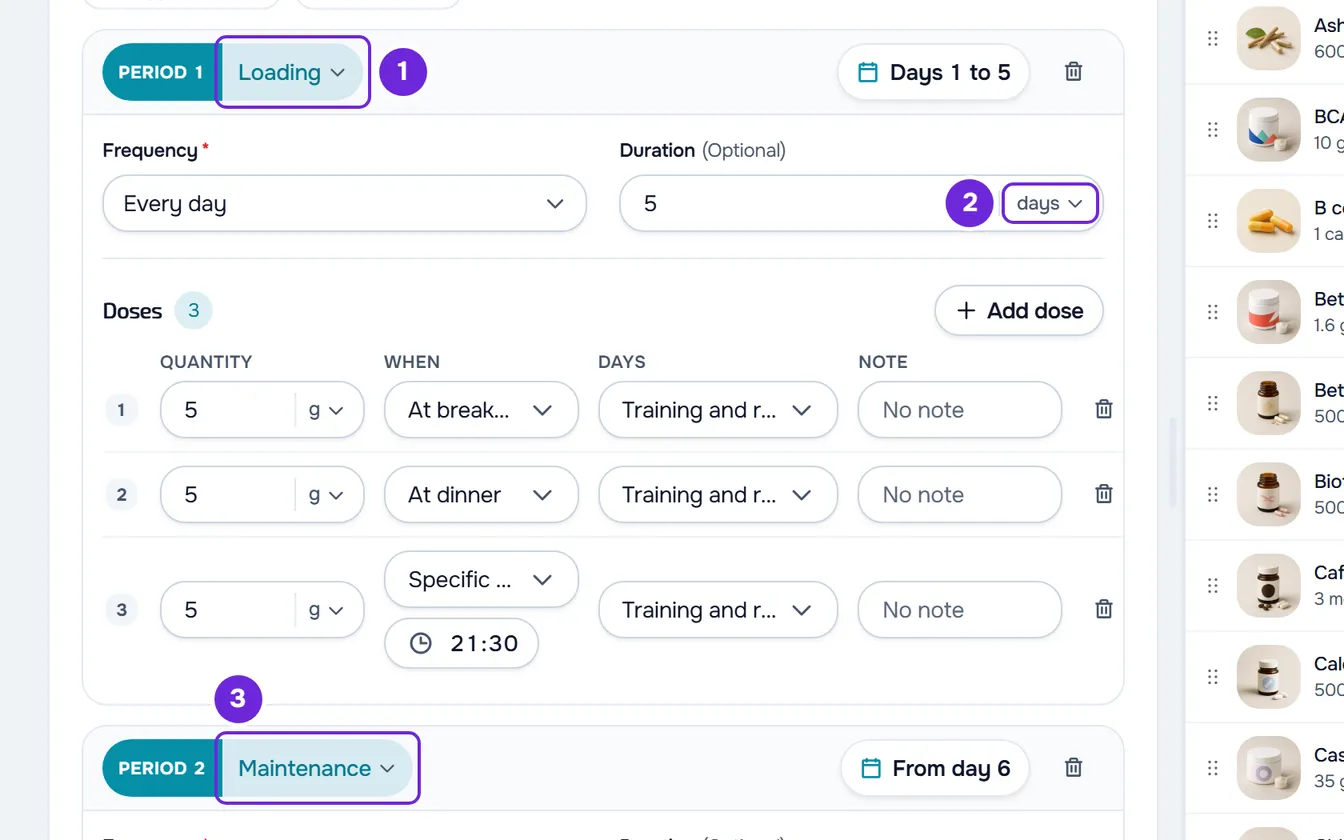
- In the side menu, select Supplements and open the plan.
- On the supplement's card, select the type of the first period, next to its number, and choose Loading 1, Maintenance, Washout, Taper or Peak.
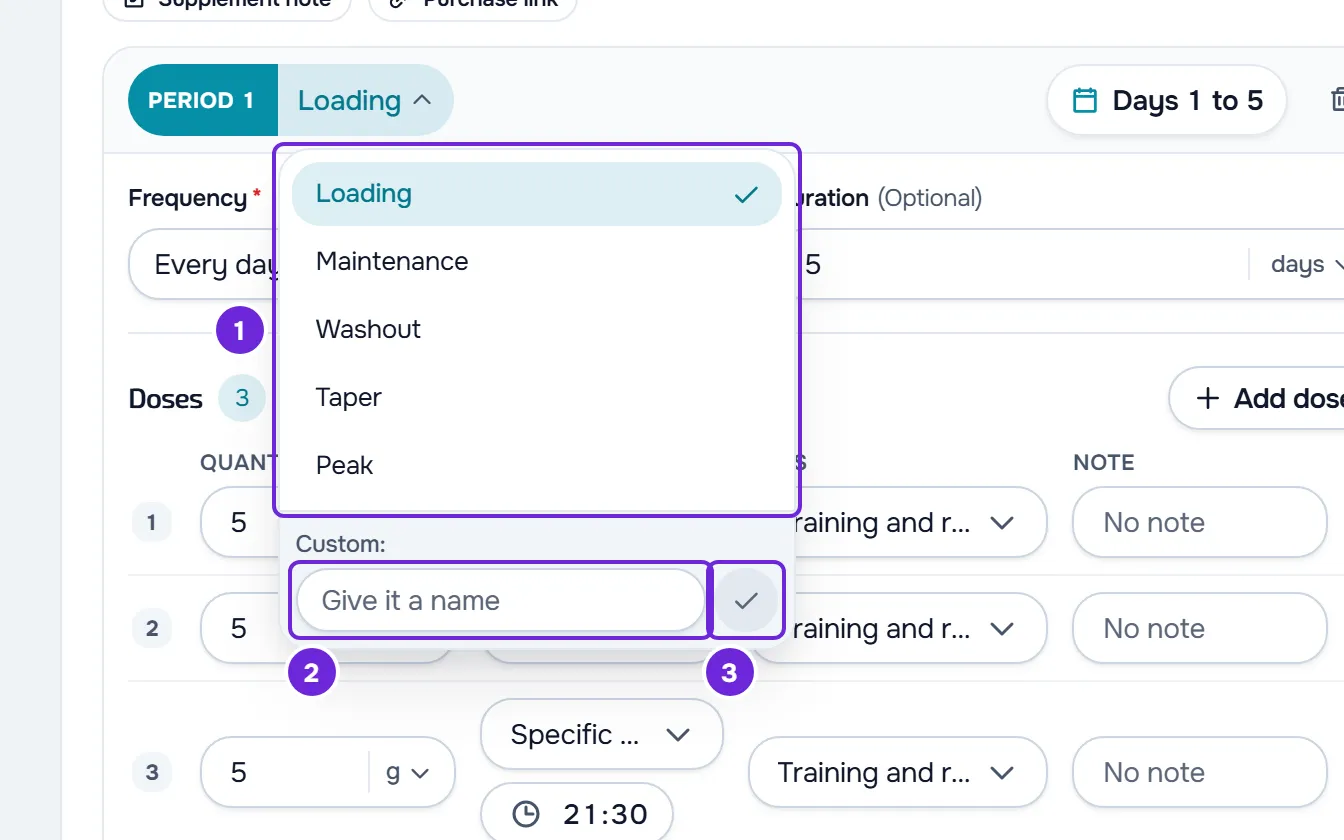
- Optional: to give the period your own name, type it in the Custom 2 field, at the bottom of the same list, and select the check mark 3 or press Enter. The name can be up to 50 characters.
- In the period's Duration field, first choose days, weeks or months 2, then type how long it lasts. Empty means no end.
- At the end of the card, select Add period 1. The new period goes at the end of the sequence, as Maintenance with no end, with the amount, unit, frequency and doses of the previous period.
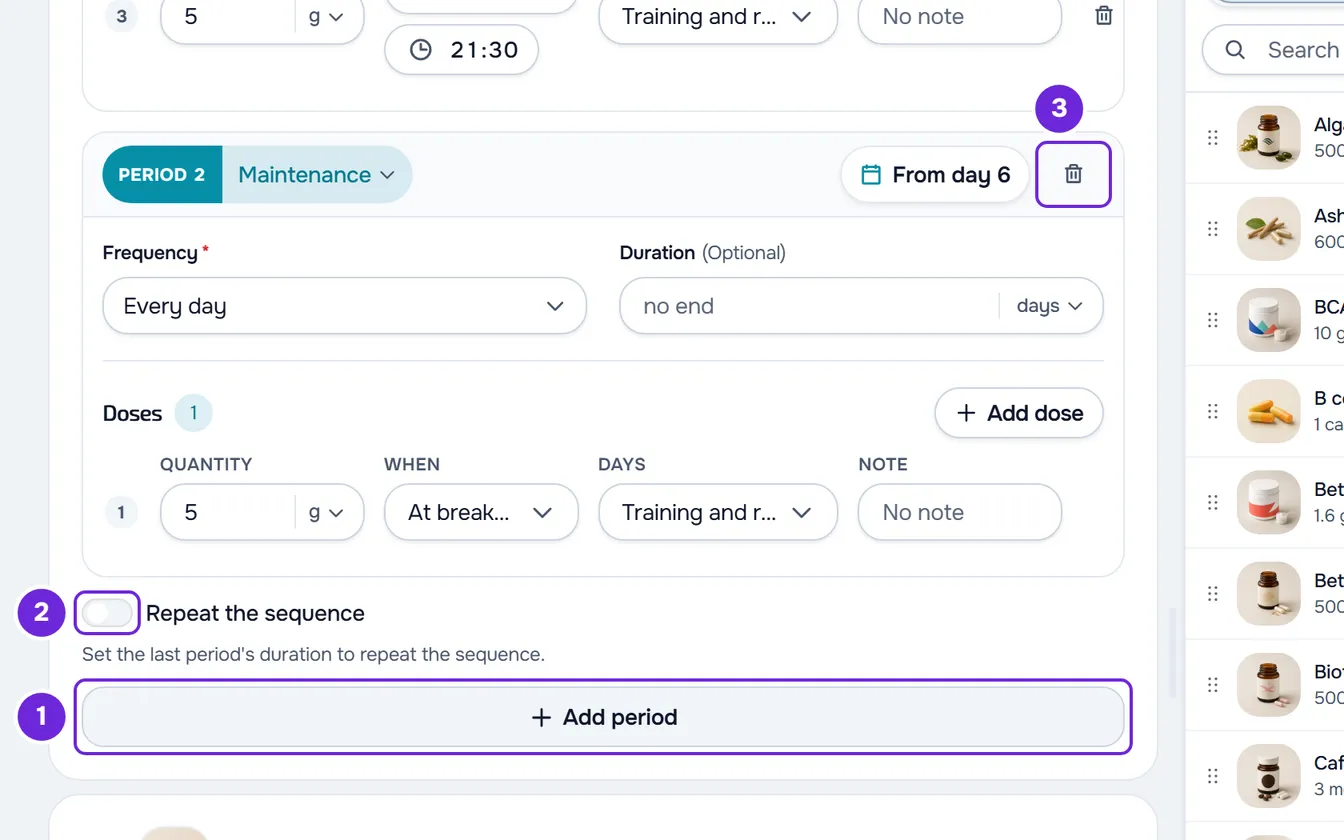
- If the previous period had no end, it now lasts 30 days: change its Duration to the right number.
- In the new period's box, choose the type 3 and adjust the amount and the doses (Set a supplement's amount, frequency and doses).
- Optional: to make the sequence start again at period 1 when the last one ends, turn on Repeat the sequence 2. It can only be turned on when the last period has a duration.
- Optional: to take out a period, select Remove period 3 (the trash icon in its box, which only appears when there is more than one period; on the creation screen, the X), then Confirm.
Each box shows the days the period runs, such as “Days 1 to 5”, “Day 6” or “From day 7”. On the plan page, with more than one period, the card also shows how many it has, for example “2 periods”.
How the days are counted
- A new supplement has a single period, Maintenance, with no end.
- You do not type the days of each period: they come from the durations. Period 1 starts on day 1 and each following period starts on the day after the previous one ends.
- A week counts as 7 days and a month as 30 days. Switching the unit after typing does not change the saved duration: it only converts the number you see (28 days become 4 weeks). When you come back to the page, the duration shows in days.
- Changing a period's duration immediately shifts the ones after it. Removing a period moves the following ones up, on the plan creation screen and on the plan page.
- Only the last period can have no end. When the last period ends, the client stays on it, unless Repeat the sequence is on.
- With Repeat the sequence, the client goes back to period 1 on the day after the last one ends, and the cycle continues. If the last period has no end, the sequence does not repeat, even with the switch on.
What the client receives
Each day, the client receives the period that covers their day in the plan. Day 1 is the start day of the assignment; a supplement added to a plan the client already has counts from the day it was added (Assign a supplement plan to clients).
In the details of each dose, the client sees the period's type and days, for example “Loading · Days 1 to 5”.
To see what the client receives on a day of the plan, select Preview in the plan and change the day with the arrows (Create a supplement plan for your clients).
Limits
- Up to 20 periods per supplement. With 20, Add period is disabled.
- Each duration goes from 1 to 3650 days, and the last period has to start by day 3650.
- A period's custom name can be up to 50 characters.
Common problems
“This period needs a duration so the next one can start.”
It appears on the plan page when you delete the duration of a period that is not the last one. A period with no end would take up all the following days, so the change is not saved. Type a duration, or first remove the periods that come after it.
“Check the duration and start of the following periods.”
It appears on the plan creation screen when you delete the duration of a period that is not the last one, or when a duration or a new period takes the sequence past day 3650. On the plan page, this second case shows “Invalid data. Check the fields.” and the change is not saved. Type the missing duration or shorten the durations.
The Repeat the sequence switch is disabled
You see “Set the last period's duration to repeat the sequence.”: the last period has no end, so there is no cycle to repeat. Type the last period's duration and turn on the switch.
I can't type the days of a period
The days in the box are read-only: they come from the durations. To change the day a period starts, change the duration of the periods before it.
If this did not solve it, contact support with the plan name, the supplement name and the message you saw.
Questions
Does a Washout period take the doses away from the client?
Yes. In a Washout, the client doesn't see the supplement on those days or get reminders, and in the editor the period doesn't show the doses. The doses it had stay saved and come back if you change the period's type.
Can I have two periods of the same type?
Yes. Each period has its own duration, amount and doses, whatever the type.
Can the amount and the unit change from one period to the next?
Yes. Each period has its own amount, unit and doses: change them in the period's box (Set a supplement's amount, frequency and doses).