
Look for the symptom or the message in the sections that follow: each row gives the cause and what to do. If you need to contact support, copy the message exactly as it appears on screen.
I can't open Assessments or create an assessment
| Symptom or message | Cause | What to do |
|---|---|---|
| Instead of the list, a page appears that presents Assessments, with the plan that includes them. | Your workspace's plan doesn't include physical Assessments. | To continue, change your plan with the button on that page. |
| You are a member of a team and the page shows “Couldn't load the assessments.” with the sentence “This feature is not included in the current plan.” | In a team, the workspace owner's plan is what counts, and that plan doesn't include physical Assessments. | Only the workspace owner can change the plan. |
| “No permission to access” | You are a member of a team and you don't have the Assessments permission the page requires: View for the lists and the assessments, Create for a new assessment, Edit to edit. | Ask the workspace owner, named on the screen, for that permission. They change it in Team. |
| New Assessment and Schedule don't appear. | You don't have the Create permission in Assessments. On the client profile, the buttons also disappear when the client is Archived or Ended; in their place you see “This client's coaching is closed. Reactivate them to make changes.” | Ask the workspace owner for the permission, or reactivate the client on their profile, in Settings > Reactivate. |
| “Client is not active” | You opened a new assessment for a client who is not Active or Scheduled, for example with New Assessment in their assessment list or from a Calendar event. Assessments can only be recorded for active or scheduled clients. | Select Open the client profile and reactivate the client in Settings > Reactivate. |
| “Client unavailable” | The client is no longer connected to you, or you are a member of a team and the client isn't assigned to you. | Select See my clients and choose the client from the list. If they aren't there, ask the workspace owner to assign them to you. |
| The client doesn't appear in the Assessments list. | The list only shows clients with at least one assessment; check-ins don't count. It also doesn't show anyone who disconnected from you or, for a member with Specific clients, the clients not assigned to them. | Open the client's profile on the Assessments tab, or select New Assessment and choose the client to record the first one. |
For the plan page, see Feature locked by your plan: what it means. For a member's permissions, see “No permission to access” and menu items missing for a member.
The assessment won't save
When the assessment doesn't save, the Error saving banner appears at the top of the form with the reason, and nothing is saved. Errors the form finds before sending also show in red on the field.
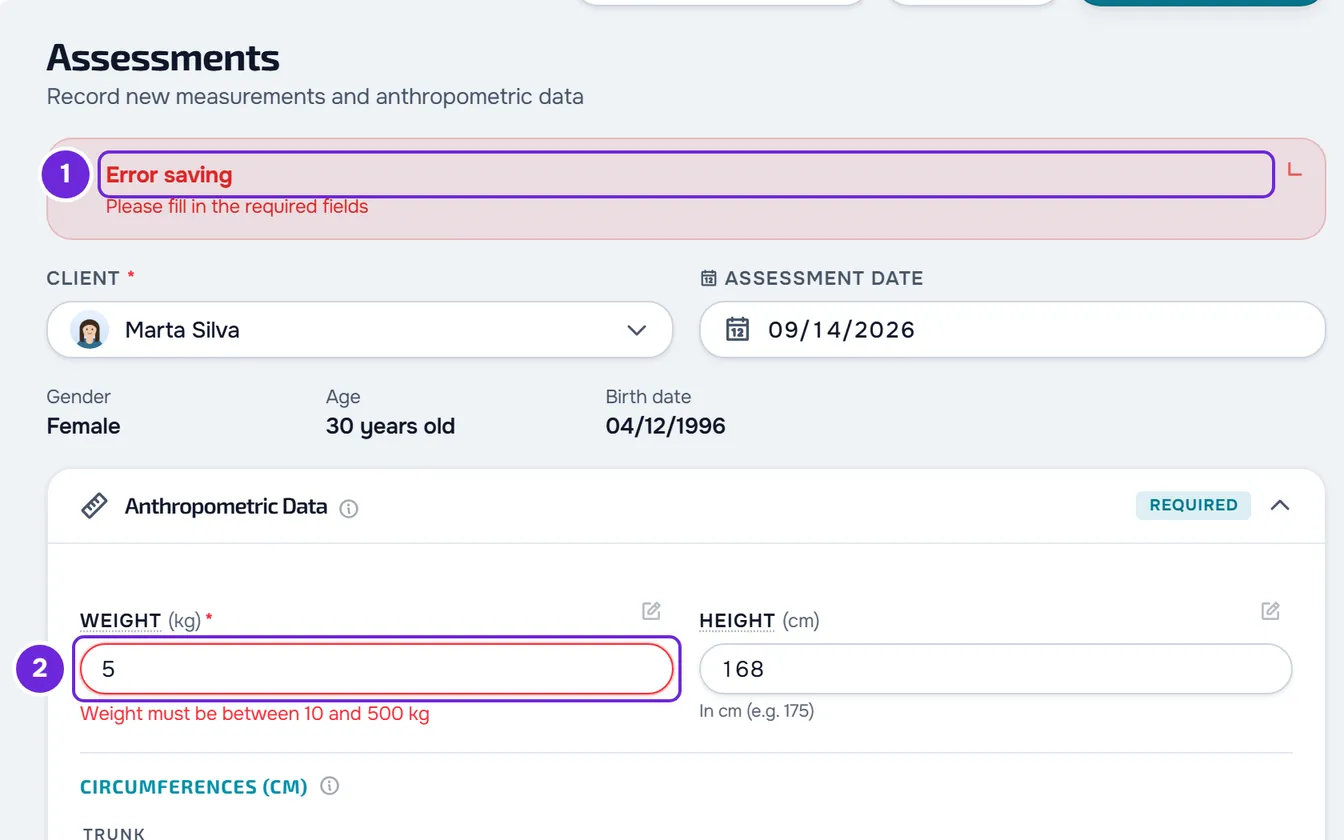
| Message | Cause | What to do |
|---|---|---|
| “Weight must be between 10 and 500 kg” or “Height must be between 50 and 250 cm” | The value is outside that range. A height of 3 or less is read in meters and converted to centimeters (1.75 becomes 175). | Correct the value. Weight is required; height is not. |
| “This field is required” | The weight or the date is missing. | Fill in the field. |
| “The assessment date cannot be in the future.” | The date is later than today. | Choose today or an earlier day. |
| “Wait for the file upload to finish before saving.” | A photo or a video is still uploading. | Wait for the upload to finish and save again. |
| “Invalid data. Check the fields.” | The server rejected a value: a measurement outside the range the field accepts, a text longer than 5000 characters, or a date that is already in the future in the workspace owner's time zone. The yellow outline that starts with “Unusual value” only warns you and doesn't stop you from saving. | Review the measurements, shorten long texts, check the date and save again. |
| “This form was changed in another tab. Reload before saving.” | While you were editing, the assessment was saved in another tab, on another device or by someone else on the team. The same sentence appears when you save the changes made in Customize. | Reload the page, check what was saved and make the change again. |
| “You have more active clients than your plan allows. Choose which to keep or upgrade your plan.” | You have more active clients than your plan's limit, for example after a downgrade. You can still see the assessments, but nothing saves: creating, editing, deleting, requesting assessments or customizing the form. | Choose the clients who stay active or upgrade your plan. In a team workspace, the workspace owner is the one who fixes it. |
| “You don't have permission to do this in this team.” | You are a member of a team and you don't have the Assessments permission for that action: Create to record, Edit to edit, delete, customize the form and save goals. Some buttons, such as New goal, appear to people who only have View. | Ask the workspace owner for the permission. |
| “Not found.” | On a new assessment, the client stopped being active or scheduled while you were filling it in. It also happens when the client is no longer assigned to you, or when, while you were editing, the assessment was deleted elsewhere. | Reload the page and check the client's status on their profile. |
| “Too many requests. Wait a moment.” | You saved more than 60 times in a minute, or more than 15 times in a minute when deleting several assessments or when requesting and cancelling assessment requests. | Wait a minute and try again. |
| “Connection error.”, “The request took too long.” or “Server error.” | The request didn't reach the server, the response didn't arrive in time, or the server couldn't save. | Before trying again, open the client's assessments in another tab and check whether the assessment was saved. If it wasn't, select Save Assessment again. |
| I can't enter a negative value in Sit & Reach. | Number fields don't accept the minus sign and the server rejects negative values, even though the field's explanation mentions negative values. | Leave the field empty and write the value in the measurement's note: select the pencil next to the field name. |
For the client limit, see You have more active clients than your plan allows.
Body fat % or BMI is missing
The assessment shows the Body Mass Index card only when it has the weight and the height. Without height there is no BMI and no body fat % estimate, and in the client's assessment list the BMI shows as “-”. A % typed in the Fat field still shows in that field. In the client's assessment list, the Body Fat column shows only the typed %; the estimate appears only on the card.
Body fat % appears on that card when all of these conditions are met:
- The client's profile has the gender Male or Female. With Other, or with no gender, there is no estimate.
- The assessment has one of these: the % typed in the Fat field; the 7 skinfolds or the 3 skinfolds of the Jackson-Pollock protocol, with the date of birth in the client's profile; or the neck and the waist, with the waist larger than the neck, and also the hips for women.
- An estimate from the skinfolds or the measurements gives more than 0 and less than 70%.
Without a gender or a date of birth, the form shows a notice next to the client, for example “Without the gender, body fat % isn't calculated.”, with Fill in, which saves that data to the client's profile. For a client who is not active or scheduled, Fill in opens their profile. The % is calculated every time you open the assessment, so older assessments also start showing it. For the methods and formulas, see How MyFitnessClient calculates body fat percentage.
Comparing, copying values and photos
| Symptom or message | Cause | What to do |
|---|---|---|
| “This client needs at least 2 assessments to compare.” | The client has only one assessment. Check-ins don't count. | Record another assessment for the client. |
| Copy the latest values brought in values from different days. | That's what the button does: for each field, it copies the value from the most recent assessment that has that field filled in. | Review the copied values before saving. |
| “This device cannot read this photo (HEIC format). Convert it to JPEG or ask the client to send it from the app.” | When you upload a HEIC photo, this device's browser can't convert it. | Convert the photo to JPEG and upload it again. |
| “Photo unavailable” | The photo file won't open on this device, even after the site tries to convert it. | Open the assessment on another device. If it persists, edit the assessment, remove the photo and upload it again as a JPEG. |
The client and their assessments
| Symptom or message | Cause | What to do |
|---|---|---|
| Request assessment doesn't appear. | The client's access level isn't View and fill in (the default is No access), or you don't have the Create permission in Assessments. On the client profile, the access row doesn't even appear when the client isn't Active or Scheduled. | Change the level with the steps that follow, ask the workspace owner for the permission, or reactivate the client on their profile, in Settings > Reactivate. |
| I can't change the access level: only a label shows. | You don't have the Edit permission in Clients. | Ask the workspace owner for it. |
| Request assessment gives “You don't have permission for this action.” and the access row disappears. | The client isn't active or scheduled, or is no longer assigned to you. In a client's assessment list in Assessments, the access row also appears for archived clients, but the request only goes through for active or scheduled clients. | Reactivate the client on their profile, in Settings > Reactivate, and request again. |
| The client can't see the assessments. | Their level is No access; the plan the client has with you doesn't have Progress and check-ins in Includes; the client isn't Active; or your workspace's plan no longer includes physical Assessments. | Change the level to View only or View and fill in, or add Progress and check-ins to the client's plan. If the client isn't active, reactivate them on their profile. |
| The client says they see “You already logged an assessment for that date. Edit it in the history.” or, in the app, “You already logged an assessment on that day. Edit the existing one.” | The client can log only one assessment of their own per day. The assessments you record don't count. | The client edits the assessment they already logged that day. |
To let the client log their own assessments and to request one from them:
- In the side menu, select Clients.
- In the list, select the client.
- On the client profile, select the Assessments tab.
- In the client's access row, open the list and choose View and fill in.
- Select Request assessment.
The level change saves right away. After the request, “Request sent to the client” appears and, in place of the button, Request sent with the date. The client gets a notification; a Scheduled client gets no notification and finds the request when their access opens.
PDF, deleting and the client's profile
| Symptom or message | Cause | What to do |
|---|---|---|
| PDF opens a plan change window. | Your workspace's plan doesn't include PDF export. | Change your plan in that window, or close it and carry on without PDF. |
| I deleted an assessment by mistake. | The screen has no way to restore a deleted assessment. | Contact support with the client's name and the assessment date. |
| When deleting several assessments of an Archived or Ended client, “An error occurred” appears and the assessments remain. | Deleting several at once only works with active or scheduled clients. | Delete them one by one: in the row's ⋮ menu, or when you right-click the row, select Delete. |
| The weight or height on the client's profile changed after deleting an assessment. | The profile goes back to the value of the most recent remaining record, whether an assessment or a check-in. If none remains, the value stays as it is. | Nothing. It isn't an error. |
| The assessment event in the Calendar is no longer completed. | The deleted assessment was what completed it, so the event is pending again. | Nothing. If you want, mark the event as completed in the event window. |
Progress, check-ins and videos
Check-ins are Progress records, not assessments: they don't go into the Assessments list or into Compare. If the weight chart or the Measurements card doesn't show what you expect, see Weight chart and Measurements card problems in Progress. If an assessment video has no sound or progress bar, see The assessment video has no sound or progress bar.
If this did not solve it
Contact support with the client's name, the assessment date, the approximate time, what you selected and the exact message, even if it's only “An error occurred”. Don't send the measurement values or the client's photos.