
Before you start
- You need a Google or Apple account with a confirmed email. If the email isn't confirmed with Google or Apple, sign-in is refused with “This account's email is not verified.” on the website and with “This account's email isn't verified.” in the app.
- On the website, the Google and Apple buttons are on the sign-in and sign-up pages. In the client app, they're in the latest version of the app: on iPhone both appear, and on Android only the Google one.
- A professional's branded app, with their name and logo, doesn't have these buttons. In it, you sign in with your email and password.
- An account created with Google or Apple has no password. To get one, see Change or set your account password.
Steps
To sign in or create your account on the website:
- At the top of the MyFitnessClient website, select Sign In. On a narrow screen, open the menu first. The sign-up page has the same buttons, under the form.
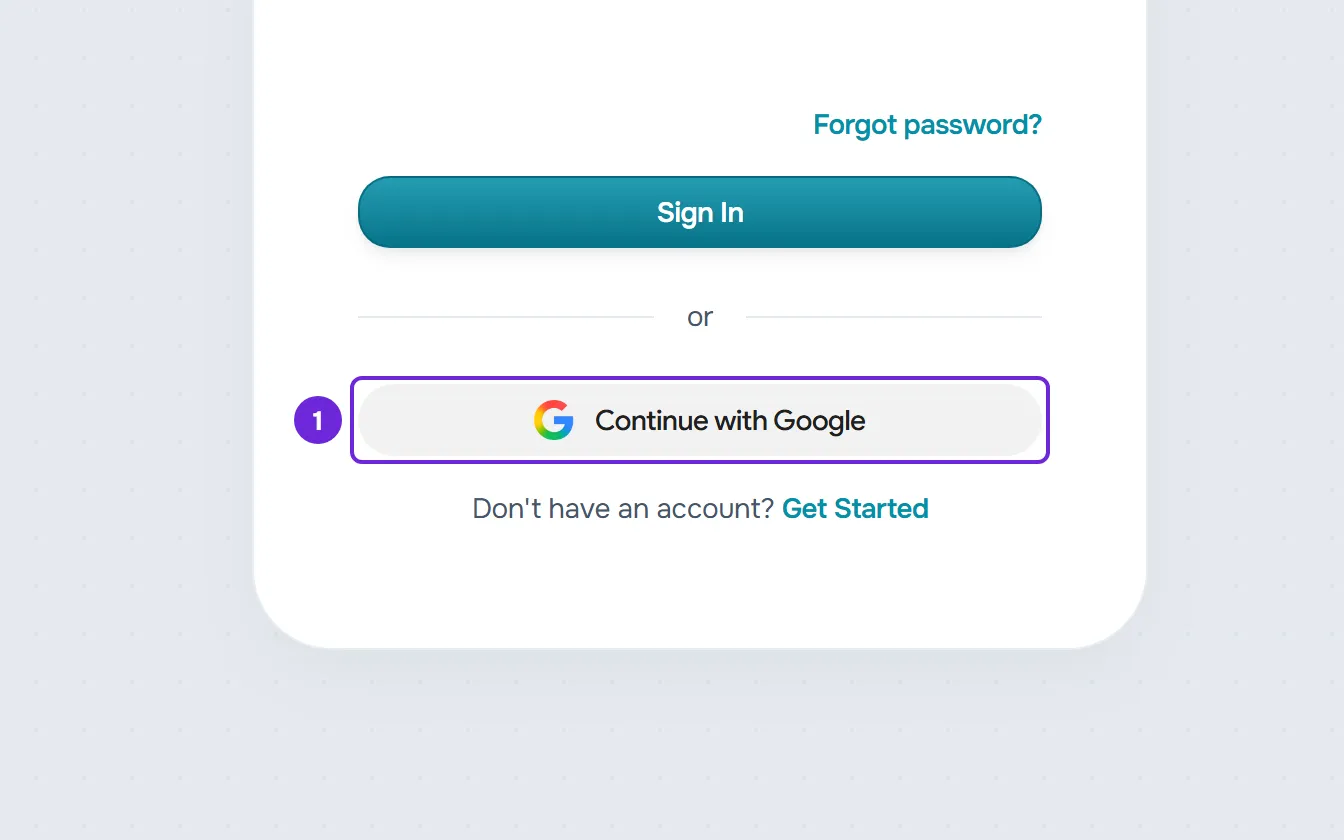
- Select Continue with Google 1 or Continue with Apple, under “or”.
- On the Google or Apple screen, choose the account and authorize. You return to the MyFitnessClient website.
- If the email already has a MyFitnessClient account, you're signed in to it and the steps end here. With two-factor authentication on, you first enter the code on the Security Verification screen.
- If the email doesn't have an account yet, the Create account screen opens, with no password. Confirm or enter your first and last name in Full Name 1: with Google it comes filled in, and with Apple only the first time you authorize MyFitnessClient.
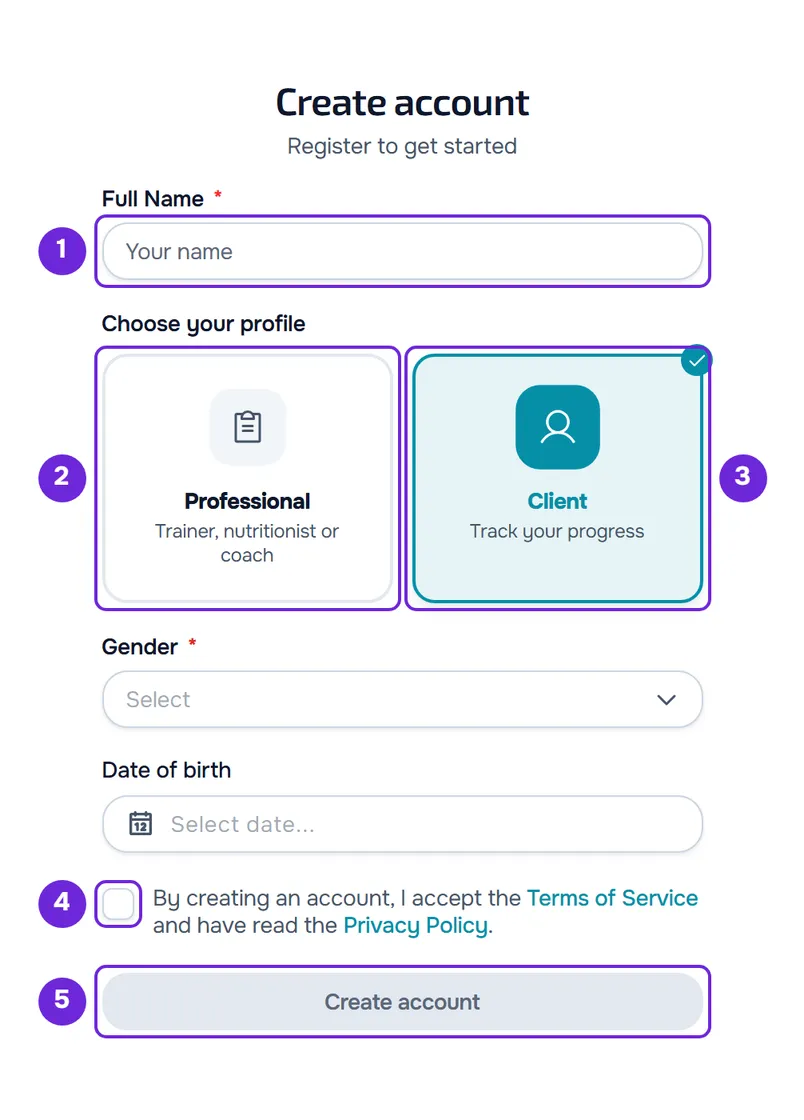
- Under Choose your profile, select Professional 2 or Client 3. If you came from your professional's invitation, the screen doesn't show this choice and the account is a client account. If you came from a team invitation, the account is a professional account and this choice doesn't appear.
- Fill in what the profile asks for: for the Client profile, Gender and Date of birth; for the Professional profile, if you want, How did you find us? and I have a code.
- Tick the box where you accept the Terms of Service 4 and confirm you've read the Privacy Policy. For the Professional profile, the same box declares that you hold the legal qualifications required for the services you provide. If the client is between 13 and 15 years old, they also tick the parental consent box.
- Select Create account 5. The button is only available once the required boxes are ticked.
The account is created with the email already confirmed, with no verification code, and your area opens: the dashboard if you're a professional, or the client area.
In the app
- The Continue with Apple and Continue with Google buttons are on the Sign in screen, which you open with I already have an account, and on the first step of Create account, About you, under “or”.
- Select one of them and choose the account in the system window. If the email already has a client account, you're signed in right away, or after the code if you have two-factor authentication on.
- If the email doesn't have an account yet, Almost done opens. Confirm or enter your first and last name in Full name, enter your Date of birth in the three boxes and, if you're between 13 and 15, tick the parental consent box. Select Create account. By creating the account, you accept the Terms and confirm you've read the Privacy Policy, with the links under the button.
- An account created in the app is always a client account. The app asks for the missing details, such as gender, once you have a professional: see Complete your profile when you open the app.
- A professional account can't sign in to the app: “This app is exclusively for clients” appears, with Open web version.
- On an Android phone without Google services, “This phone doesn't have Google services. Sign in with your email.” appears. On the website, the Google button also works on that phone.
If you already have an account with the same email
Each email has only one MyFitnessClient account. If the Google or Apple account has the email of an existing account, you're signed in to that account, with the account type it already has, without creating another. On an account without two-factor authentication, the following also happens:
- The Google or Apple account is linked to your account, and later sign-ins find it through that link.
- If your account is already linked to another account from the same provider, for example another Google account, sign-in is refused with “This account is already linked to a different Apple or Google account. Sign in with that one or with your email.” Sign in with the Google or Apple account you linked before, or with your email and password.
- If your account's email was still unconfirmed, it becomes confirmed when you sign in, and the password it had stops working. To sign in with your email again, set a new one in Change or set your account password.
If you choose to hide your email on the Apple screen, Apple sends an address different from yours. MyFitnessClient doesn't find your account by that address and opens the sign-up for a new account.
Accounts with two-factor authentication
Google and Apple replace the password, but not the second step. With two-factor authentication on, after you choose the account the code screen opens, on the website and in the app, and you're only signed in after you enter the code. With the email method, the code is sent to the account's email address; with the authenticator app method, you read the code in that app. See Turn on two-factor authentication (2FA).
Common problems
“Sign-in expired. Sign in again.”
More than 15 minutes passed between choosing the Google or Apple account and finishing sign-up. The website tells you the sign-in expired when the completion screen opens or when you select Create account, and returns to the sign-in page. The app shows this message when you select Create account and returns to the previous screen. Select the Google or Apple button again and finish sign-up within 15 minutes.
“Could not sign in with Google.”
On the website, you cancelled on the Google screen, stayed more than 10 minutes on that screen, or the request didn't complete. With Apple, the message is “Could not sign in with Apple.”, and cancelling on the Apple screen returns to the sign-in page without a warning. In the app, cancelling shows no warning; when signing in with Google or Apple fails, “Couldn't sign you in. Try again.” appears. Try again. If it keeps happening, sign in with your email and password, if you have them, and see all the messages in I can't sign up, sign in or reset my password.
The Google and Apple buttons don't appear
In a professional's branded app, the buttons don't exist: sign in with your email and password and, if you don't have a password yet, create one through Forgot your password?, in that app. On Android, only the Google button exists. If the client app shows neither, the installed version doesn't have them yet: update the app or sign in with your email and password.
I wanted to create a new account and got signed in to an existing one
The Google or Apple account is already linked to a MyFitnessClient account, or has the email of an existing account, professional or client, and you're signed in to it. This is the normal behavior, also with Sign up with Google, on the website's home page. The account type doesn't change. To get another account, use a Google or Apple account with a different email.
Questions
Can I sign in with email and password to an account created with Google or Apple?
Yes, after you set a password: see Change or set your account password. Until then, signing in with email and password is refused.
What does the Sign up with Google button on the home page do?
It only exists at the top of the website's home page. It starts a sign-up with the Professional profile already chosen, which you can switch to Client on the completion screen. If the Google account already has a MyFitnessClient account, you're signed in to it, as with Continue with Google.
Can I stop signing in with Google or Apple?
With Google, yes: you remove the link in Settings. On the website, only after you set a password; in the app, also when the account has Apple linked. See Link or remove your Google account in Settings. Apple doesn't have that option in Settings.