
Before you start
- The Remove example data button only appears while the account has example data.
- Removing deletes the example templates even if you changed them. To keep example workouts, programs, meal plans or meals, duplicate them first: the copies are yours and stay.
- An example program, meal plan or tag you gave to a real client stays when you remove the data: it becomes yours and the client keeps it.
- To keep the Welcome guide, follow the section “Keep the Welcome guide” first.
- Only the account owner can remove the example data. A team member, in the owner's workspace, does not see the button.
Steps
To remove the example data:
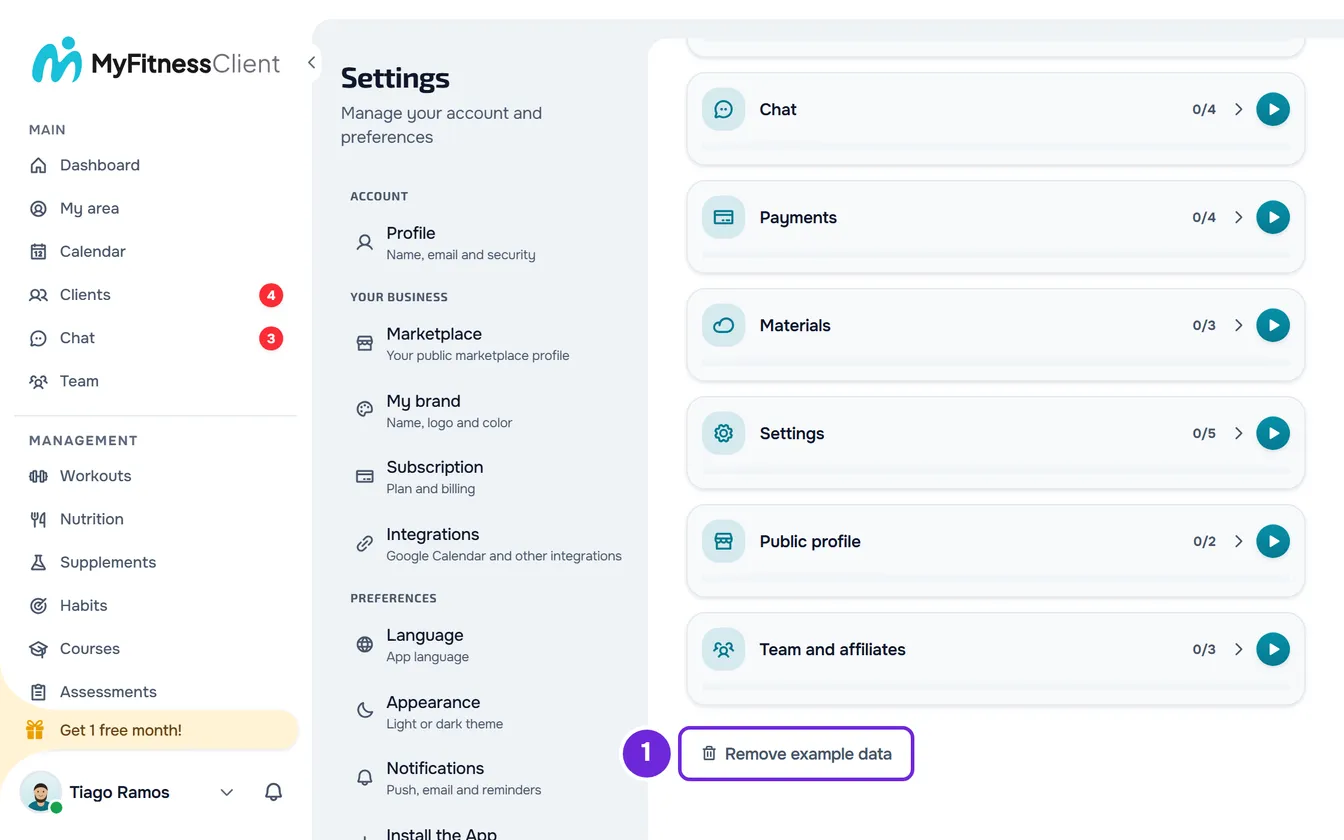
- On the Dashboard home page, select Tutorials. On narrow screens, the button shows only the icon. You can also open the same list from Settings > Tutorials and guided tour.
- At the end of the chapter list, select Remove example data 1.
- In the “Remove example data?” window, select Confirm 1.
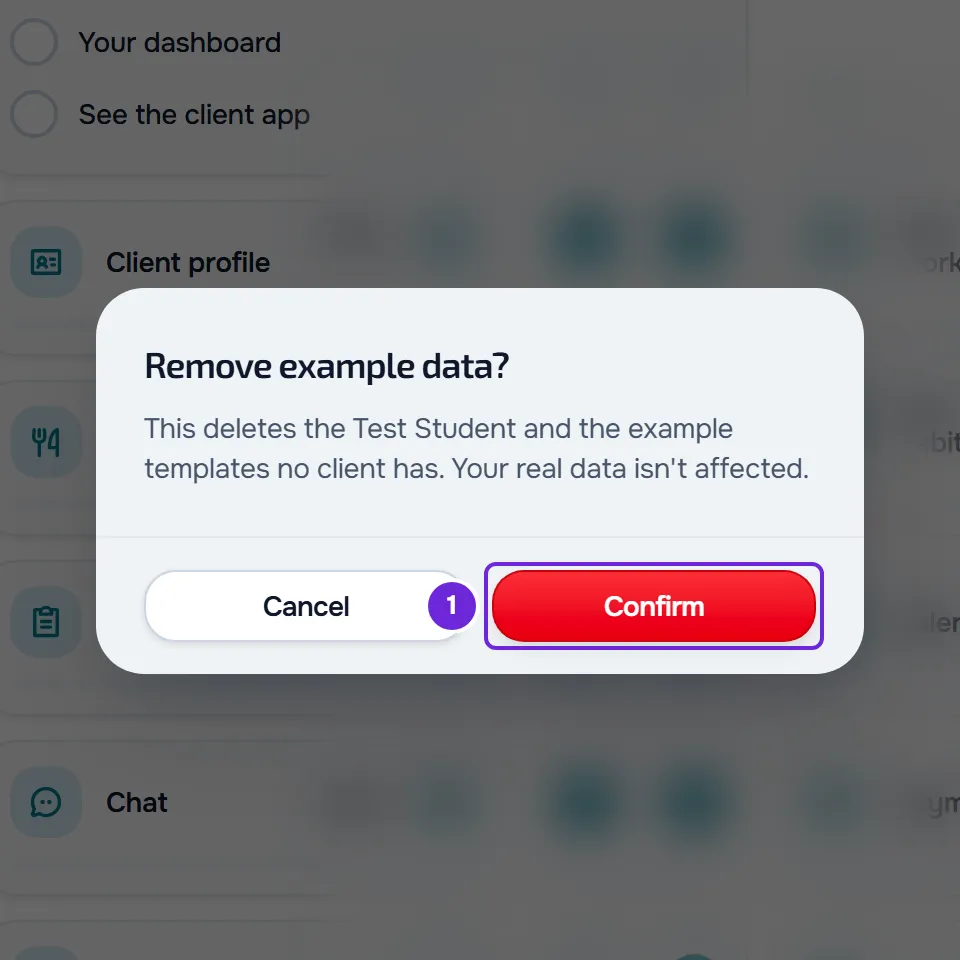
The message “Example data removed.” appears. The Test Student and the example templates disappear from the lists, and the Remove example data button no longer appears.
What goes and what stays
Removing deletes what MyFitnessClient created as an example, even what you changed later, except the Welcome guide you saved and what you gave to real clients:
- The Test Student and everything that belongs to them: the profile, the workout history, the meal and habit logs, the assessments, the health questionnaire, the chat conversation, the events in the calendar and their folder in Materials.
- The example workouts, library meals and habits, and the example programs and meal plans no real client has.
- The example calendar categories. The events you marked with them stay in the calendar, as when you delete a category.
- The example tags no real client has and that you didn't use to share a folder or a file in Materials. They are also removed from the invite links that assigned them.
What stays:
- What you created yourself, including the copies you made of the example templates and the health questionnaire form customizations, both the general ones and those for each client.
- The example workouts you put in a program of your own and the example meals you put in a meal plan of your own: the program and the plan keep their own copy.
- The example workouts and habits you gave to real clients, because each client receives a copy.
- The example programs, meal plans and tags you gave to real clients, with their assignments: they become yours. An example tag you used to share a folder or a file in Materials also stays.
- The check-in questionnaire, which is not part of the example data.
- The Clients folder in Materials.
- The Welcome guide, if you saved it at least once, and the Welcome pack folder, if you moved it out of the Test Student's folder.
- Your progress in the tutorials.
Keep the Welcome guide
In the Test Student's profile, on the Materials tab, the Welcome pack folder has the Page “Welcome guide”: a welcome text for your clients, made for you to adapt. Until you save a change, the Page is an example and is removed with the example data. In accounts created before this Page, the folder has an example PDF, which is also removed. To keep the Page:
- Open the Page, adapt the text and delete the note at the start. The first saved change makes the Page yours.
- Move the Welcome pack folder out of the Test Student's folder. Removing deletes the Test Student's folder and the folders inside it.
If “Something went wrong. Try again.” appears at the top of the Page while you type, the change was not saved and the Page is still the example.
To get the guide text later, in a new, empty Page, choose the Welcome template. It has the current guide text, without the note at the start.
Get the example data back
There is no button to create it again. Start a tutorial that uses the Test Student, for example the Guided tour, and MyFitnessClient asks “Create example data?”. Select Confirm: for a few seconds “Recreating example data…” appears, and then the tutorial starts with new example data, in the language you are using the Dashboard in. See Follow an interactive tutorial or replay the guided tour.
The programs, plans and tags that stayed because real clients had them remain yours: a later removal does not touch them. If you saved the Welcome guide before removing, you may end up with two “Welcome guide” Pages: yours and the one from the new example.
When you complete all the tutorials
If you still have example data when all the tutorials are completed, including when you use Mark all as completed, MyFitnessClient asks once whether you want to remove it, in the “All tutorials completed” window. Confirm removes it, with the same effect as the steps in this article, and Cancel keeps it. The question does not appear again, but the Remove example data button stays in the list. A team member, in the owner's workspace, does not get this question.
Common problems
The Welcome guide is still in Materials after removing
You saved at least one change to the Page, so it became yours and the removal does not touch it. If you don't want it, delete it in Materials.
I don't see the Remove example data button
The account has no example data: it was already removed or was never created in this account. In a brand-new account, the example data can take a few seconds to appear. To create it, follow the section “Get the example data back”. If you are in another professional's workspace, as a team member, the button does not appear: only the account owner can remove the example data.
“Could not remove the example content.”
The removal did not finish. Nothing was deleted, and the button stays in the list. Select Remove example data again. If that didn't solve it, contact support and include the time you tried.