
Before you start
- Plans are given by the workspace owner and, in a team, by the member with the Mark paid and assign plans permission in Payments. The member gives catalog plans at the price the owner set. The Custom plan, with a price and rules for one client only, is for the owner only.
- Catalog plans are created on the Plans tab: see Create recurring plans and packs for clients. You can also give a plan that is not in the catalog, and it appears in the list with “Not in catalog”.
- Each client has at most one plan awaiting payment and one active recurring plan. To put a new plan in place of the current one, see the section When the client already has a plan.
- With more active clients than your plan allows, MyFitnessClient refuses to give plans until you resolve it: see You have more active clients than your plan allows.
Interactive tutorial
Opens in the app and needs you to be signed in.
Steps
To give a plan to a client:
- In the side menu, in the Management section, select Payments.
- Open the Clients tab.
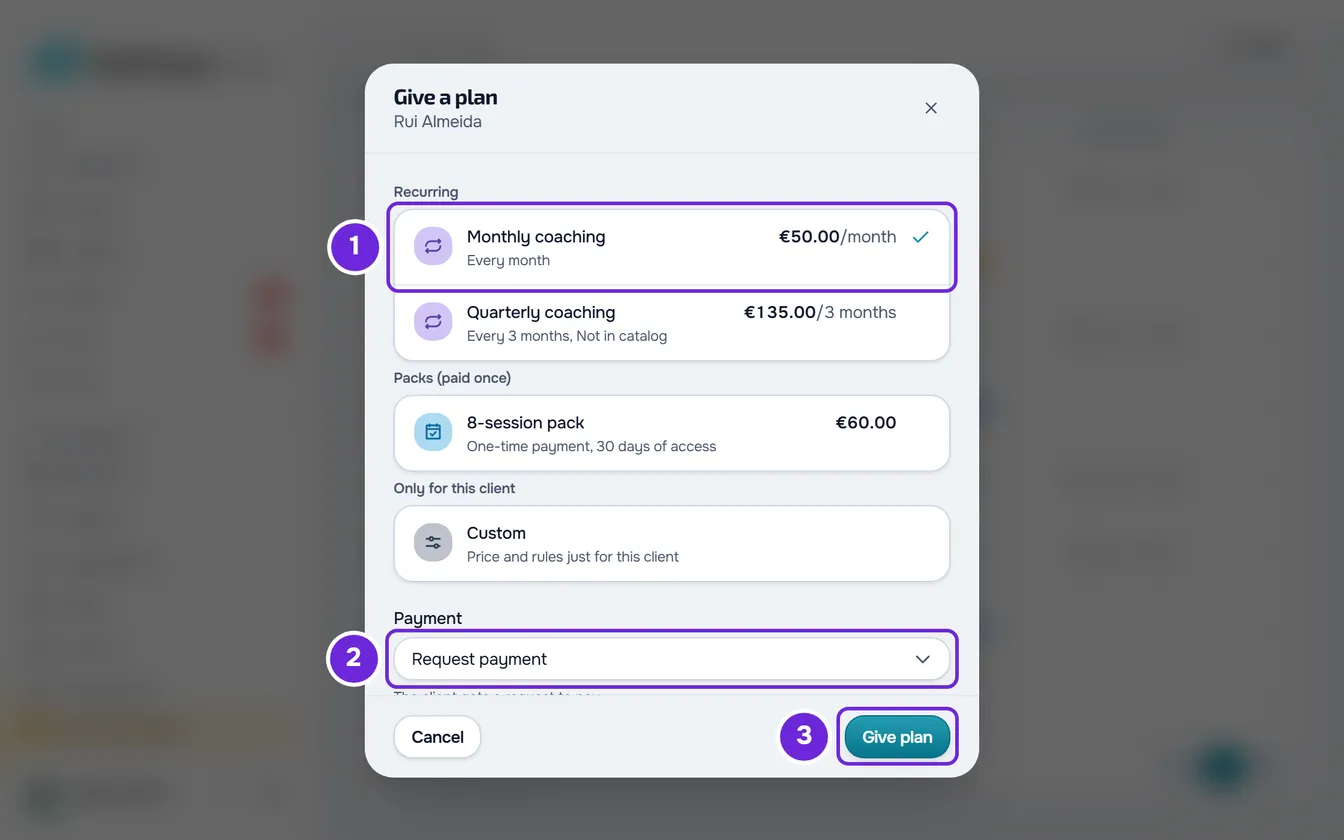
- On the client's row, open the ⋮, or right-click the row, and select Give plan. A window opens with the client's name.
- Choose the plan: one from the catalog, under Recurring 1 or Packs (paid once), or Custom, under Only for this client. If the catalog has only one plan, it is already selected.
- If you chose Custom, fill in the plan fields, as the section Give a custom plan explains.
- Under Payment, choose Request payment if the client is still going to pay, or Already paid 1 if they have already paid you.
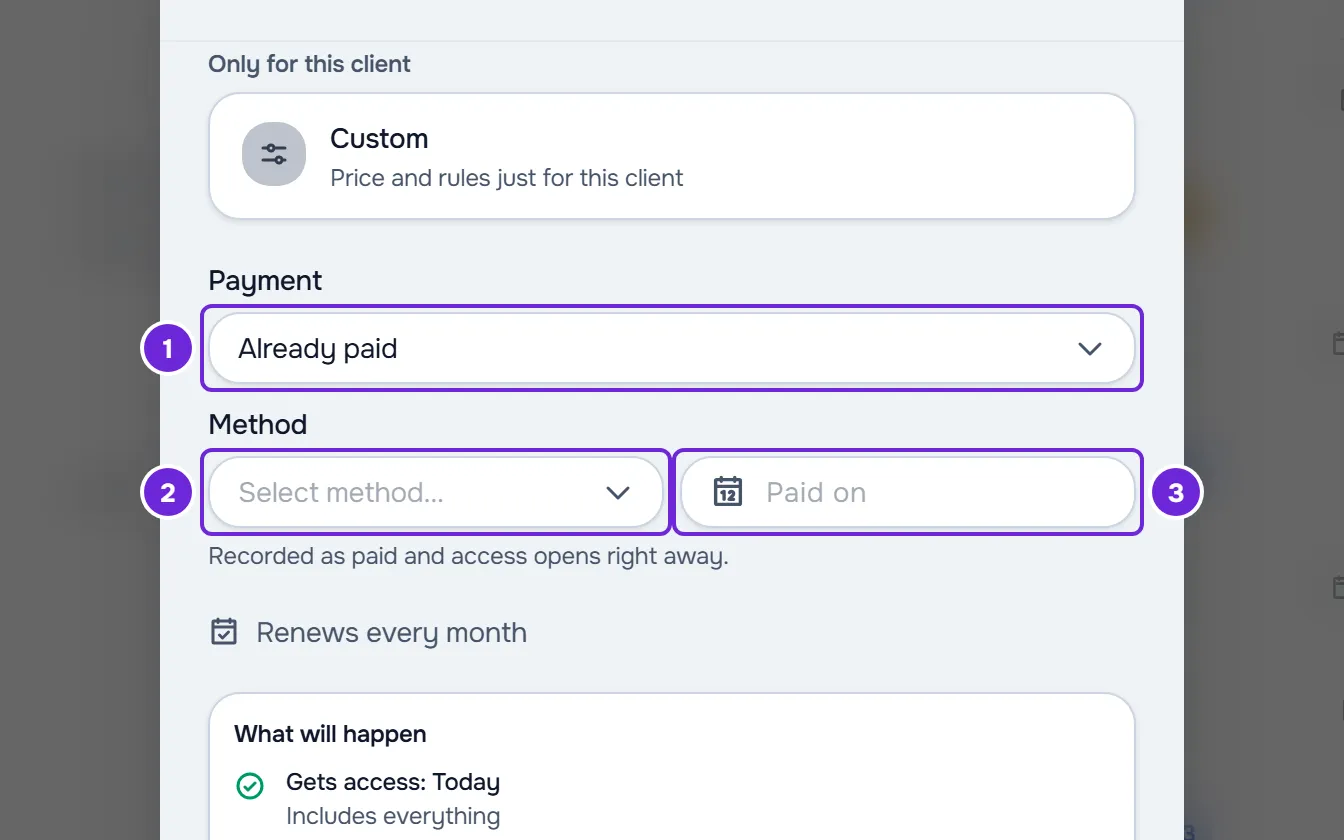
- If you chose Already paid, choose the Method 2.
- Optional: if the client did not pay today, choose the day they paid under Paid on 3.
- Review the dates and the What will happen 1 panel, which shows when the client gets access, the first charge, what happens if they don't pay and when the plan ends.
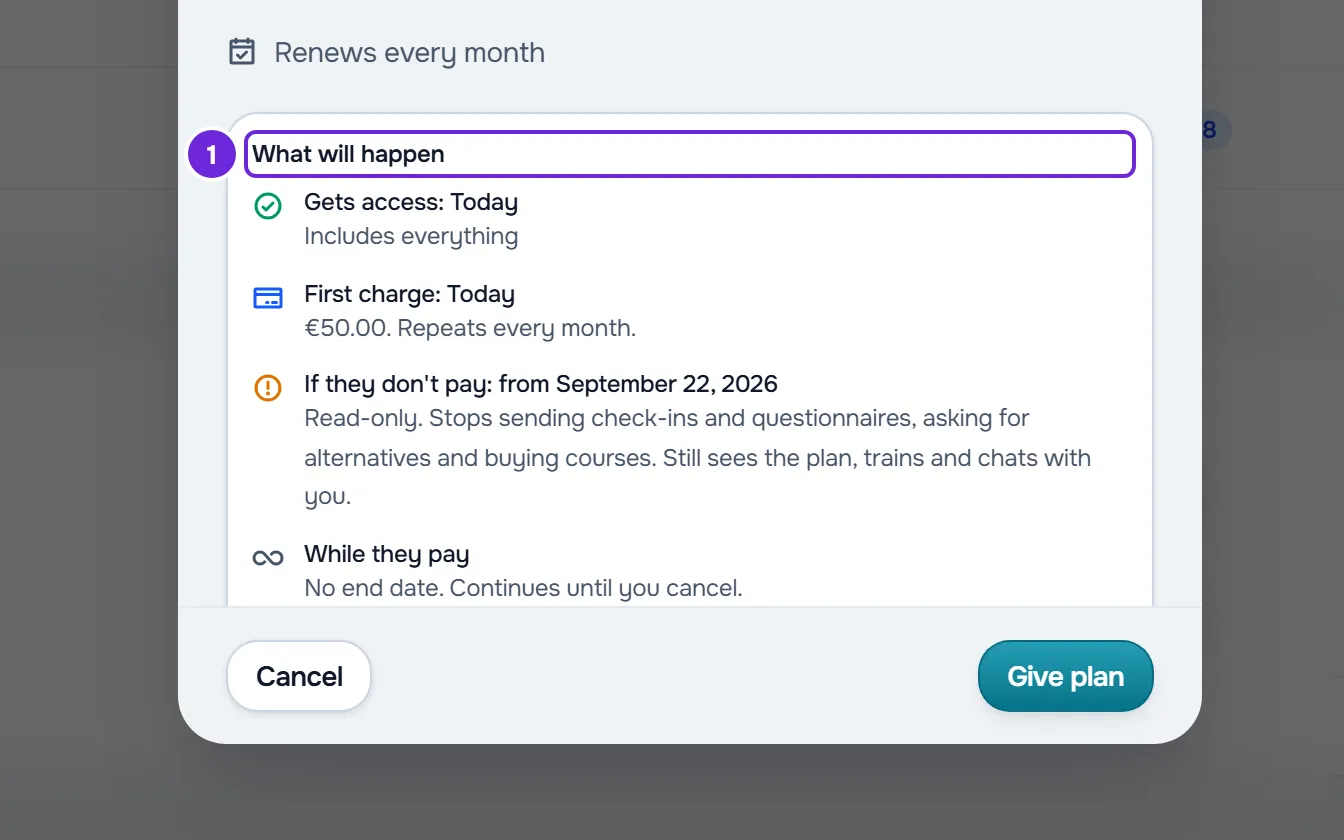
- Select Give plan 3.
The window closes with the “Plan assigned” message, and the client's row shows the new plan and its status.
The same window opens in two other ways: on the row of a client without a plan, with the Give plan button that appears in place of the status, and in the client's profile, on the Payments tab, with the Give plan button on the Plan card. For a client who already has a catalog plan, the ⋮ and the card do not have Give plan: you switch plans with Change plan, which opens this window. See Change a client's plan.
Request payment or Already paid
| What changes | Request payment | Already paid |
|---|---|---|
| The plan | Stays awaiting payment until the client pays or, on a manual plan, until you mark it as paid. | Is paid and active. |
| The charge | On a pack, a charge awaiting payment is created right away. On a manual recurring plan, each charge is created on the day it is due, the first one on the day the panel shows. On an automatic plan, there is no charge until the client pays online. | Is recorded as paid, with the method and the Paid on day. |
| Access | If the client doesn't pay, the plan's If they don't pay rule applies from the day the panel shows. On a plan with No access, the sentence under the Payment field says what happens to access while the client hasn't paid. | Opens right away or, for a client with a scheduled start, on the day access begins. |
For an archived client, the plan is given, but access only returns when you reactivate the client.
On a catalog plan, MyFitnessClient decides how it is paid. A recurring plan with Request payment and online payments active becomes automatic: the client pays online and the plan renews on its own. A pack, a recurring plan with Already paid or a recurring plan without online payments is manual: you mark it as paid when you receive the money. On a custom plan, you choose, under How it's paid; with Automatic, the Payment field no longer offers a choice and says “On an automatic plan, the client pays online.” To turn on online payments, see Connect Stripe to receive online payments from clients.
The date in Paid on
The Paid on calendar does not accept days after today. Left empty, it counts as paid today.
- On a recurring plan, the cycle counts from the day the client paid, and the next charge falls one cycle after that day.
- On a recurring plan, the paid cycle must still cover today, so the calendar only offers the days of that cycle. On a one-month recurring plan, it runs from today minus one month plus one day up to today: on October 14, the first day offered is September 15.
- If the client's access only starts later, the cycle starts on that day. If the client still has paid days from another plan, the cycle starts on the day after those days. In both cases, the calendar does not limit past days.
- On a pack, the date has no limit going back: the days of access count from it, or from the day after the days the client has already paid for. The summary line, before the panel, shows the access period.
- If you switch to a plan with a shorter cycle, a day that no longer fits in the cycle is removed from Paid on without warning. Check the field before giving the plan.
If the client paid more than one cycle ago, that payment no longer covers today and the client owes the current cycle. Choose Request payment and, when they pay, mark the charge as paid, with the day they paid: see Mark a charge as paid.
Give a custom plan
A custom plan belongs to this client only: it doesn't go into the catalog or the Plans tab. When you choose Custom, the window shows these fields:
| Field | What you choose |
|---|---|
| Name | Optional, up to 100 characters. Left empty, the plan is called “Custom plan”. |
| Recurring or Pack | Recurring is paid every day, week, month or year. Pack is paid once and has an end. |
| Price | In the workspace currency. In euros, from €0.50 to €10,000. |
| Every | On a recurring plan, the number and the unit: 1 to 365 days or weeks, 1 to 12 months, or 1 year. The default is 1 month. |
| Access | On a pack, the days of access, from 1 to 3650. The default is 30. |
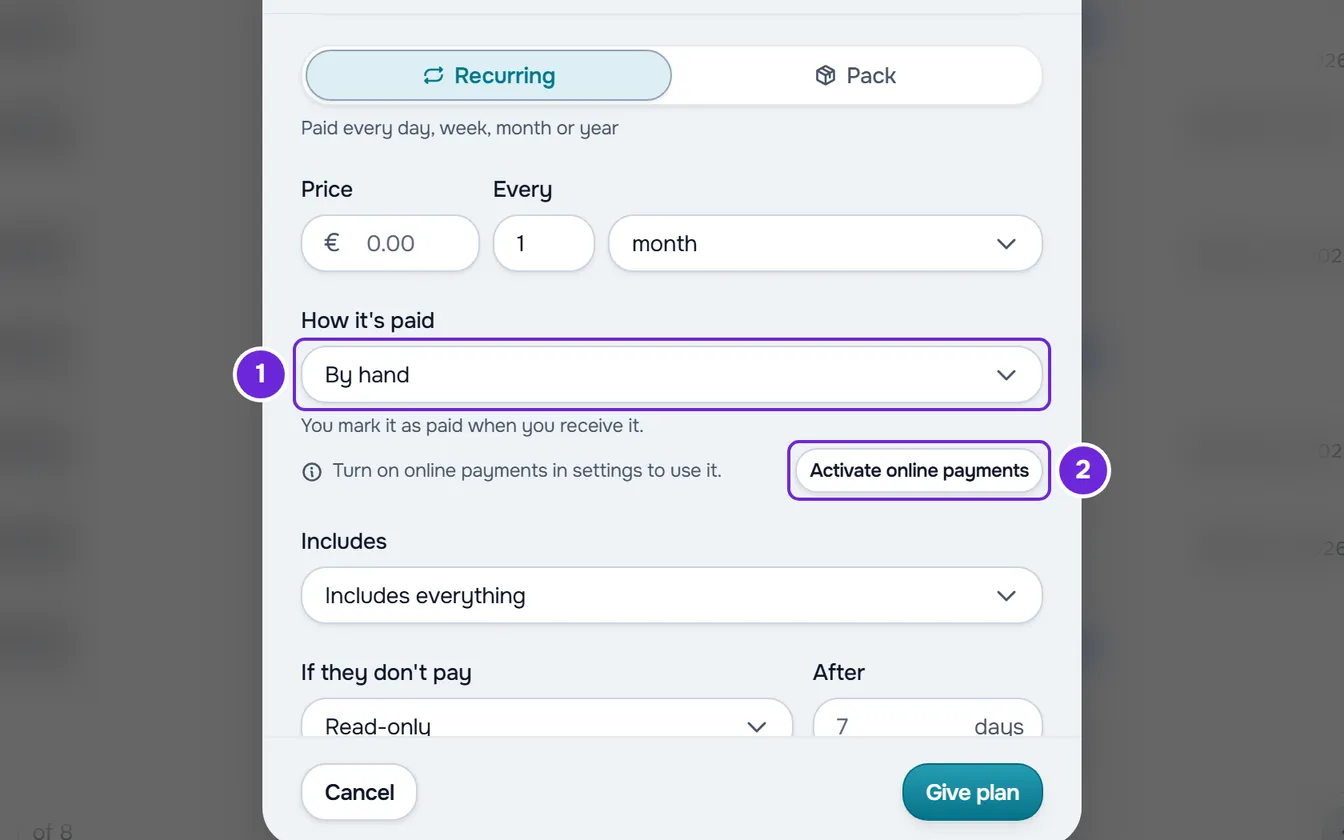
| How it's paid | By hand: you mark it as paid when you receive the money. Automatic: the client pays online and the plan renews on its own. The default is Automatic when it is available. |
| Includes | The app sections the client has access to. The default is all of them, and the field shows “Includes everything”. |
| If they don't pay and After | The rule for late payment and, when the rule is not Stays the same, the grace days, from 0 to 90. A pack starts with No access; a recurring plan follows your default rule until you change it. |
Automatic is unavailable, with the reason under it, in three cases: without online payments active (“Turn on online payments in settings to use it.”, with the Activate online payments button), on a pack (“Only on recurring plans.”) and with a cadence in days or weeks (“Only with a monthly or yearly cadence.”). If your plan doesn't include Online payments, How it's paid defaults to By hand and choosing Automatic opens the plan window.
Once the plan is given, the owner edits a custom plan in Change plan; the cadence only changes with a new plan. See Change a client's plan.
When the client already has a plan
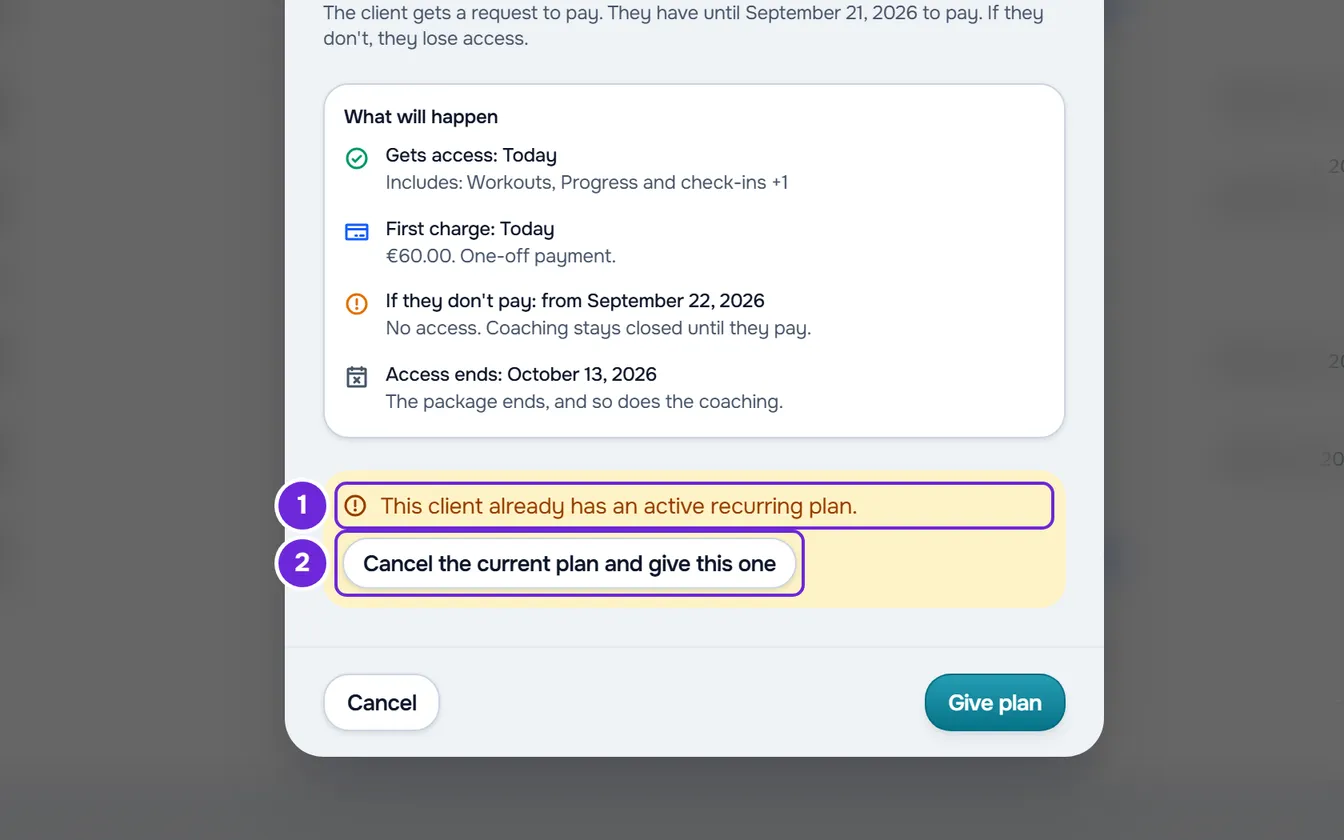
- With an active recurring plan, or with the current plan still awaiting payment, MyFitnessClient does not add another plan, not even a pack. When you select Give plan, a warning appears with “This client already has an active recurring plan.” or “This client already has a plan awaiting payment.” and the Cancel the current plan and give this one button.
- When you confirm with Cancel and give this one, a recurring plan stops renewing and the client keeps access until the end of the paid period; a plan awaiting payment has its request cancelled. The new plan takes its place.
- A team member can only replace a plan awaiting payment. With an active recurring plan, the member only sees the message, and the owner is the one who replaces it.
- With another plan awaiting payment waiting behind the current one, this message appears: “This client already has a plan awaiting payment, under “Next” on their plan. Mark it as paid or cancel it before giving another one.”
- With a paid pack still running, a new pack starts on the day after it ends and appears under the current plan, as “Next”. While the new pack is awaiting payment, the client's ⋮ in Clients has Mark next plan as paid and Cancel next plan, and the profile shows the Mark as paid and Cancel next plan buttons next to that line.
- If the client already has recurring charges outside the plan, when you choose a recurring plan the window shows the warning “This client already has 1 recurring charge outside the plan. Giving a plan creates one more charge.”, with the number of those charges.
Common problems
“This client disconnected. They only regain access by accepting a new invitation.”
The client left your account and can no longer receive plans. Send them a new invitation and, after they accept it, give them the plan. Invitations are in Add and invite clients.
“Your account is closing: you can no longer create charges or give plans.”
You requested the closure of your professional account, and an account that is closing does not give new plans. To keep giving plans, see Cancel your account closure.
“This client already pays a manual recurring charge. Remove it before giving a recurring plan.”
The client has a monthly fee by hand outside the plans, and a manual recurring plan would charge them twice. The owner removes it under Extras, on the Payments tab of the client's profile, and then gives the plan. A pack and an automatic recurring plan do not have this rule.
“The payment date must be in the current cycle.”
It appears when you give a plan with Already paid: MyFitnessClient rejected the Paid on day because it is before the current cycle, counted in the account's time zone. This can happen around midnight, when the day on your computer is different from the day in that time zone. Nothing is recorded. Choose a more recent day or use Request payment, as the section The date in Paid on explains.
If this did not solve it, contact support with the exact message, the plan name, the option chosen under Payment and the Paid on day.
Questions
Does the client get a notification?
With Request payment, on a No access plan or an automatic plan, the client gets the “New plan” notification. On a pack or a manual recurring plan that doesn't remove access, they get the notification for the charge awaiting payment when it is created.
Why isn't the “First charge” today?
The client still has paid days, or access that only starts later: the new plan starts after that, and the panel shows that day. With Already paid and a past day in Paid on, it shows that day. On an automatic plan, the date is an estimate, because the charge only happens when the client pays online: see Delayed first charge of an automatic plan.
Can I give a recurring plan every two weeks?
Yes, only as a custom plan, which only the owner gives: under Every, type 2 and choose weeks. A cadence in days or weeks is paid by hand, because Automatic only exists with a monthly or yearly cadence.
Can I give a plan I removed from the catalog?
Yes. The plan stays in the list, with “Not in catalog” in its description. An archived plan does not appear: reactivate it first, as Archive a plan or remove it from the client catalog explains.