
Before you start
- With your Google account linked, you sign in to MyFitnessClient with the Google button on the sign-in page, without typing your password. It works for professional and client accounts.
- Linking is done on the website. In the client app, you see the link and can remove it, but to link it, the app opens the website.
- The Google account must have a verified email and can't be linked to another MyFitnessClient account. Each MyFitnessClient account has at most one Google account.
- On the website, to remove it you need to have a password set, so you aren't left without a way to sign in. See Change or set your account password.
Interactive tutorial
Opens in the app and needs you to be signed in.
Steps
To link your Google account on the website, in the professional dashboard or in a client account:
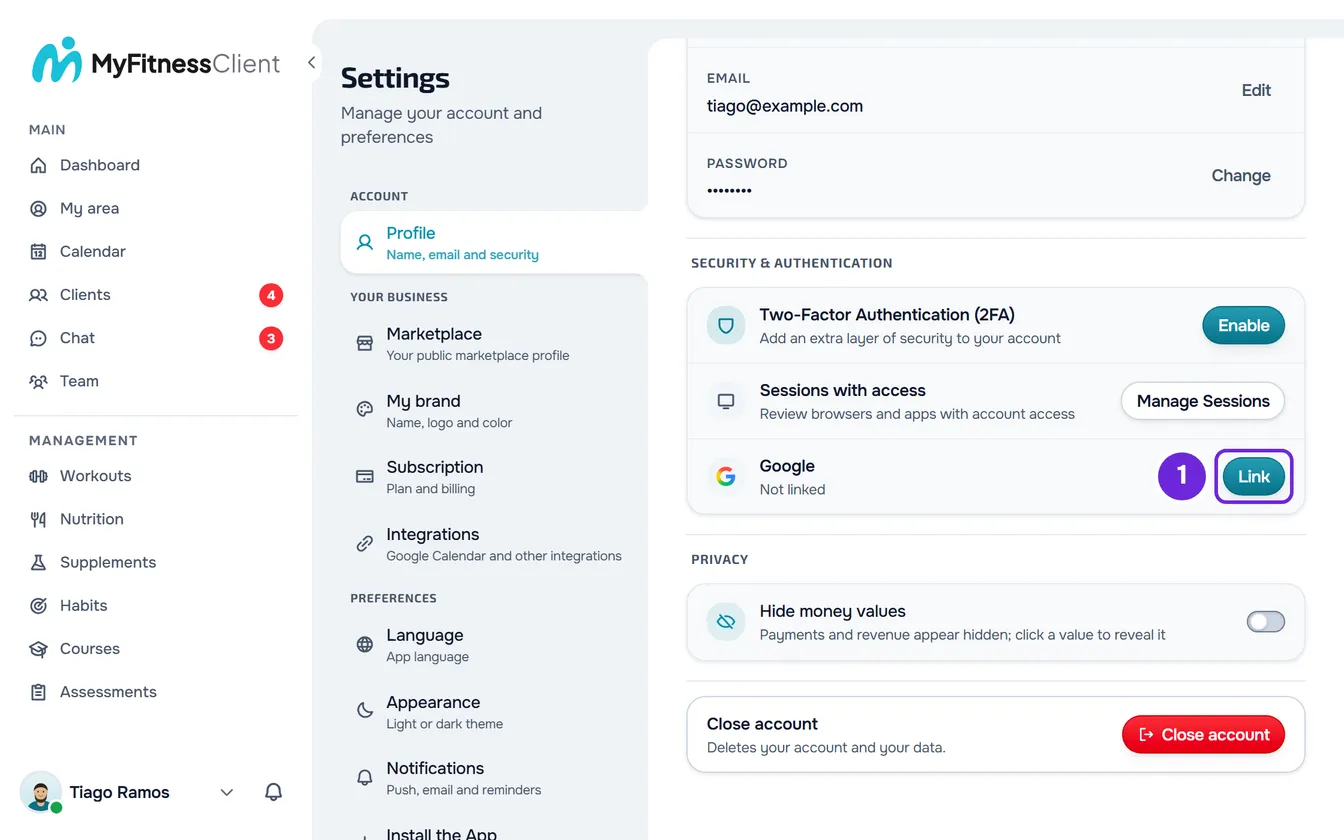
- Open Settings. On a computer, select your photo and name at the bottom of the sidebar, then Settings. On a phone, open the menu and select Settings, at the bottom of the menu.
- Select Profile.
- In the Security & Authentication section, in the Google row, select Link 1. The Google screen opens.
- Choose the Google account you want to use and authorize it. Google always shows the account choice, even if you only have one open in the browser.
You return to Settings, with the message “Google account linked.” on screen. The Google row now shows the Google account's email, with a check mark, and the Remove button.
Remove the Google account
- In Settings > Profile, in the Google row, select Remove.
- The Remove Google account? window opens, with the warning “You stop signing in with this Google account. If it has the same email as your account, signing in with Google links it again.” Select Confirm.
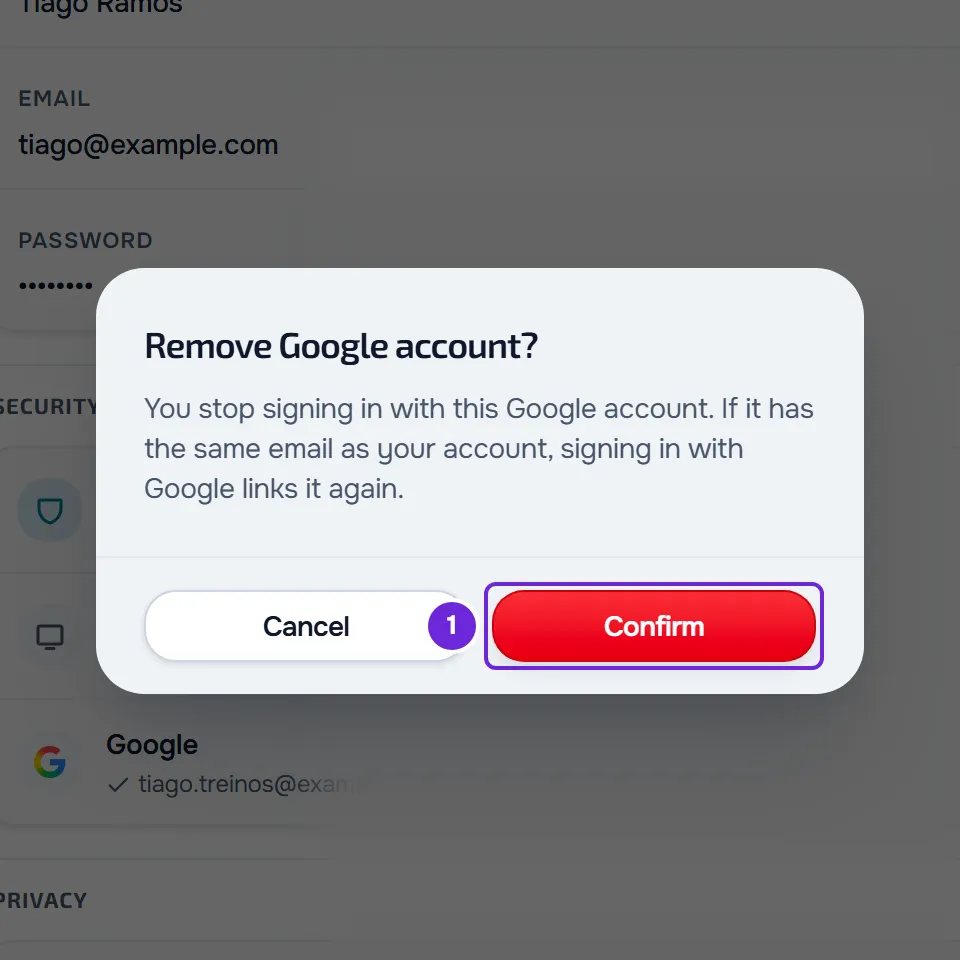
- The message “Google account removed.” appears and the row goes back to showing Not linked and the Link button.
Without a password, the Remove button is disabled and the note “Set a password so you can sign in without Google.” appears. Set the password in Change or set your account password: the button becomes available right after.
In the app
The app is for client accounts only.
- Open the menu with the button in the top-left corner and select your name, at the bottom of the menu. In Settings, select the card with your name and email, at the top, to open Profile.
- In the Security & authentication section, select Connected accounts. The Google card shows “Linked as” and the Google account's email, or Not linked.
- To link it, select Connect on the website. The browser opens the website's Settings: sign in to your account, if needed, and follow the steps from Profile. Back in the app, leave the Connected accounts screen and open it again to see the link.
- To remove it, select Remove and, in the Remove Google account? window, Remove again. “Google account removed.” appears.
- If the account has no password and no linked Apple account, Remove is disabled and “Set a password before removing.” appears. With Apple linked, the app lets you remove it without a password and reminds you “Set a password so you can sign in without Google.”
Common problems
“Could not link the Google account.”
The website shows this message when linking fails: you canceled on the Google screen, the Google account doesn't have a verified email, that Google account is already linked to another MyFitnessClient account, or you've already tried to link or remove the Google account 5 times in the same minute. Wait a minute and try again, with the right account. If that Google account is linked to another MyFitnessClient account, sign in to that account and remove it there first. If that didn't solve it, write to [email protected] with your account's email and the Google account's email.
The Remove button is disabled
The account has no password and the Google account is your way to sign in. Set a password in Change or set your account password and select Remove again.
I removed the Google account and can still sign in with Google
This happens when the Google account uses the same email as your MyFitnessClient account. When you sign in with the Google button, MyFitnessClient finds your account by email and signs you in to it; on an account without two-factor authentication, the Google account is linked again. Removing it only stops sign-in with a Google account that has a different email: signing in with it no longer takes you to this account.
I linked the wrong Google account
Remove it, as in Remove the Google account, and select Link again. On the Google screen, choose the account you want. On the website, you need a password set to remove it.
Questions
Does the Google account need to have the same email as my account?
No. You can link a Google account with a different email. The row shows the Google account's email and, from then on, you sign in to your MyFitnessClient account with that Google account. With the same email, you don't even need to link it: the Google button on the sign-in page already takes you to your account.
What about the Apple account?
The website's Settings and the app's Connected accounts screen only have Google. The Apple account is linked when you create your account with Apple, or when you sign in with the Apple button to an account that already exists with the same email and without two-factor authentication. There's no option to remove it. See Sign in or create an account with Google or Apple.