
Before you start
- A professional account in MyFitnessClient, created with email, Google or Apple (Create a professional or client account). With Google or Apple, your email is already verified.
- Access to the account's email, to verify it (Verify your email with the 6-digit code or the link).
- Being in your own workspace: in another professional's workspace, you don't see See the client app and can't change My brand.
Interactive tutorial
Opens in the app and needs you to be signed in.
Steps
To get to your first client, follow these steps in order.
- Verify your email with the 6-digit code or with the link in the “Confirm your email” email. You go straight to the Dashboard, the account's home page.
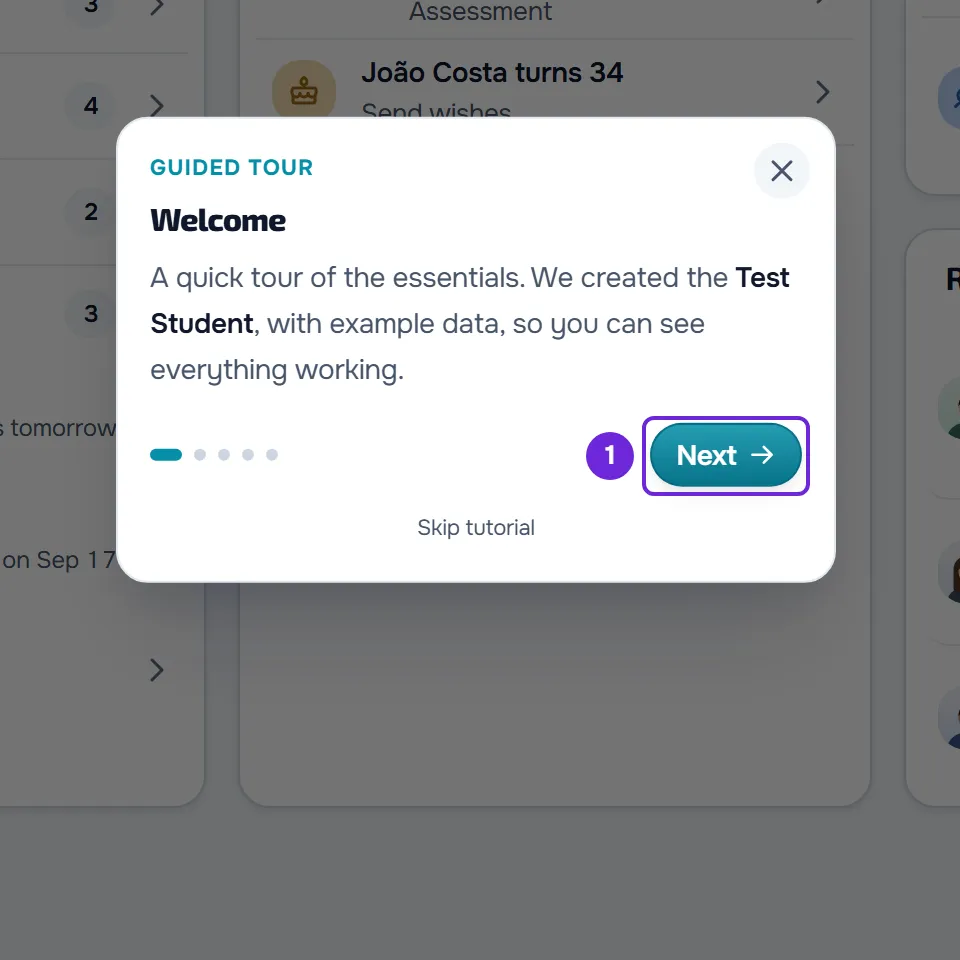
- Follow the guided tour, which starts on its own on the Dashboard a few seconds later, once the Test Student is ready: select Next 1 at each step and Finish at the last one. In 5 steps, the tour shows the menu, the client list, the Test Student's profile and the Tutorials button (Follow an interactive tutorial or replay the guided tour).
- In Clients, open the Test Student and go through the profile tabs. You see a client with an assigned program, completed workouts, habits and assessments, all example data. In the chat, you also have an example conversation with them (Example data and the Test Student).
- In the Test Student's profile, select See the client app. The client app opens in a new tab, as the Test Student sees it, for 15 minutes (Preview the client app with the Test Student).
- In Settings > My brand, choose your brand's logo and color and select Save. Your clients then see them in their app (Settings menu).
- In Workouts, select New Program, enter the name of your first program and select Create. The new program opens, and that is where you add its workouts.
- In Clients, select New Client, enter the name of your first client and select Create client. The new client's profile opens.
- In the client's profile, on the Workouts tab, select Assign Program, choose the program you created and, in the dates window, select Confirm. The program is assigned to the client starting today.
- When you no longer need the examples, duplicate the example templates you want to keep. Then, on the Dashboard, open Tutorials, select Remove example data and confirm. Removing deletes the Test Student and the example templates, even the ones you edited, but a program, meal plan or tag you assigned to a real client stays, as yours (Remove the example data and the Test Student).
In the end, you have your first client with a program of your own and an account with only your data.
For the client to use the app, invite them: in New Client, also enter the email, turn on Invite to the app and select Create and invite, or use the Invite client tab to send the invitation by email, link or QR code (Onboard a new client: from invitation to first check-in).
The Get started list on the dashboard
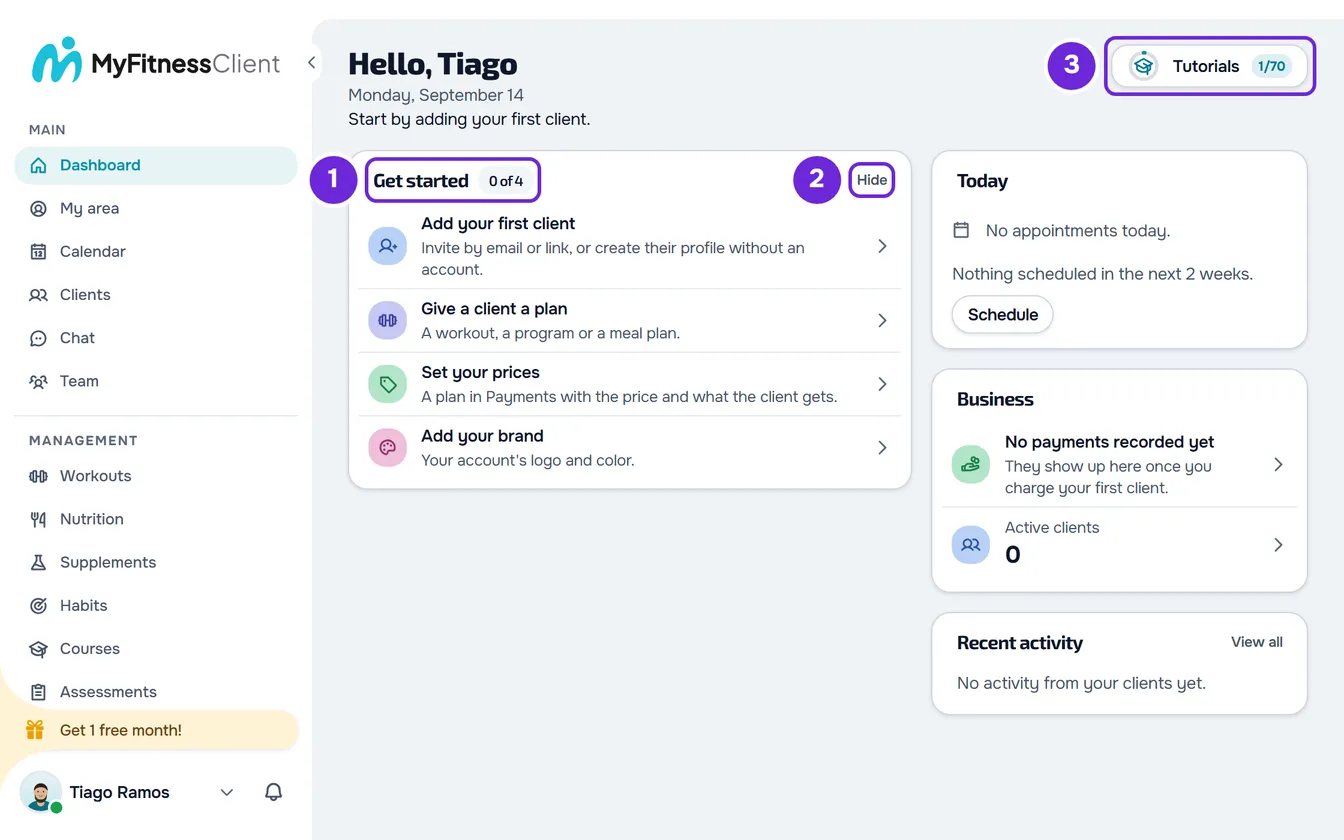
In a new account, the Dashboard shows the Get started list with 4 steps: Add your first client, Give a client a plan, Set your prices and Add your brand. Each step opens the place where you do it and shows Done once you complete it.
- In the client steps, only an active client of your own counts: the Test Student does not count.
- Give a client a plan is done with a program, a workout or a meal plan assigned to one of your clients.
- Set your prices takes you to Payments (Create recurring plans and packs for clients).
- You only see the list in your own workspace, and only while the account has no clients of your own or is less than 30 days old.
- While there are things waiting for you, such as responses, messages or charges to handle, the card shows those instead of the list.
- Hide removes the list from the dashboard. To see it again, open Tutorials and select Show “Get started” on the dashboard.
- The list disappears on its own once all 4 steps are done.
What MyFitnessClient does when you verify your email
- Sends you the “Welcome to MyFitnessClient” email, with three first steps (complete your profile and brand, add your first client and create your first workout or meal plan), the “Open dashboard” button and the ways to reach us: the [email protected] email address, booking 15 minutes for us to show you the app, Instagram and the Help Center.
- Creates the example data in the account's language: the Test Student and templates for workouts, programs, meal plans, meals, habits, calendar categories and client tags (Example data and the Test Student).
- Creates your check-in questionnaire, the one the client opens with “Complete check-in”. It stays in the account even after you remove the example data.
If you created the account with Google or Apple, the same happens when the account is created.
Already have clients in another app or a spreadsheet?
MyFitnessClient moves your clients from any platform into your account, at no cost. Ask for it through any channel, such as Support, email or Instagram (Contact Support and create a request).
If you have your clients in a list, you can also import them yourself: in Clients > New Client, select Got a list of clients? and import the records from a file, without sending emails. Each imported client takes an active client seat; those over your account's limit are left out (Client limit and occupied slots on your plan).
Common problems
I didn't get the verification code
The code arrives in the “Confirm your email” email and is valid for 30 minutes. Check your spam folder and request a new code on the verification screen (Not receiving the email verification code).
The guided tour did not start on its own
The tour starts on its own once the Test Student is ready, if you haven't completed or closed it yet and you don't have another tutorial open. Closing it halfway counts as done. If you just verified your email, reload the page after a few seconds. To take it whenever you want, open Tutorials and, in the Guided tour chapter, select Guided tour. If you removed the example data, MyFitnessClient first asks “Create example data?” (Follow an interactive tutorial or replay the guided tour).
The Test Student does not appear in Clients
MyFitnessClient creates it in the background after you verify your email, and that takes a few seconds. Reload the Clients page. If you removed the example data, you get it back by opening a tutorial that uses the Test Student and selecting Confirm in the “Create example data?” window (Remove the example data and the Test Student).
If this didn't solve it, contact Support with your account email and the step where you stopped (Contact Support and create a request).