
Before you start
- Your supplements are in My supplements, in the supplement library: they are the branded entries you create, with the dose, photo and purchase link of the products you work with. When you build a plan, you choose one of your supplements the same way as a compound from the MyFitnessClient Library; the library is explained in Find supplements in the library and copy them to your own.
- In a team workspace, you need the Supplements permission with Create to create a supplement and with Edit to edit or delete it. With either one, you can also upload the product photo.
- The supplements you create belong to the workspace you are in: whoever has the Supplements permission in that workspace sees the same ones, and no other professional sees them.
Steps
To create your own supplement in the library:
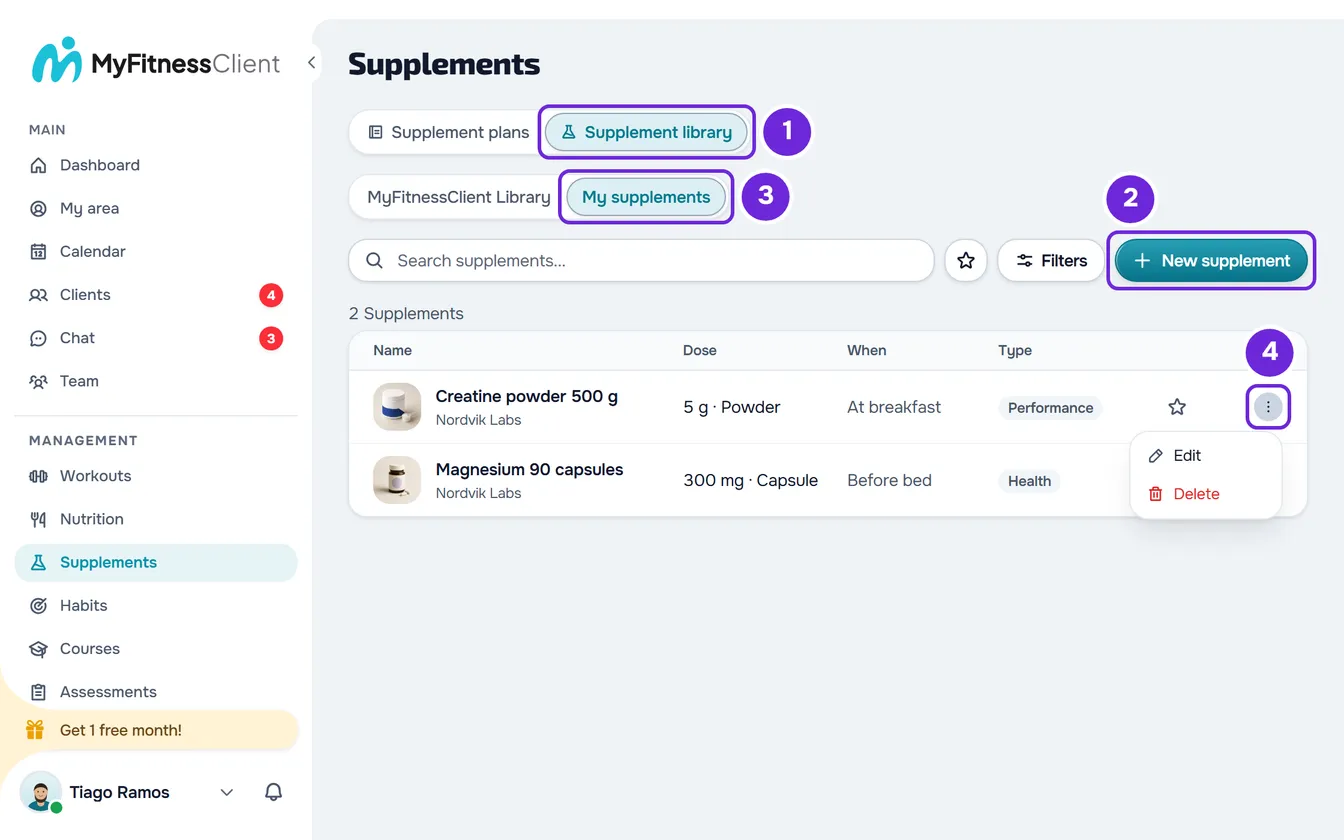
- In the side menu, in the Management group, select Supplements.
- Select the Supplement library 1 tab (on a screen less than 640 px wide, Library).
- Select New supplement 2, on the same row as the search (on a screen less than 640 px wide, on the row before the search). The New supplement window opens; on a phone, it fills the whole screen.
- In Name 1, type the supplement's name, up to 150 characters. It is the only required field.
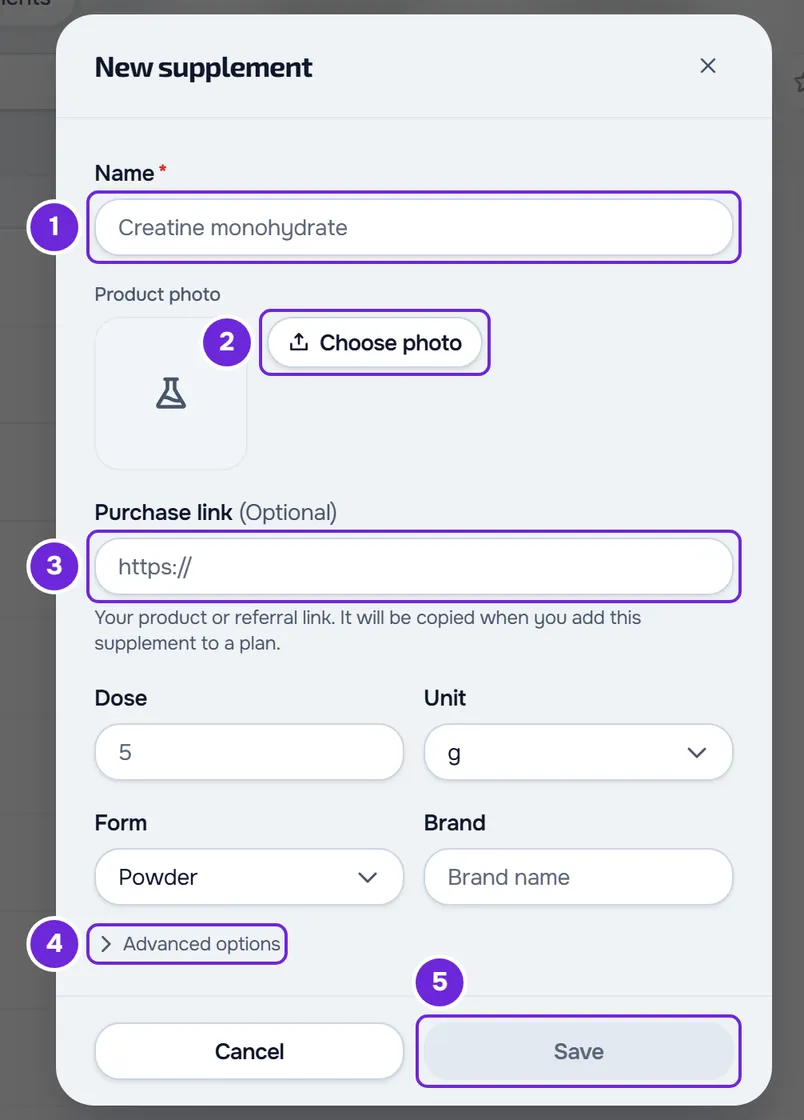
- Optional: in Product photo, select Choose photo 2 and choose an image of the product. The photo appears whole, uncropped, in the square next to the buttons.
- Optional: in Purchase link 3, paste the address of the product's page in the store, starting with https://.
- In Dose, type the amount of one dose and, in Unit, choose the unit, which is set to g. If the unit you want is not in the list, type it in Custom, at the end of the list, up to 20 characters, and press Enter.
- In Form, choose the product's form, which is set to Powder, or type another one in Custom, up to 30 characters. In Brand, type the brand, up to 100 characters.
- Optional: select Advanced options 4 and fill in what you need: Dose mode, When, Type, Max per dose, Usage note and Anti-doping note. What each one does is in the section The supplement's fields.
- Select Save 5, in the window's footer. The button is only active with a name and, if you typed a link, with a valid link.
“Changes saved!” appears and the library switches to My supplements, where the new supplement already is. To add it to a plan, see Add and arrange supplements in a supplement plan.
You can also create a supplement without leaving a plan: on the plan's page, on a screen 1024 px wide or more, select the + next to the search in the library panel (the + on each row adds that supplement to the plan). The same window opens and, when you save, the panel switches to My supplements.
If you close the window or select Cancel with unsaved changes, “Save before leaving?” appears: Discard closes without saving and Save and leave saves the supplement.
The supplement's fields
When you add one of your supplements to a plan, the name, photo, brand, purchase link, amount, unit, dose mode and time go with it. In the plan, you change whatever you want, without touching the library.
- Name: up to 150 characters. It is the name you see in the library and in plans, and the one the client sees on their day.
- Dose and Unit: the amount per dose the supplement starts with when it goes into a plan. Without a dose, it goes in with an amount of 1, which you have to correct in the plan. The unit list goes from g, mg and mcg to capsule, scoop or drop; Custom accepts another one, up to 20 characters.
- Form: the product's form, for example Powder, Capsule or Liquid. It appears in the list, after the dose, in the supplement's details sheet and, for the client, in the dose details. Custom accepts another one, up to 30 characters.
- Brand: up to 100 characters. It appears under the name in the library, and the library search also looks for it.
- Dose mode: Fixed amount, the one selected by default, Per kg of body weight, Per hour of exercise or Between minimum and maximum. With Per kg of body weight, the amount counts per kg of the client's body weight, for example 3 mg/kg. How each mode works in the plan is explained in Set a supplement's amount, frequency and doses.
- When: the usual time of day, which is set to Any time. The supplement goes into a plan with one dose at that time.
- Type: Health, Performance or Sports food, so you can filter the library. Not set leaves it without a type.
- Max per dose: the maximum amount given for one dose, with the unit next to it. It is for information only: MyFitnessClient does not compare it with the amounts in plans. The unit starts as the dose's unit; change it if you need to.
- Usage note: up to 500 characters, for example how to take the product.
- Anti-doping note: up to 200 characters. It is text you write yourself: MyFitnessClient does not check or certify products or batches.
The Max per dose, Type, Usage note and Anti-doping note appear in the supplement's details sheet and, for the client, in the dose details, on the About tab (in the app, “About this supplement”).
Edit or delete one of your supplements
In My supplements, open the row's ⋮, or right-click anywhere on the row, and choose Edit or Delete. The same two buttons are in the footer of the details sheet, which opens when you select the row.
- Edit opens the Edit supplement window, with the same fields. Select Save to keep the changes. To clear the Brand, Dose, Max per dose, Usage note or Anti-doping note, leave the field empty and save.
- Delete opens a confirmation with the supplement's name and the warning “This action cannot be undone.”, where you select Delete again. “Removed!” appears. There is no screen to recover a deleted supplement, and you delete one at a time.
- Compounds in the MyFitnessClient Library have no ⋮ and cannot be edited or deleted. To change one, copy it to your supplements and edit the copy, as explained in Find supplements in the library and copy them to your own.
What changes in plans that already use the supplement
When you add one of your supplements to a plan, the plan's card keeps a copy of the name, brand, photo, purchase link, amount and time. Editing or deleting the supplement in the library does not change those copies: the client keeps receiving the same thing, and the change only applies when you add it to a plan from now on. To change a plan's card, use Edit in the supplement's details inside the plan and the card's Purchase link, as explained in Add and arrange supplements in a supplement plan.
The Form, Type, Max per dose, Usage note and Anti-doping note are not copied: the supplement's details in the plan and the client's dose details read them from the library each time. If you change them in the library, those details show what is there now; if you delete the supplement, they stop showing them.
The purchase link
- It has to start with https://, be up to 2048 characters long and have no spaces, backslashes, or username or password in the address. It is saved exactly as you paste it, with everything that comes after the domain.
- A link that does not meet these rules shows “Paste a complete https:// link without spaces or sign-in details.” when you leave the field, and Save stays disabled until you correct or clear it. To remove the link from a supplement, clear the field and save.
- When you add the supplement to a plan, the link goes to that plan's card. Changing it on the card only applies to that plan.
- The client sees the link on the View product button, with the store's domain and “Link from your professional” next to it: under each dose of that supplement, in the dose details and in the Plan products list. The button opens the store's page.
- MyFitnessClient does not sell supplements. The Plan products list tells the client “Links from your active plans, even on days without doses. Purchases take place at the store.”
The product photo
- Choose photo accepts any image. Before uploading it, the browser reduces the photo to at most 2560 px on the longer side and about 8 MB, in WebP when it can. A GIF goes as it is.
- Replace photo chooses another image and Remove photo removes it. The change only stays on the supplement when you select Save.
- The photo counts toward the account's storage; in a team workspace, toward the workspace owner's storage.
- The client sees the photo that is on the plan's card: replacing the photo in the library does not change plans that already have the supplement.
Common problems
I can't save the supplement
Save stays disabled while Name is empty or the Purchase link is not valid: type a name and correct or clear the link. If the button is active but a message appears:
- “Invalid data. Check the fields.”: a value goes beyond what the field accepts, for example a Dose or a Max per dose with more than 8 digits before the decimal point.
- “You have more active clients than your plan allows. Choose which to keep or upgrade your plan.”: the account is frozen and Supplements saves nothing. See You have more active clients than your plan allows.
The photo won't upload
- “You have reached your plan storage limit.”: the account's storage is full. Free up space, as explained in “Storage limit exceeded”: how to free up space.
- “The team's file storage is full. We've let the team owner know.”: you are in a team's workspace and the owner's storage is full. Talk to whoever manages the team.
- “The file upload stopped partway. Check your connection and try again.”: the connection failed during the upload. Choose the photo again.
- “Could not upload the image.”: the browser could not read the file as an image. Choose another image, for example a JPEG or PNG.
New supplement, Edit or Delete doesn't appear
In a team workspace, in the library, New supplement only appears with the Supplements permission with Create (without it, the + in the library panel on a plan's page doesn't appear either), and the ⋮, the right-click menu and the Edit and Delete buttons only appear with Edit: ask whoever manages the team for the permission, as explained in “No permission to access” and menu items missing for a member. Compounds in the MyFitnessClient Library never have Edit or Delete.
If that didn't solve it, contact support with the supplement's name, what you were doing and the message that appeared.
Questions
Does my team see the supplements I create?
Yes. Whoever has the Supplements permission in the workspace where you created them sees the same ones. Favorites belong to each person.
Is there a limit on my own supplements?
No. MyFitnessClient does not limit the number of supplements you create. The library shows 20 per page.
Does the client see my library?
No. The client only sees the supplements of a supplement plan you assigned to them.
Can I use the same product with different amounts?
Yes. The library's Dose is only the amount the supplement starts with when it goes into a plan. In each plan, you change the amount, the frequency and the doses, as explained in Set a supplement's amount, frequency and doses.