
Before you start
- The file includes the charges the Charges list shows with the search and filters you have on, from every page and not only the one you are looking at: charges made by hand (one-off, recurring and pack charges), invoices from automatic subscriptions and course sales. It does not include internal notes. To choose what the list shows, see Search, filter and open client charges.
- In a team workspace, you need the Payments > View permission. A member with Client access set to Specific clients only exports those clients' charges.
- Each file holds at most 5,000 charges, and you can export up to 10 times a minute.
Interactive tutorial
Opens in the app and needs you to be signed in.
Steps
To export the charges to a CSV file:
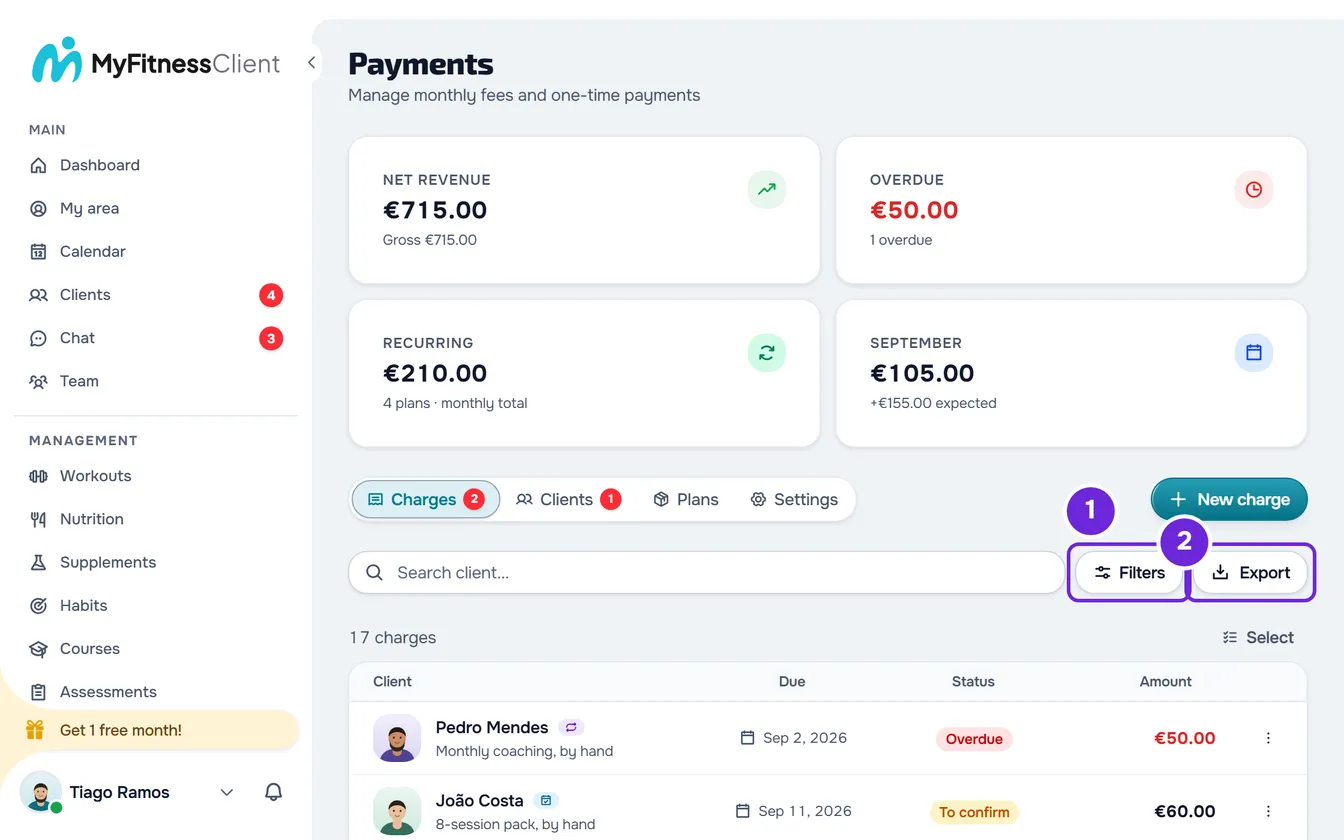
- In the side menu, under Management, select Payments. The page opens on the Charges tab.
- Optional: to export only some of the charges, select Filters 1 and choose, for example, the Period and the Status. The list then shows only the charges that match the filters.
- Select Export 2, next to Filters (on a narrow screen, only the icon). While the file is being prepared, the button shows that it is loading.
- If the list has more than 5,000 charges, the “Only the first 5,000 rows” window appears. Select Export to download the first 5,000, or Cancel to choose a shorter period first.
Your browser downloads the file. The name combines the start and end dates of the period, for example cobrancas_2026-09-01_2026-09-30.csv with Last month in October 2026. Without a start date, the name has “inicio” and, without an end date, “hoje”: with the All time period, the file is called cobrancas_inicio_hoje.csv. The rows come in the same order as the list, and these are the first 5,000 when the list has more.
Export from Settings
Only the workspace owner has the Settings tab, where you choose the period before exporting. On a wide screen, in the Export row, select Download CSV; on a narrow screen, select the Export row itself. In the Export window, choose All time, Today, 7 days, This month, Last month, This year or Custom, and select Download CSV. With Custom, the button only becomes active after you choose both dates, From and To.
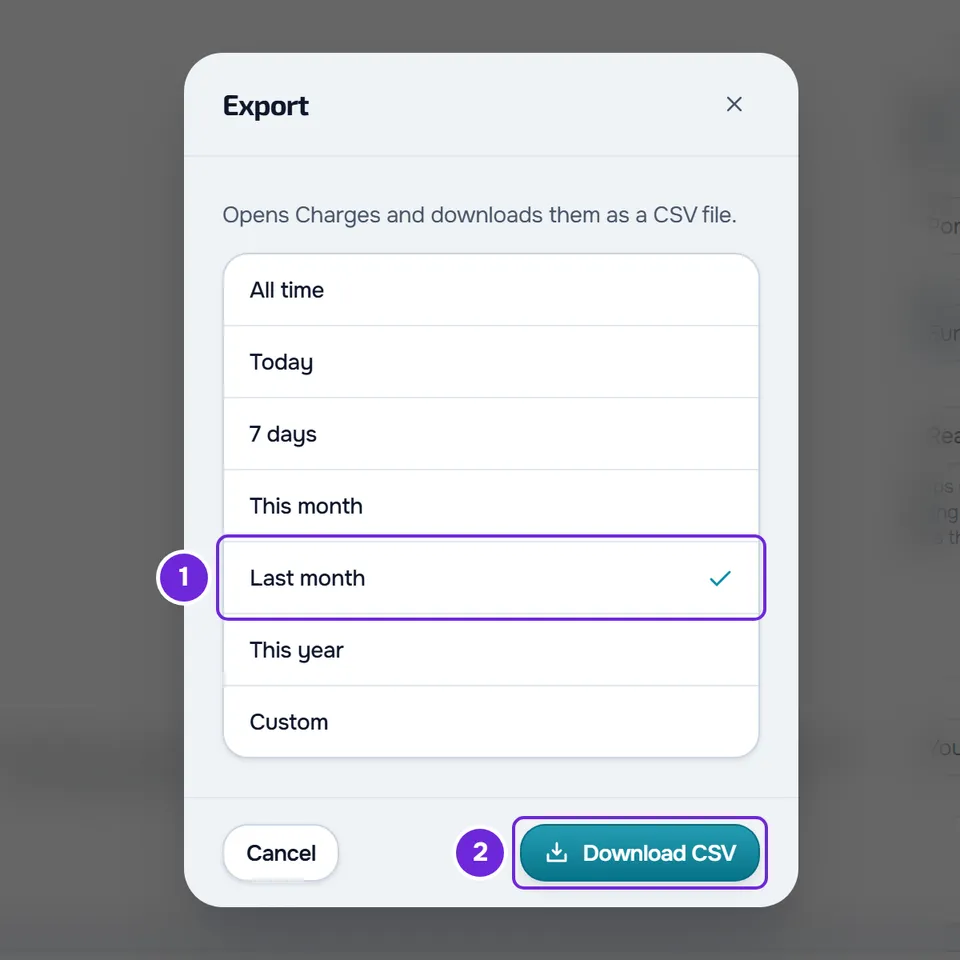
The page switches to the Charges tab, with only that period in the filters: the search and the other filters you had are cleared. When the list finishes loading, the export runs as in step 3, with the same notice if there are no charges and the same window if there are more than 5,000. If the list does not load, nothing is exported.
Export one client's charges
In the client's profile, on the Payments tab, the History list has the same Export button. The file includes only that client's charges, with the filters you turn on there. On the Payments page, you get the same result with an active or scheduled client chosen under Filters > Client.
What the file contains
The file has one row with the column names and one row per charge, with 11 columns in this order. The column names and the values come in the language you are using the site in.
| Column | What it contains |
|---|---|
| Date | The charge's due date, in year-month-day format. For paid subscription invoices and course sales, the day of the payment. For a subscription that Stripe could not charge, the start of the period that was left unpaid. |
| Client | The nickname you gave the client or, without a nickname, their name. |
| Description | The description of a charge made by hand. Empty for subscription invoices and courses. |
| Type | One-off, Recurring, Pack or Course. |
| Plan | The name of the plan, pack or course. Empty for a one-off charge. |
| Status | To pay, Overdue, To confirm, Paid, Cancelled or Refunded. A charge the list shows as To return comes out as Paid. |
| Amount | The amount with two decimal places and a point as the decimal separator, for example 45.00. |
| Currency | The three-letter currency code. |
| Method | How it was paid, for example Cash, Transfer or MB Way, and Online for everything that goes through Stripe. Empty when no method is recorded. |
| Paid on | The day of the payment, in the workspace owner's time zone. Empty when there is no payment. |
| Receipt | The link to the Stripe receipt, when there is one. |
- The Period picks charges by the Date column: with Last month, a charge that fell due last month goes into the file even if it was paid this month.
- The columns are separated by commas and the file is in UTF-8, ready for Excel on Windows to read accented characters.
- Text that starts with
=,+,-or@gets an apostrophe in front, so the spreadsheet does not treat it as a formula.
Common problems
“Nothing to export with these filters”
The list has no charges with the search and filters you have on, so no file is downloaded. Remove filters or choose another period and select Export again.
An error appears and the file does not download
- “Connection error.”: the browser did not reach the server, for example because there is no internet connection. Select Export again when the connection is back.
- “The operation could not be completed.”, followed by a request to try again, or “We could not export. Try again.”: the server could not prepare the file. Select Export again.
“Too many requests. Wait a moment.”
You made more than 10 exports in one minute. Wait a minute and export again.
The file only has 5,000 charges
Each file holds at most the first 5,000 charges in the list. To get them all, export in parts with shorter periods, for example month by month with Custom.
If this did not solve it, contact support with the filters you had on and the exact message that appeared.
Questions
Does the file work as an invoice?
No. It is a list of the charges, for you to look through or hand to whoever does your accounting. For receipts of online payments, see Receipts and invoices for client payments.
Can I choose the columns?
No. The file always has the 11 columns, in the same order.
The spreadsheet shows everything in a single column. Why?
The file separates the columns with commas. A spreadsheet that uses another separator, for example the semicolon, may not split them when it opens the file. Import it as text and choose the comma as the separator.
Can my clients also export their payments?
Yes, in their payments area, with other columns. See View your payments, filter them and export them to CSV.
Is the export logged?
Yes. MyFitnessClient logs each export with the number of rows and the filters used, without the file's contents or the search text.