
Before you start
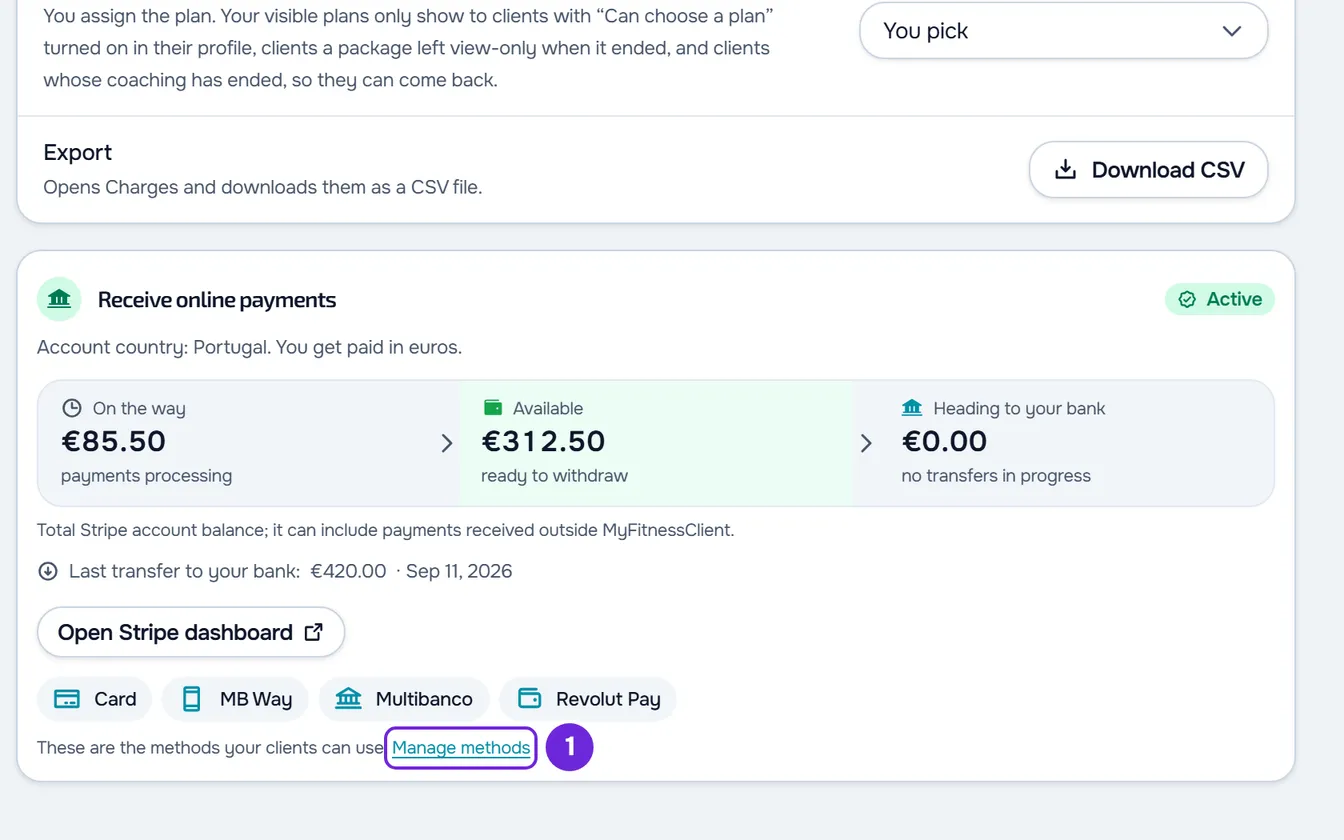
- Your Stripe account must be connected and the Receive online payments card must show the Active badge. Only with that badge does the card have the link to manage the methods. To connect the account, see Connect Stripe to receive online payments from clients.
- Only the workspace owner has the Settings tab in Payments. In a team workspace, members do not see the methods and cannot change them.
- The methods are saved in your Stripe account, and the window reads them from there every time you open it.
Steps
To choose the online payment methods:
- In the side menu, in the Management section, select Payments.
- Select the Settings tab. On a wide screen, the Receive online payments card appears next to the list of settings.
- On a narrow screen, select the Online payments row, which shows Active. The card opens in a panel.
- On the card, after the Open Stripe dashboard button, select Manage methods 1. The Payment methods window opens.
- Turn on the toggle 2 for each method you want to offer and turn off the toggle for those you do not want. Card 1 has no toggle: it is always on.
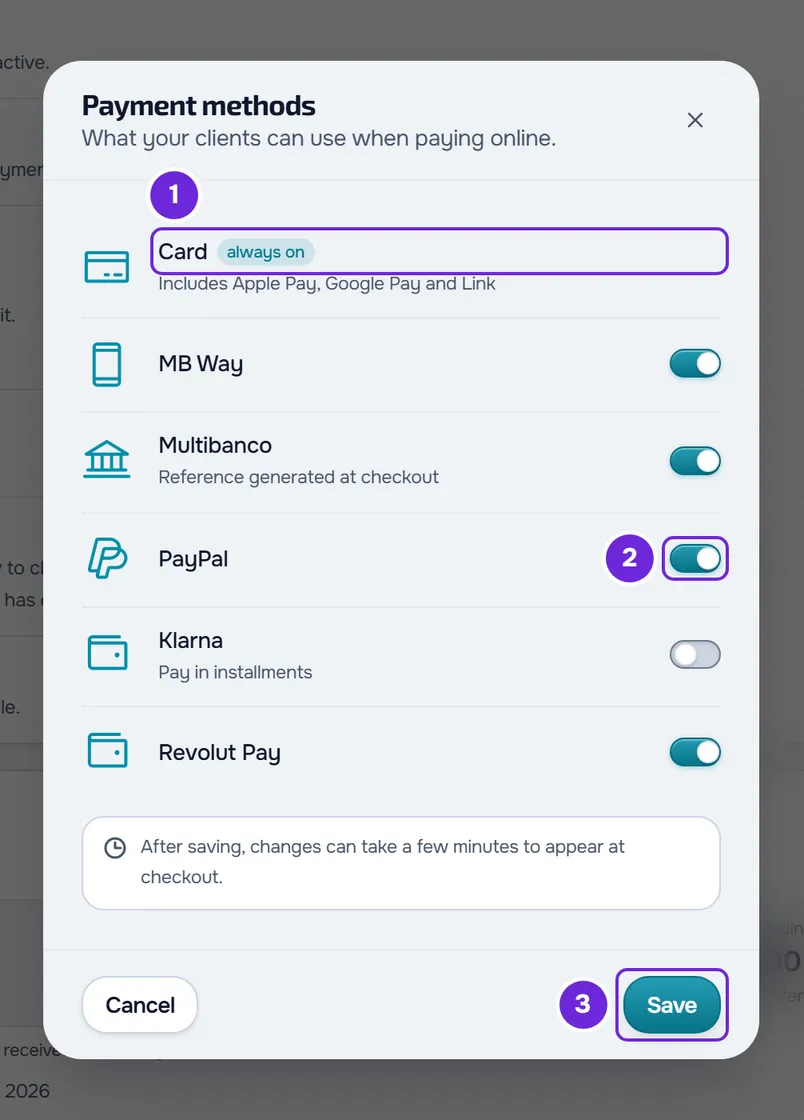
- Select Save 3. The button is only available when at least one toggle differs from what was saved.
The window closes and, after the Open Stripe dashboard button, the card shows the methods that are turned on, with Card first. On a narrow screen, up to 3 methods appear along with a button showing how many others there are, for example “+2”, which also opens the window. The window warns that the change can take a while: “After saving, changes can take a few minutes to appear at checkout.”
The methods in the window
The window shows Card and the methods your Stripe account can offer:
| Method | Accounts that show it | What to know |
|---|---|---|
| Card | All, with the tag “always on”. | Cannot be turned off. Includes Apple Pay, Google Pay and Link, which MyFitnessClient turns back on in your Stripe account every time you save. Apple Pay and Google Pay only appear on the devices and browsers that support them. |
| MB Way | Only Stripe accounts from Portugal. | Only for payments in euros. It can stay pending in your Stripe account until Stripe activates it. |
| Multibanco | Only Stripe accounts from Portugal, with the note “Reference generated at checkout”. | Only for payments in euros. The client gets a reference to pay with, and the charge stays unpaid until the payment arrives and Stripe confirms it. |
| PayPal | All. | You turn it on or off yourself. |
| Klarna | All, with the note “Pay in installments”. | You turn it on or off yourself. |
| Revolut Pay | All. | You turn it on or off yourself. |
Turning a method on does not guarantee that the client sees it. The Stripe payment screen only shows the methods turned on that Stripe considers eligible for that payment, based on the amount, the currency and the device. Each method has its own Stripe rules, such as amount limits.
What changes after saving
- The methods apply to the online payments your clients make through MyFitnessClient: charges, plans and courses.
- If a client opened the payment screen of an unpaid or overdue charge and left it halfway through, that screen expires. When they select Pay now again, a new one opens, already with the new methods. The charge stays unpaid, and payments already completed do not change.
- On a Stripe account from Portugal, MyFitnessClient asks Stripe to activate MB Way and Multibanco on your account every time you save. Until Stripe activates a method on your account, clients do not see it, even with the toggle on.
Common problems
I do not see Manage methods
The Manage methods link only appears with the Active badge. With Verification pending, Under review or Action needed, first finish connecting to Stripe, as explained in Connect Stripe to receive online payments from clients. In a team workspace, only the owner sees the Settings tab.
I do not see MB Way or Multibanco in the window
These two methods only exist on Stripe accounts from Portugal. Your Stripe account is from another country. While the account is not yet charging or getting paid, change the Country row and, if the card shows Action needed, select Continue on Stripe. Once the account is active, the country can no longer change: see Choose the country and currency you charge in.
I turned a method on and the client does not see it
Wait a few minutes and ask the client to open the payment again. If the method still does not appear, Stripe does not consider it eligible for that payment or has not activated it on your account yet: MB Way and Multibanco only appear in payments in euros, and MB Way may be pending in your Stripe account.
An error message appears in the window
- “Couldn't load the methods. Try again.”: reading the methods from Stripe failed, for example because you went over the limit of 10 requests per minute to Stripe, which is shared with the balance and the Stripe dashboard. Wait a minute and select Try again.
- “Couldn't update the payment methods.”, when saving: Stripe did not accept the change and the methods stayed as they were. Select Save again.
- “Too many requests. Wait a moment.”, when saving: you went over the limit of 10 requests per minute to Stripe. Wait a minute and select Save again.
- “Couldn't save. Try again.”: saving failed. Close the window and open it again to see what was saved, then try again.
If this did not solve it, contact support with the exact message, the error reference if the window shows one, and the methods you wanted to turn on or off.
Questions
Can I turn off Card?
No. Card is the basis of online payments and is always on, with Apple Pay, Google Pay and Link.
Can I offer SEPA Direct Debit, iDEAL or Bancontact?
Not through the window, which only shows the methods in the table. On a Stripe account from Portugal, MyFitnessClient removes SEPA Direct Debit, iDEAL, Bancontact, EPS and Przelewy24 from all payments, even if they are turned on in your Stripe account. On an account from another country, the payment screen may also show other methods that are turned on in your Stripe account.
Do the payments I record by hand change?
No. These methods only apply to online payments. You keep recording cash or bank transfer payments yourself: see Mark a charge as paid.
Do the fees change with the method?
The fees are Stripe's and depend, among other things, on the method. See Fees on client online payments.
What does the client see when paying?
The Stripe payment screen, with the methods you turned on that Stripe considers eligible. See Pay what you owe your professional online with Pay now.