
Before you start
- In a team workspace, you need the Nutrition > Edit permission. Without it, the plan opens read-only.
- The food being replaced must have calories, more than 0: each substitution's quantity is calculated from them. For the system suggestions, it also needs protein, carbs and fat.
- Substitutions don't count towards the meal's calories or macros, or towards the Daily Goals: the totals add up only the main food.
Steps
To add substitutions for a food:
- In the side menu, select Nutrition and open the plan. In Calendar mode, select the meal in the calendar to open its card.
- In the food's row, select Add substitution: on a computer, the button appears when you move the pointer over the row; on a small screen, it's the two-arrow icon. Right-clicking the row also shows it. The window with the same name opens.
- Optional: in Match 1, choose what the suggestions keep. Calories is selected by default. With Protein, Carbs or Fat, the suggestions keep that macro, and you can choose more than one.
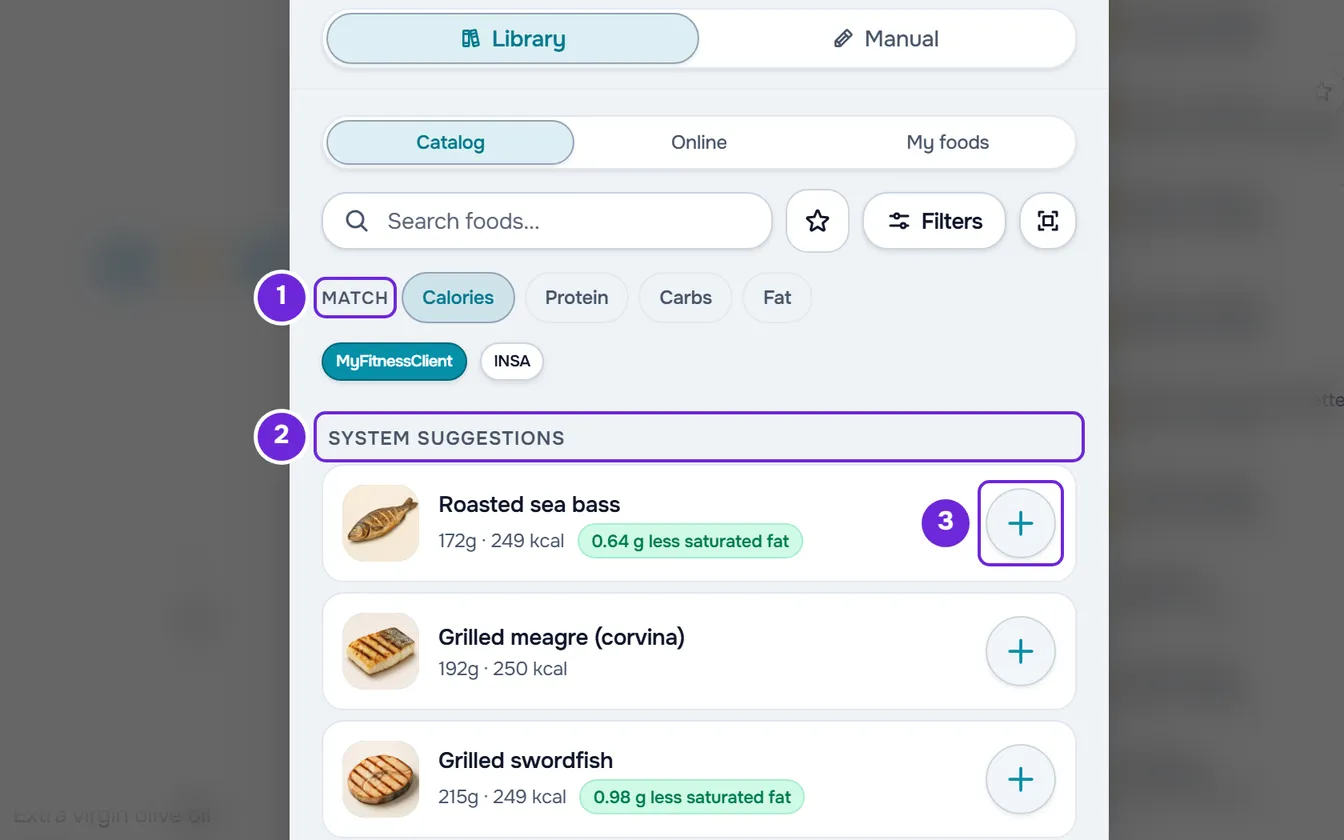
- In System suggestions 2, at the top of the list, select the circle with a + 3 for each food you want to offer. Each suggestion already comes with the equivalent quantity, the calories and up to three green tags, for example “40 fewer kcal”.
- Optional: to offer a food that isn't in the suggestions, look it up in the search and select it. Its food card opens with the quantity that gives the same calories as the main food; change it in Quantity if you need to and confirm with Select.
- Select Add substitution at the bottom of the window. The button shows in brackets how many foods you've marked.
The window closes and “Substitution added” appears or, with several, for example “3 substitutions added”. Under the food you get the list of substitutions, open and connected to it by a line, and the clients who have this plan start seeing them.
For a food you can't find, the Manual tab lets you enter it by hand: with the calories filled in, the window shows the Equivalent quantity and writes it into the quantity field; confirm with Add substitution at the bottom of the window. More about the search, the filters and the barcode scanner in Add, edit and remove foods in a meal.
Manage a food's substitutions
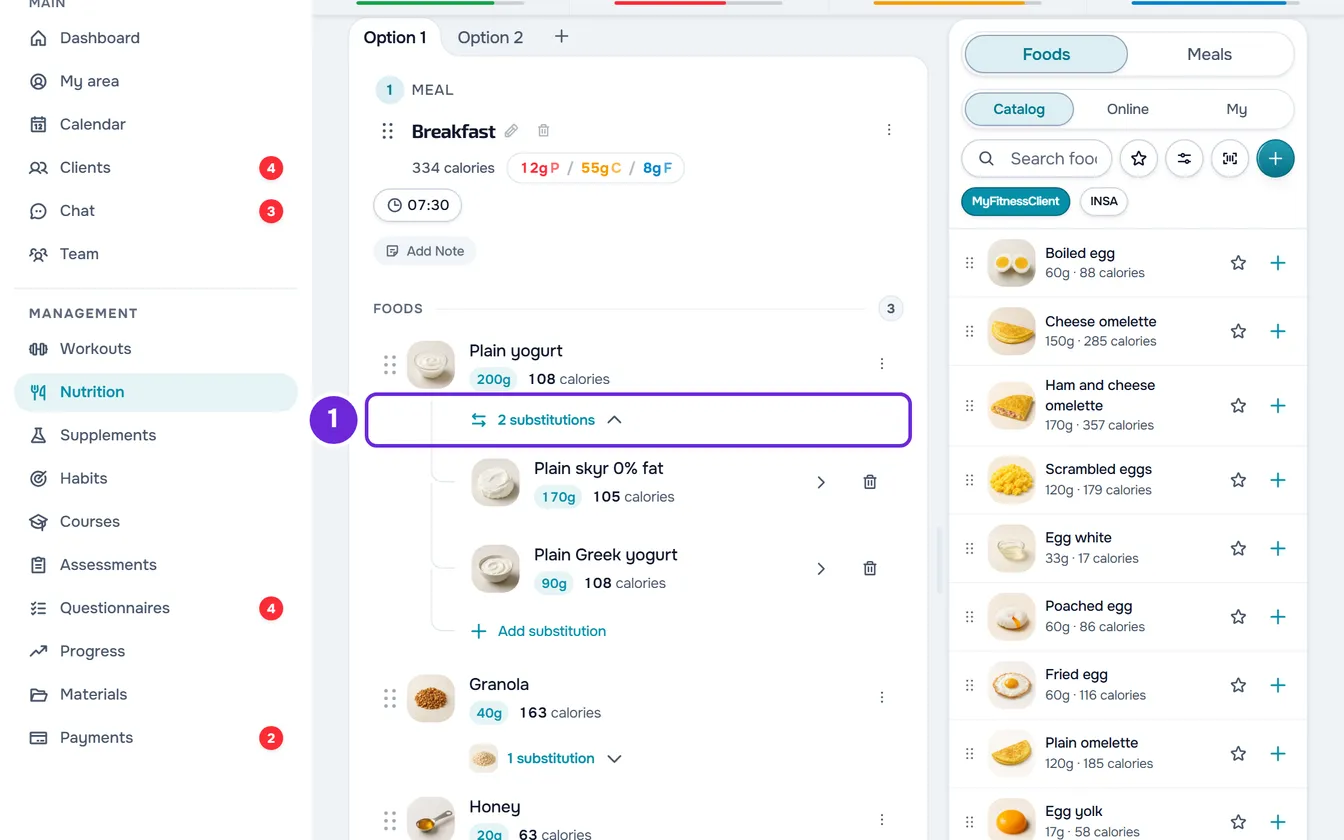
- Under a food with substitutions, the row with the thumbnails and their number, for example “2 substitutions”, opens and closes the list.
- To add more, open the list and select Add substitution at the end of it. The button in the food's row only appears while the food has no substitutions.
- Selecting a substitution opens its food card, with Edit and Use as primary. Edit changes the name, quantity and values of that substitution only, and “Substitution updated” appears.
- Use as primary swaps the two: the substitution becomes the meal's food, with its own quantity and values, and the food that was there moves to the list, in its place. “Food replaced” appears, and the meal's totals now count the new main food.
- The row's bin icon deletes the substitution: the window asks, for example, “Delete “Rice”?”, and you confirm with Delete. “Substitution deleted” appears. With no substitutions left, the list closes and the button returns to the food's row.
- Right-clicking a substitution opens Edit, Use as primary and Delete.
- Remove food, in the food's ⋮, also deletes its substitutions.
- Each change is saved straight away. In meals with options, each option has its own foods and each food its own substitutions.
When you change the main food
Each substitution's quantity is calculated when you add it. If you later change the main food's calories, protein, carbs or fat in Edit Food (changing the quantity changes them), or use a substitution as the main food, the “The substitutions no longer match the main food” window opens. Changing only the name or the image doesn't open it.
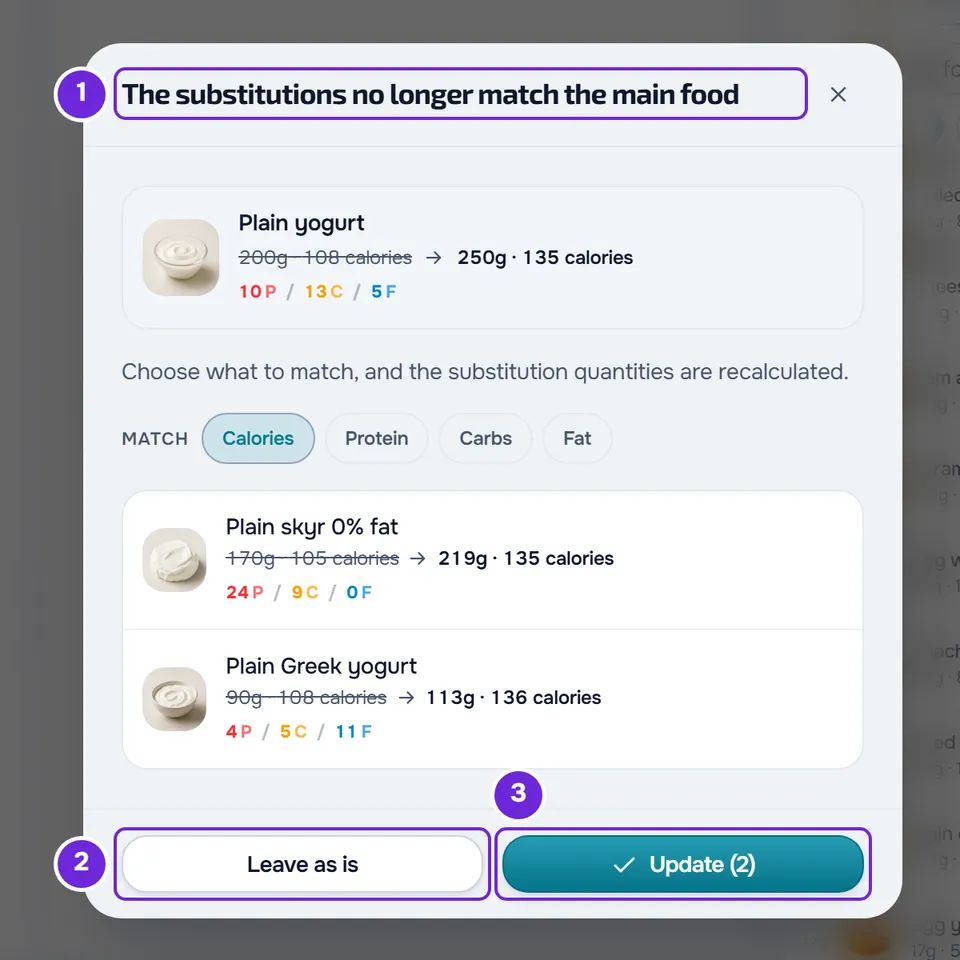
- At the top, the main food shows the previous quantity and calories, struck through, and the current ones.
- In Match, choose what the substitutions should keep: Calories is selected by default, and Protein, Carbs and Fat can be combined. The list recalculates with each choice and saves nothing until you confirm.
- Each substitution shows its current quantity, struck through, and the new one. “already matched” means it doesn't need to change; “at the quantity limit” means the quantity has reached the unit's minimum or maximum and stays close to the value, but not equal.
- In red, the ones that can't be recalculated, with the reason: “The main food doesn't have this value to match”, “This substitution has nothing to match on” or “Quantity can't be read”. Those stay as they are.
- Leave as is closes the window without changing anything. The Update button, with the number of substitutions that change in brackets, saves the new quantities, and “Substitution updated” appears or, with several, for example “3 substitutions updated”. If some of them are not saved, the window closes anyway and “Some substitutions could not be updated” appears: the ones that failed keep their previous quantity. With nothing to change, it's inactive.
What the client sees
Under the food, the client sees the row with the number of substitutions and can swap the food for one of them on that day; the plan you built doesn't change. With strict mode on, they can still use your substitutions, but they don't see the system suggestions. See What the client sees and gets from the meal plan and, on the client's side, Swap a food for an equivalent one.
Common problems
Add substitution doesn't appear in the food's row
If the food already has substitutions, open the row with their number and use the button at the end of the list. On a computer, the row's button only appears with the pointer over the row; right-clicking the row also offers it. If the plan opens read-only, you're missing the Nutrition > Edit permission. If you copied a food and the plan shows “Paste here” rows, the foods stay locked until you select Done in the copy bar; pasting doesn't end the copy.
“This food has no valid calorie value, so an equivalent substitution cannot be calculated.”
The main food has no calories, or has 0, and nothing can be chosen. Close the window, select Edit Food in the food's ⋮, fill in the calories and save; then go back to Add substitution. On a row in the list, “Equivalence unavailable” means there's no equivalent quantity for that food, usually because it has no calories. An exclamation mark in the circle, instead of the +, means the food can't be chosen, for example because it lacks protein, carbs or fat. In both cases, choose another one.
No system suggestions appear
The suggestions only appear with the search empty and don't appear with INSA chosen in the Catalog. The main food must have calories, protein, carbs and fat, and the list never includes the food itself or the substitutions it already has. With a macro chosen in Match and no equivalent food, “No equivalent swaps for this filter: this food may not have that macro. Try another, or use search.” appears. How the list is chosen is in How substitution suggestions are chosen.
“Some substitutions could not be added”
Some of the marked foods weren't saved, for example because the connection dropped. The window stays open with the selection: check the connection and select Add substitution again. Only the missing ones go through, so none ends up duplicated.
If this didn't solve it, contact support with the plan's name, the meal, the food and the exact message that appeared.
Questions
Do substitutions go with the food when I copy or duplicate?
Yes. Duplicate on the meal, duplicating the plan and dragging the food to another meal all take every substitution with them. Copy on the food takes up to 50. See Duplicate a meal plan and Copy and paste meals, supplements, questions and lessons.
Do substitutions appear in the plan's PDF?
Yes. Under each food with substitutions, the PDF shows “You can swap it for” and each substitution with its quantity and calories. See Export the meal plan as a PDF or as text.
Are the suggestions I see the same ones the client sees?
Not necessarily. When the client opens the swap for a food, the system calculates the suggestions again, for them, and with strict mode on it shows them none. Your substitutions always appear to them. See How substitution suggestions are chosen.