
Interactive tutorial
Opens in the app and needs you to be signed in.
A meal plan's distribution mode decides which day each meal falls on and, therefore, what each client with the plan gets on each day. You choose the mode when you create the plan, as in Create a meal plan, and you can change it later without deleting meals. In the editor, the mode shows in the chip under the plan name.
The three modes
A new plan can be Flexible, Weekly or Calendar:
| Mode | How you organize the meals | What the client gets |
|---|---|---|
| Flexible | In a single list, with no days. | The same meals every day, in no set order. |
| Weekly | By day of the week, in seven tabs, from MON to SUN. | The meals for the day of the week they're on, in their time zone. The week repeats for as long as they have the plan. |
| Calendar | In a grid of days grouped into weeks, with the plan's duration, up to 365 days. | The meals for the day of the cycle they're on. Day 1 is the client's start date on the plan and, at the end of the cycle, it goes back to day 1. |
In the Weekly and Calendar modes, a day with no meals is a day on which the client gets no meals from the plan. In these two modes you can also adjust the calorie and macro goals for a day and, in Calendar, for a week, as in Set a plan's daily calorie and macro goals. What the client sees on each day is in What the client sees and gets from the meal plan.
Older plans in Sequential
Older plans may be in Sequential mode: numbered days that the client follows in order. They move to the next day when they log all of the day's meals as eaten and, after the last day, go back to the first. You can no longer choose this mode when you create a plan or change mode: it only appears in the options of a plan that already has it, so you can keep it or switch to another. It has day tabs like Weekly, with Add day to open the next day's tab; deleting a day's meals removes that day from the list.
Which one to choose
- Flexible: the same meals work for every day.
- Weekly: the plan changes with the day of the week, for example between training days and rest days.
- Calendar: the plan changes over several weeks, for example by phases. To build it, see Build a meal plan by weeks in Calendar mode.
Days in Weekly mode
In a Weekly plan, the editor's Meals section has a row of tabs from MON to SUN, each with the number of meals for that day. The editor opens on Monday. Select a tab to see and edit that day's meals: a new meal goes into the selected day, and the Daily Goals card adds up only that day's meals and compares them with that day's goal.
When the selected day has meals, the Meals title row shows two buttons:
- Clear day, with the day on the button, for example “Clear day (THU)”; on a phone, only the trash can icon. It opens the “Clear day?” confirmation, with the number of meals that will be deleted, and deletes them all when you select Delete, with no way to undo. “Day cleared” appears and the day stays in the plan, empty: the seven days always exist.
- Copy day (Copy on a phone): copies the day's meals so you can paste them into another day of a Weekly plan, this one or another. See Copy and paste meals, supplements, questions and lessons.
To move a meal to another day, drag it by its handle and hold it over the other day's tab. After a moment, the meal moves to that day, a message such as “Moved to TUE” appears, and you drop the meal in the position you want. The details are in Add and organize the meals in a meal plan.
Changing a plan's mode
There are two ways: the mode chip, which opens Change Distribution Mode and saves with Confirm, and the plan's Settings, under Distribution Mode, which save with Save. The steps are in Change a meal plan's name, cover and duration. In a team workspace, you need the Nutrition > Edit permission.
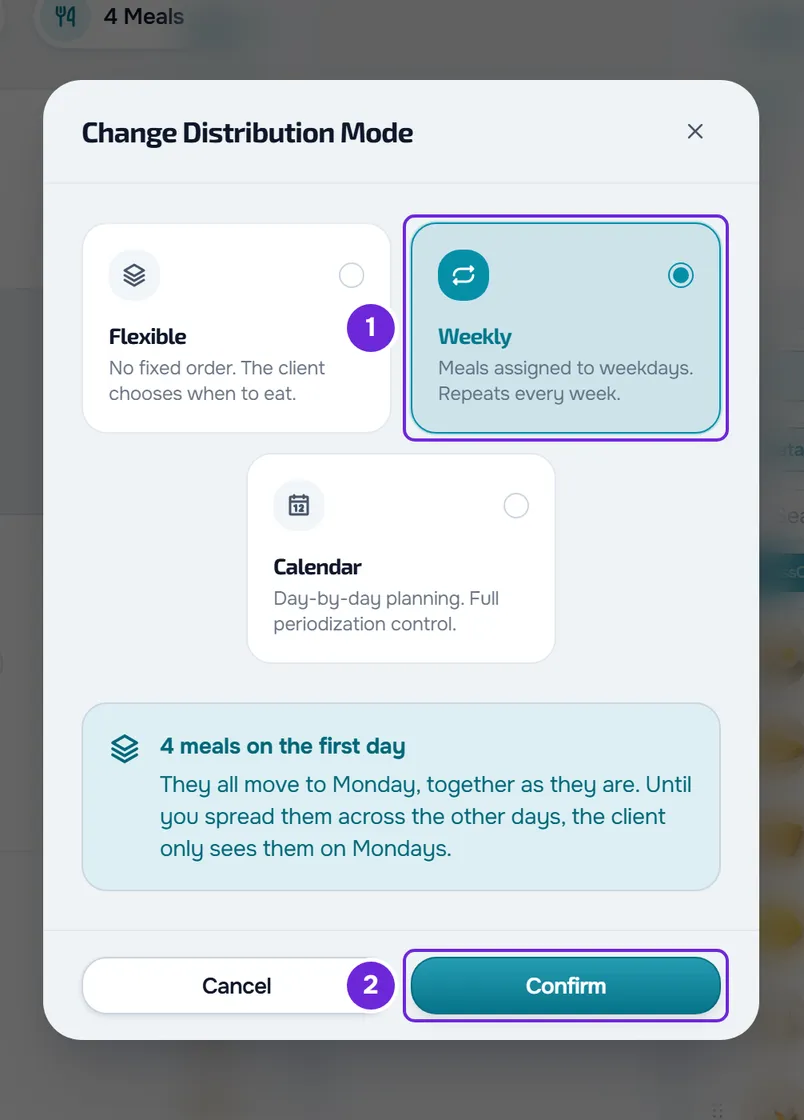
Changing mode never deletes meals: MyFitnessClient moves them between days, and the meals of the same day always stay together, with each meal's options. When the plan has meals, the window shows one of these notices before you save:
| Notice | When it appears | What happens to the meals |
|---|---|---|
| Exact conversion | From Weekly to Calendar; from Calendar to Weekly, with meals only on days 1 to 7; to Flexible, with all the meals on the same day. | Each meal stays on the equivalent day: Monday is day 1 of Calendar and Sunday is day 7. |
| “N meals on the first day” | From Flexible to Weekly or to Calendar. | They all go to Monday or to day 1. In Weekly, until you spread them over the other days, the client only gets them on Monday. |
| Positions merge | To Flexible, with meals on more than one day; from Calendar to Weekly, with meals after day 7. | To Flexible, all the meals form a single set, which the client gets every day. To Weekly, days from different weeks merge into the same day of the week: day 8 merges into Monday. |
In a Sequential plan, day 1 becomes Monday in Weekly and day 1 in Calendar, day 2 becomes Tuesday and day 2, and so on; in Weekly, day 8 merges into Monday, with the Positions merge notice.
What changes along with the mode
- Goals adjusted per day or per week only carry over from Weekly to Calendar, where each day of the week goes to the same day of week 1, and from Calendar to Weekly when they're all in week 1. In any other change, they're deleted and the base goal stays. Before you save, the window warns: “Changing the mode will remove per-period goals. The base goal stays.”
- When you switch to Calendar, the plan's duration is also the client's cycle. MyFitnessClient keeps the longer of the plan's duration, or the one you enter in Settings, and the last day with meals. Coming from a Weekly plan with meals, the cycle is at least 7 days, and an empty plan with no duration gets 7 days.
- When you switch to Calendar, clients with this plan who have no start date get today's date, in each one's time zone, or the day their access opens, if the access is scheduled. Day 1 of each client's cycle is that date.
- Clients with this plan start getting the meals in the new mode the next time their Nutrition loads the plan, with no notice.
Common problems
Changing the mode shows an error
The change wasn't saved: the plan stays in the previous mode, with the meals where they were. The message gives the cause, for example “Connection error.” when the internet connection fails, or “Server error.”, which asks you to try again. When the cause has no message of its own, “Error changing mode.” appears or, in Settings, “Error saving”. Check the connection and try again.
I switched to Weekly and the client only has meals on Monday
Coming from Flexible, the meals all go to MON. Spread them out: drag each meal to the right day's tab or, to repeat the same meals on another day, use Copy day and paste them into that day.
I switched to Calendar and the client has no meals on several days
The meals stayed on day 1 and the other days of the cycle are empty. Copy day 1 to the other days of the grid, as in Build a meal plan by weeks in Calendar mode, or, if you want the same meals every day, go back to Flexible mode.
I changed mode and the goals of some days disappeared
Per-period goals only carry over between Weekly and Calendar, and from Calendar to Weekly only when they're all in week 1. Set them again, as in Set a plan's daily calorie and macro goals.
If this didn't solve it, contact support with the plan name, the mode it had, the mode you chose and the exact message that appeared.
Questions
Do I lose meals when I change mode?
No. Changing mode moves meals between days, but doesn't delete any. What you can lose are the per-period goals.
Can I go back to the mode I had?
Yes: change the mode again, but check the days. Coming from Flexible, meals always go to Monday or to day 1, whatever days they had before. Meals that merged into a single day, with the Positions merge notice, don't split apart again, and per-period goals that were deleted don't come back.
On which day does a client's cycle start in Calendar?
On the client's start date on the plan, which you choose when you assign it: see Assign a meal plan to one or more clients. At the end of the cycle, it goes back to day 1, until the client's end date, if there is one.