
Before you start
- In a team workspace, you need the Supplements > Create permission. Without it, the Create plan button does not appear. To change the plan after it is created, you also need Supplements > Edit.
- On the creation screen, nothing is saved until you select Create. If you give up halfway, the list of plans stays as it was.
- Creating the plan does not send it to anyone. The client only receives it after you assign it to them, as in Assign a supplement plan to clients.
- If the account has more active clients than the subscription allows, creating and changing plans is refused with “You have more active clients than your plan allows. Choose which to keep or upgrade your plan.” See You have more active clients than your plan allows.
Steps
To create a supplement plan:
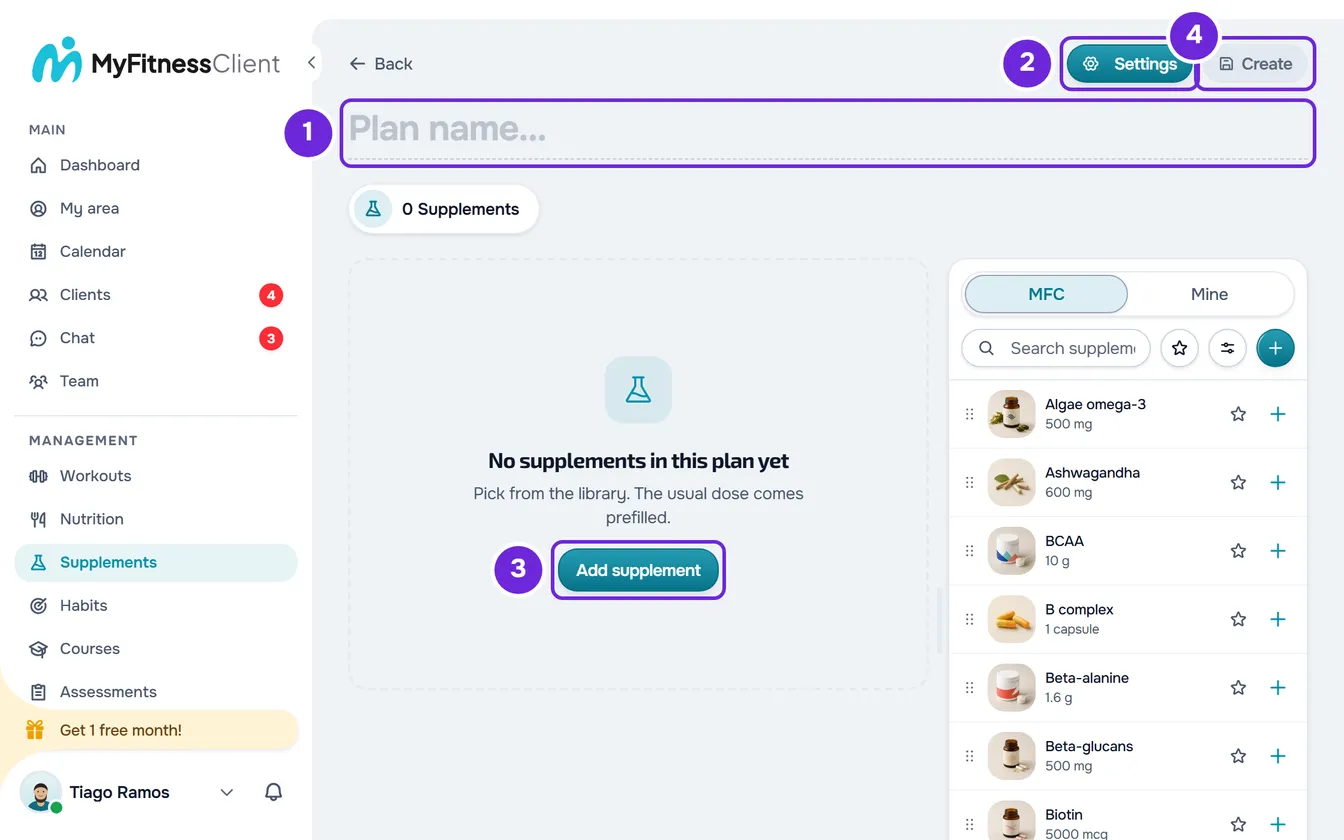
- In the side menu, in the Management group, select Supplements. The page opens on the Supplement plans tab (Plans on a phone).
- Select Create plan. The creation screen opens, with the cursor in the plan name.
- In the large title, where Plan name... 1 appears, type the plan name, up to 100 characters.
- Optional: to write a description or choose the color, the icon or a cover, select Settings 2, make the changes and select Save.
- Select Add supplement 3. A window opens with the supplement library.
- Select a supplement and then Add to plan. The supplement goes into a card, with the usual dose already filled in. Repeat for each supplement in the plan.
- Optional: on each card, adjust the amount, the frequency and the intakes, as in Set a supplement's amount, frequency and doses.
- Select Create 4. The plan is saved with all the supplements at once and the plan page opens.
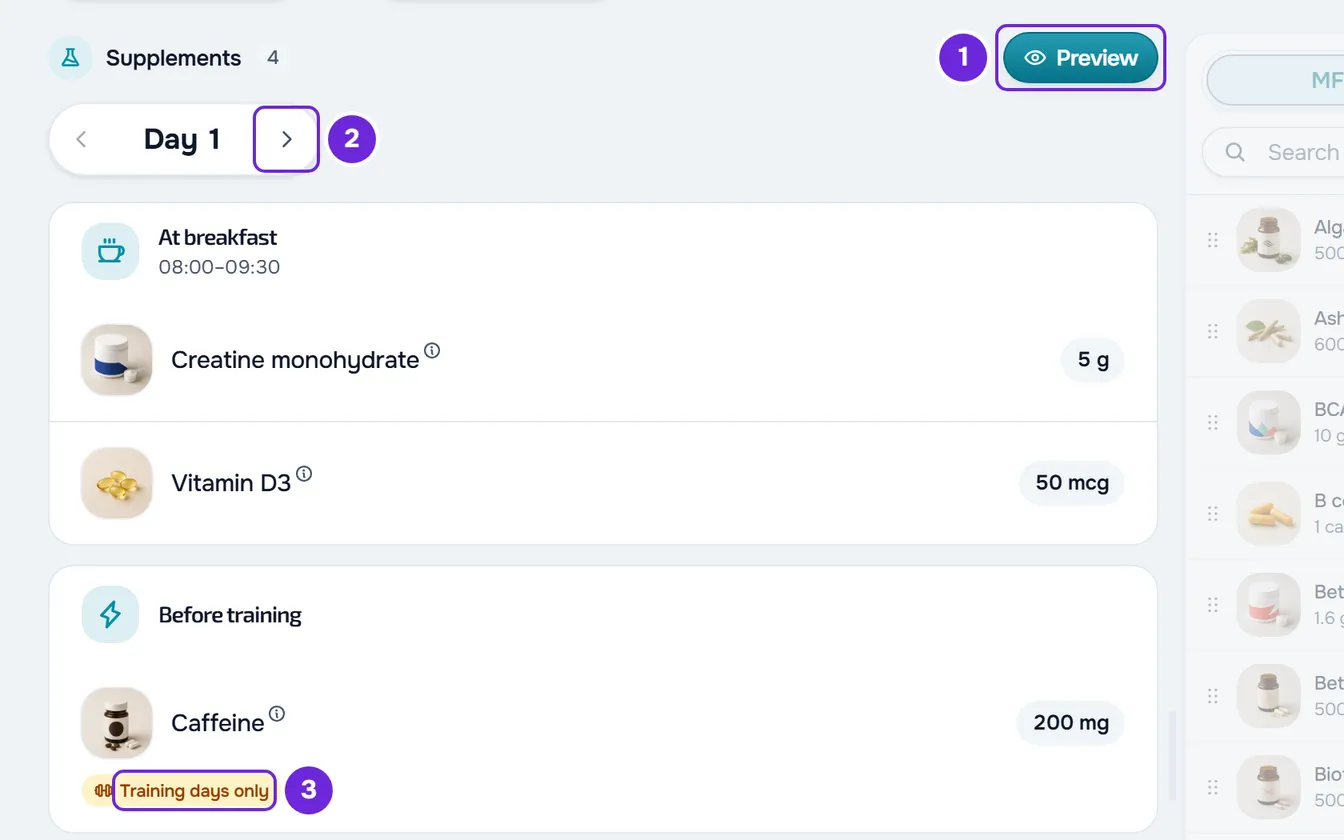
- Optional: to see the plan as the client will receive it, select Preview 1, at the top of the card list, next to the supplement count, and change the day with the arrows 2.
In the Supplement plans list, the new plan appears with “No clients”. On the plan page, the first chip under the name says Assign to Client: that is where you assign it.
On a wide screen, such as a computer's, the creation screen and the plan page also show the library panel next to the cards, from which you can drag supplements into the plan. The details are in Add and arrange supplements in a supplement plan.
If you opened the creation screen from a client's profile, after Create, the dates step for that client opens straight away. See Assign a supplement plan from a client's profile.
The plan page saves on its own
Once created, the plan has no save or publish step: what you change reaches the clients who already have it right away.
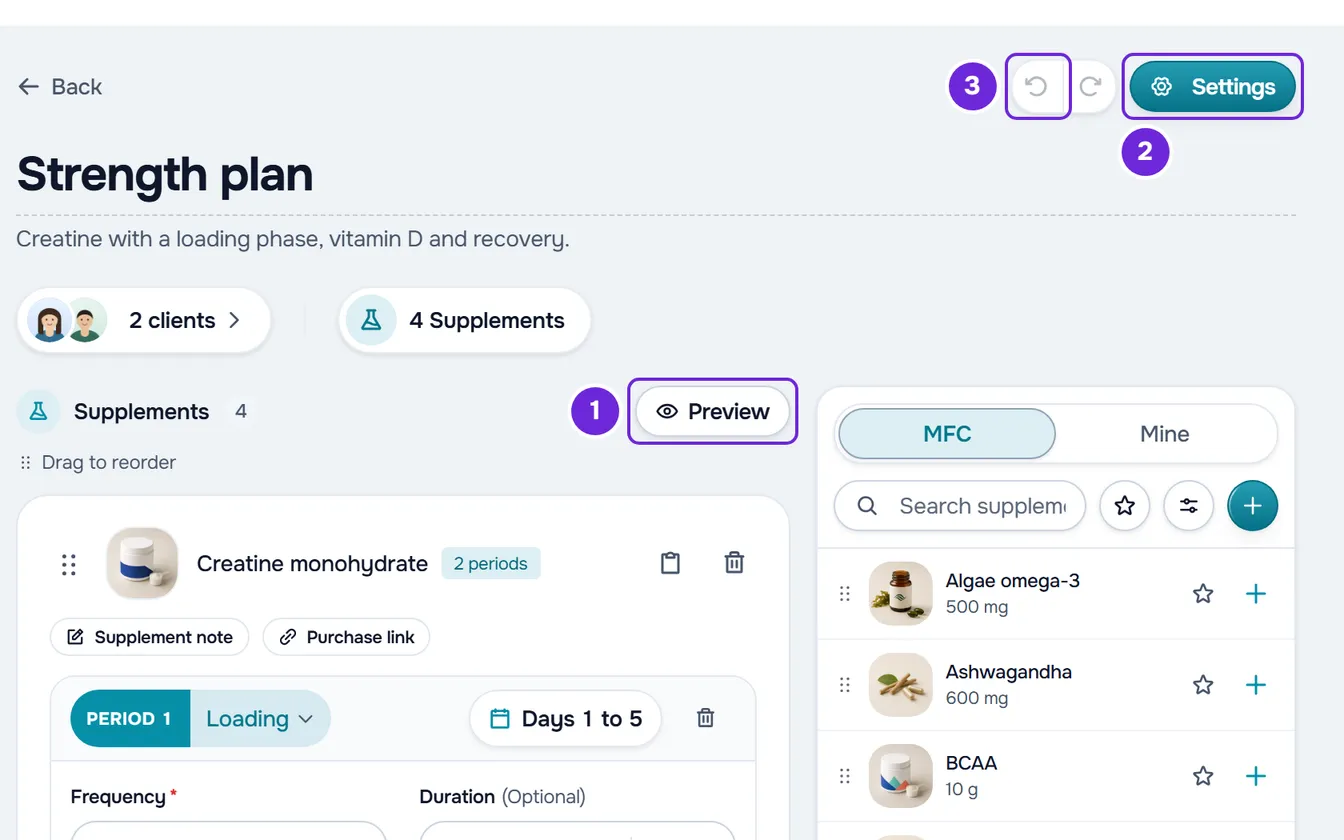
- Each change to the supplements saves on the spot. When you change a card or remove a supplement, “Saving...” appears and then “Changes saved!”, which disappears after 2 seconds. Amounts, durations and intake notes save half a second after the last keystroke.
- To change the name, select the title, type and press Enter or leave the field. An empty name is not saved: the plan keeps the previous name, which shows again when the page reloads. The title does not let you type more than 100 characters; in Settings, a longer name shows “Invalid data. Check the fields.” and is not saved either.
- Settings opens the name, the description and the appearance again. The change saves when you select Save. The description appears on a line under the name.
- Undo and Redo reverse and restore the changes to the cards, the order and supplement removals, up to 50 steps, while the page is open. Reloading or leaving clears that history. They do not undo the name, the Settings or the assignments.
Preview what the client receives
Preview swaps the cards for the plan's day, as the client will see it. Select it again to go back to the cards. The button only appears when the plan has at least one supplement.
- The day is the plan's, from 1 to 3650, not a specific client's. The preview opens on day 1. Holding down an arrow changes the days on its own.
- Day 1 is today: a supplement taken only on certain days of the week appears on the plan days that fall on those days of the week.
- The times are the default ones for each moment, for example 08:00 at breakfast and 20:00 at dinner, not a client's.
- An intake only for training days or only for rest days appears on every day the supplement is taken, with the label Training days only or Rest days only.
- A supplement with a period counted backwards from an event only appears after you choose a date in Event date.
- There is no client weight: an amount per kg appears without a calculation, for example “3 mg/kg”.
- Select a supplement's name to open the intake details. Purchase links appear at the end, in Plan products.
- On a day without intakes, “The client has nothing to take on this day.” appears.
- While you preview, the library panel is inactive.
If you leave before creating
With a name, a description, an appearance or a supplement on the creation screen, leaving through Back, the side menu or a link opens “Save before leaving?”:
- Discard leaves without creating the plan.
- Save and leave creates the plan, like Create, and opens its page. Without a name, a message asks for the plan name. Without a name, with an invalid value on a card or if saving fails, the window closes and you stay on the creation screen, with what you had already set up.
- To keep building the plan, close the window.
Without the Edit permission
In a team workspace, with Supplements > View and without Edit, the plan opens read-only, with the line “You can only view this. To make changes, ask whoever manages the team for edit permission.” There is no Settings, Undo, Redo, assignment or library panel, and each supplement appears on a summary card. Preview and the chip with the number of supplements keep working. Anyone with Create but without Edit sees the plan like this right after creating it.
Common problems
The Create button is disabled
The plan has no name yet, and spaces do not count. Type the name in the large title. While the plan is being created, the button is also disabled and says “Creating...”.
I select Create and the cursor jumps to a field on a card
That field has an invalid value and shows the error, for example “Choose between 1 and 3650 days.”. The plan is not created. Fix the value and select Create again.
“Paste a complete https:// link without spaces or sign-in details.”
One of the cards has a purchase link that does not start with https://, has spaces or has a username or password. The plan is not created. Fix the link in Purchase link, on the card, or delete it. The link rules are in Create and edit your own supplements, with a photo and a purchase link.
“Invalid data. Check the fields.”
The plan goes over a limit and is not created. This happens with more than 50 supplements, with a name over 100 characters typed in Settings or with a description over 5000 characters. Create the plan with up to 50 supplements and add the others on the plan page, or shorten the name or the description.
For any other failure, the error message appears and the plan stays on screen as it was: select Create again. If that did not fix it, contact support with the plan name, the exact message and the time it happened.
Questions
Does the client see the plan as soon as I create it?
No. The client only receives it after you assign it to them, from the start date you choose. See Assign a supplement plan to clients.
Can I create a plan from a client's profile?
Yes. In the profile's Supplements tab, in the Assign Plan window, Create plan opens this creation screen. After Create, the dates step for that client opens.
Does the client see the plan's name or cover?
No. The client sees the supplements and intakes of each day, without the plan's name, description or appearance. The appearance shows in your list of plans.
Can I create the plan without supplements?
Yes. Type the name and select Create. The plan stays empty and you add the supplements on its page.
Can I get Undo back after reloading the page?
No. The Undo history only exists while the plan page is open.