
Before you start
- A day before today opens read-only: it shows what was logged on that day and does not let you change anything until you unlock it.
- The Nutrition History only lists the days with at least one meal marked as eaten.
- Your clients and your team do not see these logs.
Steps
To fix a day that has passed:
- In the side menu, select My area > Nutrition.
- Next to the page title, select History. On narrow screens, such as a phone's, select Actions > History.
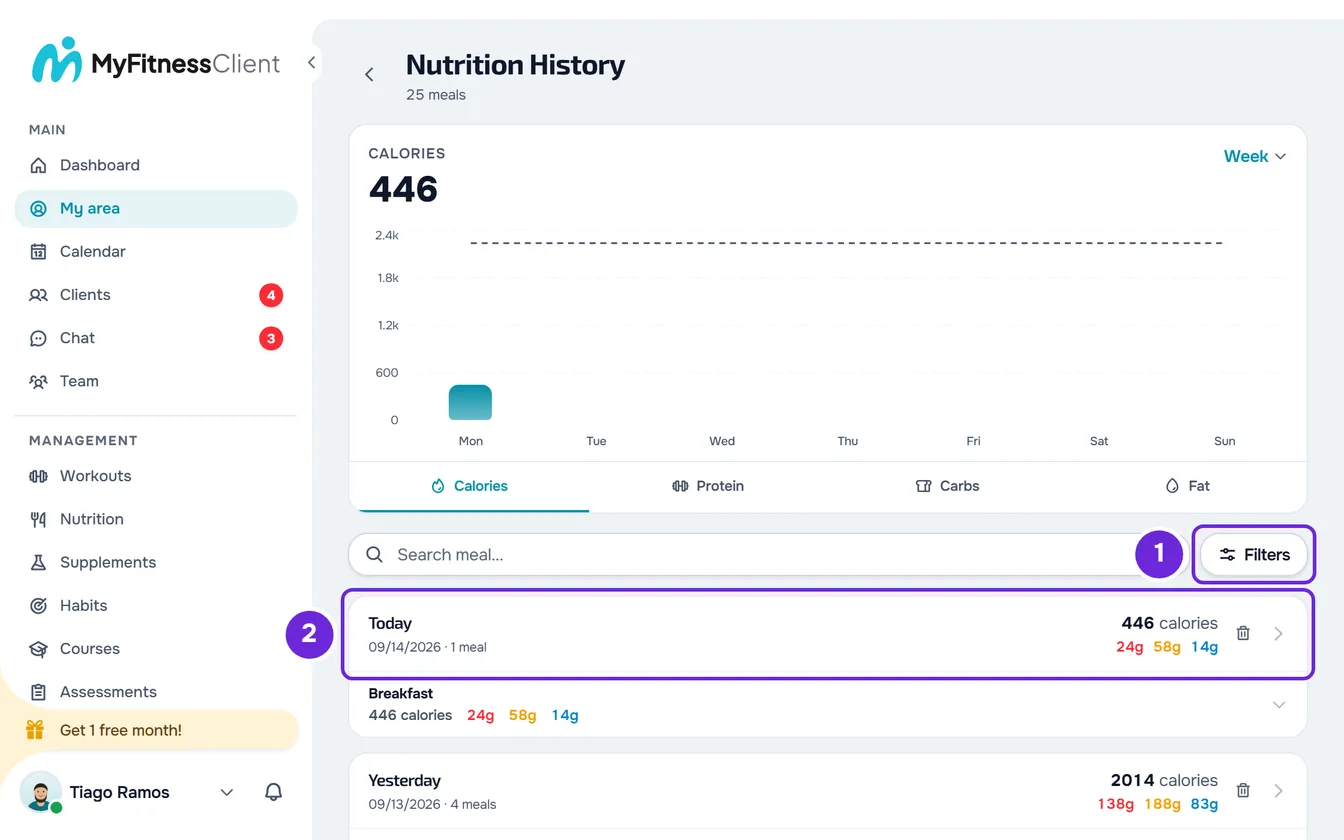
- Find the day in the list, which starts with the most recent. To search between two dates, select Filters 1 and choose the dates in “From...” and “Until...”.
- Select the day's header 2, where the date is. The diary of that day opens, read-only.
- Select Edit. Nutrition opens on that day.
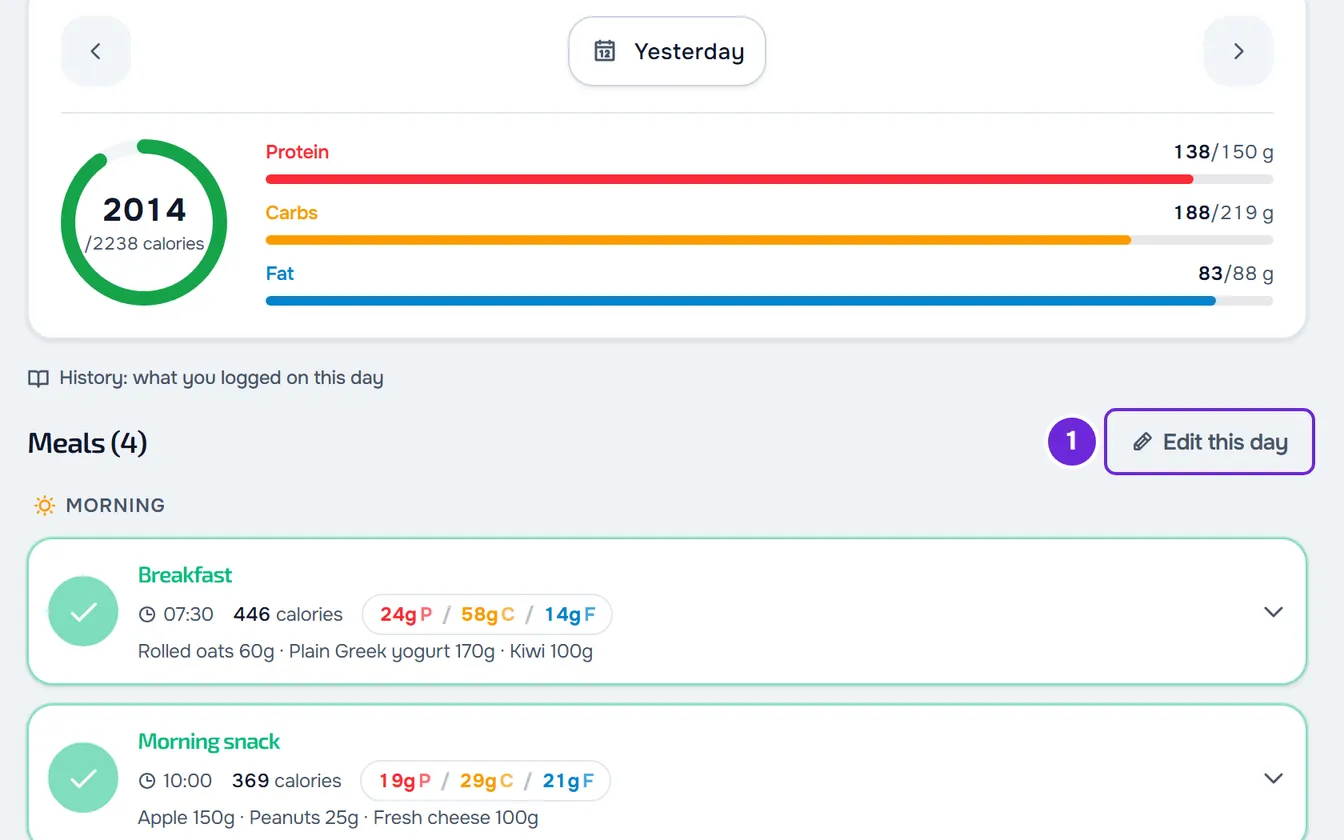
- On a day before today, select Edit this day 1 on the Meals heading row and confirm with Edit day in “Edit a past day?”.
- Fix the day: select a meal's circle to mark or unmark it as eaten, change the foods from the ⋮ menu, or select Add to add a meal.
- When you finish, select Done.
The day goes back to read-only, with your fixes, and the diary of that day and the Nutrition History show them when you open them again. Today opens ready to edit, without Edit this day or Done. If you already know the date, you do not need the history: in Nutrition, choose the day with the arrows or with the date picker on the top card and continue from Edit this day.
For the details of each fix, see Log your meals for the day, Add a meal or a food to your day and Edit, swap or delete a food in your day.
A past day: reading and editing
A day before today opens as a record, with the note “History: what you logged on this day”. The list only shows the meals with a log on that day, the circle is inactive, and the ⋮ menu, the meal's options, Add and Add Food do not appear. On a day with nothing logged, the list is empty until you unlock it; when the plan had meals on that day, it says “Nothing logged on this day”.
After Edit day:
- The note changes to “Editing this day: tick anything you ate but forgot to log”.
- The plan's meals for that day that had no log come back, so you can mark the ones you ate and forgot to log.
- The circle, the ⋮ menu of meals and foods, the meal's options, Add and Add Food come back.
- When the day has logs, Clear records appears, explained in the next section.
The unlock only applies to the open day. When you switch to another day or reload the page, the day goes back to read-only. A day is past when its date comes before today: with an active plan, today is the day in your account's time zone; without a plan, it is the device's.
Clear records or reset the day
On the Meals heading row, when the day has any log and is editable, there is a button that deletes all the logs of that day:
- Reset the day, on today and the following days, with an active plan. The day goes back to the plan, with all meals unmarked.
- Clear records, on an unlocked past day or without an active plan.
Reset the day opens the question “Reset the day?”, with the text “This restores this day's meals to the original plan. Anything you logged on this day is lost.”, and you confirm with Reset the day. Clear records opens the question “Clear this day's records?”, with the text “Deletes everything logged on this day.”, and you confirm with Clear records. Both delete the meals marked as eaten, the foods and options you changed, the name and time changed on that day, your notes, the meals you added and the ones you deleted with Delete meal, which appear again if they belong to the plan. At the end, the notice “Day reset” appears. There is no way to undo it.
To undo only the foods of one meal, use Restore meal in its ⋮ menu: see Log your meals for the day.
The Nutrition History
At the top are the arrow back to Nutrition, the title “Nutrition History” and the number of meals found. Under it:
- The bar chart, with the period total and the period selector: Week (the current week, Monday to Sunday), Month (the current month, in groups of 7 days), 6 Months and Year (by month) and All (the months with logs). The Calories, Protein, Carbs and Fat tabs choose what the chart adds up. In Week, with an active plan, a dashed line marks the plan's goal on the days within the plan's dates, and each bar's tooltip shows the “Target”.
- The search “Search meal...”, which searches by meal name and not by foods.
- Filters, with the order (Newest or Oldest) and the dates “From...” and “Until...”. With dates chosen, Clear removes them and goes back to newest first.
- The list of days. Each day shows Today, Yesterday or the date in full, the short date and the number of meals, the day's calories and macros, the bin icon and an arrow. Selecting a meal shows its foods, with the quantity and calories. The list loads more as you reach the end, 50 meals at a time.
The chart and the list only count the meals marked as eaten.
The diary of a day
The diary has the date in the title (Today, Yesterday or the full date), the Edit button and the bin icon. The top card adds up the calories, protein, carbs and fat of the eaten meals. Each meal shows its calories and macros, the “Not logged” label when you did not mark it as eaten, your note, if you wrote one, and the foods with the quantity, calories and macros of each. The meals you deleted from that day do not appear. The diary is read-only: to change anything, use Edit.
Delete a day
In the Nutrition History, select the day's bin icon, or right-click the day's header and choose Delete. In the diary, the bin icon is next to Edit and only appears when the day has meals. The question is “Delete this day?”, with the text “This action cannot be undone. All meals logged on this day will be permanently deleted.”. Confirm with Delete. The notice “Day deleted” appears and, if you were in the diary, you go back to the previous page.
Deleting a day deletes the same logs as Clear records, including the meals you did not mark as eaten. There is no way to undo it.
Common problems
I cannot mark or change anything on a past day
The day is read-only. Select Edit this day and confirm with Edit day. If you switched to another day or reloaded the page, the day is locked again: unlock it once more.
A day does not appear in the history
The history only lists the days with at least one meal marked as eaten. To fix that day, open it in Nutrition with the arrows or with the date picker, select Edit this day and mark the meals you ate.
“Couldn't load the data.”
It appears when the history or the diary does not load, with the Try again button. Check your internet connection and try again. If it keeps happening, see My area does not open, does not load or does not let you save.
“Couldn't delete the day. Try again.”
Deleting the day failed and the day stays in the history. With no internet connection, “Connection error.” appears instead of this sentence. Check your internet connection and try again. When the server refuses for a known reason, such as a frozen account, the notice for that reason appears instead of this sentence.
Questions
Why is a past day's total in Nutrition different from the history?
The history and the diary only add up the meals marked as eaten. On a past day, the top card in Nutrition adds up all the meals with a log on that day, eaten or not, such as a meal where you changed the foods without marking it.
Can I recover a day I deleted or cleared?
No. Deleted logs do not come back. To log the day again, unlock it with Edit this day and mark the meals you ate once more.