
The shopping list footer has two buttons: Copy gives you the list as text, so you can paste it into a message or your notes, and PDF creates a file to read on your phone or print. On the dashboard, the professional can also add the PDF to a client’s Materials. The app has no PDF: it has Copy and Share.
Before you start
- The text and the PDF contain the list shown on screen, with the days and meals you chose.
- The buttons only become active when the list has finished loading and has foods to buy.
- Team member: the permission to view Nutrition is enough to copy the list and download the PDF.
- Client: on the website, the PDF window only has the format and Download PDF.
Steps
On the website, as a professional or as a client:
- Open the shopping list and choose the days and meals, as in Create the shopping list for a meal plan.
- Wait for the list to finish loading. While it loads or updates, the footer buttons are disabled.
- To get the list as text, in the footer, select Copy 1. The button shows “Copied” for a moment, and you can paste the text into a message, your notes or another app.
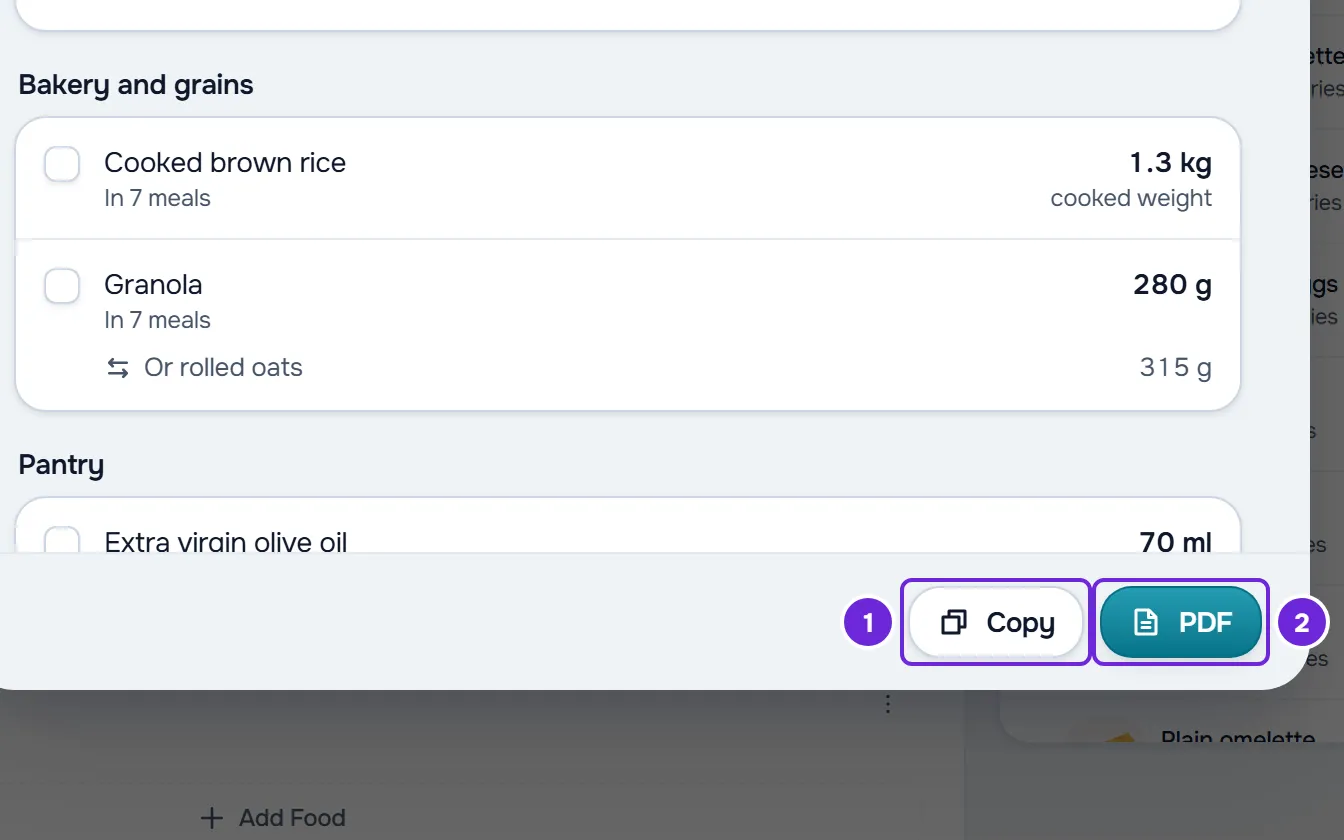
- To save a file, in the footer, select PDF 2. The Export PDF window opens.
- Choose the format: Phone 1, in one column, to read on screen, or A4, to print. The window always opens on Phone.
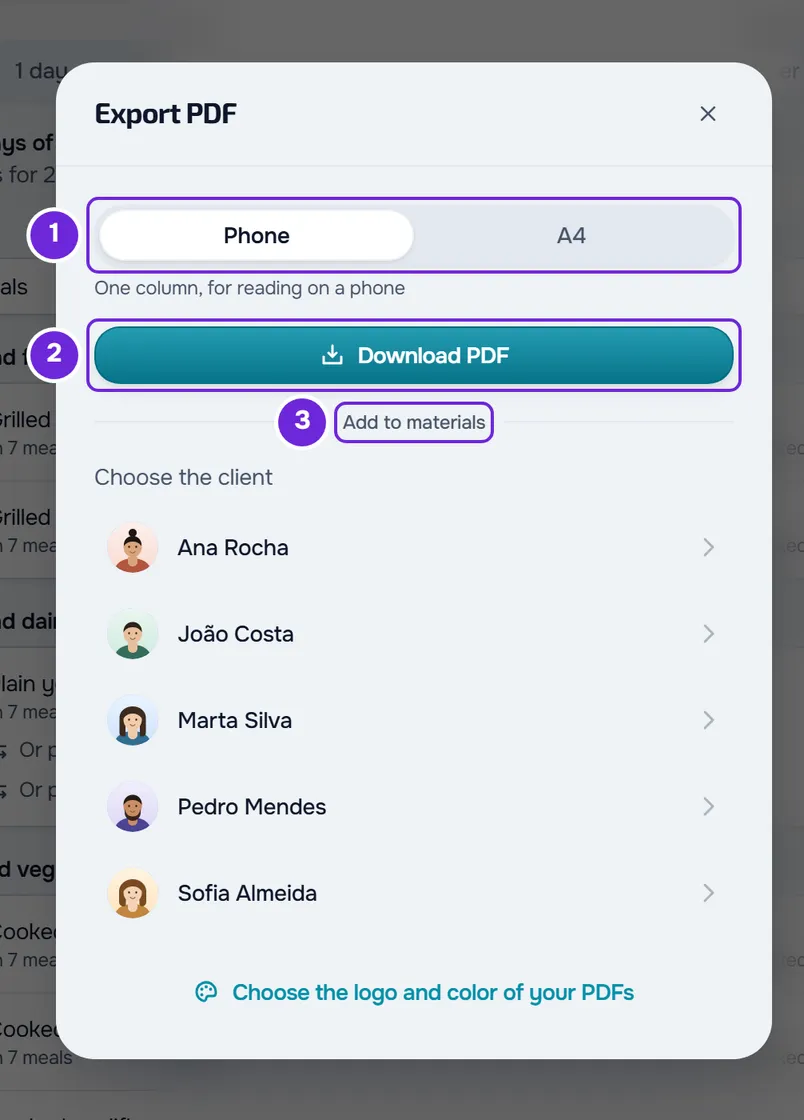
- To download the file, select Download PDF 2.
- Alternatively, to add the PDF to a client’s Materials, if you opened the list from the meal plan on the dashboard: in Add to materials 3, select the client in the Choose the client list.
- In Choose the folder, select the folder where the PDF goes. For a new folder, type the name in Folder name and select Create folder.
The downloaded file has a name like shopping_list_base_plan_2026-10-14.pdf: the document type, the plan name and the day’s date, without accents. In Materials, “Added to materials” appears and the PDF goes into the chosen folder.
What the copied text contains
The text follows the order of the list on screen, without calories:
- “Shopping list”, the plan name, the days and how many foods are for how many meals, for example “14 foods for 35 meals”.
- If you chose only some meals, a line with them, for example “Meals: Lunch, Dinner”.
- Each aisle, with one line per food: the name, the quantity and, when it is known, the approximate weight, for example “Eggs, 14 units (about 840 g)”. Substitutions go on the next line, indented, starting with “Or”.
- “Already have”, with the number in brackets and the foods you ticked off.
- “If you switch options”, with the food from the other meal options.
What the PDF contains
- At the top, “Shopping list”, the plan name, the days (in the professional’s list, for example “Quantities for 7 days of the plan”), how many foods are for how many meals and, if you chose only some, the meals.
- “For” and the client’s name, only in the PDF that goes to their Materials. It is the client’s account name, never the nickname you gave them.
- The sentence “Tick what you already have.” and, when there are substitutions, the note that lines with “or” are alternatives.
- The aisles, in one column in Phone and in two in A4, with a box to tick for each food, the quantity in bold and the substitutions underneath.
- At the end, “If you switch options”, with one block for each meal option.
The PDF does not include what you ticked off on screen: it comes out with all the foods and empty boxes. It does not include calories either. The PDF you download comes out in the language you use the website in; the one that goes to a client’s Materials comes out in the language of their account or, when that is not known, in yours.
When the professional’s brand is active, the PDF shows the logo, or the brand name, at the top of the first page, the brand color in the bar at the top of the pages and the brand name in the footer. Without a brand, it has no logo or name. In a team workspace, the PDF uses the brand of the workspace owner, and the client’s PDF uses their professional’s brand.
In the app
In the latest version of the app, the shopping list has no PDF. The footer has two buttons, which use the same text the website copies, in the same order:
- Copy puts the text on the clipboard and shows “Copied”.
- Share opens the phone’s share sheet, so you can send the text by message, by email or through another app.
Both buttons appear when the list finishes loading and has foods to buy.
Common problems
“Failed to copy” or “Could not copy”
The browser or the phone did not allow writing to the clipboard. Select Copy again. If the warning comes back, save the list as a PDF on the website or, in the app, use Share.
“Couldn't create the PDF. Try again.”
The PDF is created in the browser, and the browser could not create the file. Select Download PDF again and, if the warning repeats, reload the page and open the list again. When the PDF goes to Materials, the warning can also be “Couldn't add to materials. Try again.” or the reason the upload was refused, such as running out of storage space.
The Copy and PDF buttons are disabled
The list is still loading or updating, after you change the days or meals, or it has nothing to buy on the chosen days and shows “No meals on these days.”. Wait for the list to finish loading or choose other days. If “Failed to load shopping list.” appeared, select Try again. The causes, one by one, are in The shopping list shows an error, is empty or has lost your ticks.
In the professional’s list, with “Choose 1 to 31 days.” in Plan days, the buttons are active, but they use the previous list. Type a number from 1 to 31 and wait for the list to update.
Questions
Does the PDF include what I already ticked off?
No. The PDF always comes out with all the foods and empty boxes, so you can tick them off on paper. The copied text includes what you ticked off, under “Already have”.
Is the A4 format remembered?
No. The Export PDF window always opens on Phone, so that a PDF going to a client’s Materials does not come out in A4 by mistake. To print, choose A4 each time.
How do I put my brand on the PDF?
The PDF uses the brand you choose in Settings > My brand. If you are the workspace owner and have not chosen a brand yet, the dashboard’s Export PDF window shows the link “Choose the logo and color of your PDFs”, which opens that section.